Last updated: October 2026
By TerminalWorks — Remote Desktop Scanning Solutions Since 2014
To set up scanning in a multi-user RDS or terminal server environment, keep scanner drivers on the client devices, not on the session host, and send scanned images into each user's session over an RDP virtual channel using a TWAIN redirection tool. Remote Desktop Services has no native scanner redirection, and USB redirection ties one device to one session, so it does not scale across many users.
This guide covers why scanning behaves differently on a shared session host, the three architecture patterns we see working in production, how to size bandwidth and server resources for concurrent scanning, and when USB redirection, network scanners, mobile apps or a dedicated tool like TSScan is the right choice. It closes with a configuration checklist and answers to the questions we hear most often from administrators.
Why Is Scanning Harder Than Printing on a Terminal Server?
Printing over Remote Desktop has a built-in answer: Easy Print. The session host renders print jobs to a generic XPS-based format, the RDP client hands them to the local printer driver, and the server never needs the printer's own driver. Microsoft never built an equivalent for scanners, and there is a technical reason for that.
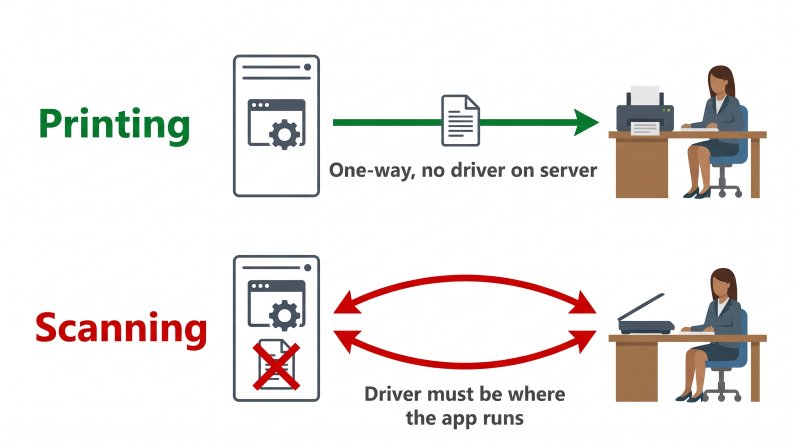
Printing is a one-way, fire-and-forget operation. Scanning is interactive and bidirectional. A business application calls the TWAIN Data Source Manager, which loads the scanner's Data Source (the vendor driver, a .ds file) directly into the application's process. The application then negotiates capabilities with the driver — resolution, color mode, duplex, paper size, page count — shows the vendor's own scanning UI, and receives image data in a callback loop. All of that assumes the driver and the physical hardware live on the same machine as the application. On a session host, the application runs on the server, the scanner sits on a USB port at the user's desk, and nothing in the RDP protocol connects the two.
WIA has a similar problem from a different angle. WIA drivers run under the Still Image service (stisvc) on the machine the device is attached to. A session host has no locally attached scanners, so WIA on the server simply enumerates nothing.
What Changes When 20 or 50 Users Share One Session Host?
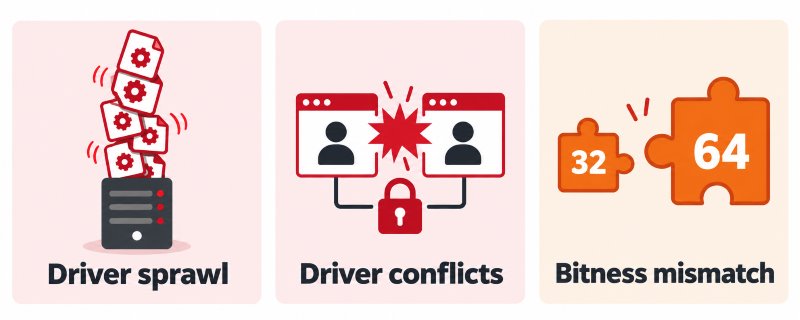
On a single-user VDI desktop, an admin can sometimes get away with installing one scanner driver and redirecting one USB device. On a shared RDS host, three things break that approach:
- Driver sprawl. Every scanner model in use needs its driver installed on every session host. In our experience supporting thousands of RDS environments, a mid-sized office typically has 5–15 different scanner models across desks, and each vendor driver package adds services, tray apps and DLLs to a server that every user shares.
- Driver conflicts. Many TWAIN drivers were written for single-user workstations. They store state in fixed temp paths, global registry keys or named mutexes. When two users in two sessions open the same driver simultaneously, a pattern we see repeatedly is one session hanging or receiving the other user's settings.
- Bitness mismatch. TWAIN 1.x is 32-bit only. Many line-of-business applications that scan — older EMR clients, accounting suites, DMS capture modules — are still 32-bit, while some vendors now ship only 64-bit TWAIN 2.x drivers. A driver that installs cleanly on the server may be invisible to the application that needs it.
How Does USB Redirection Handle Scanners in Multi-User RDS?
RemoteFX USB device redirection forwards the raw USB device from the client into one RDP session. To the server, it looks as if the scanner were plugged into the session host. It is the closest thing to a native option, and it does work in narrow cases. In a multi-user environment it has hard limits:
- The driver still has to be on the server. USB redirection moves the device, not the driver. You keep all the driver sprawl and conflict problems described above.
- One device, one session. A redirected device is claimed by a single session and disappears from the local machine while redirected. That is fine for a personal desk scanner, but it rules out sharing.
- Raw USB traffic over the WAN. Scanners push large bulk transfers of uncompressed image data. USB redirection forwards those packets without image-aware compression, and USB protocol timing does not tolerate latency well. Over a 20–40 ms branch-office link, timeouts mid-batch are one of the most common support tickets we receive from customers who tried this route first.
- Policy and client requirements. It must be enabled on the client side via
Computer Configuration\Administrative Templates\Windows Components\Remote Desktop Services\Remote Desktop Connection Client\RemoteFX USB Device Redirection, requires the full Windows RDP client, and is generally not available from macOS, thin clients without RemoteFX USB support, or web clients.
Three Architecture Patterns for Terminal Server Scanning
Based on over a decade of working with TWAIN scanner redirection in remote sessions, almost every successful multi-user deployment falls into one of three patterns.
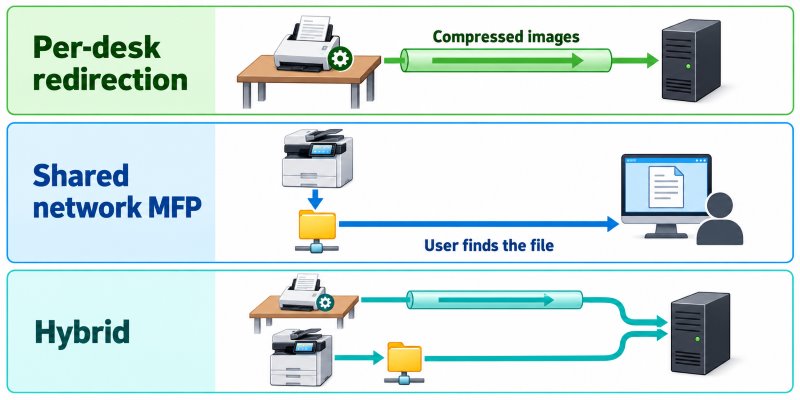
Pattern 1: Local Scanner per Desk with Virtual Channel Redirection
Each user has a scanner attached to their own workstation or thin client. The scanner driver is installed only on that client. A redirection client on the endpoint enumerates local TWAIN devices and exposes them inside the user's session through an RDP virtual channel. The application on the session host sees a TWAIN source, opens it, and receives compressed image data from the client.
- Server footprint: one server component, no vendor scanner drivers.
- Isolation: each session only sees the scanners of the client it connected from, so there are no cross-session conflicts.
- Best for: reception and intake desks, legal assistants scanning signed contracts, accountants processing client documents into a DMS.
Pattern 2: Shared Network Scanners with Scan-to-Folder
A multifunction device (Brother MFC, Canon imageRUNNER, Epson WorkForce Enterprise, Ricoh) scans to an SMB share, email or a DMS connector. Users then open or import the file from inside their session. No device redirection is involved.
- Server footprint: a file share or capture service, no drivers on session hosts.
- Trade-off: the scan is not initiated from inside the business application. Users scan, walk back, find the file and attach it. Applications that require a TWAIN "Acquire" button cannot use this flow at all.
- Best for: high-volume batch work where documents are later indexed, and offices where a central MFP already exists.
Pattern 3: Hybrid
In practice, most organizations with more than about 30 users end up here: per-desk redirection for applications that must scan in-line, plus a central MFP feeding a hot folder for bulk intake. The key design decision is assigning each workflow to the correct path, which the comparison below helps with.
When Should You Use USB Redirection, Network Scanners, Mobile Apps or TSScan?
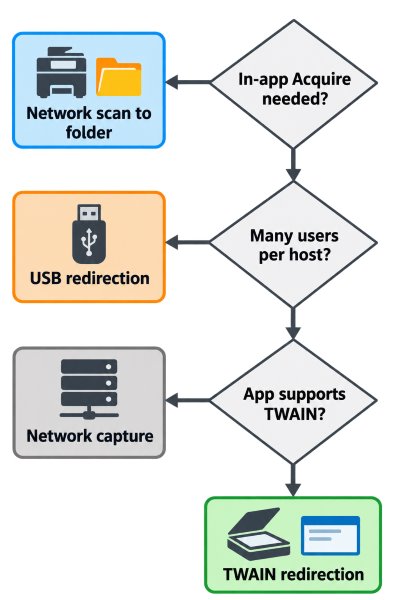
| Approach | Works well when | Breaks down when |
|---|
| RemoteFX USB redirection | Single-user VDI, LAN connection, one supported scanner model, Windows clients only | Many users per host, mixed scanner models, WAN or high latency, macOS or thin clients |
| Network scanner, scan-to-folder or email | Batch scanning, documents filed later, a central MFP is already in place | The application needs an in-app TWAIN Acquire step; per-user routing of files is unmanaged |
| Mobile scanner apps | Occasional single pages, field staff, receipts | Multi-page duplex batches, consistent DPI and color required, regulated records |
| Dedicated TWAIN redirection (TSScan, RemoteScan, FabulaTech Scanner for Remote Desktop) | Many users on shared hosts, mixed scanner models, applications that scan through TWAIN, WAN links | The application only supports ISIS or a proprietary scanner SDK |
Dedicated redirection tools share the same core idea: keep the driver on the client and move images, not USB packets. They differ in licensing model, platform coverage and how they handle compression and driver mapping, so it is worth testing against your own scanners and applications.
Where TSScan Is Not the Right Fit
Being honest about this saves everyone time:
- ISIS-only production capture. Some production capture applications for high-speed Kodak Alaris or fi-series scanners use ISIS drivers. TSScan is built around TWAIN. If your capture software cannot use a TWAIN source, look at a network capture workflow instead.
- Check scanners. Bank check scanners (Panini, Digital Check, Epson CaptureOne) are usually driven through the vendor's own API for MICR line reading, not TWAIN. Those need the vendor's remote-session support or USB redirection.
- Handheld barcode scanners and signature pads. Most barcode scanners act as a USB keyboard (HID) and already work in RDP through keyboard input. Signature pads from Wacom or Topaz use their own virtual channel components. Neither needs scanner redirection.
How Much Bandwidth Does Multi-User Remote Desktop Scanning Need?
This is where most terminal server scanning projects underestimate the load. Image size grows with resolution squared and with color depth, and raw scanner output is large:
| A4 page at 300 DPI | Raw size per page | Typical compressed size | 50-page batch, raw |
|---|
| Color, 24-bit | ~26 MB | 0.6–1.5 MB (JPEG) | ~1.3 GB |
| Grayscale, 8-bit | ~8.7 MB | 0.3–0.8 MB (JPEG) | ~435 MB |
| Black and white, 1-bit | ~1.1 MB | 30–100 KB (CCITT G4) | ~55 MB |
On a 10 Mbit/s uplink (about 1.25 MB/s), a single raw color page takes around 20 seconds. A 50-page color batch sent uncompressed — which is roughly what USB redirection does — takes more than 15 minutes and saturates the link for everyone else on that site. The same batch compressed to about 1 MB per page transfers in under a minute.
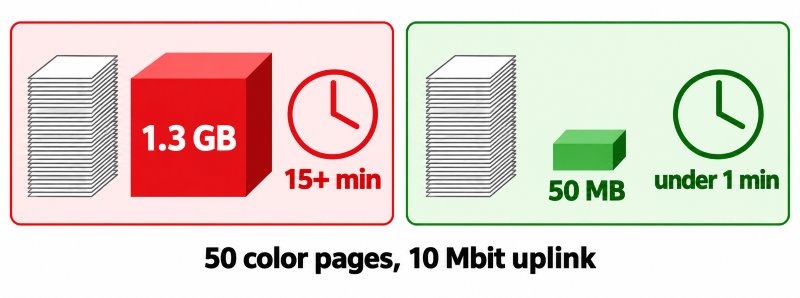
For multi-user sizing, plan for peak concurrency, not average use. A clinic with eight intake desks scanning patient IDs and referral letters at 8:00 every morning behaves very differently from an office where scanning is spread across the day. A practical rule we use with customers: peak concurrent scanners × average compressed page size × pages per minute should stay below about 50% of the site's uplink.
Choosing Color Depth and DPI per Workflow
- Text documents, contracts, invoices: black and white or grayscale at 300 DPI. 300 DPI is the reliable baseline for OCR; going higher rarely improves recognition accuracy.
- ID cards, KYC documents, color-coded forms: color at 300 DPI with JPEG compression.
- Medical images or photos attached to records: color, and verify that the receiving system accepts the compression format without re-encoding.
Setting sensible defaults in the scanning profile does more for performance than any server-side tuning. One of the most common patterns we see is a whole department scanning text-only invoices in 24-bit color at 600 DPI because nobody changed the driver default.
Session Host Resources: CPU, Temp Storage and Profiles
Network transfer is only half of the image acquisition pipeline. The session host also has to decompress images, hand them to the application, and often convert them to PDF or run OCR. Points to plan for:
- CPU spikes during PDF and OCR conversion. Multi-page OCR in a DMS capture client can use a full core per user for tens of seconds. On a host with 30 users, five people running OCR simultaneously is noticeable. Offload OCR to a server-side DMS process where possible.
- Temp files and profile containers. Scanning applications commonly write intermediate images to
%TEMP%. With FSLogix profile containers, that temp data ends up inside the user's VHDX unless excluded, inflating profiles by hundreds of megabytes. Make sure temp folders are excluded from the profile container or redirected to local non-persistent storage. - Logoff cleanup. Abandoned batches left in temp folders on shared hosts are both a disk problem and, in healthcare or legal settings, a data-protection concern. Enable deletion of temporary folders on exit for RDS sessions.
How Does TSScan Work in a Multi-User RDS Environment?
TSScan follows Pattern 1. The TSScan Client runs on the user's endpoint and maps the local scanners to the session; the TSScan Server component runs on the session host. Inside the session, applications can either select TSScan as their TWAIN source or pick one of the user's local scanners, which are mapped directly through dynamic redirection. No vendor scanner drivers are installed on the server.
Image data travels over a Microsoft RDP virtual channel, compressed and encrypted, so it works on any network where an RDP connection works. The same approach supports Citrix and VMware Horizon sessions, and macOS clients alongside Windows. For users who do not need in-app scanning, TSScan also includes a standalone scanning application that saves directly to PDF, TIFF, JPEG or BMP on the server.
For scanners that rely on their own software stack — the Fujitsu ScanSnap line is the most common example — TSScan exposes the device as a TWAIN source in the session, so a ScanSnap iX1600 at a front desk can feed an EMR or DMS running on the terminal server without any configuration on the server side.
Licensing is per user, which suits RDS farms where the number of scanning users is known but sessions move between hosts.
Multi-User Terminal Server Scanning Checklist
- Inventory workflows, not just scanners. List which applications scan, whether they need in-app TWAIN acquisition, and whether they are 32-bit or 64-bit.
- Keep vendor scanner drivers off session hosts. Install them on client endpoints only.
- Assign each workflow to a path. In-app scanning goes through virtual channel redirection; bulk batch intake goes to a network MFP and hot folder.
- Set default scan profiles per department. Grayscale or black and white at 300 DPI unless color is genuinely required.
- Size for peak concurrency. Check uplink capacity at each branch against peak simultaneous scanning.
- Handle temp data. Exclude scan temp folders from FSLogix or roaming profiles and clean them up at logoff.
- Check virtual channel policies. In Citrix environments with a virtual channel allow list enabled, add the scanning channel to the list, or it will be silently blocked.
- Test with the real application and the slowest site. A test on the LAN with one user proves very little; test a 50-page duplex batch from the branch with the worst latency.
Frequently Asked Questions
No. No version of Remote Desktop Services has a scanner equivalent of Easy Print. The only built-in option is RemoteFX USB device redirection, which forwards the raw device to one session and still requires the scanner's driver on the server. For multi-user scanning you need a TWAIN redirection tool or a network scanning workflow.
In a multi-user environment, avoid it. Every model then needs a driver on every host, many TWAIN drivers are not designed for simultaneous use by several sessions, and driver updates become a farm-wide change. Keeping drivers on client endpoints and redirecting images over a virtual channel removes those problems.
Yes, as long as each user scans from their own local scanner through a session-aware redirection method. Each session then only sees the devices of the client it connected from. Problems arise mainly when several sessions load the same server-side driver at once, which is why server-installed drivers are the usual cause of concurrent scanning failures.
Usually because uncompressed image data is crossing the network. A single A4 color page at 300 DPI is about 26 MB raw, so a 50-page batch is over 1 GB. USB redirection forwards that data without image-aware compression. Compressing on the client before transfer, and choosing grayscale or black and white where color is not needed, typically reduces transfer volume by 95% or more.
TSScan is built around TWAIN, which almost all document scanners and business applications support. If your capture application can only use ISIS drivers, TSScan is not the right fit for that workflow. In that case a network scanner with a capture server or the scanner vendor's own remote solution is usually the better route.
Citrix and VMware Horizon have their own scanner and USB redirection features, with similar limitations to RDP when many users and models are involved. TSScan works in RDP, Citrix and VMware Horizon sessions. In Citrix, check whether a virtual channel allow list policy is enabled, because unlisted custom channels are blocked.
For batch intake where documents are indexed later, yes, and it is often the most efficient option. It falls short when the business application expects users to click Acquire and scan straight into a record, as many EMR, accounting and DMS clients do. Most larger environments use both: network scanning for bulk work and TWAIN redirection for in-app scanning.
ScanSnap models are designed around Fujitsu's own desktop software rather than a standard TWAIN driver, which makes them difficult to use in remote sessions. USB redirection rarely helps, because the ScanSnap software would also need to run on the server. TSScan exposes ScanSnap devices as TWAIN sources inside RDP, Citrix and VMware sessions without any server-side driver or configuration.
Summary
Scanning in multi-user RDS and terminal server environments works reliably when scanner drivers stay on the client devices and only compressed images travel into each session. Native USB redirection does not scale across many users, mixed scanner models or WAN links, while network scanners cover batch intake but not in-app TWAIN scanning. Plan for peak concurrent bandwidth, set sensible color and DPI defaults, and keep temp data out of user profiles. If your applications scan through TWAIN and your users share session hosts, TSScan is built for exactly that scenario.


