Last updated: April 2026 By TerminalWorks — Remote Desktop Printing Solutions Since 2014
To print from a Mac to a Windows Remote Desktop or Terminal Server session, enable printer redirection in the Microsoft Remote Desktop client under Devices → Redirect printers. Your Mac printers appear remotely when either Easy Print or matching drivers are installed on the server. For Zebra, Dymo, or Epson receipt printers, a universal print driver such as TSPrint is typically required.
This guide covers the full picture: how printer redirection between macOS and Windows RDS actually works under the hood, how to set it up in the native Microsoft client, why it frequently fails with label printers and receipt printers, and when it makes sense to replace the native flow with a third-party universal driver. Based on over a decade of supporting Mac-to-Windows RDP printing across more than 30,000 deployments, the same issues recur — we'll go through each one, including the root cause and the fix.
How Printer Redirection Works Between macOS and Windows RDS
Understanding why Mac-to-RDP printing is harder than Windows-to-RDP printing requires knowing how the two operating systems handle print jobs internally.
The macOS Side: CUPS and Quartz PDF
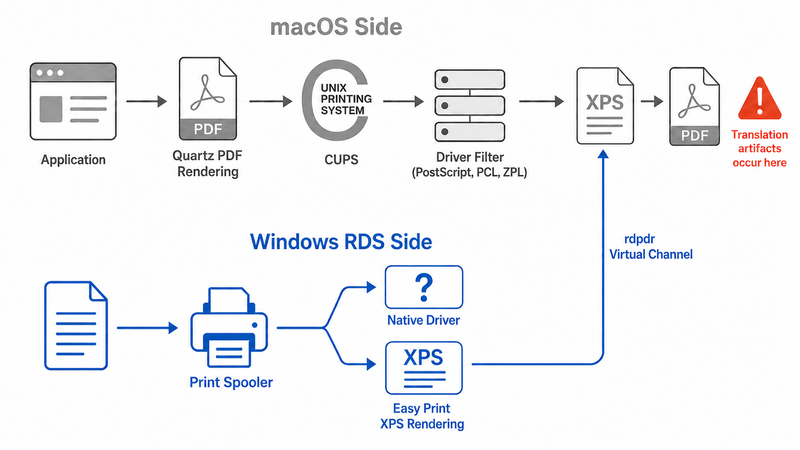
macOS has used CUPS (Common Unix Printing System) as its printing backend since OS X 10.2, and it renders print jobs as PDF through the Quartz graphics layer. When you hit Print on a Mac, the application generates a PDF representation of the document, CUPS hands it to a printer-specific filter chain, and the filter converts the PDF to the printer's native language — PostScript, PCL, ZPL, ESC/POS, and so on.
The Microsoft Remote Desktop client on Mac enumerates printers from CUPS and offers to redirect them over RDP. But here's the catch: the client only exposes a CUPS queue name and a generic driver hint to the server. It does not send the Mac's actual print filter or driver to the Windows side — there's no mechanism to do so.
The Windows Side: Print Spooler, EMF, XPS, and Easy Print
On a Windows Remote Desktop Session Host, the spooler receives redirected printer metadata over the RDP printer virtual channel (rdpdr.sys). Windows then tries to match the incoming printer name and model string against an installed driver. If there's no match, Easy Print takes over.
Easy Print is the universal driver Microsoft introduced in Windows Server 2008 R2. It renders jobs as XPS (XML Paper Specification) on the server, ships the XPS stream back through the virtual channel to the client, and the client converts XPS to its native format for printing. On Windows clients, this works reasonably well because XPS is a native Windows format. On a Mac, the Microsoft Remote Desktop client must convert XPS back to PDF before handing it to CUPS, and that extra translation layer is where most rendering artifacts and paper-size problems originate.
In our experience supporting thousands of RDS environments, roughly 60-70% of Mac RDP printing support tickets trace back to this XPS-to-PDF-to-printer-language round trip.
Enabling Printer Redirection in Microsoft Remote Desktop for Mac
The native client has undergone several name changes: Microsoft Remote Desktop 8, Microsoft Remote Desktop 10, and, most recently, Windows App, which replaced the standalone Remote Desktop client in 2024. The setup flow is similar across versions.
- Open Windows App (or Microsoft Remote Desktop) on macOS.
- Right-click the saved PC connection and choose Edit.
- Go to the Devices & Audio tab (older versions) or Devices section (Windows App).
- Check Redirect printers.
- Save and reconnect.
Once connected, open Devices and Printers on the Windows server. Your Mac's printers should appear with names like HP LaserJet Pro (redirected 2). If they don't:
- Confirm Easy Print is installed on the RDS host — it's part of the Remote Desktop Session Host role.
- Check that the Group Policy path Computer Configuration → Administrative Templates → Windows Components → Remote Desktop Services → Remote Desktop Session Host → Printer Redirection is not blocking redirection.
- Verify that the setting Do not set default client printer to be the default printer in a session is configured according to your needs.
- Restart the Print Spooler service on the server. A pattern we see repeatedly is that the spooler enters a bad state after failed driver installation attempts and simply needs a restart before redirected printers show up.
Why Printing from a Mac Over RDP Often Fails
One of the most common support tickets we receive is some variation of: "My Mac printer shows up in the session but prints blank pages, wrong paper size, or garbage characters." Here are the root causes, in rough order of frequency.
Driver Mismatch Between macOS and Windows
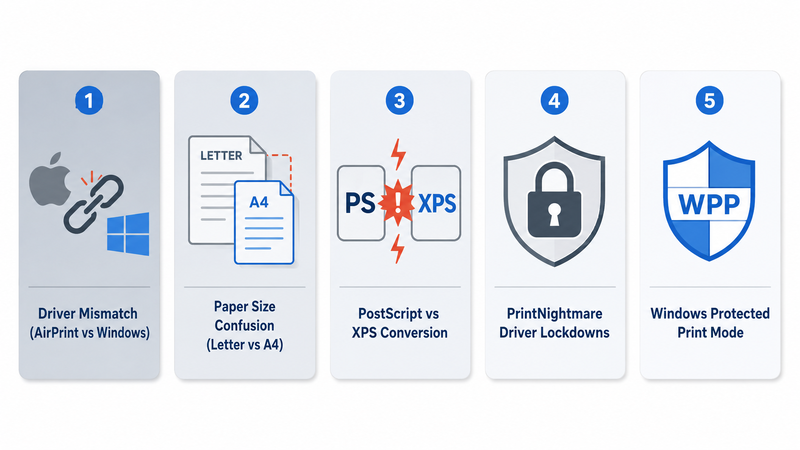
The Mac client advertises a printer model string, but the Windows server needs a driver that accepts that model. If the printer is an AirPrint-only device — common with consumer HP, Canon, and Brother models sold after 2018 — there is no Windows driver at all, because AirPrint is an Apple protocol that simply doesn't exist on Windows Server. Easy Print will handle basic jobs, but features like duplex, tray selection, and stapling will be missing or silently ignored.
Paper Size Confusion (Letter vs A4)
macOS defaults to the region's standard paper size. A Mac configured in Germany prints A4 by default; an RDS host configured in the US prints Letter by default. The XPS translation layer doesn't always honor the client-side paper size, and jobs come out cropped, scaled, or shifted. The fix is to explicitly force the paper size in the application's print dialog, rather than relying on defaults propagated through redirection.
PostScript Printers and XPS
Easy Print renders to XPS. If your printer is a PostScript device — many high-end Xerox, Ricoh, and Canon imageRUNNER units are PostScript-first — the XPS-to-PostScript conversion at the client can mangle fonts, especially non-Latin scripts. In these cases, installing the manufacturer's Windows driver on the RDS host and letting the redirected printer bind directly to it (bypassing Easy Print) produces cleaner output, though it requires admin-level driver management.
PrintNightmare and Driver Installation Lockdowns
After the PrintNightmare vulnerabilities (CVE-2021-34527 and related) in 2021, Microsoft progressively tightened who could install print drivers on Windows Server. On Server 2022 and later, the Point and Print Restrictions and Limits print driver installation to Administrators policies block non-admin users from installing drivers at connect time. Many admins turn these policies off to "fix" Mac printing, which re-opens the vulnerability. The right fix is either to pre-stage drivers on the host or use a universal driver that doesn't require per-printer driver installation.
Windows Protected Print Mode
Windows 11 24H2 and Windows Server 2025 introduced Windows Protected Print Mode (WPP), which removes third-party driver support entirely and allows only IPP/Mopria-class drivers. On RDS hosts with WPP enabled, Easy Print's third-party driver interface is disabled, and redirected printers that rely on manufacturer drivers will fail to initialize. Admins migrating to Server 2025 need to either leave WPP off for RDS roles or deploy a universal driver solution that operates at the application layer rather than installing a kernel driver.
Specialty Printers: Zebra, Dymo, and Receipt Printers from a Mac
This is where native Mac RDP printing falls apart, and it's the single biggest reason customers contact us.
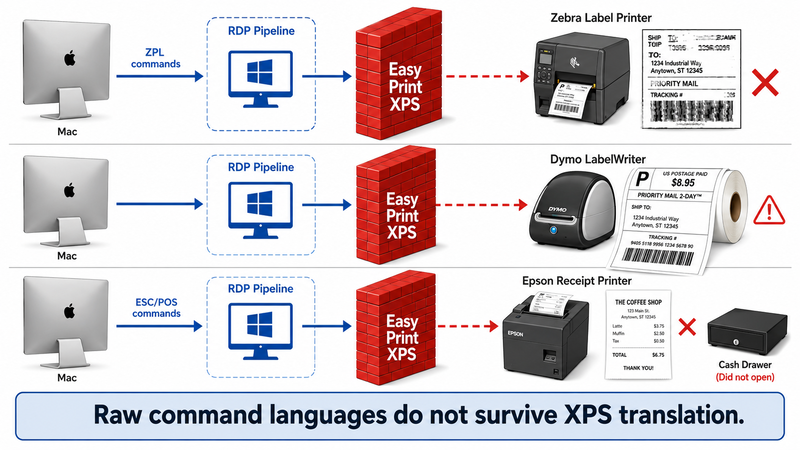
Zebra label printers (ZD410, ZD620, ZT230, GK420) speak ZPL. The Mac driver sends ZPL directly to the printer. Easy Print does not understand ZPL — it renders an XPS page, and when that reaches the Zebra printer, the printer either produces a rasterized bitmap of the label (slow, low-quality, often 10x the expected ribbon usage) or prints a full page of raw ZPL source code.
Dymo LabelWriter printers (450, 550, 5XL) are similar. Dymo's Mac and Windows drivers both exist, but the redirected session must bind to Dymo's Windows driver on the RDS host. Even then, the label-size negotiation frequently fails — users end up with a 4x6 shipping label rendered onto a 30252 address label roll.
Epson and Star receipt printers (TM-T88, TSP143) speak ESC/POS over USB or network. Again, raw commands don't survive the XPS round trip. Receipt printing from a Mac over RDP using Easy Print essentially doesn't work for production POS use.
Based on over a decade of supporting retail, healthcare (EMR wristband printing), and logistics deployments, native macOS RDP printer redirection is not a viable solution for printers that use a raw command language. You need either direct network printing — bypassing the session entirely and printing from the server to the printer's IP address — or a universal print driver that handles command pass-through.
Using TSPrint to Print from a Mac to a Remote Desktop Session
TSPrint takes a different architectural approach. Instead of redirecting a printer object through the RDP printer virtual channel and relying on Windows to render to the Mac's driver, it installs a single universal printer on the Windows server and a small client agent on the Mac. The server renders print jobs to PDF, sends the PDF over a dedicated virtual channel, and the Mac client hands the PDF to CUPS, which then uses the Mac's actual native driver to print.
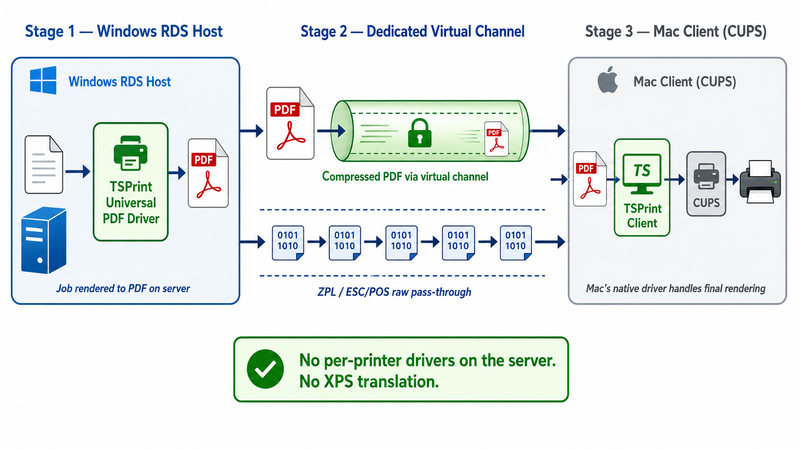
The architectural difference matters:
- No per-printer driver installation on the RDS host. One driver (TSPrint PDF driver) serves every client printer.
- No XPS translation. Jobs travel as PDF, which is macOS's native print format anyway, so fidelity is preserved end-to-end.
- Raw pass-through channels for ZPL, ESC/POS, and EPL. Zebra and receipt printers work because TSPrint sends the raw printer language directly to the client, without rendering it.
- TSPrint Client for Mac is a native macOS application. Install it once on the Mac, connect to the RDS host where TSPrint Server is installed, and the universal printer appears in every user's session automatically.
Setup takes about 10-15 minutes for a typical deployment:
- Install TSPrint Server on the Windows RDS host, or on each session host in a farm.
- Install TSPrint Client for Mac on each Mac workstation.
- Connect via Microsoft Remote Desktop / Windows App as usual.
- In the remote session, select TSPrint Default (or TSPrint Printer to choose per job) in any application's print dialog.
On pricing and positioning: TSPrint uses a per-concurrent-user perpetual license, priced in the $79/user range with volume discounts at higher tiers. Compared to enterprise alternatives — ThinPrint, ScrewDrivers (Tricerat), and ezeep, which use a subscription cloud model — TSPrint is positioned as a focused, perpetual-license tool for small- to mid-size RDS deployments. FabulaTech's Printer for Remote Desktop uses a USB-redirection approach that works for locally attached printers but struggles with networked office printers; TSPrint handles both with a single universal driver.
Native Mac RDP Printing vs TSPrint: When to Use What
We believe in being honest about when our product is overkill. Here's the breakdown:
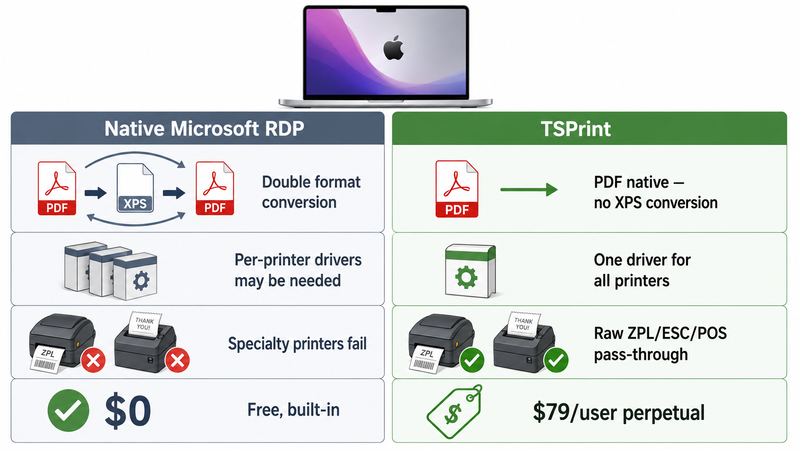
| Scenario | Native Microsoft RDP | TSPrint |
|---|
| Office laser/inkjet, basic documents | ✓ Usually fine | ✓ Better fidelity |
| PostScript printers, complex layouts | Mixed results | ✓ Clean PDF pipeline |
| Zebra / Dymo label printers | ✗ Fails reliably | ✓ Raw ZPL pass-through |
| Epson / Star receipt printers | ✗ Fails reliably | ✓ Raw ESC/POS pass-through |
| Server 2025 with Protected Print Mode | ✗ Easy Print crippled | ✓ Works without WPP exemption |
| Non-admin users, locked-down hosts | ✗ Driver install blocked | ✓ No per-printer drivers |
| 1-5 Macs, basic office printing only | ✓ Free, built-in | Probably overkill |
| Mixed Mac/Windows/iOS clients | Partial | ✓ Unified universal driver |
| AirPrint-only consumer printers | Partial via Easy Print | ✓ Uses Mac's native driver |
If your environment is a handful of Macs printing basic PDFs and emails to standard office MFPs, the native Microsoft Remote Desktop client with Easy Print is genuinely sufficient — don't buy anything. If you're running a medical clinic with wristband printers, a retail operation with Star receipt printers, or a distribution center with Zebras, native redirection is not a viable solution, and a universal driver tool pays for itself in the first week by eliminating driver-mismatch troubleshooting.
Security Considerations
Printer redirection is a security surface. The PrintNightmare family of vulnerabilities exploited how the print spooler handled driver installation for redirected printers. On a Mac-to-Windows session, the Mac itself is unlikely to be the attack vector, but a compromised Mac client could theoretically push a malicious driver through redirection if restrictions aren't in place.
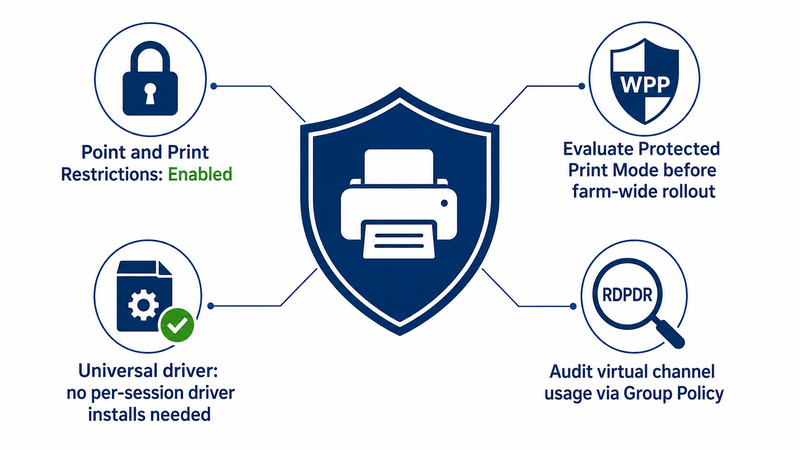
A reasonable baseline:
- Keep Point and Print Restrictions enabled and limit driver installation to administrators.
- On Windows Server 2025, evaluate whether Protected Print Mode is compatible with your printer fleet before enabling it farm-wide.
- If you use a universal driver (TSPrint, ThinPrint, ScrewDrivers), you can leave driver-installation policies fully locked down because no per-printer driver is ever installed during a session.
- Audit RDP virtual channel usage — the
RDPDR channel carries printer, drive, and device redirection, and should be scoped with Group Policy to only what's required for your users.
Frequently Asked Questions
The three most common causes are: printer redirection is disabled in the Windows App / Microsoft Remote Desktop client settings, Group Policy on the RDS host is blocking redirection, or Easy Print is not installed on the server. Check each in that order. A spooler restart on the server clears a surprising number of these cases, particularly after a Windows update to the print stack.
Yes, but only as a consumer of XPS streams from the server — not as a renderer itself. The Windows server renders the XPS with Easy Print, ships the XPS back over the RDP printer channel, and the Mac client converts the XPS to PDF before handing it to CUPS. This extra translation step is reliable for plain documents but causes problems with PostScript, label, and receipt printers.
Native Mac RDP printer redirection does not reliably send ZPL commands to a Zebra printer because Easy Print rasterizes the print job to XPS. You have two working options: print directly from the Windows server to the Zebra printer at its IP address on port 9100, bypassing redirection entirely, or use a universal driver like TSPrint with raw ZPL pass-through, which preserves the ZPL stream end-to-end. Rasterized-bitmap printing technically works, but ruins print quality and wastes ribbon.
Yes, for basic documents — the built-in Microsoft Remote Desktop / Windows App client handles printer redirection natively, and Easy Print on the server covers most office printers without a driver install. You'll run into trouble with specialty printers, PostScript devices, or environments where driver installation is restricted. For those cases, a third-party universal driver is the practical option.
Yes. TSPrint operates at the application layer within the Windows session and is independent of the RDP client used on the Mac. It works with the current Windows App, the older Microsoft Remote Desktop 10, Jump Desktop, Royal TSX, Parallels Client, and other RDP clients that support the standard virtual channel API.
RDP printer redirection sends the full rendered document over the printer virtual channel. A 50-page document with embedded images can grow to 15-30 MB in XPS format, and over a bandwidth-constrained WAN link with a 5 Mbps uplink or less, that translates to 30-90 seconds of spooling before the first page prints. TSPrint and other universal drivers render to PDF server-side, typically producing files 3-5x smaller, and support compression on the virtual channel to further reduce transfer time.
Partially. AirPrint printers show up in CUPS on the Mac, and the Microsoft Remote Desktop client redirects them, but the Windows server has no AirPrint driver, so Easy Print is used with a generic driver. Basic printing works, but advanced features such as duplex, tray selection, and high-DPI photo printing are unavailable. A universal driver solution that uses the Mac's native CUPS driver on the client side preserves full AirPrint functionality.
Easy Print itself remains available in Windows Server 2022 and Server 2025, but Windows Protected Print Mode on Server 2025 disables third-party printer drivers, which effectively prevents Easy Print from redirecting printers that rely on non-IPP class drivers. Microsoft's direction is clearly toward IPP and Mopria as the only supported driver models, which will progressively reduce Easy Print's practical usefulness over the next few server releases.
Each user's session gets its own redirected printer instance, so the same physical printer appears multiple times on the server — once per connected user. In an RDS farm with several session hosts, the user's printer is redirected only to the host they're currently connected to. Universal driver solutions handle this cleanly by exposing a single printer name per user session, regardless of which host in the farm the user lands on, thereby simplifying application-side printer selection.
Both use a universal driver architecture, but TSPrint is designed for small- to mid-RDS deployments, typically 5-500 users, with a perpetual-license, per-concurrent-user pricing model. ThinPrint targets enterprise deployments, offering features such as bandwidth shaping, print policy management, and deep integration with Citrix and VMware Horizon, typically on a subscription basis. For straightforward Mac-to-RDS printing without enterprise policy requirements, TSPrint is usually the more practical choice; for 1000+ user deployments with complex governance needs, ThinPrint's feature depth is worth the price.
Summary
Mac-to-Windows RDP printing works out of the box for simple office printing via Microsoft's native client and Easy Print, but the XPS translation layer introduces rendering issues with PostScript, label, and receipt printers. Recent changes, such as Windows Protected Print Mode, are making the native path increasingly fragile. For basic document printing from a small Mac fleet, the built-in redirection is genuinely adequate. For specialty hardware, locked-down Server 2025 environments, or PrintNightmare-era security policies, a universal driver removes the entire category of driver-matching problems.
Check out the TSPrint for a free trial here!


