By TerminalWorks - Remote Desktop Scanning Solutions Since 2014
Use a network scanner with scan-to-folder when documents only need to land in a shared location. Use RDP scanner redirection when the remote application itself must drive the scanner through TWAIN or WIA. Use a mobile scanner app only for occasional, low-volume capture away from a desk. Document volume, application integration and audit requirements decide the answer.
That short answer hides a lot of engineering detail, and the detail is where deployments go wrong. Below we explain why no version of Remote Desktop Services ships with scanner redirection, why USB device redirection is not the workaround most administrators expect it to be, what each of the three approaches actually costs in bandwidth and operator time, and where the honest boundaries between them sit. The numbers and failure patterns come from over a decade of supporting remote desktop scanning across more than 30,000 companies.
Why Remote Desktop Has No Built-In Scanner Redirection
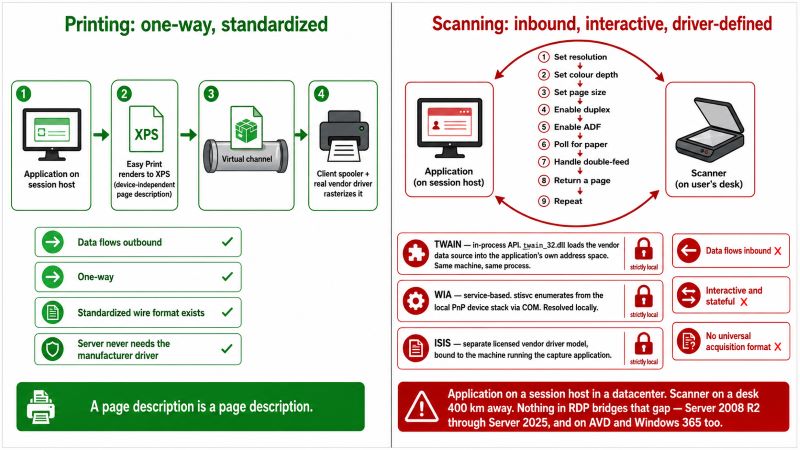
Printing over RDP works because printing is a one-way problem with a standardized wire format. Remote Desktop Easy Print renders the print job on the session host into a device-independent format (XPS, or EMF on older stacks), pushes it down a virtual channel, and lets the client-side spooler and the real vendor driver rasterize it. The server never needs the manufacturer driver, because a page description is a page description.
Scanning inverts every one of those properties. The data flows inbound, the session is interactive, and there is no universal image acquisition protocol equivalent to XPS. A scan operation is a continuous negotiation: set resolution, set color depth, set page size, enable duplex, enable the automatic document feeder, poll for paper, handle a double-feed, return a page, repeat. That conversation is defined by the driver model, and both Windows driver models are strictly local.
- TWAIN is an in-process API. The application loads
twain_32.dll or TWAINDSM.dll, which enumerates data sources from C:\Windows\twain_32\ and loads the vendor data source into the application's own address space. Application and driver must be the same machine, in the same process. - WIA is service-based. The Windows Image Acquisition service (
stisvc) enumerates devices from the local PnP device stack and exposes them through COM. Again, everything is resolved locally. - ISIS, used by production capture platforms, is a separate licensed driver model shipped by the scanner vendor and bound to the machine where the capture application runs.
When the application runs on a session host in a datacenter and the scanner sits on a desk 400 km away, there is nothing in the RDP protocol that bridges that gap. This has been true from Windows Server 2008 R2 through Windows Server 2025, and it is true on Azure Virtual Desktop and Windows 365 as well. One of the most common support tickets we receive still opens with a variation of "the scanner works locally but the remote application says no scanner found," and the answer is always the same: the remote application is looking at the server's driver stack, which is empty.
Why USB Device Redirection Is Not a Substitute
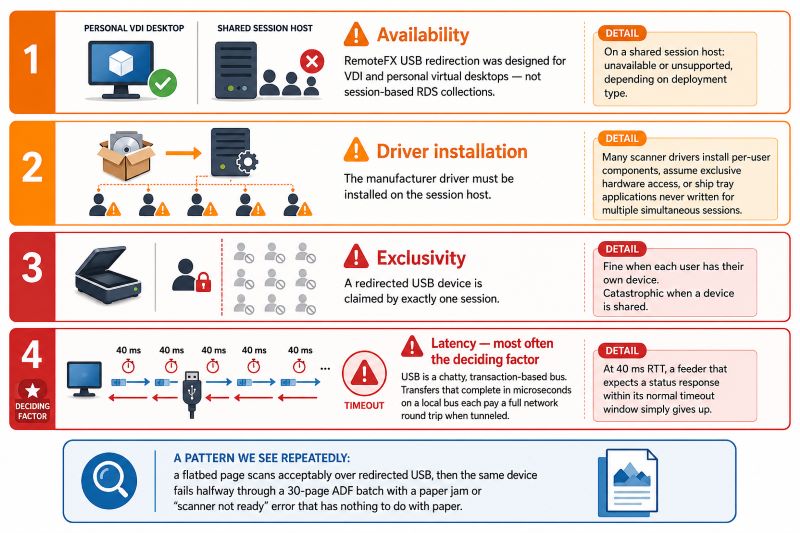
The obvious workaround is to redirect the USB device itself. In practice this fails for four separate reasons, and it fails inconsistently, which is worse.
First, availability. High-level USB redirection (the RemoteFX USB redirection feature, enabled through Computer Configuration\Administrative Templates\Windows Components\Remote Desktop Services\Remote Desktop Connection Client\RemoteFX USB Device Redirection) was designed for VDI and personal virtual desktops, not for session-based RDS collections. On a shared session host it is either unavailable or unsupported depending on your deployment type.
Second, driver installation. USB redirection presents the raw device to the server, which means the manufacturer's scanner driver has to be installed on the session host. Many scanner drivers install per-user components, assume exclusive hardware access, or ship tray applications that were never written with multiple simultaneous sessions in mind. Per-session device handle isolation is not something a typical scanner driver was designed for.
Third, exclusivity. A redirected USB device is claimed by exactly one session. Ten users on one host means the scanner is available to whoever grabbed it, which is fine when each user has their own device and catastrophic when a device is shared.
Fourth, and most often the deciding factor, latency. USB is a chatty, transaction-based bus. Control and bulk transfers that complete in microseconds on a local bus each pay a full network round trip when tunneled. At 40 ms round-trip time, a feeder that expects a status response within its normal timeout window simply gives up. A pattern we see repeatedly: a flatbed page scans acceptably over redirected USB, then the same device fails halfway through a 30-page ADF batch with a paper jam or "scanner not ready" error that has nothing to do with paper.
Approach 1: Network Scanners with Scan-to-Folder or Scan-to-Email
A network scanner or MFP takes the remote session out of the equation entirely. The device scans on its own, converts to PDF or TIFF in firmware, and pushes the file to an SMB share, an FTP target, an email address, or a vendor cloud connector. Brother MFC devices, Epson WorkForce all-in-ones and Ricoh or Konica Minolta departmental MFPs all do this well, and the file can land on a share that the session host already sees.
The strengths are real: no client software, no driver on the server, no per-session anything, and scanning continues even when the RDP session drops. For departmental archival, this is often the correct answer.
Where Scan-to-Folder Breaks
- SMB dialect. A large share of MFP firmware still speaks SMB1 with NTLMv1. SMB1 has been removed by default from Windows Server since 2019, so scan-to-folder on older devices silently stops working after a server refresh. The device usually reports a generic connection error with no dialect information.
- Credential handling. Most devices store the share credentials in the device configuration, frequently recoverable from the web interface by anyone on the LAN. A dedicated, tightly scoped service account is mandatory, not optional.
- Scan-to-email limits. Exchange Online caps attachments at 25 MB by default, which a 40-page color PDF at 300 DPI can exceed. More disruptively, basic authentication for SMTP AUTH has been retired in Exchange Online, so devices that only support username and password need an on-premises relay, a high-volume email connector, or firmware that supports OAuth 2.0. Many mid-life MFPs support none of the three.
The Hidden Cost: Workflow, Not Technology
The bigger issue is that the file lands outside the application. The operator scans at the device, walks back, opens the share, identifies which of the eight files named SCAN_0034.pdf is theirs, renames it, and imports it into the DMS or EMR. In our experience supporting document-heavy environments, that round trip costs 30 to 60 seconds per document even when everything works. At 200 documents a day, that is more than two hours of staff time per operator, every day, spent on file management.
There is also no application control. If the EMR has a Scan button that expects a TWAIN source, a network scanner cannot fill it. The application cannot request 200 DPI grayscale for correspondence and 300 DPI color for insurance cards, cannot count pages, and cannot attach the scan to the open patient or matter record automatically. Metadata that would have come free from the application has to be typed in manually.
Approach 2: RDP-Redirected Scanners (TWAIN and WIA Inside the Session)
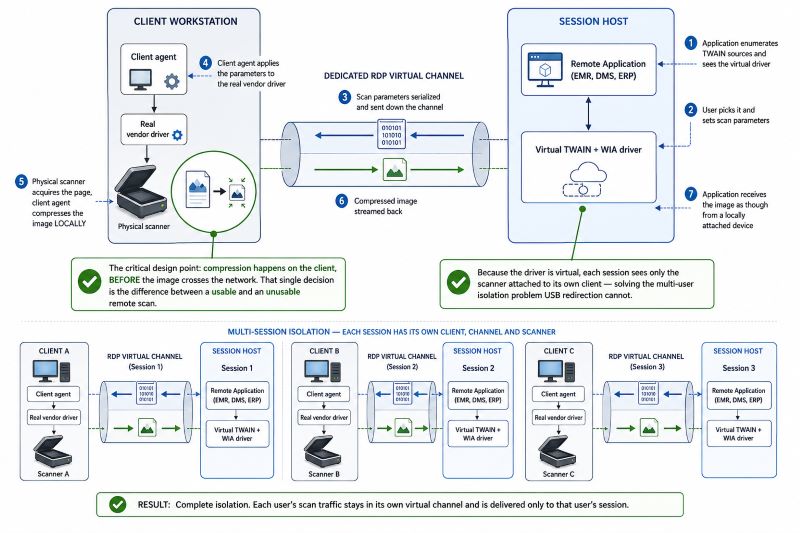
Dedicated scanner redirection solves the driver model problem directly rather than tunneling the bus. A virtual TWAIN and WIA driver is installed on the session host, a small agent runs on the client workstation, and the two communicate over a dedicated RDP virtual channel.
The sequence is: the remote application enumerates TWAIN sources and sees the virtual driver, the user picks it and sets scan parameters, those parameters are serialized and sent down the virtual channel, the client agent applies them to the real vendor driver on the local machine, the physical scanner acquires the page, the client agent compresses the image locally, and the compressed result is streamed back into the application as though it had come from a locally attached device. Because the driver is virtual, each session sees only the scanner attached to its own client, which solves the multi-user isolation problem that USB redirection cannot.
The critical design point is that compression happens on the client, before the image crosses the network. That single decision is the difference between a usable and an unusable remote scan.
What a Page Actually Costs
An A4 page at 300 DPI is 2,480 x 3,508 pixels, about 8.7 megapixels. The raw byte count depends entirely on color depth, and the spread is dramatic.
| Settings (A4, single side) | Raw size | Compressed | Typical use |
|---|
| 300 DPI, 24-bit color | about 26 MB | 600 KB to 1.2 MB (JPEG q75) | ID cards, insurance cards, photos |
| 300 DPI, 8-bit grayscale | about 8.7 MB | 250 to 500 KB (JPEG) | Contracts with stamps or signatures |
| 200 DPI, 8-bit grayscale | about 3.8 MB | 120 to 250 KB (JPEG) | General correspondence |
| 300 DPI, 1-bit bitonal | about 1.1 MB | 40 to 120 KB (TIFF G4) | Text-only archival, OCR input |
Now scale it. A 50-page duplex contract scanned in color at 300 DPI is 100 sides, roughly 2.6 GB uncompressed and roughly 60 to 100 MB as JPEG. On a 10 Mbit/s branch uplink that is around 50 to 80 seconds compressed, against more than half an hour uncompressed. This is why "scanning over RDP is slow" is nearly always a settings problem rather than a protocol problem: someone left a general-purpose document workflow at 600 DPI color because that is what the vendor utility defaulted to.
Where Scanner Redirection Is the Wrong Tool
Being honest about this matters more than the sales case.
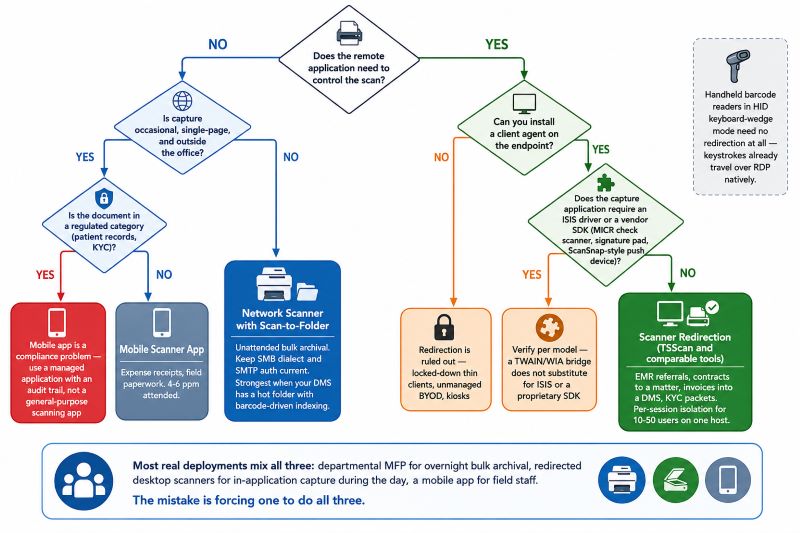
- No client-side software allowed. Redirection requires an agent on the endpoint. Locked-down thin clients, unmanaged BYOD laptops or kiosk devices where you cannot install anything rule it out.
- ISIS-dependent capture platforms. High-volume capture suites that require the vendor ISIS driver for a Kodak i-series or Canon imageFORMULA production scanner expect that driver on the machine running the capture application. A TWAIN and WIA bridge does not substitute for ISIS, so verify the application's driver requirement before assuming redirection covers it.
- Vendor SDK devices. Check scanners with MICR reading and franking, signature pads, and button-driven appliances such as ScanSnap models that push into their own companion software rather than exposing a conventional TWAIN source, all depend on proprietary SDKs rather than the standard driver models. Confirm compatibility with the specific model rather than assuming it from the category.
- Nothing but a folder drop is needed. If the requirement is genuinely "put a PDF on a share," redirection software is an unnecessary layer.
Worth noting for one adjacent case: handheld barcode scanners in HID keyboard-wedge mode need no redirection at all. They emit keystrokes, and keystrokes already travel over RDP natively. Only imager devices operating in serial or vendor-SDK mode need device-level handling.
Approach 3: Mobile Scanner Apps
Phone-based capture has improved substantially. Modern apps handle edge detection, perspective correction and adaptive binarization well enough that a single page of clean text is genuinely comparable to a flatbed scan. For a field technician photographing a signed delivery note, or a partner capturing one page from a hotel room, this is the pragmatic option.
The limits show up as soon as volume or integration enters the picture. Measured against an ADF scanner running at 30 to 60 pages per minute, manual capture costs roughly 10 to 15 seconds per page including positioning and review. A 40-page contract is eight to ten minutes of attended work versus well under a minute. There is no duplex, no reliable double-feed detection, no barcode separator sheet handling, and no MICR reading.
The integration gap is larger than the throughput gap. The image is on a phone, and the application is in a remote session. Getting it across means a cloud sync followed by drive redirection, or an upload portal, which adds a hop, a delay and a second place where documents exist. In healthcare and financial services that last point is usually the blocker: patient records or KYC documents transiting a personal device and a consumer cloud service is a data governance problem regardless of how good the image quality is. Where BYOD capture is used in regulated settings, it belongs inside a managed application with an audit trail, not a general-purpose scanning app.
Side-by-Side Comparison of the Three Approaches
| Criterion | Network scanner | RDP-redirected scanner | Mobile scanner app |
|---|
| Image reaches the app via | File share, email or connector | TWAIN/WIA source inside the session | Cloud sync or manual upload |
| Application-controlled settings | No, set at the device panel | Yes, set by the application | No |
| Works with in-app Scan buttons | No | Yes | No |
| Multi-user isolation on one host | Shared output folder | Per-session, per-client device | Per user by nature |
| ADF and duplex | Yes | Yes | No |
| Realistic throughput | 30 to 80 ppm plus manual filing | Device speed, network permitting | 4 to 6 ppm attended |
| Bandwidth control | Firmware defaults | Client-side compression, tunable | App defaults |
| Client-side install required | No | Yes, agent on the endpoint | App on the phone |
| Typical failure mode | SMB dialect or SMTP auth breaks | Missing or blocked client agent | Compliance rejection, throughput |
| Existing hardware reuse | Network MFP required | Any local USB scanner | Any phone |
When to Use What
A Network Scanner Is Sufficient When
Documents are archived rather than transacted, a shared MFP already sits in the department, the destination is a folder or a watched hot folder that a DMS such as DocuWare, M-Files or SharePoint already monitors, and no one needs to trigger a scan from inside an application. Batch-oriented back-office archival is the natural fit. If your DMS provides a proper hot folder import with barcode-driven indexing, much of the manual filing overhead disappears and this approach gets stronger.
Scanner Redirection Is the Right Choice When
The remote application owns the workflow. Healthcare staff scanning referrals and consent forms directly into an EMR record, legal teams attaching signed contracts to a matter, accounting firms pushing supplier invoices into a document management client running on a terminal server, banks capturing KYC packets against an open customer file. In all of these, the application expects a TWAIN or WIA source and applies the correct per-document-type settings itself. Scanner redirection is also the practical answer when users already have a good desktop scanner such as a Fujitsu fi-series or Canon imageFORMULA and buying networked MFPs for everyone is not justified, and when per-session isolation is required because ten to fifty users share one session host.
A Mobile Scanner App Is Fine When
Capture is occasional, low volume, single pages, outside the office, and outside regulated document categories. Expense receipts and field paperwork qualify. Regular in-office document processing does not.
Most Real Deployments Mix Them
A pattern we see repeatedly in mid-sized firms: a departmental MFP handles bulk archival scanning to a hot folder overnight, redirected desktop scanners handle in-application capture during the working day, and a mobile app covers field staff. These are not competing choices so much as three tools with different jobs, and the mistake is usually forcing one to do all three.
How TSScan Fits, and How It Compares to Alternatives
TSScan implements the redirection approach described above: a virtual TWAIN and WIA driver on the session host, a client-side component that talks to the real scanner driver, a dedicated virtual channel between them, and client-side compression so that only compressed image data crosses the network. Because the redirected device is scoped to the session, users on a shared RDS host each see their own scanner, and the same model works on Citrix, VMware and Azure Virtual Desktop.
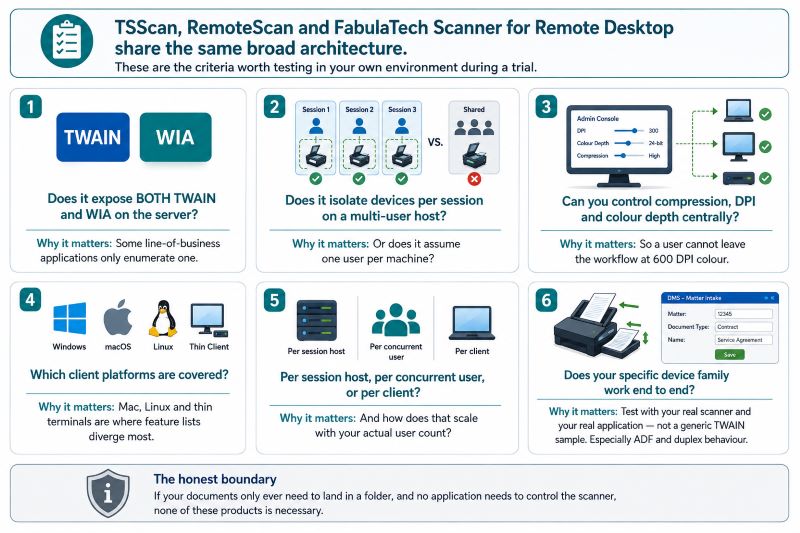
TSScan is not alone in this category. RemoteScan and FabulaTech Scanner for Remote Desktop solve the same problem with the same broad architecture. Rather than argue about which name is better, these are the criteria worth testing in your own environment during a trial:
- Does it expose both TWAIN and WIA on the server? Some line-of-business applications only enumerate one.
- Does the tool isolate devices per session on a multi-user host, or does it assume one user per machine?
- Can you control compression, DPI and color depth centrally, so a user cannot leave the workflow at 600 DPI color?
- Which client platforms are covered? Mac and Linux clients and thin terminals are where feature lists diverge most.
- Licensing model: per session host, per concurrent user or per client, and how that scales with your actual user count.
- Does your specific device family, especially ADF and duplex behavior, work end to end in your specific application? Test with your real scanner and your real application, not a generic TWAIN sample.
And to repeat the honest boundary: if your documents only ever need to land in a folder, and no application needs to control the scanner, none of these products is necessary.
Frequently Asked Questions
No. No version of Remote Desktop Services from Windows Server 2008 R2 through Windows Server 2025 includes a scanner equivalent of Easy Print. Printing has a standardized page description format that can be streamed to the client, while scanning requires a bidirectional, driver-specific control conversation that RDP does not define. Azure Virtual Desktop and Windows 365 inherit the same limitation, since they run the same session stack.
Sometimes, but it is fragile. High-level USB redirection targets VDI and personal virtual desktops rather than session-based RDS collections, requires the manufacturer driver on the server, and claims the device exclusively for one session. The bigger problem is latency: USB is transaction-based, and every transfer pays a network round trip, so feeder timeouts appear partway through multi-page ADF batches even when a single flatbed page scans fine. Test a full 30-page duplex batch before committing to this route.
At the glass, the device speed is identical. End to end, it depends on what happens after the scan. A network scanner adds 30 to 60 seconds of manual work per document to locate, rename and import the file, which at 200 documents a day is over two hours. A redirected scanner delivers the image straight into the open record, so the comparison usually favors redirection for transactional workflows and favors network scanning for unattended bulk archival.
Almost always resolution and color depth. One A4 page at 300 DPI in 24-bit color is roughly 26 MB uncompressed, and at 600 DPI it is four times that. A 50-page duplex color batch is around 2.6 GB of raw image data at 300 DPI. Compressed to JPEG on the client side it drops to roughly 60 to 100 MB, which is under 80 seconds on a 10 Mbit/s uplink. Check that compression is applied before transfer, and drop general correspondence to 200 DPI grayscale.
With a network scanner, yes, because the device is independent of the sessions, though everyone shares one output folder and naming collisions become a filing problem. With USB redirection, no, because the device is claimed exclusively by one session at a time. With scanner redirection, each session sees the scanner attached to its own client, which is the model that scales to fifty users on a host without device contention.
Not directly. An EMR or DMS Scan button expects a TWAIN or WIA source, and a phone app cannot present one. The file has to reach the session through cloud sync plus drive redirection or an upload portal, which adds a hop and a delay. In healthcare and financial services the compliance question usually settles it first, since patient or KYC documents transiting a personal device and a consumer cloud service is generally not acceptable under existing data governance rules.
Usually SMB dialect. A lot of MFP firmware still negotiates SMB1 with NTLMv1, and SMB1 is not installed by default on current Windows Server builds. The device reports a generic connection failure with no protocol detail, which makes it look like a permissions problem. Check for a firmware update that adds SMB2 or SMB3 support first. Scan-to-email failures after a mail platform change usually trace to the retirement of basic authentication for SMTP AUTH.
These are three different cases. Handheld barcode readers in HID keyboard-wedge mode need nothing special, because keystrokes already travel over RDP. Check scanners with MICR reading and signature pads generally use vendor SDKs rather than TWAIN or WIA, so compatibility has to be confirmed per model rather than assumed. Production scanners driven through ISIS need the vendor ISIS driver on the machine running the capture application, which is a separate requirement from TWAIN redirection.
Yes. The architecture does not depend on the broker, only on a virtual channel between the client and the session, so the same approach applies to Citrix Virtual Apps and Desktops, VMware Horizon, Azure Virtual Desktop and Windows 365. What changes between platforms is how the client-side component is deployed and whether the virtual channel is permitted by policy, so confirm virtual channel allowances with your platform administrators before rollout.
Summary
Network scanners, RDP scanner redirection and mobile scanner apps solve different problems, and the choice comes down to whether the remote application needs to control the scan. Scan-to-folder is a good fit for unattended bulk archival, provided you keep the SMB dialect and mail authentication current. Mobile apps cover occasional field capture and little else. When a line-of-business application on a terminal server needs a working TWAIN or WIA source, scanner redirection in RDS is the approach that fits, and it is worth testing with your own scanner, your own application and a full multi-page duplex batch before you commit.
To evaluate the redirection approach in your own environment, see the TSScan product page.


