
Originally, Azure Virtual Desktop hosts needed to be domain-joined to on-premises Active Directory or Azure AD domain services. To Access on-premises ADDS from Azure VNET you need to have either a site-to-site virtual private network (VPN) or Azure ExpressRoute. Users had to sign into both Azure AD and AD DS.
AVD now supports Azure AD join for host VMs. It’s a big breakthrough, with Azure AD join you don’t need connectivity to domain controllers using site-to-site VPN or express route. The cloud-only environment is now supported. In this post, I’m going to talk about implementing AAD-joined VMs for Azure virtual desktops.
Prerequisites
- Both Personal and Pool desktops are supported with local user profiles
- If you want to use FSLogix roaming profiles with Azure files, it is supported only with Hybrid users synced from on-premises ADDS. Kerberos authentications need to be enabled to configure the file share permissions. Kerberos authentication is supported only with Hybrid users.
- Host OS should be Windows 10 enterprise 2004 or later
Deploy Azure AD Hosts
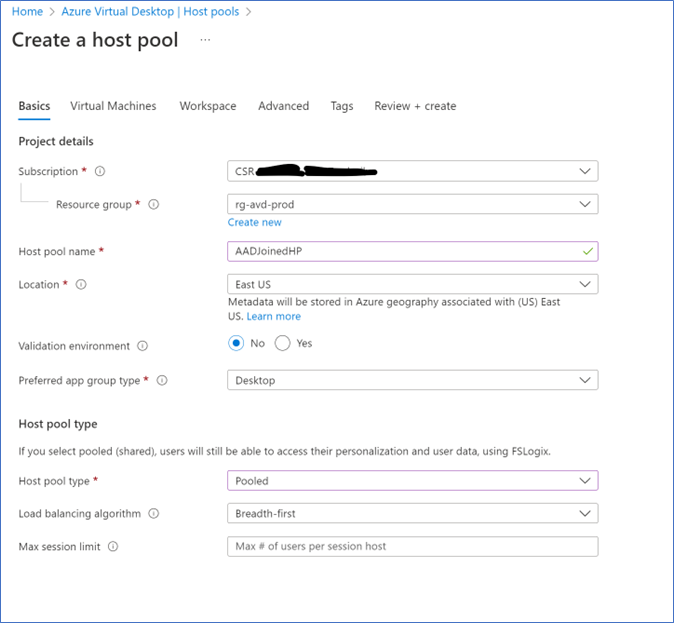
- Login to Azure portal – Azure Virtual Desktop – Create new host pool
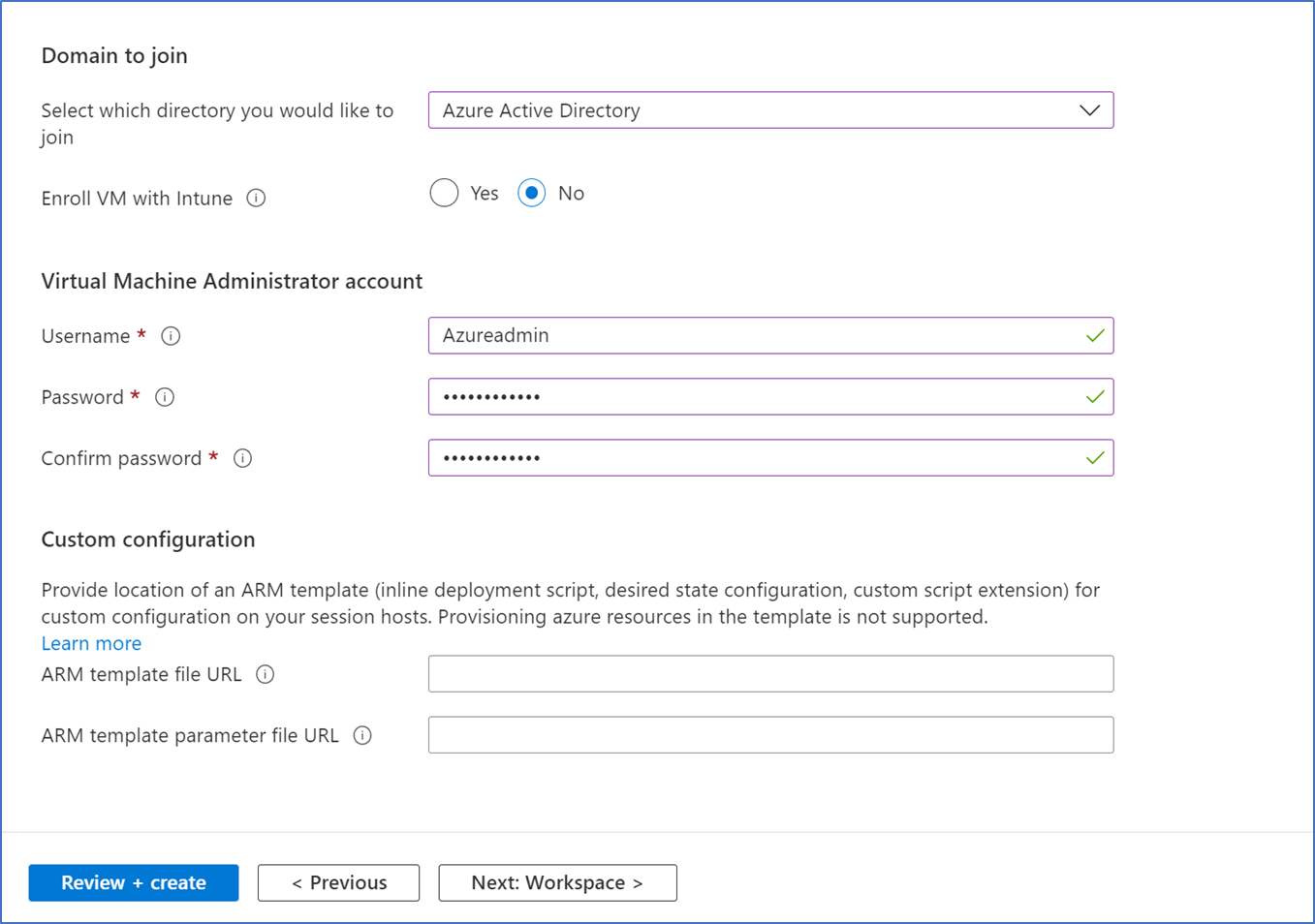
- In Add virtual machine page, select Azure Active Directory for Domain to Join, if you want VMs to be joined to Intune select that as well.
User Access
After deploying the host pool, first, you need to assign users to the host pool. Next, you need to assign User login RBAC permissions to the users in Azure VMs.
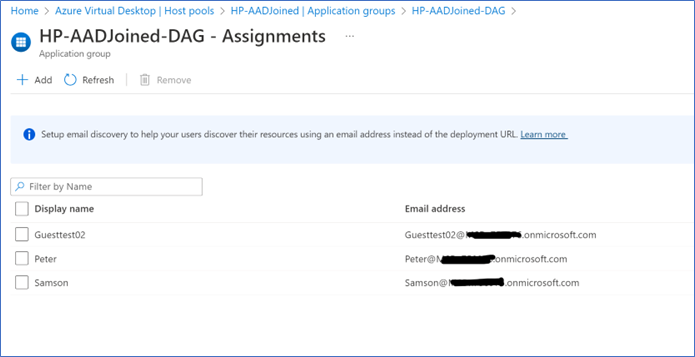
- Assign users to by Host pool – Application Group – Assignments – Add
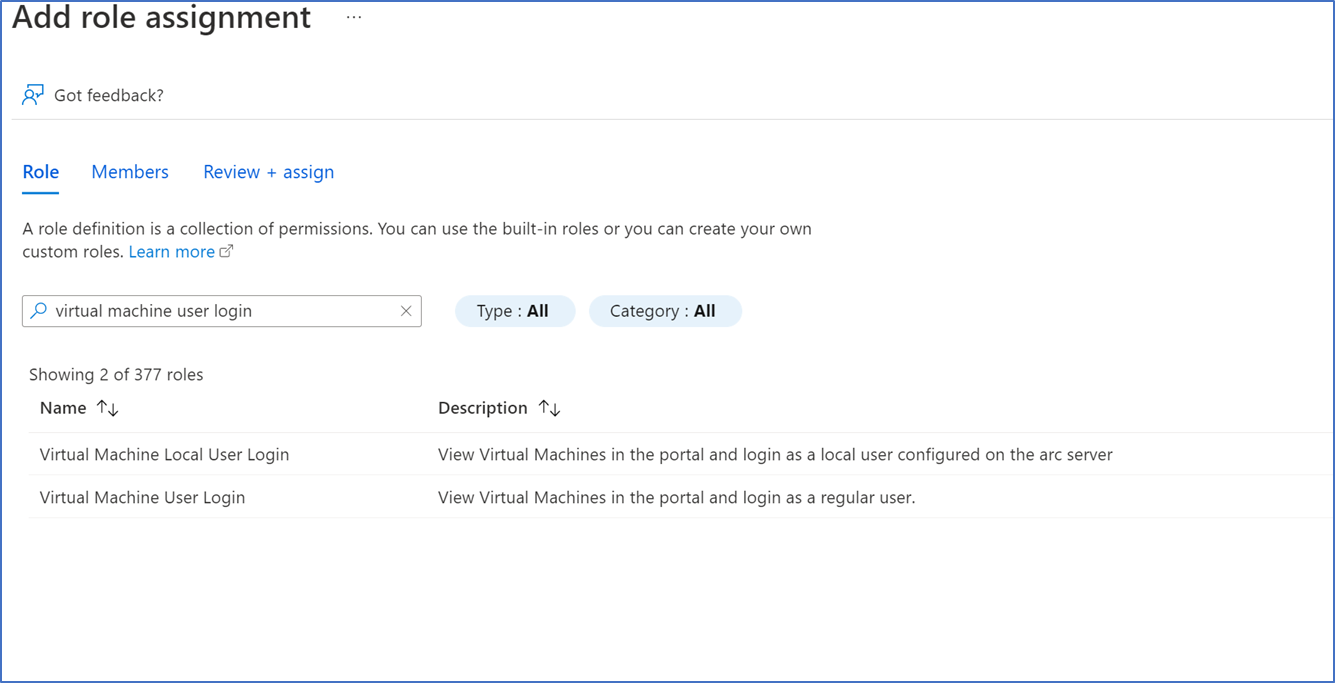
- For sign-in access, you can assign the Virtual Machine User Login RBAC role to the AVD Users group. Always select a group of users, rather than selecting individual users. RBAC role permissions can be given to the Azure VM’s resource group or entire subscription. Here I’m assigning rights to the entire subscription.
Select your Subscription – Access control (IAM) – Add role assignment
- Type Virtual Machine User Login in the search box, select the role and click Next
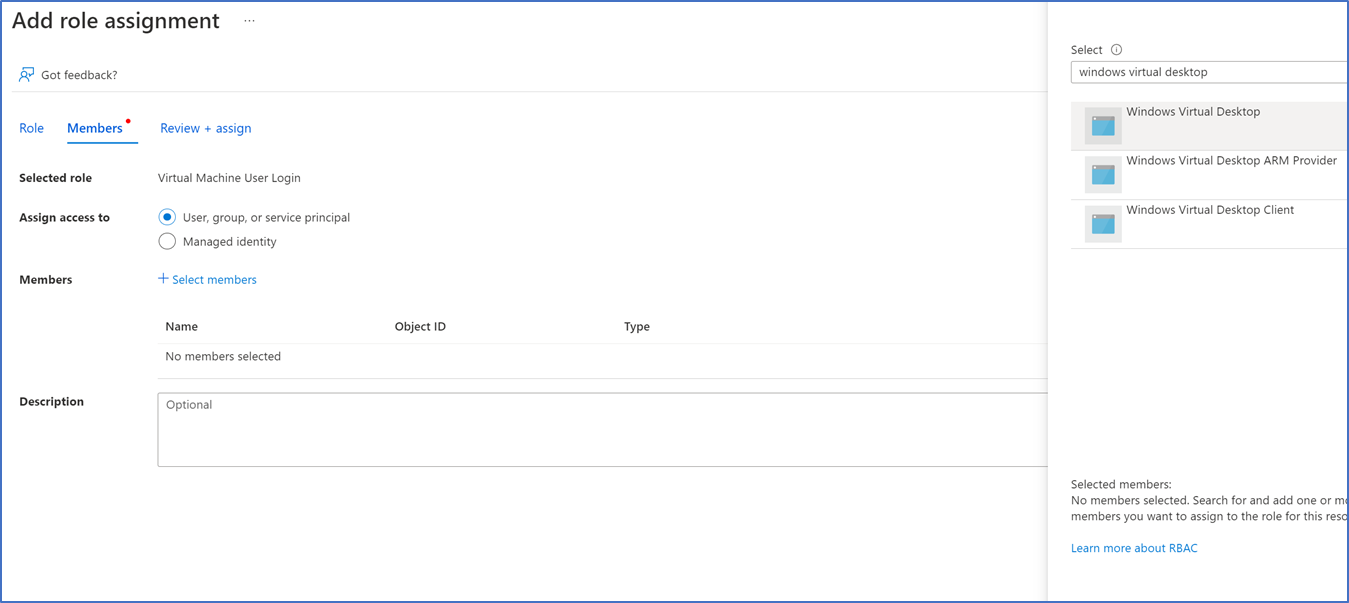
- Click Select Members and search for Windows Virtual Desktop or Azure Virtual Desktop, this may be different according to your tenant select Windows/ Azure Virtual desktop and Next
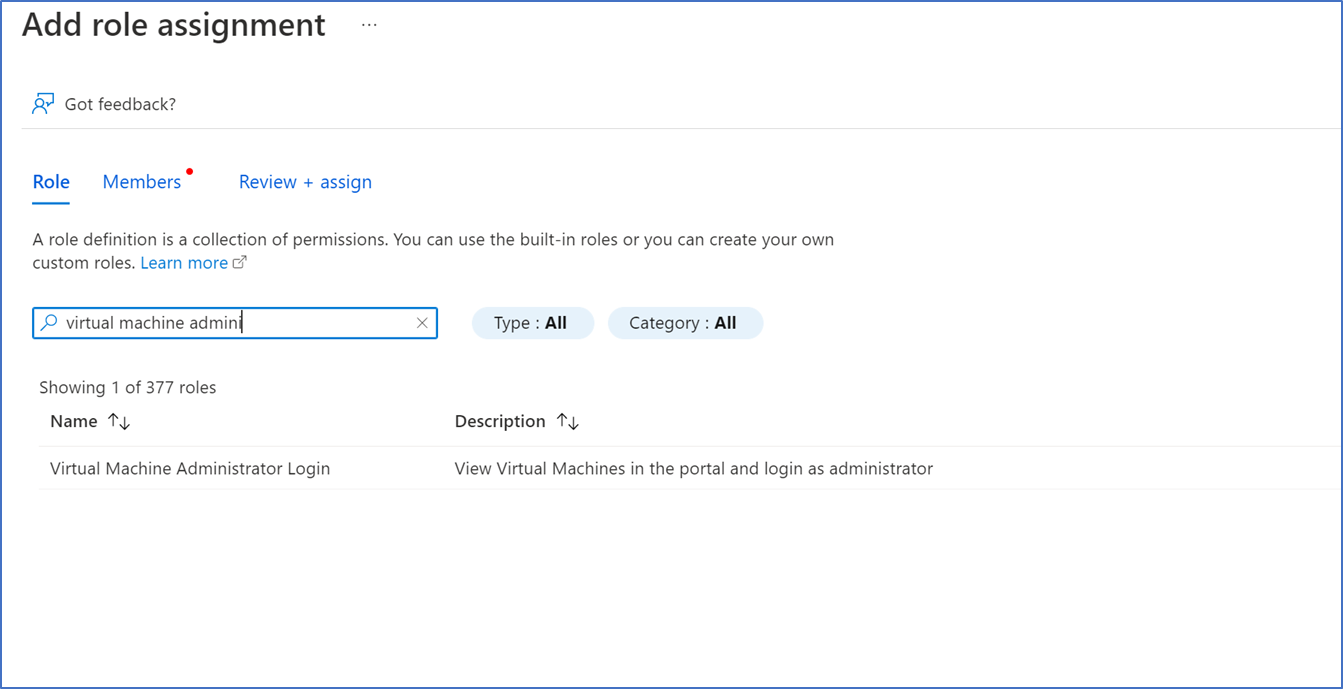
- If you want to give local admin rights to the user, select Virtual Machine Administrator Login role on RBAC permissions.
Other configurations
RDP access to VMs for administration
When you are accessing Azure AD joined VM, your local PC must meet one of the following conditions.
- The local PC is Azure AD-joined to the same Azure AD tenant as the session host
- The local PC is hybrid Azure AD-joined to the same Azure AD tenant as the session host
- The local PC is running Windows 11 or Windows 10, version 2004 or later, and is Azure AD registered to the same Azure AD tenant as the session host
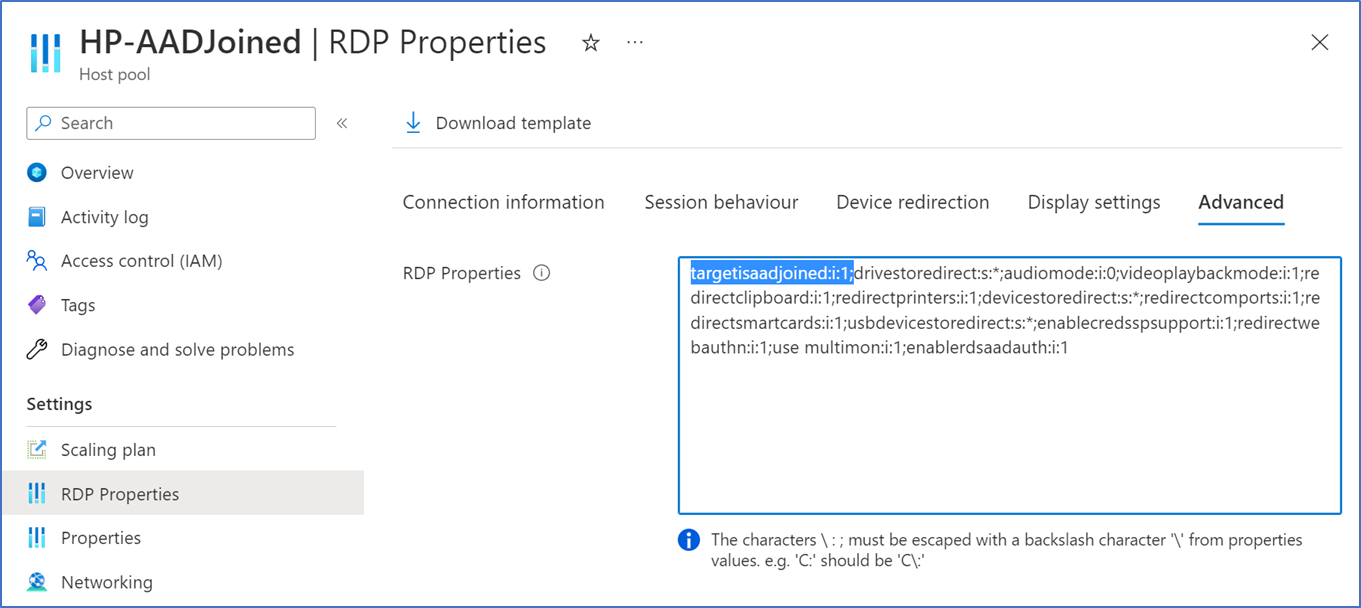
However, if your local PC does not meet these requirements and it's not joined to Azure AD, you can add targetisaadjoined to custom RDP properties.
Single Sign on
Single sign-on will work by default for Azure AD-joined VMs. however, if you have Hybrid joined VMs in your host pool you need to enable Azure AD Kerberos and add enablerdsaadauth:i:1 for custom RDP properties.
In the next post, I’m going to talk about configuring FSLogix roaming profiles with Azure files on Azure AD Joined AVD scenario, stay tuned.
Hope this post is useful


