
When you are considering using Azure for your file server services, there are two options you can pick from.
- Cloud only – move all your data to an Azure files share and directly mount the share to your users. You can use multiple ways to move the data, such as AZ copy, Azure Data Box, or Azure File Sync.
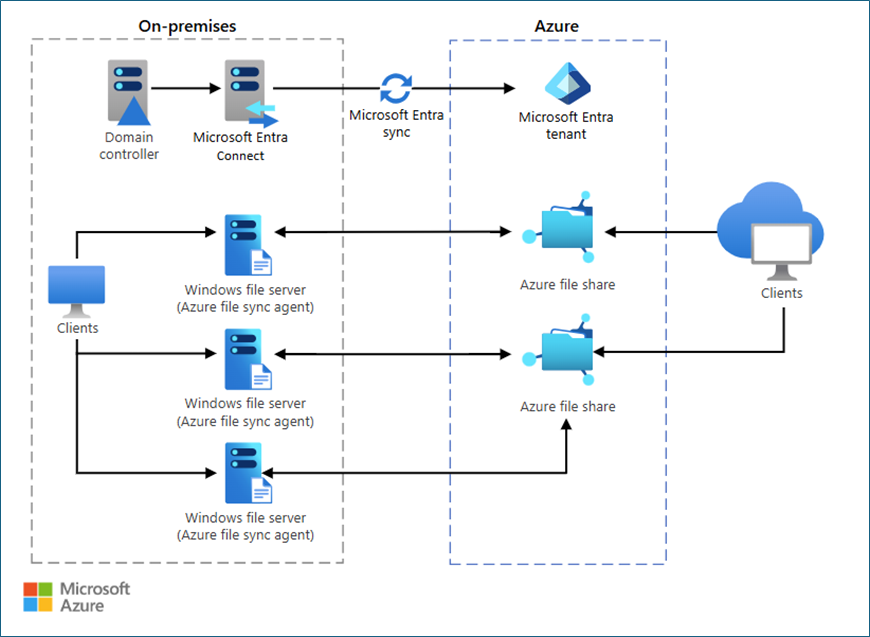
- Hybrid with on-premises file server – this is the more common and classical approach, where you have an on-premises file server that you keep hot, frequently accessed files, and rest of the files in a Azure files share, in this scenario, Azure File Sync is being used to sync the data from server to cloud and the other way around.
In this post, we will discuss the hybrid approach.
Concepts and considerations
Azure file Sync
Azure File Sync is the most important piece of this scenario. To start using file sync, first you need to create a Storage sync service.
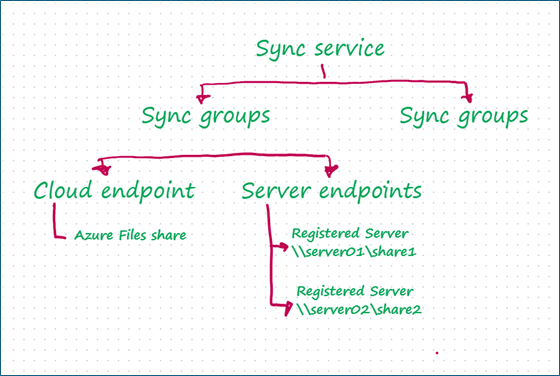
Storage sync service - A storage sync service is the root Azure Resource Manager resource for Azure File Sync. It manages synchronization relationships between your Windows Server installations and Azure file shares. Each storage sync service can contain multiple sync groups and multiple registered servers.
Sync group - A sync group is like a container or rule set that defines which folders should stay in sync. Everything within the same sync group will always remain the same (same files, changes replicate). The Sync group consists of Cloud endpoints and Server endpoints.
- Cloud endpoints refer to the Azure File Sync replicating changes to a Premium File Share or Standard v2 storage.
- Server endpoints refer to the on-premises Registered server.
- A sync group has one cloud endpoint and can include multiple server endpoints, but only one share per registered server. This enforces a 1:1 mapping between a server share and an Azure file share.
- Multiple on‑prem shares mapping to different Azure file shares require separate sync groups. Everything in a sync group stays identical (files and changes replicate), and you can sync the same Azure file share to multiple registered servers, but it's still a strict 1:1 mapping per server share ↔ Azure file share.
Azure Files Share
Azure Files offers two tiers: Standard v2 and Premium. Standard v2 is more cost‑effective and runs on HDD, while Premium is more expensive and runs on SSD for higher performance. Availability options differ by tier. Standard v2 supports geo‑redundancy with read access (RA‑GRS), whereas Premium currently supports only zone‑redundant storage (ZRS).
For hybrid scenarios, where Azure Files is accessed via Azure File Sync and most read/write operations occur on‑premises, Premium storage typically provides limited benefit. In such cases, Standard v2 is often sufficient and more cost‑effective. Ultimately, the choice between Standard v2 and Premium should be based on performance requirements, availability needs, workload access patterns, and overall cost considerations.
Network Connectivity
Connecting an on-premises file server to Azure Files with Azure Sync does not require special network configurations, as it uses outbound port 443, which is generally considered secure. As long as your internal file server allows outbound public traffic on port 443, it will be sufficient to connect to the Azure Sync service. However, Azure File Sync supports the following advanced network connectivity models.
- Configuring through a proxy - Configuring a proxy is a widely used approach when setting up Azure File Sync in environments that require network mediation. In such cases, the proxy settings must be manually specified using PowerShell.
- Using private endpoints - also known as private links is considered one of the most secure ways to connect to an Azure resource because it leverages your internal network connectivity. If you have an ExpressRoute or site-to-site VPN, you can enable a private endpoint for the file sync service, allowing your on-premises file server to connect to the storage sync service through your VPN or ExpressRoute.
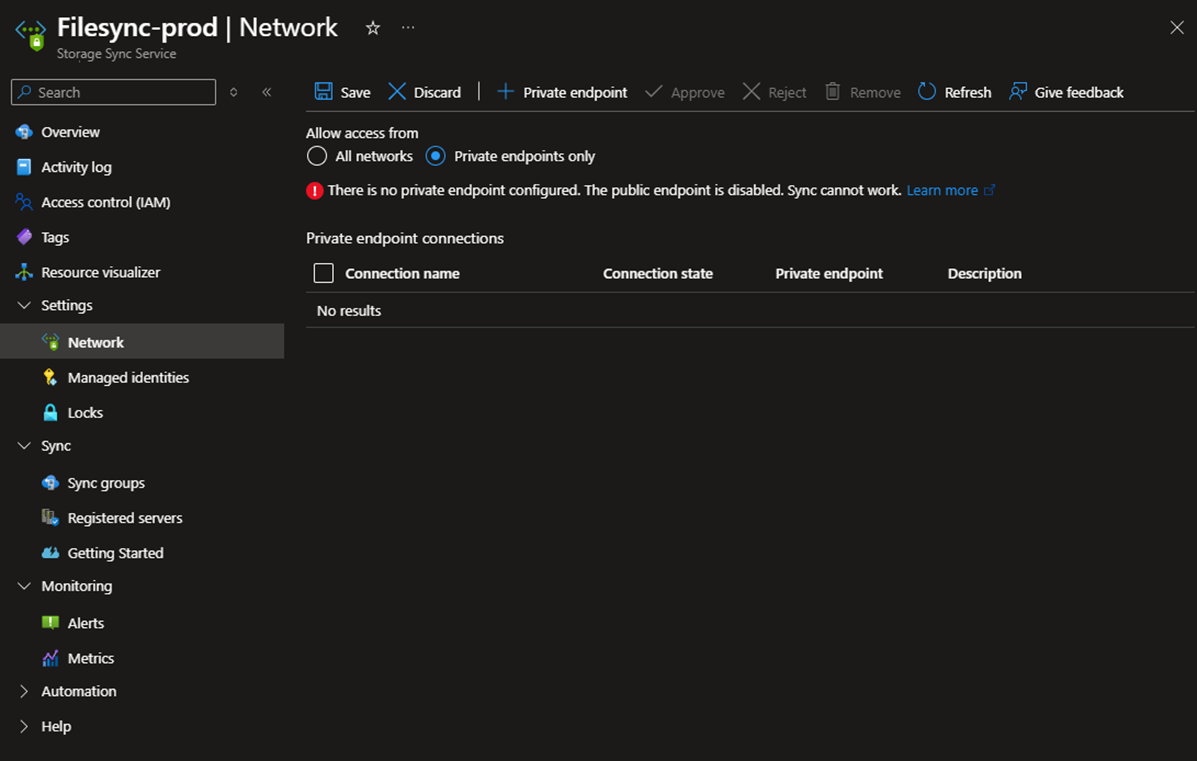
Private endpoint for Storage sync service
When configuring a private connection, it is necessary to enable a private endpoint for both the Storage Sync Service and the storage account. This action establishes an internal IP address within the Azure virtual network (VNet). Additionally, ensure that the on-premises file server can resolve the Storage Sync Service DNS record to the private endpoint's internal IP address. This can be achieved by implementing forward lookup zones or a DNS resolver alongside Private DNS zones.
Cloud Tiering
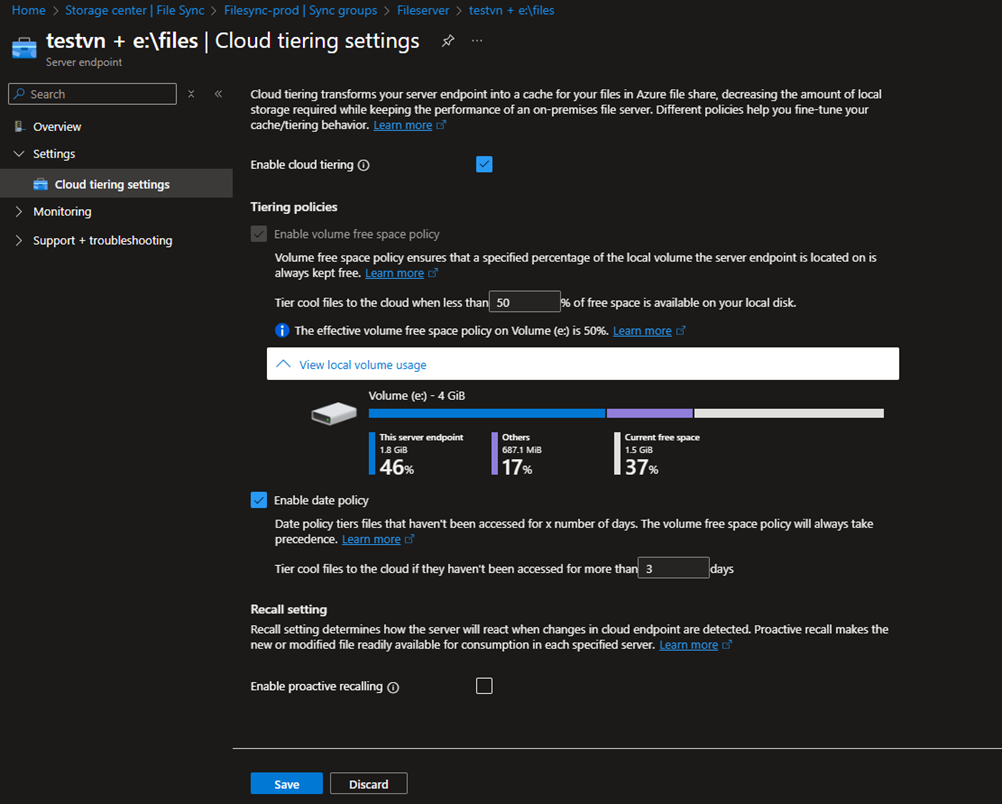
This is an important yet optional feature. Cloud tiering manages your on-premises file server storage by retaining only frequently accessed (hot) files locally. Infrequently accessed (cool) files are divided into the namespace (the file and folder structure), which remains on the local server, and the file content, which is stored in an Azure file share in the cloud. There are two configurable policies available.
Volume free policy
When you specify the amount of free space that should remain on your local disk, any additional data will be moved to the cloud endpoint. For example, if your disk's total capacity is 100GB and you want to keep 20GB free, only 80GB will be stored locally, while the rest will move to Azure Files storage. However, this 80GB will still include the namespace for all the files.
Date policy
In the date policy, you can specify a number of days for infrequent access, which will classify files as "cool" and move them to Azure Files. The file's NTFS properties do not determine this date; instead, Azure File Sync tracks file access (including read and write operations) over time and assigns each file a heat score based on how recently and frequently it has been accessed. These scores are then used to create a "heatmap" of your namespace at each server endpoint.
Data Protection Management
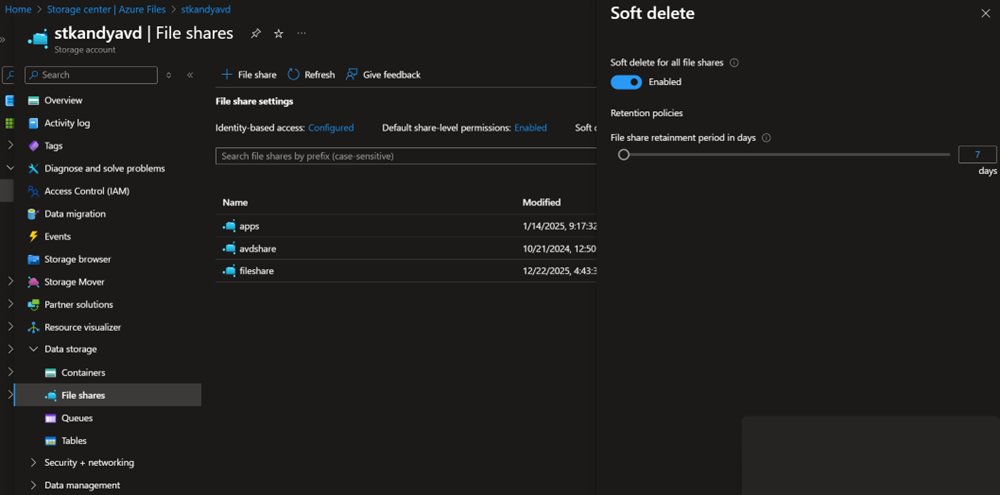
Enabling Soft Delete
The soft delete feature helps prevent accidental loss of data. At the file share level, you can set a soft delete retention period. During this time, deleted files are not permanently removed and can be restored within the specified date range. Once the retention period ends, the files are automatically and permanently deleted.
Use of Azure backup
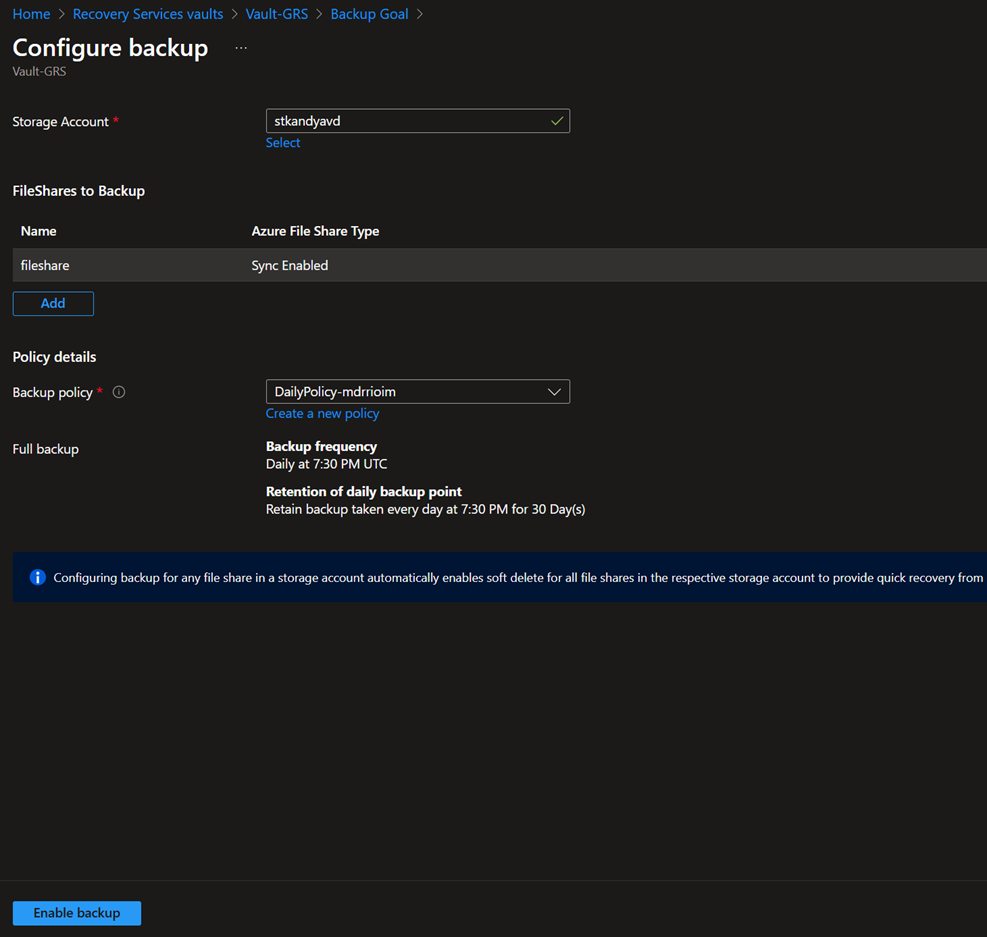
Azure Files Backup offers a comprehensive cloud-based solution designed to safeguard data while eliminating the need for on-premises maintenance. Azure Backup integrates efficiently with Azure File Sync, enabling centralized management of both file share data and backups. This secure and dependable system allows organizations to protect enterprise file shares through snapshot and vaulted backups, supporting effective recovery from accidental or intentional data loss.
Monitoring file sync and cloud tiering
Monitor Azure File Sync
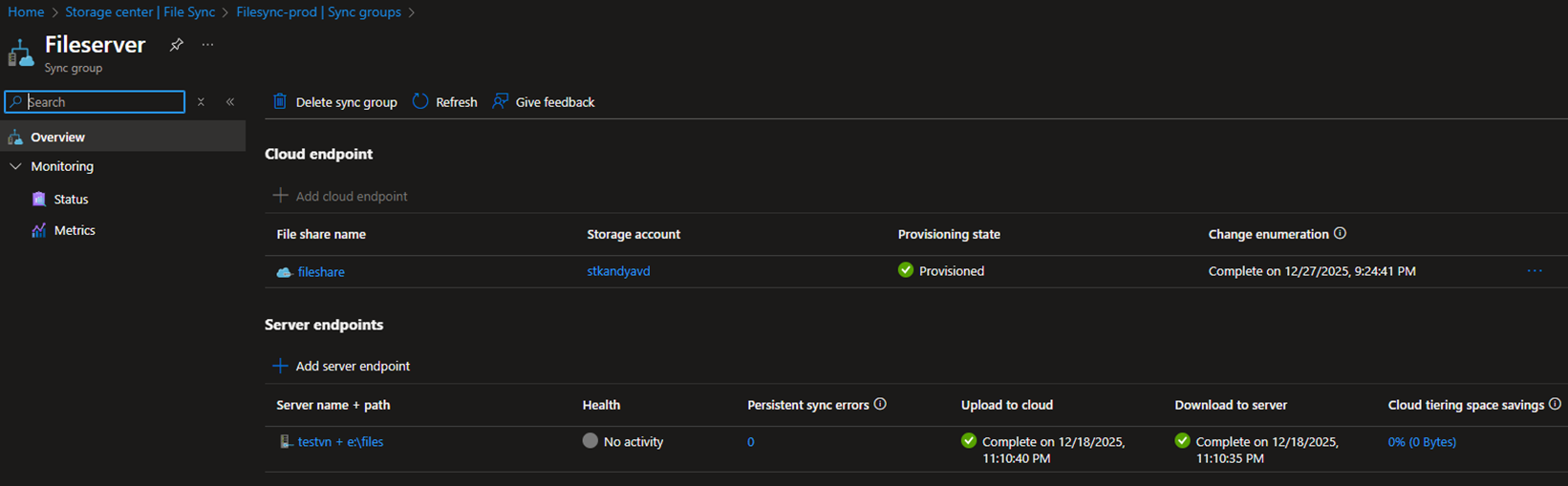
There are many ways to monitor the File sync service, you can use portal to view the health of your Server endpoints in the sync group.
You can also view the Sync status.
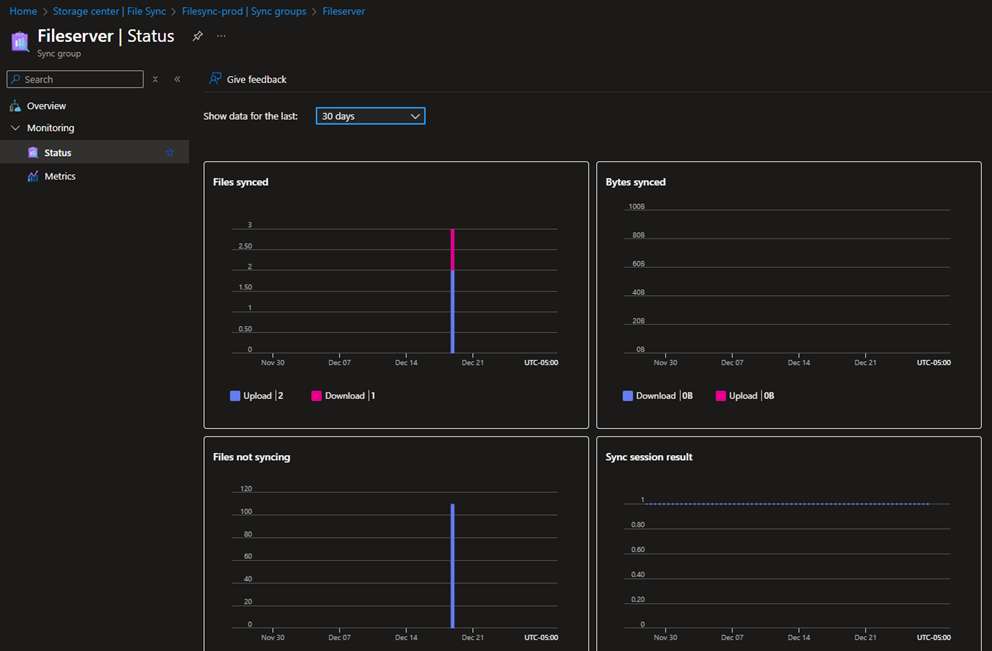
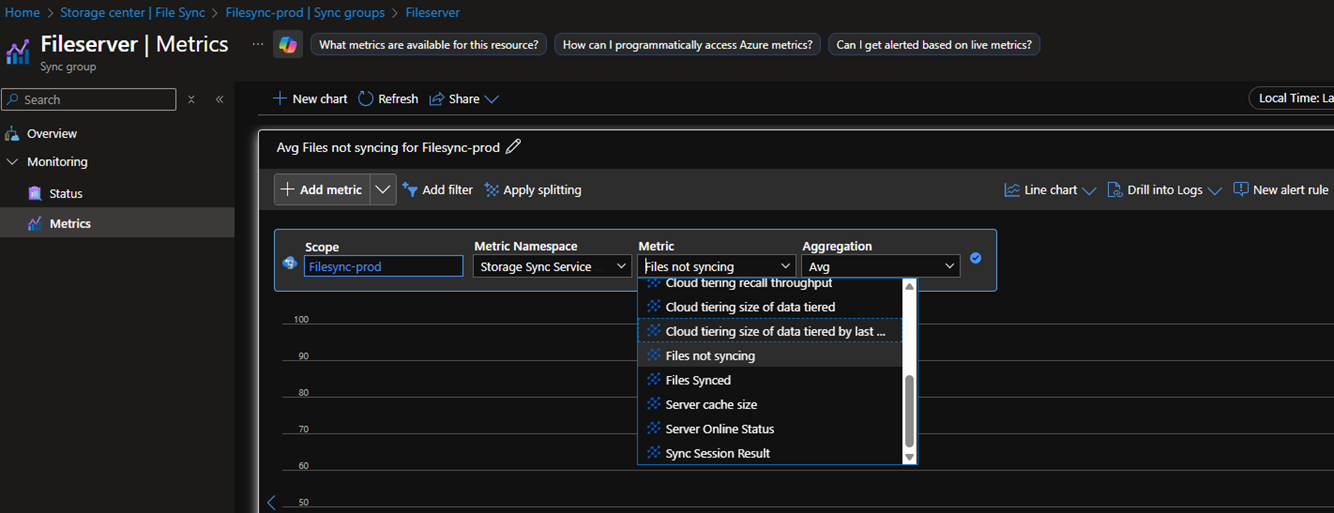
If you want more information on each metric, you can use the metrics view and filter into each metric individually. Also, you can create your own alerts and dashboards to generalize monitoring further.
Monitor cloud tiering
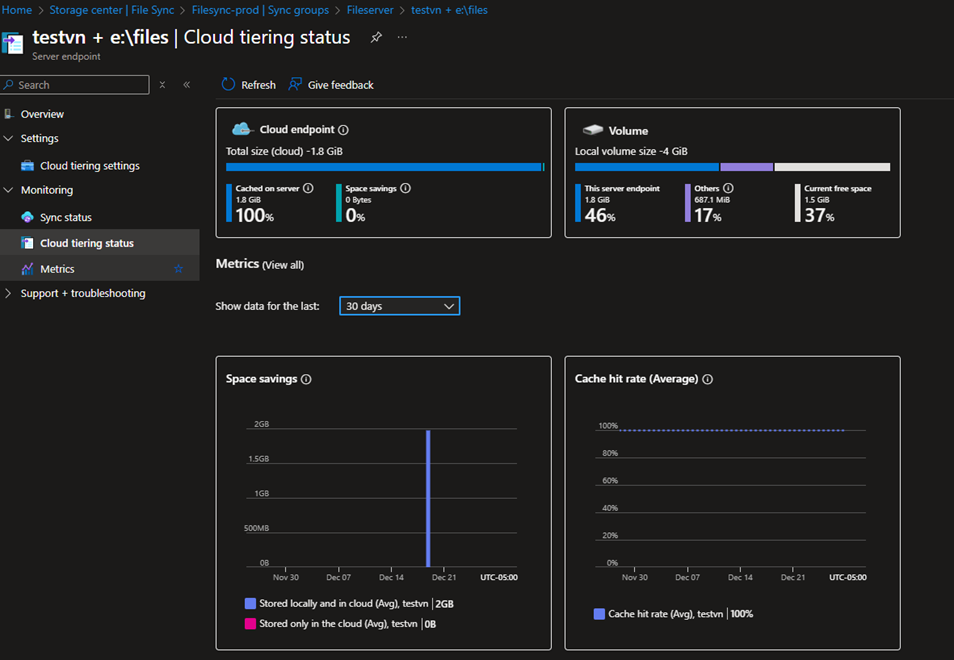
After configuring cloud tiering policies, you can monitor their status from the server endpoint view. This view provides visibility into the volume size, local cache size, and tiering configuration, allowing you to track how cloud tiering is operating. Additionally, it shows the current cloud tiering status, helping you quickly assess whether the server is functioning within the expected thresholds.
In the next post, we'll walk through setting up a basic hybrid file server scenario with Azure File Sync and cloud tiering enabled.
Hope this post was helpful.


