Telephone support available from
10 AM till 10 PM Central European Time
Open a ticket
Chat with us
Customer login
BLOG
Published on 2026/04/14 by Terminalworks in TSPrint, Tech-Tips
How to Print to a Local Printer from Azure Remote Desktop
Last updated: April 2026 By TerminalWorks — Remote Desktop Printing Solutions Since 2014
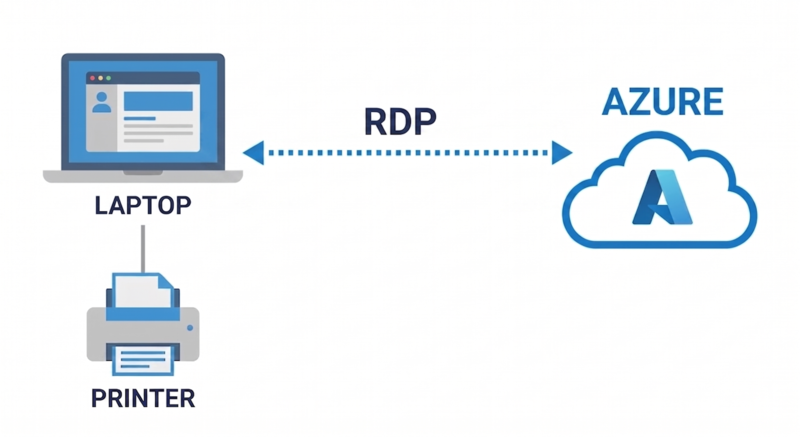
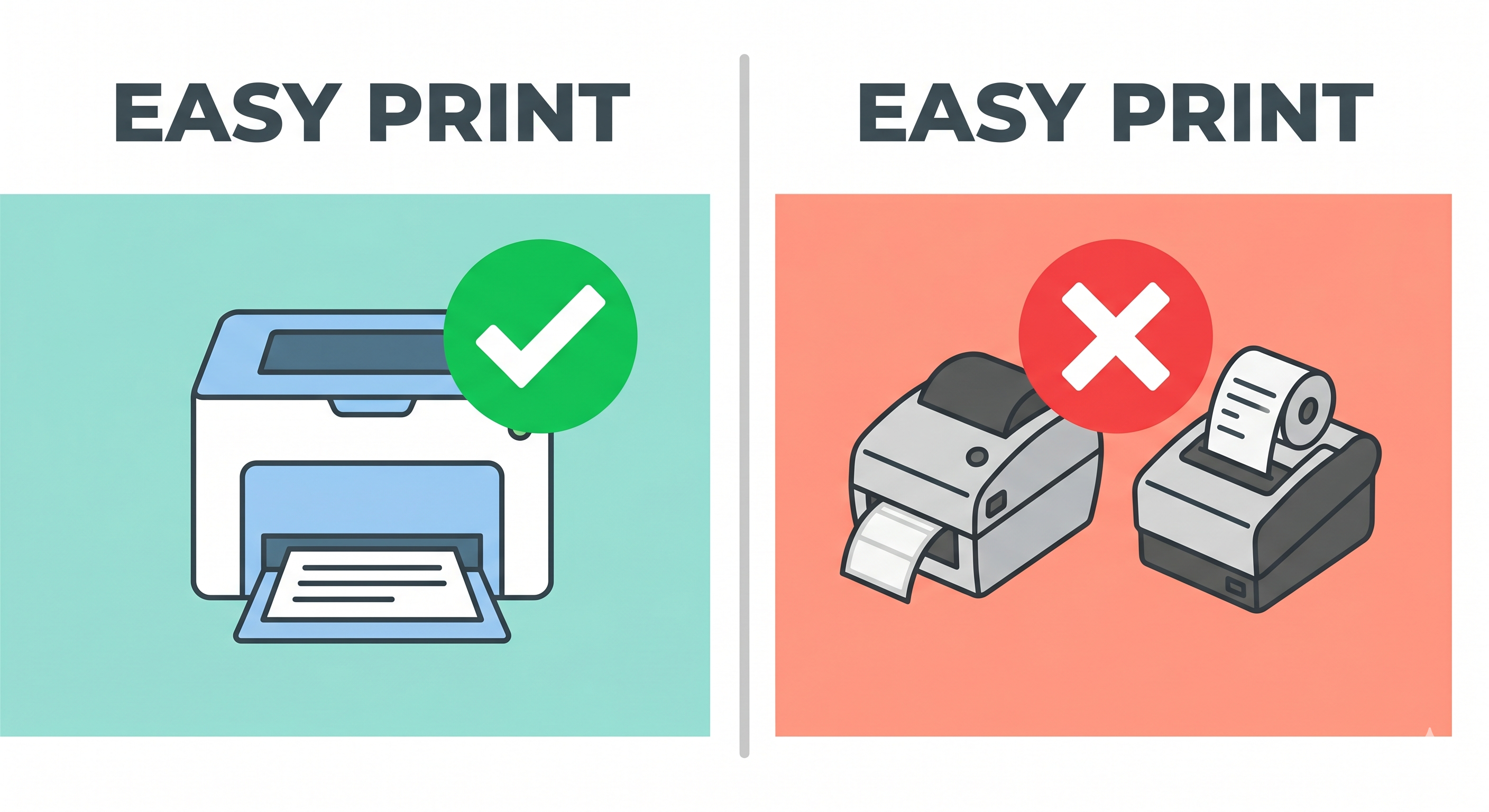
To print to a local printer from an Azure Virtual Desktop (AVD) session, enable printer redirection in your host pool's RDP properties and connect using the Windows App or Remote Desktop client. Your local printers will appear inside the remote session as "redirected" printers using the Remote Desktop Easy Print driver. For environments where Easy Print causes formatting errors, slow output, or fails with specialty printers, installing a virtual printer solution like TSPrint on the session host eliminates driver conflicts entirely by routing print jobs as compressed data to your local machine.
This guide covers the full setup for Azure's built-in printer redirection, explains the technical reasons it breaks in real-world environments, compares it against third-party solutions, and provides a decision framework for when native redirection is sufficient versus when you need something else.
How Azure Virtual Desktop Printer Redirection Actually Works
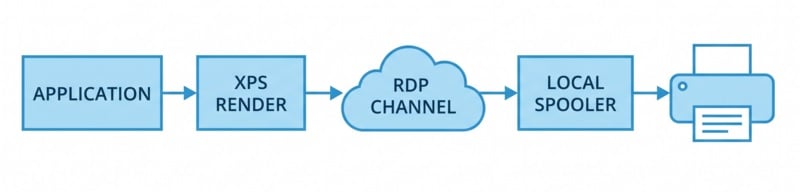
Understanding the underlying mechanism helps diagnose problems. When you connect to an AVD session with printer redirection enabled, the following chain executes:
The RDP client on your local machine enumerates installed printers and sends their capabilities (device name, driver info, supported paper sizes, duplexing, color modes) to the session host over the RDP virtual channel.
The session host creates a temporary print queue for each redirected printer using the Remote Desktop Easy Print driver — a Microsoft-provided XPS-based renderer.
When you print from an application within the session, Easy Print renders the document in XPS format, compresses it, and transmits the XPS data back to the local client via the RDP virtual channel.
The local RDP client receives the XPS stream and hands it off to your local print spooler, which re-renders it using your locally installed printer driver.
This architecture means two rendering passes happen: application → XPS on the server, then XPS → native format on the client. That double conversion is where most AVD printing problems originate.
Step-by-Step: Enable Local Printer Redirection in Azure Virtual Desktop
Set Printer redirection to "The printers on the local computer are available in the remote session."
Click Save.
Alternatively, add the following to your custom RDP properties string:
redirectprinters:i:1
Step 2: Verify Group Policy on Session Hosts
On the session host VMs, confirm these Group Policy settings under Computer Configuration → Administrative Templates → Windows Components → Remote Desktop Services → Remote Desktop Session Host → Printer Redirection:
Policy Setting
Required Value
Do not allow client printer redirection
Disabled or Not Configured
Use the Remote Desktop Easy Print printer driver first
Enabled
Redirect only the default client printer
Disabled (unless you want to limit redirection)
If your session hosts are Entra ID-joined and managed via Intune, use a Settings Catalog profile to configure the equivalent CSP policies under ./Device/Vendor/MSFT/Policy/Config/RemoteDesktopServices/.
Step 3: Connect and Print
Open the Windows App (or legacy Remote Desktop client) on your local PC.
Connect to your AVD session.
Inside the session, open Settings → Bluetooth & devices → Printers & scanners. Your local printers appear with "(redirected X)" appended to their names.
Print from any application, selecting the redirected printer.
You can verify redirection is working via PowerShell inside the session:
Why Does Azure Remote Desktop Printing Break in Practice?
In our experience supporting thousands of RDS and AVD environments since 2014, printer redirection works acceptably for maybe 60-70% of standard office scenarios — a user printing text-heavy documents to a mainstream HP or Canon laser. The remaining 30-40% run into one or more of these issues:
XPS Rendering Causes Formatting and Quality Problems
Easy Print converts everything to XPS before transmission. Applications that natively output PostScript or EMF — including many legacy line-of-business applications, EMR systems in healthcare, and older ERP platforms — can lose formatting when forced through XPS. Common symptoms include shifted margins, missing barcodes, broken fonts, and incorrect page sizes.
A pattern we see repeatedly is with Zebra ZPL label printers. ZPL is a raw command language, and Easy Print's XPS rendering completely destroys the commands. The label comes out as garbled text or a blank page instead of a formatted label.
Large Print Jobs Are Slow Over Limited Bandwidth
The XPS data transmitted over the RDP virtual channel is often significantly larger than an optimized native print stream. A 50-page document with embedded images can produce 30-50 MB of XPS data. On a 10 Mbps connection (common for remote workers on consumer broadband uploading back to Azure), that's 24-40 seconds of transmission time before printing even starts. Multiply that by 50 users on a shared session host, and the virtual channel becomes a bottleneck.
Specialty and Industrial Printers Fail Frequently
Receipt printers (Epson TM series, Star Micronics), Dymo label printers, and check/MICR printers rely on proprietary driver features that Easy Print cannot pass through. In our support data, specialty printer issues account for roughly 40% of AVD printing tickets.
FSLogix and Profile Roaming Complications
When session hosts use FSLogix profile containers, printer preferences and default printer settings sometimes fail to persist between sessions. The user's preferred default printer resets, or a custom paper size they configured disappears. This is especially problematic in pooled (non-persistent) host pools where users land on different VMs each session.
Windows Protected Print Mode Conflict
Microsoft is actively rolling out Windows Protected Print Mode (WPP), which disables all legacy V3/V4 printer drivers in favor of IPP-only Mopria-certified printing. WPP is expected to become the default by 2027. When WPP is enabled on session hosts, it can interfere with the Easy Print driver chain and break printer redirection for non-Mopria-certified printers. This is an evolving situation that adds uncertainty to relying solely on native redirection.
When Is Built-In Redirection Enough vs. When Do You Need a Third-Party Solution?
Not every AVD environment needs a third-party printing tool. Here's an honest breakdown:
Scenario
Built-In Redirection
Third-Party Solution (e.g., TSPrint)
Small team, standard office printers (HP, Canon, Brother laser/inkjet)
Usually sufficient
Not necessary
Text-heavy documents only, no complex formatting
Works well
Not necessary
Label printers (Zebra, Dymo, SATO)
Frequently fails — XPS rendering destroys raw commands
Recommended
Receipt/POS printers (Epson TM, Star)
Unreliable — driver-specific commands lost
Recommended
Healthcare/EMR printing with barcodes
High risk of barcode rendering errors
Recommended
High-volume printing (50+ pages, image-heavy) over a limited bandwidth
Slow — large XPS payloads
Recommended — compressed transfer
Pooled host pools with 50+ concurrent users
Manageable with tuning
Helps reduce server-side spooler load
macOS or thin client endpoints
Limited redirection support
Depends on product — check compatibility
Simple single-user Azure VM (not AVD)
Standard RDP redirection works
Usually not necessary
Be honest with yourself about the environment. If you have 10 users printing Word documents to HP LaserJets, don't spend money on a third-party tool. If you have a warehouse printing 500 shipping labels a day through AVD to Zebra printers, you need something beyond Easy Print.
How TSPrint Solves Azure Virtual Desktop Printing Differently
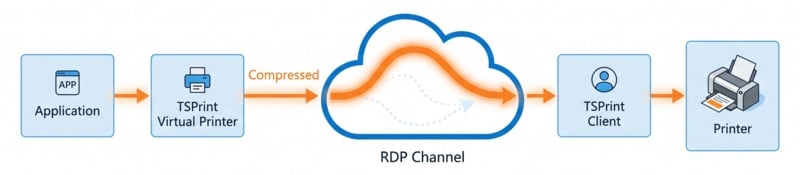
TSPrint takes a fundamentally different approach from Easy Print. Instead of redirecting the local printer into the remote session and rendering to XPS, TSPrint installs a virtual printer on the session host. Here's the actual technical flow:
A virtual printer named TSPrint is available inside the AVD session. The user prints to it from any application.
The application renders the document using the TSPrint virtual printer driver, which captures it as a compressed print stream (not XPS).
TSPrint transmits the compressed data to the TSPrint Client running on the local machine via the RDP virtual channel.
The TSPrint Client either sends the job directly to the user's default local printer (TSPrint Default mode) or opens a local print dialog letting the user choose a printer and adjust settings (TSPrint Printer mode).
The key difference: the document is rendered once by the application on the server, compressed, sent to the client, and printed using the local printer's native driver. There is no XPS conversion or double rendering. This is why specialty printers that fail with Easy Print work correctly with TSPrint — the local driver handles all the device-specific commands.
Setup in Azure Virtual Desktop
On the session host VM: 1. Download TSPrint Server from terminalworks.com/remote-desktop-printing/downloads. 2. Install it. The TSPrint virtual printers appear automatically. 3. No printer drivers for end-user printers need to be installed on the session host.
On the user's local PC: 1. Download and install the TSPrint Client. 2. No configuration required — it detects AVD/RDP sessions automatically.
No changes to host pool RDP properties are needed. TSPrint uses the RDP virtual channel independently of printer redirection, so you can actually disable printer redirection entirely, which simplifies your Group Policy and reduces the attack surface.
How TSPrint Compares to Other AVD Printing Solutions
Several products compete in this space. Based on over a decade of working with remote desktop printing, here is a factual comparison:
Feature
TSPrint
ThinPrint
UniPrint
ezeep Blue
FabulaTech
Architecture
Virtual printer + RDP channel
Virtual printer + custom channel
PDF-based UPD
Cloud SaaS
USB/printer redirection
Requires server-side drivers
No
No
No
No
Sometimes
Per-user local print dialog
Yes
Yes
Yes
Yes (via app)
No
Works without internet
Yes (RDP channel only)
Yes
Yes
No (cloud-dependent)
Yes
Label/receipt printer support
Yes — native driver on client
Yes
Limited
Yes (certified models)
Varies
Licensing model
Per-server perpetual
Per-user subscription
Per-user subscription
Per-user subscription
Per-server perpetual
Azure-specific requirements
None
None
None
Entra ID integration
None
TSPrint's differentiator for many customers is simplicity and cost structure. A single server license covers all users on that session host, with no per-user fees. For organizations with pooled AVD host pools where user counts fluctuate, this can be significantly cheaper than per-user subscription models.
Where TSPrint is not the best fit: If your organization needs centralized cloud print management with analytics, printer fleet monitoring, and pull-printing/secure release, a SaaS platform like ezeep Blue or Vasion Print is more appropriate. TSPrint solves the "get the document from the remote session to the local printer" problem — it is not a print management platform.
Troubleshooting Common Azure Remote Desktop Printing Issues
Printers Don't Appear in the AVD Session
Check in this order: host pool RDP properties (redirectprinters:i:1), Group Policy on the session host (client printer redirection not blocked), Windows App settings (printer redirection enabled in device settings), and whether the local printer has a valid driver installed locally. If using FSLogix, verify the profile container mounts correctly — a failed mount can prevent user-specific printer mappings from loading.
Printing Is Extremely Slow
Measure the bandwidth between the client and the Azure region using a simple speed test. If the upload speed is below 5 Mbps, large XPS print streams will queue. Reducing print quality in the application, switching to grayscale, or using a solution like TSPrint that compresses the print stream can help. Also, check whether the session host's print spooler service is overloaded — in multi-session Windows 10/11 Enterprise hosts with 40+ users, the spooler can become a bottleneck.
Printed Output Has Wrong Formatting or Missing Elements
This is almost always an XPS rendering issue. Test by printing the same document to "Microsoft Print to PDF" inside the session — if the PDF looks correct, the problem is in the XPS-to-local-driver conversion. If the PDF also looks wrong, the issue is in the application's rendering. In the former case, bypassing Easy Print with a virtual printer solution resolves the issue.
Printer Shows "Error" or "Offline" in the Session
Redirected printers can appear offline if the RDP virtual channel is interrupted or if the local printer enters an error state (e.g., paper jam, offline). Disconnect and reconnect the AVD session to re-establish the printer mapping. If the problem persists, restart the Print Spooler service on the session host (Restart-Service Spooler).
FAQ
Yes. USB printers installed on your local PC are detected by the RDP client and redirected into the AVD session just like network printers. The printer must have a working driver installed locally. Inside the session, it appears as a redirected printer, and you can select it from any application's print dialog. If the USB printer is a specialty device, such as a Dymo label maker, Easy Print redirection may not handle it correctly — in that case, a virtual printer tool like TSPrint routes the job to the local driver, which handles the device-specific commands properly.
Microsoft's Windows App for macOS supports printer redirection, but with limitations. Not all printer features are available, and some users report issues with custom paper sizes and duplex settings. The experience is less reliable than from a Windows client. TSPrint's client application is Windows-only, so Mac users who need reliable AVD printing should evaluate whether the built-in redirection meets their needs or consider alternative solutions designed for cross-platform environments.
If the host pool RDP properties or Group Policy block printer redirection, local printers will not appear in your session. You cannot override this as an end user. Contact your IT administrator to enable redirection. Alternatively, if TSPrint Server is installed on the session host, it operates independently of the printer redirection setting — TSPrint uses its own virtual channel and does not require printer redirection to be enabled in the host pool configuration.
The Remote Desktop Easy Print driver renders documents to XPS format before transmitting them to your local machine. During this XPS conversion, certain formatting elements — particularly PostScript-specific features, complex vector graphics, custom fonts, and barcode symbologies — can be altered or lost. The local printer driver then re-renders the document from XPS, introducing a second point at which formatting can shift. This double rendering is the technical root cause of most "it looks different when I print from the remote session" complaints.
Yes. You can install network printers directly on the AVD session hosts using traditional methods — adding TCP/IP printer ports, deploying via print server, or using Microsoft Universal Print. This approach requires the printer driver to be installed on the session host and the session host to have network access to the printer (which may require VPN or Azure VNet peering to your on-premises network). For organizations with existing print servers, this can be simpler than relying on client-side redirection, but it adds driver management overhead on the session hosts.
Windows Protected Print Mode (WPP) disables all legacy V3 and V4 printer drivers in favor of IPP-based Mopria printing. When enabled on session hosts, it can affect the Easy Print driver chain and remove any manually installed third-party printer drivers from the hosts. Microsoft intends to make WPP the default by 2027. If you rely on server-side drivers for specific printers, WPP will break that setup. Virtual printer solutions like TSPrint are not affected by WPP on the session host because they use their own virtual printer rather than traditional redirected printer queues.
It depends on document complexity. A 10-page text-only Word document typically generates 1-3 MB of XPS data through Easy Print. A 50-page document with charts and images can generate 30-50 MB. Color-heavy marketing materials or high-resolution images can push individual jobs into 100+ MB territory. Solutions that compress the print stream before transmission — including TSPrint — can reduce this by 50-80%, which makes a meaningful difference on bandwidth-constrained connections.
In pooled host pools where you land on different session hosts each time, default printer persistence depends on your profile management solution. FSLogix profile containers can preserve printer settings, but this requires proper configuration. If you use the "Redirect only the default client printer" RDP setting, your local default printer automatically becomes the default in each session, which is the simplest approach. With TSPrint, the "TSPrint Default" printer always routes to your local default printer regardless of which session host you connect to, avoiding the persistence issue entirely.
Summary
Printing to a local printer from Azure Virtual Desktop works out of the box using Microsoft's built-in printer redirection and the Easy Print driver — and for standard office printers with straightforward documents, that's often all you need. When you encounter formatting errors, slow printing over limited bandwidth, or failures with label printers, receipt printers, and other specialty devices, the root cause is typically Easy Print's XPS double-rendering architecture. TSPrint eliminates that problem by capturing print jobs on the session host and routing them to the local machine's native printer driver, avoiding XPS conversion entirely.