Last updated: April 2026 By TerminalWorks - Remote Desktop Printing Solutions Since 2014

Your printer isn't working in Remote Desktop almost always because of one of four things: printer redirection is disabled on the RDS host, the Easy Print driver can't handle your printer's feature set, Group Policy is blocking redirection, or a recent Windows security update (PrintNightmare mitigations, Windows Protected Print Mode) has broken Point and Print. Checking redirection settings on both the client and host is the fastest path to a fix.
This guide walks through how to diagnose which of those causes you're actually hitting, fixes for the specific error patterns we see most often in support tickets, why certain printers - Zebra, Dymo, receipt printers - fail in RDP even when everything else is configured correctly, which recent Windows updates have quietly changed the rules, and when the native RDP printing stack is genuinely enough versus when you need a dedicated redirection solution like TSPrint.
How RDP Printer Redirection Actually Works
Before troubleshooting, it helps to understand what's happening under the hood. Most of the confusing symptoms become obvious once you do.
When you connect via RDP, mstsc.exe opens a set of virtual channels inside the main RDP connection. Printer redirection runs over the RDPDR (RDP Device Redirection) channel. On connect, the client enumerates local printers and advertises them to the host. The host's Print Spooler service then either:
- Loads the native printer driver - if the driver for that exact printer model is already installed on the server, creating a redirected queue like
HP LaserJet 4000 (redirected 2). - Falls back to Microsoft Easy Print - introduced in Windows Server 2008, this uses a universal XPS-based driver that renders print jobs to XPS on the server, streams them back to the client, and lets the client's local driver do the final rendering.
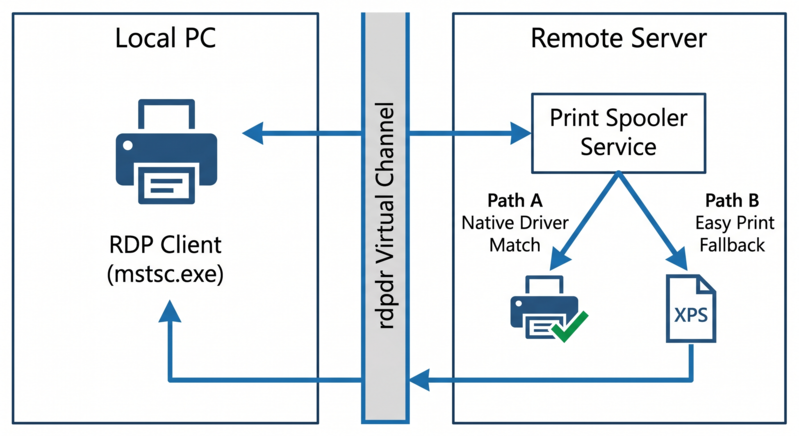
Easy Print is why a properly configured Windows Server 2019/2022/2025 RDS host can print to almost anything without installing dozens of printer drivers server-side. It is also why printing sometimes silently fails: XPS rendering does not faithfully reproduce every feature of every printer.
In our experience supporting 30,000+ companies, roughly 70% of "my printer isn't working in RDP" tickets trace back to either Easy Print limitations or Group Policy blocking redirection. The remaining 30% are due to driver corruption, spooler crashes from poorly written third-party drivers, or post-PrintNightmare Point and Print restrictions.
The First Five Things to Check
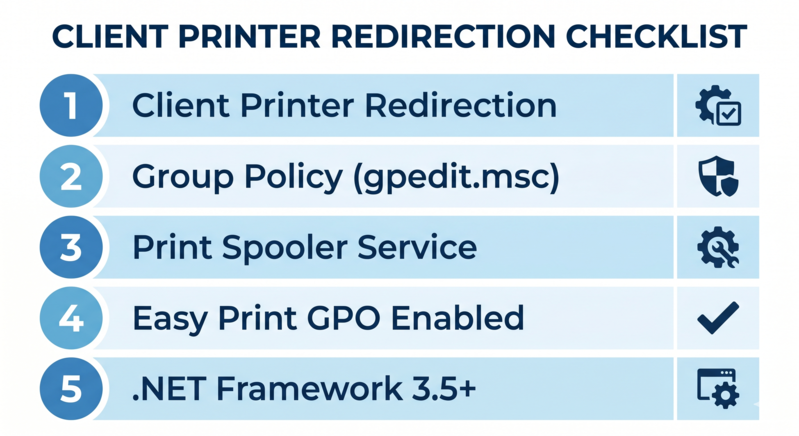
Run through this checklist before opening Event Viewer. A pattern we see repeatedly: the fix is one of these five items in roughly four out of five cases.
- On the client (.rdp file or mstsc): Local Resources tab → confirm "Printers" is checked under "Local devices and resources." Without this, the client never advertises its printers to the host. Obvious, but accounts for a surprising share of tickets.
- On the RDS host: Open
gpedit.msc → Computer Configuration → Administrative Templates → Windows Components → Remote Desktop Services → Remote Desktop Session Host → Printer Redirection. Verify "Do not allow client printer redirection" is Not Configured or Disabled. - Check the Print Spooler service on both the server and the client. If it has stopped or is crash-looping - very common after a bad driver install - no printers will redirect.
Get-Service Spooler is the fastest check. - Verify that Easy Print is not disabled: In the same GPO path, "Use Remote Desktop Easy Print printer driver first" should be set to Enabled or Not Configured.
- Confirm .NET Framework 3.5+ is present on the client. Client-side Easy Print rendering depends on it. Stripped-down Windows 10/11 LTSC and some embedded images don't include it, and the redirected printer will silently fail to appear with no obvious error.
If none of those resolve it, move to the event logs.
Reading the Event Logs (Don't Skip This)
The specific event IDs tell you exactly what's broken. Guessing costs hours.
On the RDS host, open Event Viewer → Applications and Services Logs → Microsoft → Windows → PrintService → Admin (enable the Operational log too if it isn't already).
- Event ID 1111 - "Driver required for printer X is unknown. Contact the administrator to install the driver before you log in again." This means Easy Print did not engage, and the native driver isn't installed. Usually caused by the "Use Remote Desktop Easy Print printer driver first" GPO being disabled, or by a client-side driver that explicitly opts out of XPS rendering.
- Event ID 1105 - "Printer could not be installed." In 2022+, this is almost always a Point and Print / Package Point and Print restriction from the PrintNightmare mitigations.
- Event ID 823 - The print spooler crashed while adding the redirected printer. Almost always a bad third-party driver. Identify the faulting module from the crash dump and remove that driver via
printui /s /t2.
Why Is Remote Desktop Printing So Slow?
One of the most common support tickets we receive, and the cause is nearly always the same: Easy Print's XPS rendering produces large files, and those files have to be streamed over the RDP virtual channel back to the client.
A 50-page Word document with embedded images can balloon to 40–80 MB in XPS format. Over a 5 Mbps WAN connection, that's 60–120 seconds of transfer alone, before the client-side driver even begins rendering. Users experience this as "I hit print and nothing happens for two minutes."
Root causes:
- XPS vs EMF. Pre-Easy Print, RDP used EMF (Enhanced Metafile), which is far more compact for text and vector content, but requires a matching driver on the server. Microsoft traded file size for driver independence. For text-heavy documents, this was a real loss.
- Limited compression on the virtual channel. By default, the RDPDR channel doesn't aggressively compress print streams. Over WAN links, this matters a lot.
- Spooler serialization. Print jobs are processed sequentially per queue. One stuck job blocks every subsequent job behind it.
This is the scenario where a server-side-rendering alternative measurably helps. TSPrint renders to PDF on the host, compresses the stream, and reconstructs the job on the client. In our benchmarks and customer deployments, we typically see a 60–90% reduction in transmitted data for text-heavy documents versus Easy Print. For one financial services customer printing 200+ page loan packages daily, that was the difference between a usable RDP environment and calls to IT every morning.
That said, if your users print a handful of one-page documents over a LAN, Easy Print is fast enough, and a replacement adds cost without real benefit.
Printers That Commonly Break Easy Print
Based on over a decade of working with remote desktop printing, these printer categories reliably break Easy Print. In every case, you'll need either native drivers on the host or a third-party redirection tool.
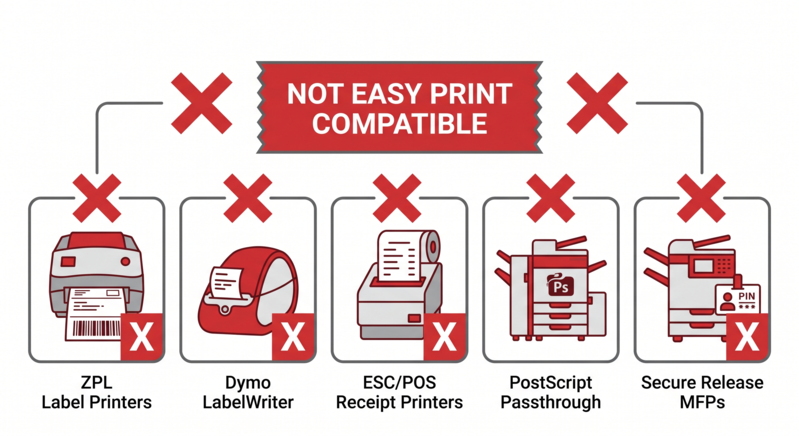
Zebra label printers (ZPL/EPL). ZPL is a raw command language, not a rasterized print stream. Easy Print rasterizes everything, so a 4x6 shipping label that should transmit as ~2 KB of ZPL instead travels as a 400 KB bitmap that the Zebra re-rasterizes. Labels print slowly, barcodes occasionally scan poorly due to rasterization artifacts, and the printer's internal label counter drifts. Near-universal issue in warehousing, e-commerce fulfillment, and 3PL environments.
Dymo LabelWriter series. Same story. Dymo drivers expect raw commands. In RDP sessions, Dymo printers often appear but print blank labels or crash the spooler mid-job.
Epson and Star receipt printers (ESC/POS). Retail POS environments need cash-drawer kick commands and paper-cut commands to pass through untouched. Easy Print's XPS pipeline strips or transforms these. We've seen Epson TM-T88 units print the receipt correctly but never fire the cash drawer, because the drawer-kick escape sequence never survived the XPS round trip.
PostScript printers with PostScript passthrough requirements. Prepress and design workflows that rely on the raw PS stream lose fidelity through Easy Print's XPS-to-target-driver path.
Multifunction devices with secure-release/follow-me printing. Common in healthcare and finance. Features like PIN-protected release, badge authentication, and accounting codes are in the driver UI and aren't exposed to the redirected queue.
Our consistent recommendation for these categories is: either install the vendor driver on the RDS host and redirect natively (which works but creates driver management overhead across a farm), or use a redirection product that preserves the raw print stream. TSPrint's TSPrint Label module specifically targets the Zebra/Dymo case - it forwards native ZPL/EPL directly through the RDP channel with no rasterization.
Recent Windows Updates That Broke RDP Printing
Three changes over the past several years have reshaped this landscape. Any troubleshooting guide that doesn't acknowledge them is out of date.
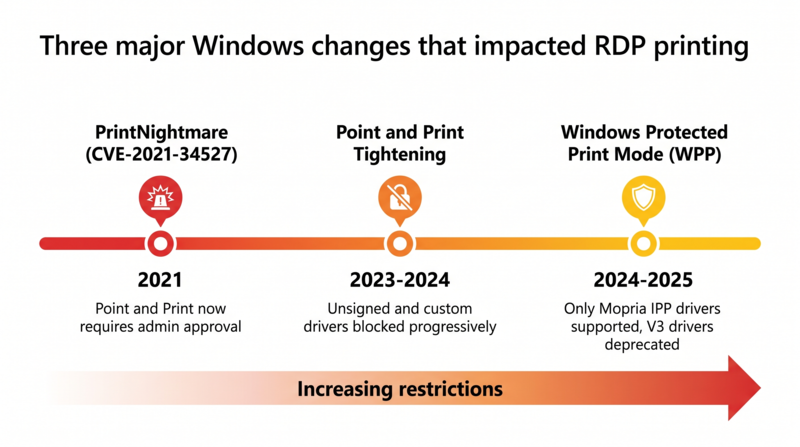
PrintNightmare (CVE-2021-34527, August 2021). Microsoft's mitigation required administrator privileges to install print drivers by default and added Point and Print warnings that, unattended, block driver installation entirely. On RDS hosts, this caused Event ID 1105 avalanches - redirected printers stopped installing for non-admin users. The fix is to configure the "Package Point and Print - Approved servers" GPO with your trusted print servers, or to pre-install drivers on the host so no user-context installation is required.
Windows Protected Print Mode (WPP), rolling out through 2024–2025. WPP moves the print spooler into a more isolated process and, critically, only supports Mopria-class IPP drivers. Legacy V3 drivers don't load under WPP. If you've enabled WPP on a Windows 11 24H2 or Server 2025 host and users report "my printer used to work and now it doesn't," this is almost certainly why. You can disable WPP via GPO, but Microsoft's direction is clear: V3 drivers are on borrowed time, and a long-term V4/IPP migration is coming whether we like it or not.
Point and Print tightening. Multiple cumulative updates in 2023–2024 progressively tightened what Package Point and Print will accept. Custom or unsigned drivers that worked for years suddenly require explicit GPO approval.
The practical implication is that if your print strategy relies heavily on native driver redirection, it is now a moving target. Server-side rendering approaches (Easy Print, TSPrint's PDF-based pipeline, ThinPrint's .print engine) are less affected because they don't require per-printer drivers on the host.
Native RDP Printing vs. Third-Party Solutions: When to Use What
Not every environment needs a paid redirection product. Here's how we'd honestly frame the decision.
| Scenario | Best approach |
|---|
| 1–10 users, LAN, standard office printers | Native RDP printing with Easy Print |
| 10–50 users, mixed printer types, some WAN | Easy Print + selective native drivers; evaluate third-party for problem users |
| 50+ users across a farm, heterogeneous printers | Third-party redirection - driver management at scale becomes the biggest cost center |
| Warehouse/retail with Zebra or receipt printers | Third-party with raw/passthrough - Easy Print will not work reliably |
| Healthcare with EMR → wristband/prescription printing | Third-party, native rasterization causes wristband and label reliability issues |
| Citrix or VMware Horizon environment | Those platforms have their own redirection (Citrix UPD, Horizon VPD) - evaluate alongside third-party |
| Azure Virtual Desktop, users on home networks | Bandwidth optimization matters - third-party with compression is usually worth it |
.png)
When native RDP printing is enough: Small deployments, LAN-only connections, no label or receipt printers, no bandwidth constraints, no compliance requirements for print auditing. Easy Print is free, requires no additional infrastructure, and is maintained by Microsoft.
When TSPrint makes sense: You're managing more than ~25 users, you have printer types Easy Print mishandles, users are on bandwidth-constrained links, or you're spending measurable IT time on print driver management across an RDS farm. TSPrint is a two-part software, with a server component installed on the RDS and a client component installed on the client, that uses a universal PDF-based driver and adds PDF export, email-to-print, and raw label support that Easy Print doesn't have.
How TSPrint compares to alternatives. ThinPrint is the enterprise incumbent, strongest in very large Citrix environments, priced accordingly. UniPrint Infinity uses a similar PDF-based approach to TSPrint at roughly similar price points. ScrewDrivers (Tricerat) is long-established and strong on niche driver support. ezeep is cloud-first, good for hybrid scenarios but less suited to on-prem RDS. FabulaTech's Printer for Remote Desktop is client-installed and better suited to one-off workstations than RDS farms. TSPrint's position is the practical mid-market option - it works on on-prem RDS, AVD, and RemoteApp, priced per server rather than per user, and installs in under ten minutes.
Step-by-Step Fixes for the Most Common Errors
"Redirected printer doesn't appear at all"
- Confirm client-side printer redirection in the RDP file or mstsc dialog.
- On the host, run
gpresult /h report.html and verify that no GPO is disabling printer redirection. - Check
HKLM\SYSTEM\CurrentControlSet\Control\Terminal Server\Wds\rdpwd\fEnablePrintRedir = 1. - Restart the Print Spooler service on the host (
Restart-Service Spooler). - Disconnect and reconnect - not just lock/unlock. Printer enumeration runs only on a fresh connection.
"Printer appears but prints blank pages"
Almost always a driver mismatch. Easy Print assumes the client driver can consume XPS. Some older or stripped-down drivers cannot. Update the client-side driver to the latest vendor version; do not rely on the generic Windows Update driver.
"Printer appears but jobs stay 'Spooling' forever"
Check the Easy Print printer properties on the host. If it shows "Driver: unknown" or a generic driver error, the XPS stream is failing to initialize. Common cause: the client is missing .NET Framework 3.5, or has a corrupted XPS Viewer install.
"Spooler crashes whenever a specific user connects"
Identify the faulting driver from the Application log (look for the spoolsv.exe crash entry and the faulting module). Remove that driver from the host via printui /s /t2. Consider enabling print driver isolation so a future misbehaving driver doesn't take the entire spooler down: Print Management → right-click the driver → Set Driver Isolation → Isolated.
Frequently Asked Questions
The local printer uses its native driver directly. In an RDP session, the printer must be redirected via the RDPDR virtual channel and rendered either by a matching server-side driver or by Easy Print's universal XPS driver. Any missing driver, blocked GPO, or XPS incompatibility breaks that chain while leaving local printing untouched. Start by verifying that redirection is enabled on both the client and the host, then check the PrintService Admin log on the host.
Yes. Easy Print is part of the RDS role and has been enabled by default on every supported Windows Server version since 2008. You do not need to install it separately. However, GPO settings can disable the "try Easy Print first" behavior, a common hidden cause of driver-required errors. Check the "Use Remote Desktop Easy Print printer driver first" policy before assuming Easy Print is broken.
Easy Print rasterizes labels, which makes ZPL-based Zebra printers slow and unreliable - barcodes can degrade, and the printer's label counter drifts. The two working approaches are: install the Zebra driver on the RDS host and redirect natively (creates farm-wide driver management overhead), or use a tool like TSPrint Label that forwards the raw ZPL stream through the RDP channel without rasterization. For warehouses printing hundreds of labels per hour, the raw-forwarding approach is effectively required.
The original vulnerability was patched years ago, but the mitigations Microsoft shipped are permanent. Specifically, Point and Print now requires admin approval by default, which breaks silent installation of redirected printers for non-admin users. If you're seeing Event ID 1105 after any 2021+ cumulative update, configure the "Package Point and Print - Approved servers" GPO with your trusted print servers, or pre-install drivers on the RDS host so no per-user installation is required.
Easy Print renders jobs to XPS on the server and streams them back to the client over the RDPDR virtual channel. XPS files are substantially larger than EMF or native print streams - a plain text document can be 10–40x bigger than XPS. On bandwidth-limited connections, that translates to multi-minute delays for large jobs. Solutions that render to PDF and compress the stream (TSPrint, ThinPrint, UniPrint) typically cut transferred data by 60–90%.
Yes. AVD and Windows 365 use the same RDP printing infrastructure as traditional RDS, including Easy Print, and everything in this guide applies. The additional consideration is that AVD users are often on residential connections, which exacerbates Easy Print's bandwidth problem. In our customer data, bandwidth-optimized redirection products show a greater measurable benefit in AVD deployments than in on-prem RDS.
With Easy Print, usually no - it works driver-free for most standard printers. You only need server-side drivers when Easy Print doesn't support the printer's feature set (label printers, receipt printers, secure-release MFPs) or when you've explicitly disabled Easy Print. Installing drivers adds management overhead and introduces the risk of spooler crashes from poorly written drivers, so the driverless approach is preferable wherever it works.
Enable the GPO "Do not set default client printer to be default printer in a session" at Computer Configuration → Administrative Templates → Windows Components → Remote Desktop Services → Remote Desktop Session Host → Printer Redirection. Especially useful in shared-workstation scenarios where you don't want user A's printer to become the default for user B on the same thin client.
Most common cause: the Print Spooler service restarted on the host, usually because of a crashing driver. Less common but real: network-layer disconnection of the RDPDR virtual channel on flaky connections. Check the System event log for spoolsv.exe crashes and the Microsoft-Windows-TerminalServices-PnPDevices log for channel disconnections. Enabling driver isolation per driver in Print Management prevents a bad driver from bringing the entire spooler down.
Yes, but not cleanly with native RDP tools - Easy Print doesn't provide a "save as PDF on client" target. TSPrint includes a TSPrint PDF virtual printer that does exactly this: the user prints to TSPrint PDF in the session, and the resulting PDF opens (or saves) on the local machine. This is one of the most-used features among our customers in legal, finance, and healthcare, where PDF archiving is part of the daily workflow.
Summary
Remote desktop printing fails for a small, well-understood set of reasons: redirection is disabled somewhere in the chain, Easy Print can't handle the printer's capabilities, Group Policy is blocking the install, or a recent Windows security update has changed the Point and Print rules. Walking through the first-five checklist, reading the PrintService event log, and understanding whether your printers are Easy Print-friendly resolves the large majority of cases. For environments where native RDP printing genuinely isn't enough - label printers, receipt printers, bandwidth-constrained WAN users, or large RDS farms - a dedicated redirection product removes both the driver management burden and the bandwidth overhead. TSPrint has been our answer to that problem since 2014.
Learn more about TSPrint - which offers a full-feature 25-day trial and installs on the RDS host in under five minutes.


