What DPI, Compression, and File Format Should You Use for Remote Desktop Scanning?
By TerminalWorks — Remote Desktop Scanning Solutions Since 2014
For most business documents scanned over Remote Desktop, use 200 to 300 DPI, black and white or grayscale color depth, and PDF output with CCITT Group 4 or JPEG compression applied on the client side before the data crosses the connection. This keeps a typical page between 30 KB and 400 KB instead of 8 to 25 MB, so scans arrive in seconds rather than minutes.
That is the short answer, but the reasoning behind it is where most RDS deployments go wrong. This guide covers what actually travels across an RDP connection during a scan, how DPI and color depth multiply against each other, which compression algorithm fits which document type, why the location of compression in the pipeline matters more than the compression ratio itself, and recommended settings for specific industry workflows. It also covers when USB redirection, a network scanner, or a mobile app is a better fit than dedicated scanner redirection software.
Why Scan Settings Matter More in a Remote Session Than They Do Locally
A scanner attached to a local workstation writes into RAM over a USB 3.0 bus at several hundred megabytes per second. Nobody notices a 25 MB page because it never leaves the machine. The moment the acquiring application runs on a terminal server, that same page has to travel over a WAN link that is also carrying the display channel, audio, clipboard, and drive redirection for every other user on the host.
One of the most common support tickets we receive is not "scanning does not work" but "scanning works, and it is unbearably slow." In nearly every case the scanner is producing far more data than the document requires, and nothing in the pipeline is reducing it before transfer.
What a Page Actually Weighs Before Compression
Raw scan size is pixel count multiplied by bytes per pixel. For a Letter page at 8.5 by 11 inches, uncompressed:
| DPI | Pixel dimensions | Black and white (1-bit) | Grayscale (8-bit) | Color (24-bit) |
|---|
| 150 | 1275 x 1650 | 263 KB | 2.1 MB | 6.3 MB |
| 200 | 1700 x 2200 | 468 KB | 3.7 MB | 11.2 MB |
| 300 | 2550 x 3300 | 1.05 MB | 8.4 MB | 25.2 MB |
| 400 | 3400 x 4400 | 1.87 MB | 15.0 MB | 44.9 MB |
| 600 | 5100 x 6600 | 4.2 MB | 33.7 MB | 101 MB |
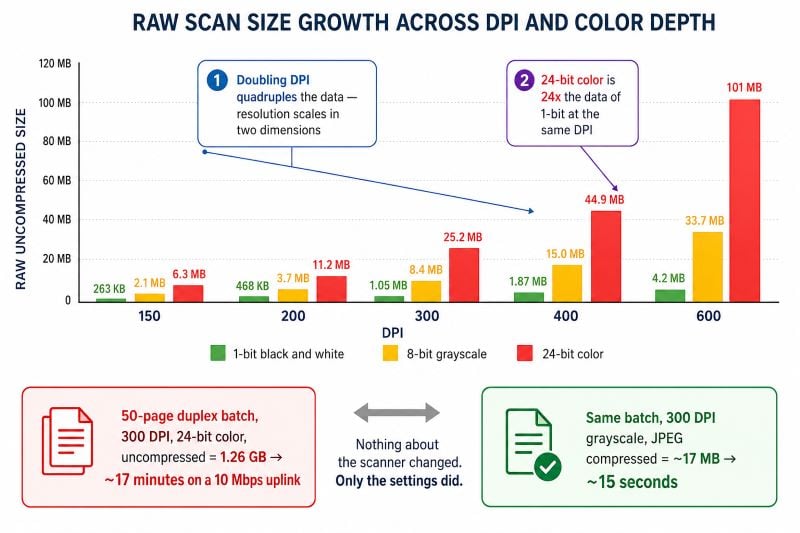
Doubling DPI quadruples the data, because resolution scales in two dimensions. A 50-page duplex batch scanned at 300 DPI in 24-bit color is roughly 1.26 GB of raw bitmap. On a 10 Mbps uplink, which delivers about 1.25 MB per second in practice, that is close to 17 minutes of transfer. The same batch scanned in grayscale at 300 DPI and JPEG-compressed to around 350 KB per page is about 17 MB, or roughly 15 seconds. Nothing about the scanner changed. Only the settings did.
Why Remote Desktop Has No Native Answer to This
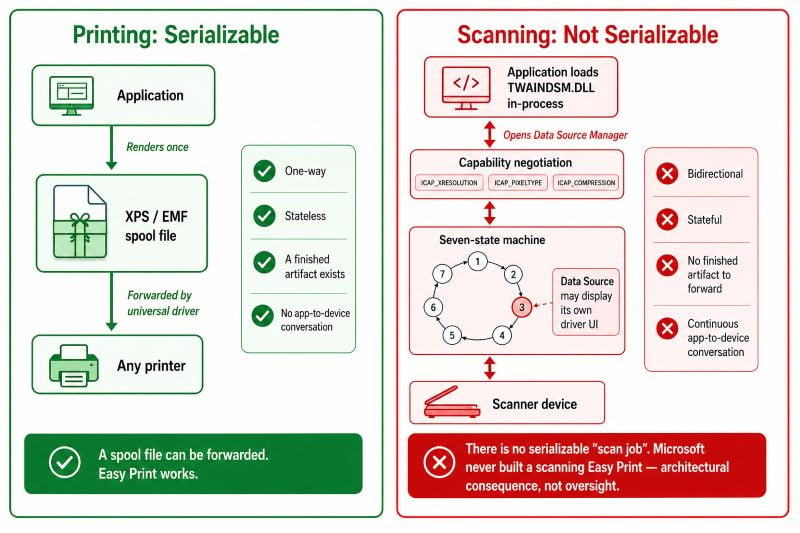
Printing has Easy Print because printing is a one-way pipeline with a well-defined interchange format. The client renders an XPS or EMF spool file through a universal driver, and no application ever needs to talk to the printer directly. Scanning has no equivalent in any version of Remote Desktop Services, and that is an architectural consequence rather than an oversight.
TWAIN is a bidirectional, stateful protocol. The application loads TWAINDSM.DLL in its own process, opens the Data Source Manager, negotiates capabilities such as ICAP_XRESOLUTION, ICAP_PIXELTYPE, and ICAP_COMPRESSION, then walks a seven-state machine while the Data Source may display its own driver UI. WIA is different but equally device-coupled. There is no serializable "scan job" that a universal driver could forward the way a spool file is forwarded, which is why Microsoft never built a scanning counterpart to Easy Print.
What Remote Desktop does offer is RemoteFX USB device redirection, which forwards raw USB Request Blocks. Two limitations matter here. First, it is supported for VDI sessions on a Remote Desktop Virtualization Host, not for session-based desktops on an RD Session Host, so it is unavailable in the most common terminal server topology. Second, URB-level forwarding means every low-level device transaction makes a network round trip. A sheetfed scanner running at 40 pages per minute produces a continuous stream of bulk transfers, and on a 40 ms link the accumulated latency stalls the device long before bandwidth becomes the constraint. It is enabled through Computer Configuration\Policies\Administrative Templates\Windows Components\Remote Desktop Services\Remote Desktop Connection Client\RemoteFX USB Device Redirection, but enabling it does not remove either limitation.
How to Choose Scan DPI for Remote Desktop Scanning
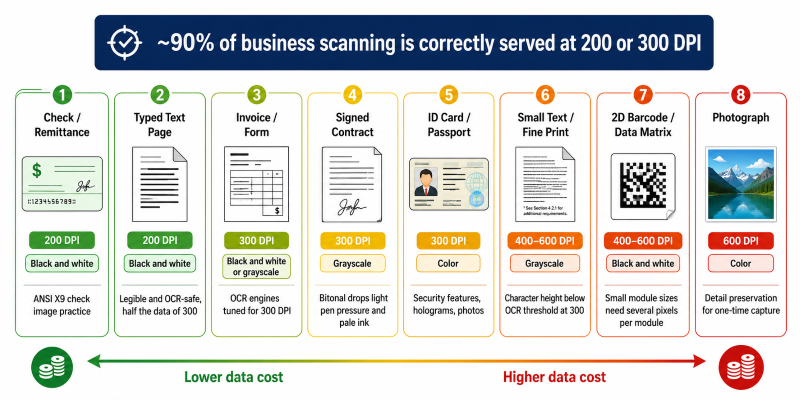
DPI should be chosen from what the document has to survive downstream, not from what the scanner is capable of. In our experience supporting thousands of RDS environments, roughly 90 percent of business scanning is correctly served at 200 or 300 DPI.
| Document type | Recommended DPI | Color depth | Reasoning |
|---|
| Clean typed text, 10 pt and above | 200 | Black and white | Legible and OCR-safe; roughly half the data of 300 DPI |
| General business documents for OCR | 300 | Black and white or grayscale | OCR engines are tuned for 300 DPI; accuracy plateaus above it |
| Signed contracts, handwritten notes | 300 | Grayscale | Bitonal thresholding drops light pen pressure and pale ink |
| ID cards, passports, KYC documents | 300 | Color | Security features, holograms, and photos require color |
| Checks and remittance | 200 | Black and white | Aligns with ANSI X9 check image practice; bitonal front and back |
| Small print, footnotes, 6 pt text | 400 to 600 | Grayscale | Character height falls below reliable OCR thresholds at 300 DPI |
| 2D barcodes and Data Matrix on labels | 400 to 600 | Black and white | Small module sizes need several pixels per module |
| Photographs and archival originals | 600 | Color | Detail preservation for one-time capture |
Why More DPI Often Makes OCR Worse
A pattern we see repeatedly is a firm scanning at 600 DPI on the assumption that more resolution means better text recognition. Above roughly 400 DPI, OCR engines commonly downsample internally before segmentation, so the extra pixels are discarded after being paid for in transfer time. Worse, higher resolution resolves paper texture, toner speckle, and dot matrix screening that was invisible at 300 DPI, which adds noise to the character segmentation step and inflates compressed file size. Scanning a noisy original at 600 DPI bitonal can produce a file larger than the same page at 300 DPI grayscale.
Optical Versus Interpolated Resolution
Scanner specifications frequently quote an interpolated figure such as 1200 or 9600 DPI. Interpolation is software upscaling after capture. Selecting an interpolated resolution multiplies the number of bytes that must cross the RDP connection without adding a single bit of real detail. Check the optical resolution of the CCD or CIS sensor, and never set a scan above it in a remote session.
Color Depth Is the Largest Single Lever
Changing from 24-bit color to 1-bit black and white reduces raw data by a factor of 24 at the same DPI. No compression setting comes close to that. Dropping from 300 DPI color to 300 DPI grayscale already cuts the payload by two thirds.
| Color mode | Bits per pixel | Typical 300 DPI page, compressed | Best fit |
|---|
| Black and white (bitonal) | 1 | 15 to 60 KB | Text, forms, invoices, contracts without color content |
| Grayscale | 8 | 200 to 450 KB | Signatures, stamps, photocopies, faded originals |
| Color | 24 | 350 to 700 KB | ID documents, marketing material, color-coded forms |
Why Automatic Color Detection Causes Unpredictable Remote Scanning
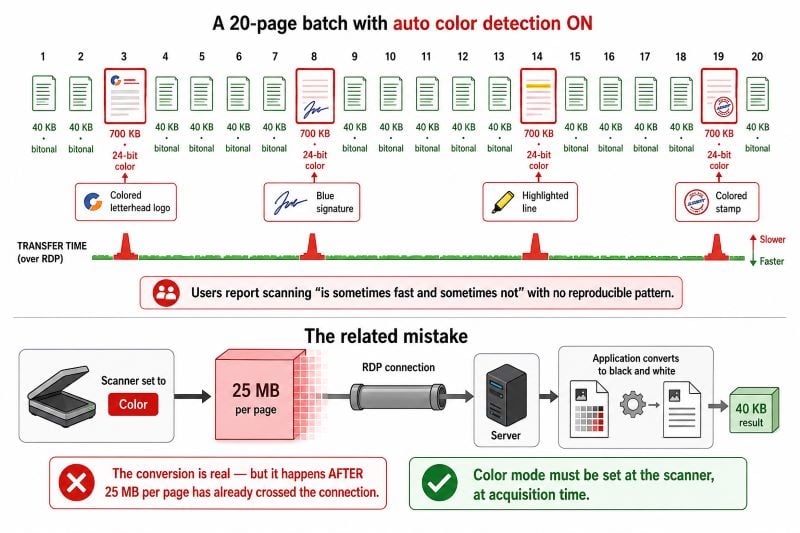
Automatic color detection is a frequent cause of erratic performance complaints. The scanner samples each page and promotes it to 24-bit color if it finds sufficient chroma. A letterhead logo, a blue signature, or a colored highlight is enough. The result is a batch where most pages are 40 KB and a handful are 700 KB, and users report that scanning "is sometimes fast and sometimes not" with no reproducible pattern. For high-volume workflows on constrained links, set the color mode explicitly per document type rather than leaving detection on.
The related mistake is scanning in color and converting to black and white in the server-side application. The conversion is real, but it happens after 25 MB per page has already crossed the connection. Color mode must be set at the scanner, at acquisition time.
Which File Format Should You Use for Scanning Over Remote Desktop?
Format choice determines which compression algorithm is available, and algorithm choice is what turns 1 MB of bitonal pixels into 20 KB.
| Format | Compression | Multipage | Use it for | Avoid when |
|---|
| PDF (image only) | CCITT G4, JBIG2, JPEG, JPEG 2000 | Yes | Default for nearly all document workflows and DMS ingestion | The receiving application requires raw image input |
| Searchable PDF | Same, plus hidden OCR text layer | Yes | Records that must be found by full text search later | OCR runs on the client and adds seconds per page |
| PDF/A | G4, JBIG2, JPEG; JPEG 2000 from PDF/A-2 onward | Yes | Legal, financial, and regulatory archives | You need features PDF/A prohibits, such as embedded media |
| TIFF | G4, LZW, JPEG, or none | Yes | Legacy DMS and check imaging pipelines that expect G4 TIFF | Uncompressed TIFF is selected, which is the worst RDP case |
| JPEG | Lossy DCT | No | Single-page photos, ID cards, color originals | Bitonal text; artifacts appear and files are larger than G4 |
| PNG | Lossless deflate | No | Screenshots, line art, small bitonal captures | Photographic content; ratios collapse to about 3:1 |
| BMP | None | No | Diagnostics only | Any production remote scanning workflow |
Matching the Algorithm to the Content
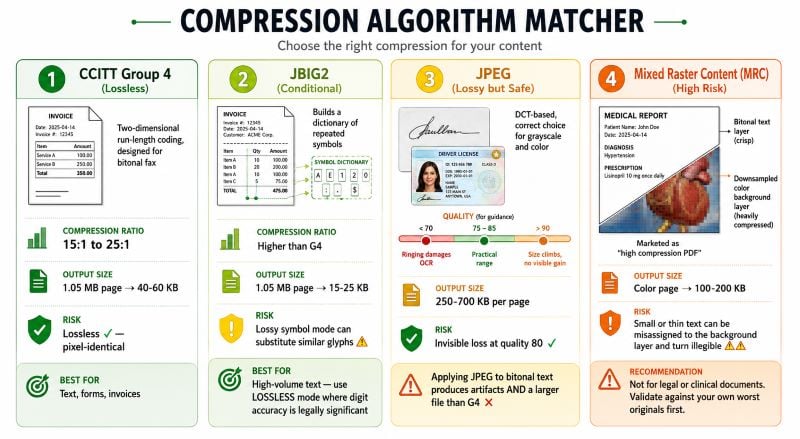
CCITT Group 4 is two-dimensional run-length coding designed for bitonal fax. On clean 300 DPI text it typically returns 15:1 to 25:1, taking a 1.05 MB page to roughly 40 to 60 KB. JBIG2 goes further by building a dictionary of repeated symbols, and on the same page commonly lands between 15 and 25 KB. JBIG2 in lossy symbol mode has a known risk of substituting visually similar glyphs, so for documents where digit accuracy is legally significant, use lossless JBIG2 or stay with G4.
JPEG is the correct choice for grayscale and color, and quality 75 to 85 is the practical range. Below 70, ringing around text edges begins to damage OCR accuracy; above 90, file size climbs steeply for detail no reader will see. Applying JPEG to bitonal text is a common misconfiguration: it produces both visible artifacts and a larger file than G4 would have.
Mixed Raster Content, marketed by most scanner vendors as "high compression PDF," segments each page into a bitonal text layer and a heavily downsampled color background. It can bring a color page to 100 to 200 KB, which is attractive over a slow link. The trade-off is real: small or thin text can be misassigned to the background layer and turn illegible. We would not recommend MRC for anything with legal or clinical weight, and it should always be validated against your own worst originals first.
Where Compression Happens Decides Whether It Helps at All
This is the part most guides skip, and it is the part that determines whether any of the above matters in a remote session. Based on over a decade of working with TWAIN and WIA redirection, the pipeline order is everything.
TWAIN defines three transfer modes. Native transfer hands the application a memory handle to an uncompressed DIB. Memory transfer moves buffered strips, usually uncompressed. File transfer writes to disk in a format set by ICAP_IMAGEFILEFORMAT, and only this path routinely carries compressed data. Many line of business applications request native transfer because it is the simplest to implement, which means the scanner produces compressed JPEG in hardware, the driver decompresses it, and the application receives a raw bitmap.
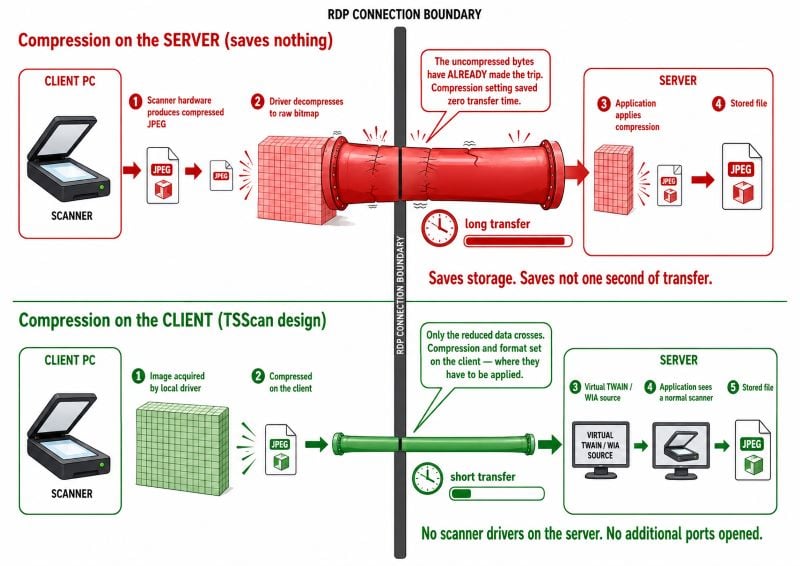
In a remote session the question becomes: at which point does that data cross the connection? If the redirection mechanism forwards the raw device stream and compression is applied by the application on the server, the uncompressed bytes have already made the trip and the compression setting has saved nothing. Effective remote scanning requires the image to be acquired and compressed on the client, then transferred already reduced, with the server-side application seeing a normal virtual TWAIN or WIA source.
This is the design TSScan uses. Acquisition and compression happen on the client, the compressed result travels inside the existing RDP, Citrix, or PCoIP virtual channel with no additional ports opened, and the remote application sees a mapped virtual scanner without any scanner driver installed on the server. Compression level and output format are set on the client side, which is precisely where they have to be applied to affect transfer time. RemoteScan and FabulaTech Scanner for Remote Desktop use broadly comparable architectures; the practical differences between all three come down to compression and format control, device coverage, licensing model, and concurrent session handling, and any of them should be trialed against your own scanners before committing.
Image Cleanup Before Compression Is Free Bandwidth
Compression ratio depends on how predictable the image is, so preprocessing pays for itself twice: better output and less data to move.
- Despeckle. Isolated black pixels break the run-length coding that G4 depends on. Removing speckle from a noisy bitonal page routinely cuts the compressed size by 40 to 60 percent.
- Deskew. A page scanned three degrees off axis turns every horizontal text row into a staircase, which lengthens coding runs and reduces OCR accuracy at the same time.
- Blank page removal. On duplex batches of single-sided originals this eliminates half the pages outright. It is the highest-return setting in high-volume environments.
- Border and edge crop. Black scan borders from oversized glass compress poorly and add nothing.
- Adaptive thresholding. On photocopies and colored paper stock, dynamic thresholding preserves text that a fixed threshold either drops or floods.
Recommended Settings by Workflow
| Scenario | DPI | Color | Format | Approx. per page |
|---|
| Healthcare, patient records into an EMR | 300 | Grayscale | Searchable PDF | 250 to 400 KB |
| Legal, signed contracts and exhibits | 300 | Grayscale | PDF/A | 250 to 400 KB |
| Accounting, high-volume invoices | 300 | Black and white | PDF with G4 or JBIG2 | 20 to 60 KB |
| Banking, check capture | 200 | Black and white | TIFF G4 | 15 to 30 KB |
| Banking, KYC and identity documents | 300 | Color | PDF with JPEG | 350 to 700 KB |
| DMS ingestion (DocuWare, M-Files, SharePoint) | 300 | Black and white or grayscale | Searchable PDF or PDF/A | 50 to 400 KB |
| Logistics, delivery notes with barcodes | 300 to 400 | Black and white | PDF with G4 | 40 to 90 KB |
Two device-specific notes worth planning around. Fujitsu ScanSnap models use a push driver model in which the device initiates the scan rather than responding to a TWAIN acquisition, so they require the vendor software present on the client and behave differently from fi-series scanners in a remote session. Production scanners from Kodak and Canon imageFORMULA often rely on ISIS rather than TWAIN, and ISIS does its own buffering and transport, which is why generic USB redirection so rarely works with them.
When You Do Not Need Scanner Redirection at All
Redirection software is the right answer when a server-side application must call a scanner directly. It is the wrong answer when nothing in your workflow requires that.
| Approach | Works well when | Breaks down when |
|---|
| Network scanner with scan-to-folder or scan-to-email | Users can retrieve files manually; the MFP is on a reachable network segment; compression is configured on the device | The application must trigger the scan; users work from home; the scan needs to land in a specific record |
| Native USB device redirection | VDI sessions on an RD Virtualization Host, low latency LAN, a single user per device, drivers installable on the guest | RD Session Host deployments, WAN latency, ISIS or push-model scanners, shared scanners across sessions |
| Mobile scanner apps | Occasional ad hoc capture; the destination accepts uploads; volume is a few pages per day | Duplex ADF batches, consistent image quality, or any regulated capture requiring a controlled device |
| Dedicated scanner redirection (TSScan and comparable tools) | A server-side application needs a TWAIN or WIA source; multiple concurrent users; bandwidth-constrained links; mixed scanner fleets | Only a handful of scans per week and the destination accepts a file drop, in which case scan-to-folder is simpler and cheaper |
To be direct about it: if your users scan five pages a week and drag them into a web form, a network MFP with scan-to-folder is sufficient and you do not need redirection software. The economics change when a document management system, EMR, or ERP client running on the terminal server has to initiate acquisition itself.
Diagnosing a Slow Remote Scan
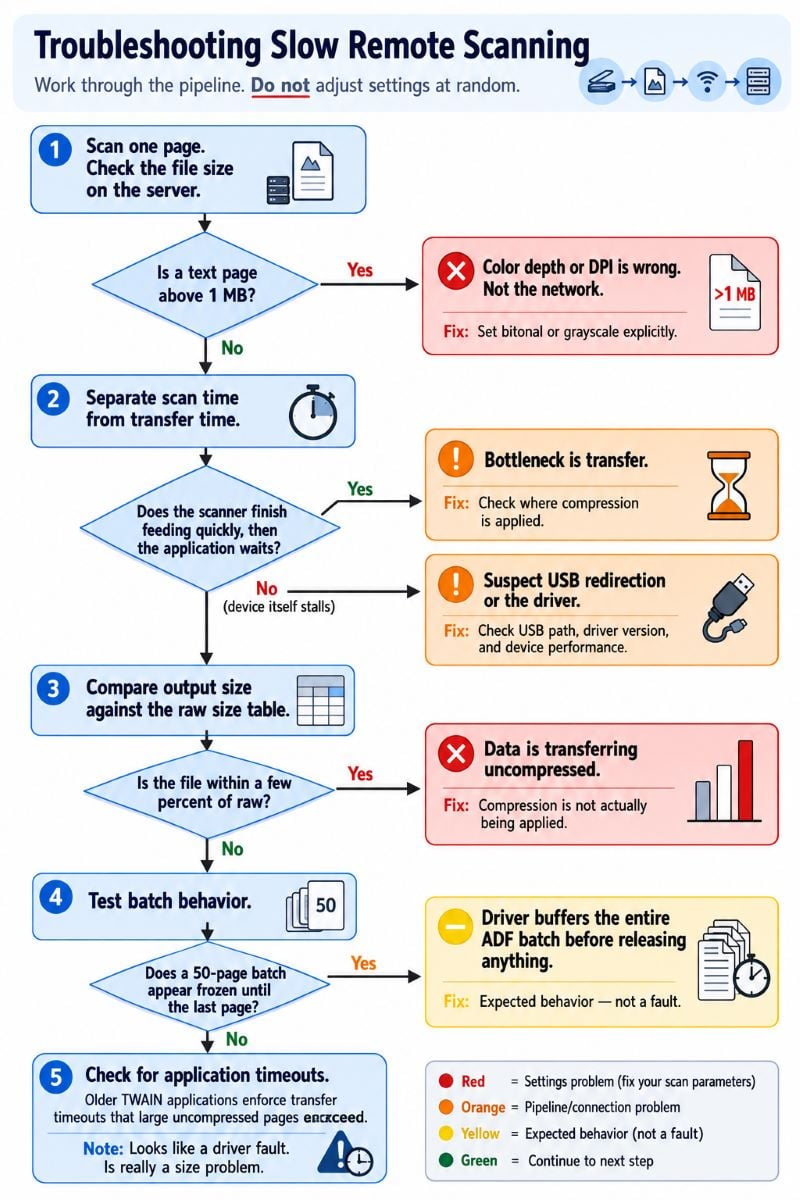
When a remote scan is slow, work through the pipeline rather than adjusting settings at random.
- Measure a single page. Scan one page and check the resulting file size on the server. A text page above 1 MB means color depth or DPI is wrong, not the network.
- Separate scan time from transfer time. If the scanner finishes feeding quickly but the application waits afterward, the bottleneck is transfer. If the device itself is stalling, suspect USB redirection or the driver.
- Check whether compression is actually applied. Compare the output size against the raw figures in the first table. A file within a few percent of raw is being transferred uncompressed.
- Test batch behavior. Some drivers buffer an entire ADF batch before releasing anything. A 50-page batch then appears frozen until the last page completes.
- Watch for application timeouts. Older TWAIN applications enforce transfer timeouts that large uncompressed pages will exceed, producing an error that looks like a driver fault but is really a size problem.
Frequently Asked Questions
Use 300 DPI for anything that will be processed by OCR or stored long term, and 200 DPI for clean typed text that only needs to be readable. Going from 200 to 300 DPI roughly doubles the data volume, and going from 300 to 600 quadruples it again. Above 400 DPI most OCR engines downsample internally, so the additional resolution costs transfer time without improving recognition. Reserve 600 DPI for photographs, very small print, and archival capture.
Locally, image data never leaves the machine. In a remote session it has to cross a link that is also carrying display, audio, and clipboard traffic for every user on the host. A 50-page color batch at 300 DPI is about 1.26 GB uncompressed, which needs roughly 17 minutes on a 10 Mbps uplink. The same batch in grayscale with JPEG compression is around 17 MB and completes in seconds. Slowness is almost always a settings problem rather than a network problem.
PDF for almost all workflows. It supports multipage documents, carries CCITT Group 4, JBIG2, and JPEG compression, accepts an OCR text layer, and is accepted by every mainstream document management system. Choose TIFF when a legacy application or check imaging pipeline specifically expects multipage G4 TIFF. If you do use TIFF, verify the compression setting, because uncompressed TIFF is the worst possible format to move across a remote connection.
It depends on the algorithm. CCITT Group 4 and lossless JBIG2 are mathematically lossless for bitonal images, so a Group 4 page reduced from 1 MB to 45 KB is pixel-identical to the original. JPEG is lossy, but at quality 80 the loss is invisible for document scanning and has no measurable effect on OCR. The setting that does risk quality is Mixed Raster Content, sometimes labelled high compression PDF, which can degrade small text. Test it on your worst originals before deploying it.
Sometimes, with real constraints. RemoteFX USB redirection is supported for VDI sessions on a Remote Desktop Virtualization Host, not for session-based desktops on an RD Session Host, which rules it out for most terminal server deployments. It also forwards raw USB Request Blocks, so every device transaction makes a network round trip and latency becomes the limiting factor well before bandwidth does. It works reasonably on a low-latency LAN with a single user and a simple flatbed, and poorly with ADF batches, ISIS-based production scanners, or shared devices.
Automatic color detection is the usual cause. The scanner promotes a page to 24-bit color whenever it finds enough chroma, and a letterhead logo or a blue signature is sufficient. The batch then contains 40 KB bitonal pages alongside 700 KB color pages, which users experience as unpredictable performance. Page noise is the second cause, since speckle breaks the run-length coding that Group 4 relies on. Setting color mode explicitly and enabling despeckle resolves most of these cases.
It has to happen on the client to be useful. If the raw image is forwarded to the server and compressed by the application there, the uncompressed bytes have already crossed the connection and nothing was saved. Dedicated scanner redirection tools including TSScan acquire and compress on the client, then send the reduced data through the existing virtual channel. If you set a compression option inside a server-side application and transfer time does not change, this is why.
300 DPI grayscale, saved as PDF or PDF/A with JPEG compression at quality 80, which lands around 250 to 400 KB per page. Avoid black and white for signed documents: bitonal thresholding discards light pen pressure and pale blue ink, and a signature that appears broken or partially missing can be challenged later. Grayscale preserves stroke weight and stamp detail. Where the archive is subject to retention rules, PDF/A is the safer container.
Summary
Scan settings are the single largest determinant of remote desktop scanning performance, and they are decided before any network tuning matters. Choose DPI from the downstream requirement rather than the scanner specification, set color depth explicitly instead of relying on automatic detection, and select a compression algorithm that matches the content, meaning Group 4 or JBIG2 for bitonal and JPEG for grayscale and color. Above all, make sure compression is applied on the client before the data crosses the connection, because compression applied on the server saves storage but not a second of transfer time.
If a server-side application in your RDS, Citrix, or VDI environment needs to call a scanner directly, and you need control over compression and format at the point of acquisition, you can read more about how it works on the TSScan product page.


