By TerminalWorks - Remote Desktop Scanning Solutions Since 2014
Your scanner won't work in Remote Desktop because Windows Remote Desktop Services has no native scanner redirection - there is no scanner equivalent to the Easy Print system that handles printers. The remote session never sees your local scanner's TWAIN or WIA driver. To scan from inside a remote session you need USB device redirection (limited and unreliable), a network scan-to-folder workflow, or dedicated scanner-redirection software such as TSScan.
That one-line answer is true but it hides a lot of detail, and the detail is what determines whether your fix takes five minutes or breaks again next week. Below we explain exactly why Remote Desktop ignores your scanner, how to work through the most common failure points in order, when a simpler approach (USB redirection or a network scanner) is genuinely good enough, and when dedicated scanner redirection is the right call. We close with a FAQ covering the questions we field most often after more than a decade of supporting scanning in RDS, Citrix, and VDI environments.
Why Remote Desktop Has No Built-In Scanner Support
The first thing to understand is that this is not a misconfiguration on your part. No version of Remote Desktop Services — from Server 2008 R2 through Server 2025 — ships with scanner redirection. Printers get redirected automatically through Easy Print, which works because Microsoft built a universal print driver and a dedicated RDP virtual channel to carry print jobs back to the client. There is no equivalent universal scanner driver and no dedicated scanning channel. Microsoft simply never built one.
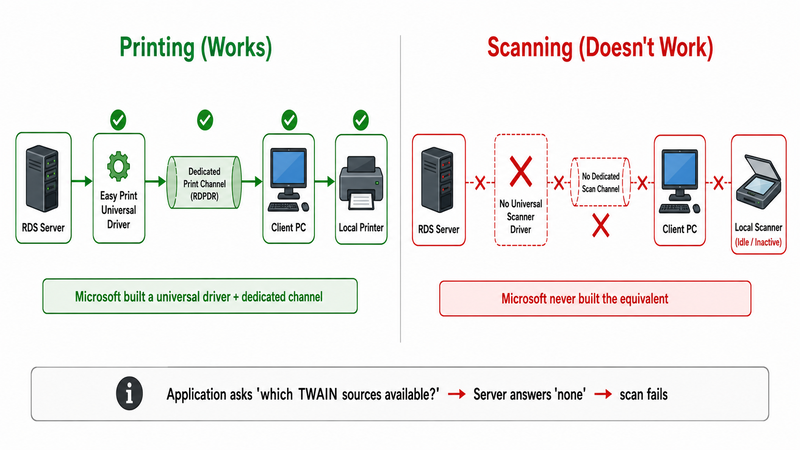
The deeper reason is the driver model. Scanners on Windows are driven by TWAIN or WIA, and production document scanners often add a third model, ISIS. In every case the acquiring application (your DMS, your EMR, your line-of-business app) talks to a driver that must be installed and running on the same machine as the application. In a remote session, the application runs on the terminal server. The scanner — and its driver — sit on the client device, on the other side of the RDP connection. The application asks the operating system "which TWAIN sources are available?" and the server honestly answers "none," because no scanner is physically attached to the server and no scanner driver is installed there.
This is fundamentally different from how printing works, and it's why so many "enable USB redirection and it'll just work" articles lead people in circles. Printing was solved by abstracting the device behind a universal driver. Scanning was never abstracted at all.
Per-session device handle isolation
There's a second layer that trips up even experienced admins. On a multi-user terminal server, each user gets an isolated session. Device handles, COM registration, and driver state are scoped per session. Even if you manage to expose a scanner to the server, the TWAIN data source's handle lives in one session's context. A pattern we see repeatedly: an admin tests scanning while logged in at the console or in session 1, it works, and then it fails for every user in sessions 2 through 40 because the device handle isn't visible across session boundaries. Anything that relies on a single global device registration breaks the moment you scale past one concurrent user.
The Most Common Reasons Your Scanner Won't Work in a Remote Session
One of the most common support tickets we receive starts with "the scanner shows up locally but the remote app can't see it." Here are the failure points, in roughly the order they occur.
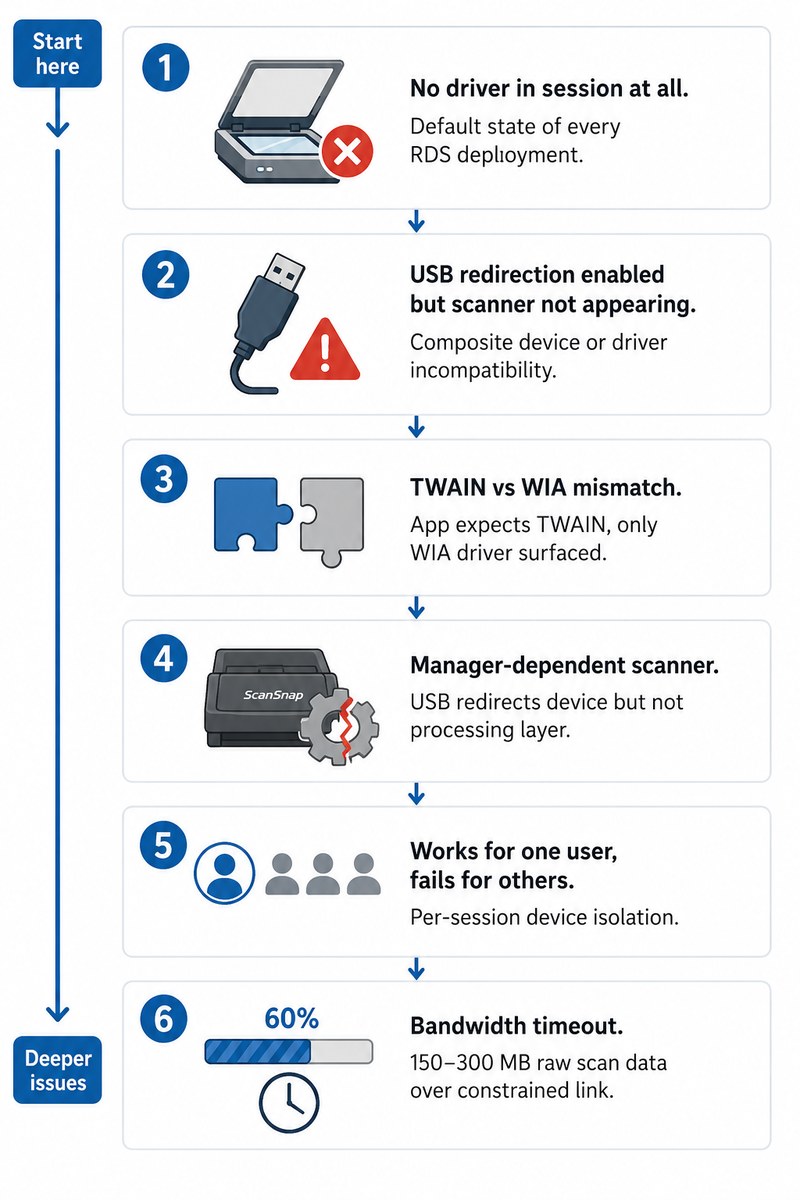
1. There's no driver in the session at all
If you haven't deployed any redirection mechanism, the server has no concept of your scanner. The application's TWAIN/WIA source list is empty. This is the default state of every RDS deployment and the single most common reason scanning over Remote Desktop fails.
2. USB device redirection is enabled but the scanner still doesn't appear
USB redirection (high-level USB redirection in RDP, or vendor equivalents in Citrix) forwards a raw USB device to the session. Two things commonly go wrong. First, many scanners — especially all-in-ones like the Epson WorkForce or Brother MFC families - present as composite USB devices (scanner + printer + card reader + fax), and the redirection layer either grabs the wrong interface or fails to claim the device cleanly. Second, even when the device redirects, the driver still has to be installed on the server, and many consumer scanner drivers refuse to install on Windows Server SKUs or fail their hardware checks in a session.
3. TWAIN vs WIA mismatch
Your line-of-business application may demand a TWAIN source while the only driver that installed cleanly is WIA, or vice versa. A Fujitsu fi-series scanner exposes a rich TWAIN interface that production capture software depends on; if redirection only surfaces a stripped WIA path, features like duplex, multi-page feeding, and hardware compression silently disappear, and some applications won't list the device at all.
4. ScanSnap and other "manager-dependent" scanners
Fujitsu ScanSnap devices (and a few others) don't expose a standard TWAIN source directly - they depend on local manager software (ScanSnap Manager / ScanSnap Home) to drive the hardware. Plain USB redirection forwards the device but not the manager's processing layer, so the scanner appears half-functional or not at all. These devices need a redirection approach that works with the local manager rather than around it.
5. The device works for one user but not concurrently
As covered above, per-session isolation means an approach that works for a single tester collapses under real multi-user load. If your test passed at your desk and failed in production, this is usually why.
6. Bandwidth and timeouts on thin links
Sometimes the scanner is visible and the scan simply fails or appears to hang. A 50-page color scan at 300 DPI produces roughly 150–300 MB of raw image data. Pushed uncompressed over a bandwidth-limited RDP or Citrix link — a branch office on a 10 Mbps uplink, a home worker on residential broadband — that transfer can take several minutes, and naive redirection layers will time out mid-job. Compression and color-depth choices matter enormously here, and most generic redirection paths don't compress at all.
How to Troubleshoot, Step by Step
Work through these in order. Each step rules out a layer.
| Step | Check | What it tells you |
|---|
| 1 | Does the scanner work in a local scanning app on the client (outside any remote session)? | Confirms the hardware and local driver are fine before you blame RDP. |
| 2 | Is any redirection mechanism actually deployed (USB redirection, a dedicated tool)? | If not, the empty source list is expected, not a bug. |
| 3 | In the remote app, open the TWAIN/WIA source selection. Is the device listed? | Distinguishes "not redirected" from "redirected but driver missing." |
| 4 | If listed but failing, does a single small (1-page, 150 DPI grayscale) scan succeed? | Isolates a driver/handshake problem from a bandwidth/size problem. |
| 5 | Does it work for one user but fail for a second concurrent user? | Points directly at per-session isolation. |
| 6 | Does a large color scan time out where a small one succeeds? | Points at compression/bandwidth, not drivers. |
If you reach step 3 and the device simply never appears no matter what you redirect, you've hit the structural limit of native Remote Desktop. That's the point where you choose between a network workflow and dedicated redirection — covered next.
USB Device Redirection vs Dedicated Scanner Redirection
This distinction is the heart of the problem, so it's worth being precise.
USB device redirection forwards a raw USB endpoint into the session. It's generic — it doesn't know it's carrying a scanner. The server still needs the manufacturer's full driver installed and certified for the server OS, the device must claim cleanly through the redirection layer, and every byte of image data crosses the wire uncompressed because the transport has no idea it's moving image data. It can work for a single simple TWAIN scanner on a fast LAN. It becomes fragile fast with composite devices, manager-dependent scanners, multiple concurrent users, or constrained bandwidth.
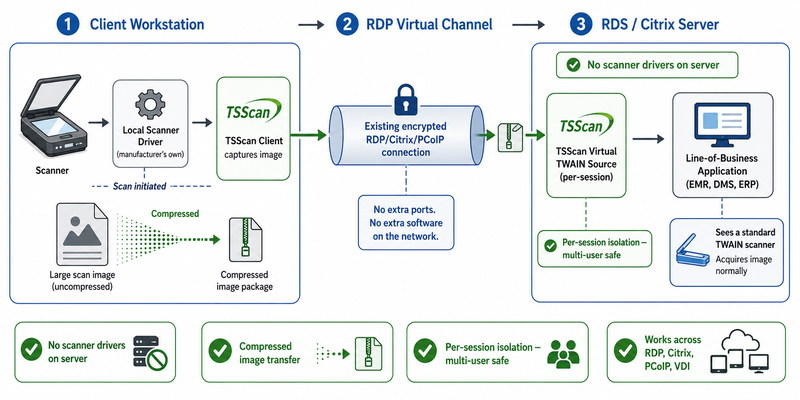
Dedicated scanner redirection (the approach TSScan, RemoteScan, and FabulaTech's scanner product take) works at the driver layer instead of the USB layer. The scan is performed locally by the client's own driver — the driver the scanner manufacturer actually tested — and the resulting image is compressed and streamed to a virtual TWAIN/WIA source that the tool installs once on the server. The application sees a clean, standard scanner source; the heavy image data is compressed before it crosses the RDP virtual channel; and there are no manufacturer drivers to wrangle onto the server at all.
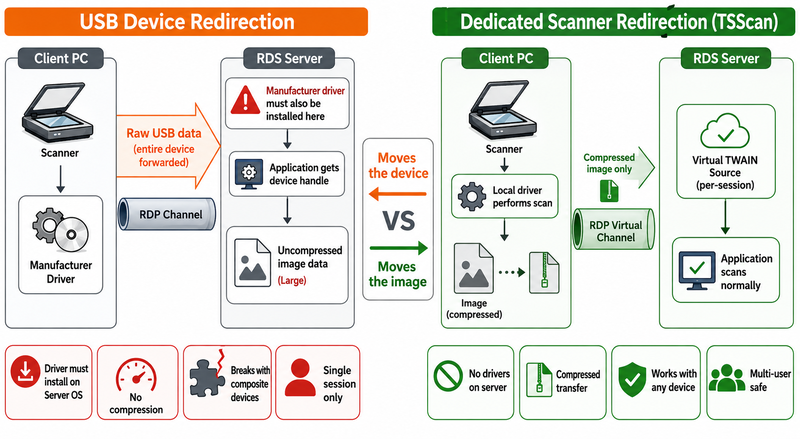
In our experience supporting thousands of RDS environments, this is the difference that matters: USB redirection moves the device, dedicated redirection moves the image. Moving the image is what lets it compress the data, respect per-session isolation, and stay reliable across Citrix, RDP, PCoIP, and VDI without server-side drivers.
When You Don't Need TSScan: An Honest Comparison
We've sold scanning software since 2014, and we'd rather you solve your problem correctly than buy something you don't need. There are real scenarios where a dedicated redirection tool is overkill.
| Approach | Works well when… | Falls short when… |
|---|
| USB device redirection | One simple TWAIN scanner, one user, fast LAN, a driver that installs on the server OS. | Composite all-in-ones, ScanSnap/manager-dependent devices, multiple concurrent users, thin/WAN links. |
| Network scanner → scan-to-folder / scan-to-email | You have a networked MFP, scans don't need to start from inside the business app, and a watched folder or email-to-DMS rule fits the workflow. | The line-of-business app must trigger the scan via TWAIN (most EMR, DMS, and capture software), or you need per-user routing and metadata at scan time. |
| Mobile scanner apps | Occasional, low-volume, ad-hoc capture; a phone camera is acceptable quality; no integration needed. | Production volume, document feeders, duplex, archival quality, or app integration. |
| Dedicated scanner redirection (TSScan etc.) | The remote application itself must drive the scanner via TWAIN/WIA, you have multiple users, mixed scanner types, or bandwidth constraints. | You genuinely don't need to scan from inside the remote session at all. |
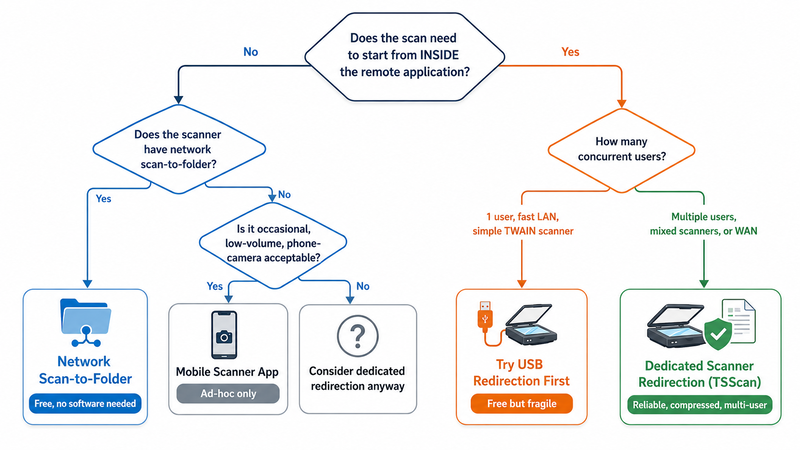
The honest rule of thumb: if your workflow doesn't need the scan to be initiated from inside the remote application, you may not need scanner redirection at all. A networked Brother or Canon MFP with a well-built scan-to-folder rule, pointed at a path that syncs into your DMS, solves a surprising number of cases for free. Where this breaks down is the case that drives most of our customers: the application itself owns the scan button. An accountant in a hosted document-management app, a clerk in an EMR scanning a patient intake form into the correct chart, a legal assistant attaching a signed contract to a matter — these workflows call the TWAIN source directly and expect a live scanner. No watched folder replicates that, and that's where dedicated redirection earns its place.
Real-World Scenarios Where Scanning Breaks
Based on over a decade of working with TWAIN and WIA scanner redirection in remote sessions, the trouble clusters around specific devices and industries.
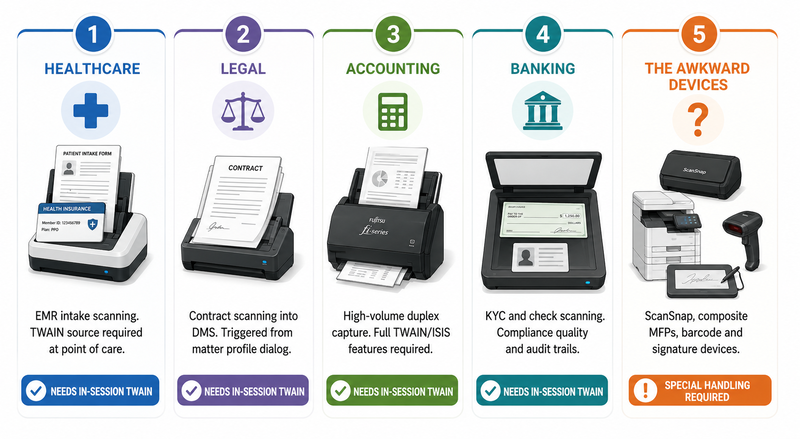
- Healthcare (EMR/EHR): Front-desk staff scan insurance cards and intake forms directly into a patient chart from within a hosted EMR. The EMR demands a TWAIN source at the moment of scanning; a scan-to-folder workflow can't route to the right chart, so this almost always needs in-session redirection.
- Legal: Signed contracts and exhibits scanned into a matter in a DMS such as iManage or NetDocuments. Quality and page fidelity matter, and the scan is triggered from the document profile dialog inside the app.
- Accounting and high-volume capture: Firms running Fujitsu fi-series or Canon imageFORMULA production scanners through duplex auto-feeders. These rely on full TWAIN/ISIS features that thin USB redirection strips out.
- Banking / KYC: Check scanning and identity-document capture, where compliance requires consistent image quality and audit trails, often into DocuWare, M-Files, or SharePoint.
- The awkward devices: Fujitsu ScanSnap (manager-dependent), Epson WorkForce and Brother MFC all-in-ones (composite USB), Kodak production scanners, plus handheld barcode scanners and signature pads that present as HID rather than imaging devices and need their own redirection thinking entirely.
How TSScan Compares to the Alternatives
TSScan, RemoteScan, and FabulaTech Scanner for Remote Desktop all solve the same structural problem — they install a virtual scanner on the server and perform the actual acquisition locally. The differences are in transport, compatibility, and licensing model. TSScan drives the scan with the client's local driver and streams the image over the Microsoft RDP virtual channel with compression, so no scanner drivers are installed on the server and no extra ports need opening. It supports RDP, Citrix, PCoIP, and VDI; handles TWAIN devices and works with ScanSnap (via the locally installed ScanSnap Manager); and is licensed per terminal-server installation rather than per scanning device or client, with a one-time fee starting at $99 and a 25-day trial. Versus native USB redirection, the win is reliability under concurrency and bandwidth. Versus the other dedicated tools, the practical differentiators tend to be the per-server (not per-seat) licensing and the breadth of supported remoting protocols and Windows Server versions, currently up to Server 2025.
We won't claim TSScan is right for every case — if you only need ad-hoc capture or a network MFP covers you, those are cheaper. But when the remote app must drive a real scanner, for multiple users, across mixed hardware and variable links, this is the category of tool that solves it, and TSScan is built specifically for that job.
Frequently Asked Questions
Printers redirect because Microsoft built Easy Print — a universal print driver plus a dedicated RDP channel for print jobs. Microsoft never built an equivalent for scanners. There is no universal scanner driver and no built-in scanning channel in any version of Remote Desktop Services. That asymmetry is by design, not a setting you've missed, which is why no amount of Group Policy tweaking will enable scanner redirection on its own.
Sometimes, for a single simple TWAIN scanner on a fast LAN with a driver that installs on Windows Server. In practice it's fragile: composite all-in-ones claim the wrong interface, consumer drivers often won't install on server SKUs, image data crosses the wire uncompressed, and per-session isolation means it breaks under multiple concurrent users. It's worth a try for a one-user lab setup but rarely survives production.
Remote Desktop Services isolates each user's session, including device handles and driver state. An approach relying on a single global device registration — common with naive USB redirection — exposes the scanner only to the session that registered it. Everyone else sees nothing. Reliable multi-user scanning requires a mechanism that creates a per-session virtual scanner.
ScanSnap devices don't expose a standard TWAIN source on their own; they depend on local ScanSnap Manager (or ScanSnap Home) software to drive the hardware. Raw USB redirection forwards the device but not that processing layer, so it appears broken. You need a redirection approach that works alongside the locally installed ScanSnap Manager, and the scanner must be detected by that manager on the client first.
It depends entirely on resolution, color depth, and page count. A single 300 DPI color page is several megabytes; a 50-page color batch produces roughly 150–300 MB of raw data. Over a constrained WAN link that can take minutes and time out if uncompressed. Scanning in grayscale at 200–300 DPI for text documents, and using a tool that compresses before transfer, cuts this dramatically with no meaningful loss for document capture.
With native USB redirection, yes — and that's often where it fails, because many drivers won't install on Windows Server. With dedicated scanner redirection like TSScan, no: the acquisition happens on the client using its own driver, and only a virtual scanner is installed on the server. Keeping manufacturer drivers off the server also avoids the stability and update headaches of certifying consumer drivers for a server OS.
Dedicated scanner-redirection tools are built to cover RDP, Citrix (HDX/ICA), PCoIP, and VDI, because the same structural gap exists in all of them — none provide native TWAIN/WIA redirection. Native Microsoft USB redirection is RDP-specific and has Citrix equivalents with their own limitations. If your environment is mixed or may change, a tool that spans protocols saves you re-solving the problem later.
It doesn't have to be. The concern is that compression used to manage bandwidth could degrade scans. Well-designed redirection applies lossless or quality-preserving compression so archival documents keep full fidelity, while letting you choose lighter settings for routine text capture. For regulated workflows — medical records, legal exhibits, KYC documents — confirm your tool preserves quality at the resolution your compliance requires.
Not necessarily. Handheld barcode scanners and signature pads usually present as HID or serial devices rather than imaging (TWAIN/WIA) devices, so scanner redirection doesn't cover them. They need their own redirection approach — HID/COM port redirection or a vendor-specific channel. Don't assume a scanning solution will pick them up; check device-type support before you buy.
Summary
Scanning over Remote Desktop fails because Remote Desktop Services has no native scanner redirection and the TWAIN/WIA driver model expects the scanner to live on the same machine as the application. USB redirection can patch the simplest single-user cases, and a network scan-to-folder workflow is often enough when the scan doesn't need to start from inside your business app — but when the remote application itself must drive a real scanner across multiple users and mixed hardware, dedicated scanner redirection is the reliable answer. You can read more about how that works at the TSScan product page.


