Last updated: June 2026
By TerminalWorks — Remote Desktop Scanning Solutions Since 2014
To set up scanner access in a Remote Desktop or terminal server session, install a scanner-redirection tool on the server (and a small client agent on the local PC) that publishes a virtual TWAIN/WIA scanner inside the session. Native Remote Desktop has no built-in scanner redirection, so either dedicated redirection software, USB device redirection, or a scan-to-folder workflow is required.
This post explains why scanners don't appear in a remote session by default, walks through the three real setup options and how to configure each, gives an honest "when to use what" comparison, covers the device- and industry-specific problems we see most often, and answers the questions people actually search for. The goal is to get scanning working reliably in your RDS, Citrix, VDI, or Azure Virtual Desktop environment — not to sell you software you don't need.
Why Won't My Scanner Work in Remote Desktop?
Remote Desktop redirects a specific, fixed set of device classes over the RDP Device Redirection virtual channel (RDPDR): drives, printers, smart cards, serial/parallel ports, the clipboard, and audio. Printers get an extra layer — Easy Print — which proxies the local print driver into the session via XPS so no manufacturer driver has to be installed on the server. There is no equivalent channel or proxy for scanners. No version of Remote Desktop Services, from Server 2008 R2 through Server 2025, ships a scanner-class redirector. This is the single most common reason a scanner that works perfectly on the local workstation is simply invisible the moment the user connects to the remote session.
.png)
The deeper reason is architectural. Printing is a one-way push of a rendered document to a spooler, which is easy to abstract. Scanning is an interactive, two-way acquisition session: the application opens the scanner driver, negotiates capabilities (resolution, color depth, duplex, paper size, ADF vs. flatbed), triggers the hardware, and streams image frames back while the device is still running. That handshake is tightly coupled to the physical driver, and the driver expects to be talking to hardware on the same machine.
USB device redirection is not the same as scanner redirection
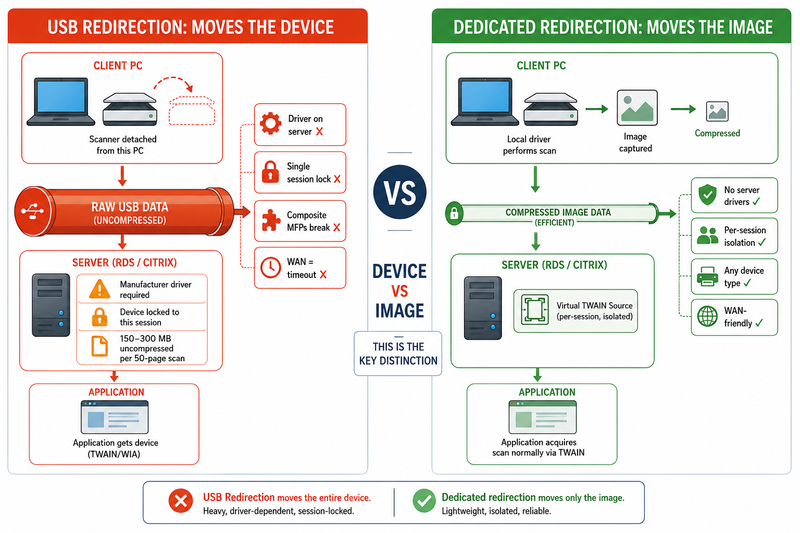
The usual first attempt is USB device redirection (RemoteFX USB redirection over RDP, or Generic USB redirection in Citrix). It can work, but it carries hard limitations that make it unreliable for business scanning. First, the actual scanner driver must be installed on the server, per session — and many TWAIN/ISIS drivers are not licensed or designed for terminal-server deployment. Second, the redirected USB device is locked to a single session; it disappears from the local machine and cannot be shared by other users. Third, multifunction devices (a Brother MFC or Epson WorkForce that is printer, scanner, and fax on one USB composite interface) frequently enumerate incorrectly or only partially over USB redirection. Fourth, raw USB redirection is latency-sensitive: a scanner streams isochronous/bulk data, and over anything slower than a LAN the session will stall or time out.
Per-session driver state and device handle isolation
Even when a driver does load on the server, RDS isolates each user session. A TWAIN data source holds per-session state — open device handles, scan-in-progress flags, in-memory image buffers. On a busy terminal server with 20 concurrent users hitting the same redirected device class, handle collisions and "device in use" errors are routine. A pattern we see repeatedly in support tickets is a scan that works for the first user to connect each morning and fails for everyone after — classic single-handle contention. Dedicated scanner-redirection software sidesteps this by keeping the real driver on each client and exposing an isolated virtual data source inside each session.
How to Set Up Scanner Access in a Remote Desktop Session
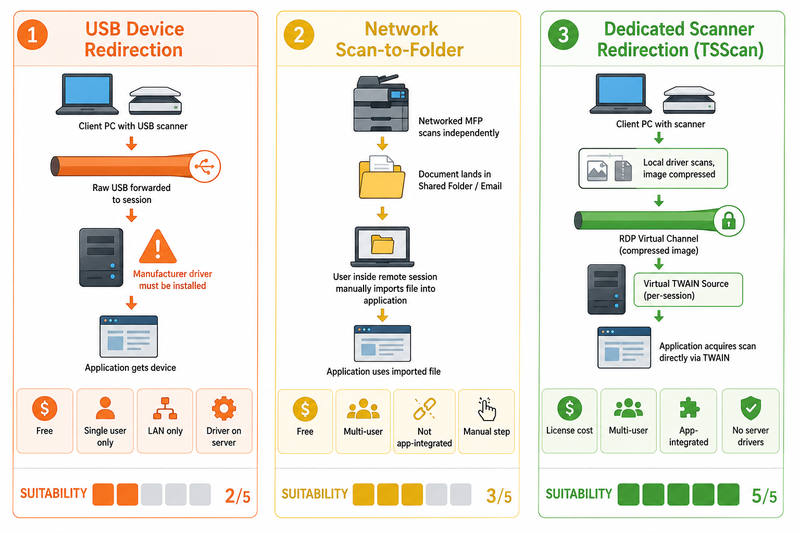
There are three approaches that actually work for scanning over Remote Desktop. Pick based on your scanner type, user count, and network.
Option 1: USB device redirection (best for single-user, LAN-only)
For RDP, enable RemoteFX USB redirection via Group Policy: Computer Configuration > Administrative Templates > Windows Components > Remote Desktop Services > Remote Desktop Connection Client > RemoteFX USB Device Redirection, set "Allow RDP redirection of other supported RemoteFX USB devices" to Enabled, then reboot the client. In Citrix, enable the Generic USB Redirection policy and the matching client-side USB rules. You must still install the scanner's manufacturer driver on the server. This is viable when one person uses one USB scanner over a fast local connection and you control the server image.
Option 2: Network scanner with scan-to-folder or scan-to-email
If your device is a networked MFP (most Brother, Canon imageRUNNER, Xerox, and Epson WorkForce business units), bypass redirection entirely. Configure the device to scan to an SMB folder or email, and have the user retrieve the file inside the session. No drivers, no per-session state, and it scales to any number of users. The trade-off: it is not driver-integrated, so a line-of-business application cannot trigger a scan through its own TWAIN "Acquire" button or pull pages directly into a document record. There is always a manual retrieve-and-import step.
Option 3: Dedicated scanner-redirection software (best for TWAIN/WIA business apps)
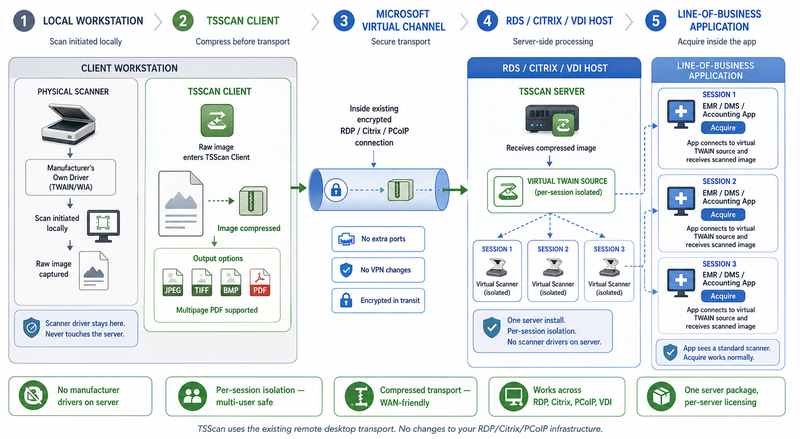
This is the approach built specifically for the problem. A small server component publishes a virtual TWAIN (and, in most products, WIA) data source inside the remote session, and a lightweight client agent on the local PC talks to the real scanner driver there. When an application on the server calls "Acquire," the request tunnels over the RDP virtual channel to the client, the local driver runs the scan, and the compressed image streams back. TSScan, for example, runs entirely over the Microsoft Virtual Channel within the existing RDP connection — no firewall ports to open, no VPN tweak, and the traffic is encrypted and compressed in transit. Setup is deliberately minimal:
- Install the TSScan server package on the RDS/Citrix/VDI host (one install, no per-device drivers).
- Install the TSScan client on each local workstation that has a scanner attached.
- Connect to the remote session as usual.
- In your scanning application, select TSScan as the TWAIN source, or pick the directly mapped local scanner by name.
- Scan. Output can go straight to JPEG, TIFF, BMP, or multipage PDF.
Because the manufacturer driver stays on the client, you never install scanner drivers on the server, and each session gets its own isolated virtual source — which is why this approach scales to many concurrent users where USB redirection breaks down.
When to Use What: Choosing a Remote Desktop Scanning Approach
No single method wins everywhere. Match the approach to the constraint that actually bites you.
| Approach | Best for | Real limitations |
|---|
| USB device redirection (RemoteFX / Citrix Generic USB) | One user, one USB scanner, LAN, server image you control | Driver must be installed on the server; device locks to one session; unreliable for composite MFPs; degrades badly over WAN |
| Network scanner: scan-to-folder / scan-to-email | Shared networked MFP, many users, batch document capture | Not driver-integrated — the app can't trigger or pull the scan; always a manual retrieve/import step |
| Mobile scanner app (phone capture) | Occasional, ad-hoc scanning with no infrastructure | Manual, not integrated with the line-of-business app; inconsistent quality and cropping |
| Dedicated scanner redirection (TSScan, RemoteScan, FabulaTech) | TWAIN/WIA line-of-business apps, many concurrent users, WAN/internet sessions, no server-side drivers | Per-server license cost; requires a small client install on each workstation |
Be honest with yourself about integration. If your users scan into a folder and email it, a networked MFP is genuinely enough and you don't need redirection software. The moment scanning has to happen inside a business application — an EMR, a DMS, an accounting package that exposes a "Scan" button — and that application lives on a terminal server, dedicated TWAIN redirection is the approach that holds up.
Scanner-Specific Problems We See in Remote Sessions
Based on over a decade of working with TWAIN and WIA scanner redirection in remote sessions, the failure modes cluster by device type.
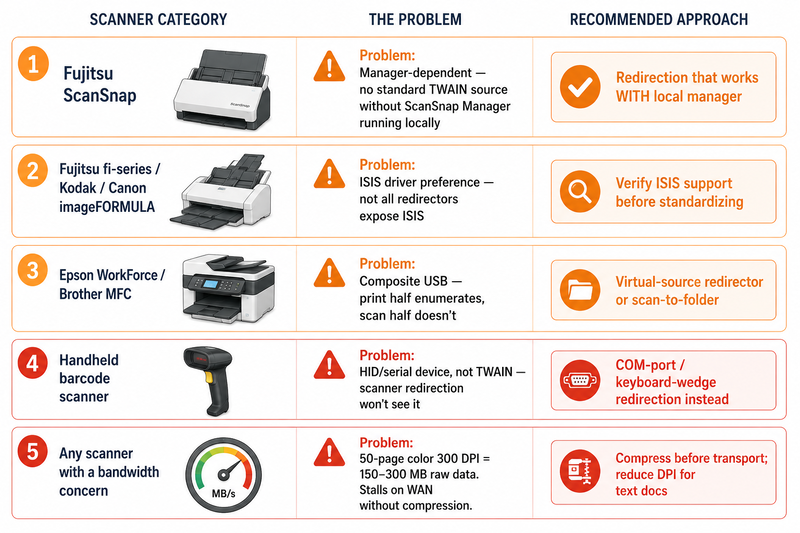
- Fujitsu ScanSnap (iX-series): ScanSnap units don't expose a standard TWAIN source the way fi-series scanners do — they rely on ScanSnap Manager / ScanSnap Home. To use one over Remote Desktop, the ScanSnap software must be installed and running on the local PC; the redirection layer then maps it as a source. Skip that step and the device simply won't appear.
- Fujitsu fi-series and Kodak / Canon imageFORMULA production scanners: these high-volume sheet-fed units often prefer ISIS drivers over TWAIN. ISIS is a proprietary capture interface used by production-grade DMS software; not every redirection tool exposes an ISIS path, so verify ISIS support before standardizing a 60-ppm scanner on a remote workflow.
- Epson WorkForce and Brother MFC all-in-ones: as composite USB devices, these are the classic USB-redirection failures — the print half enumerates and the scan half doesn't, or vice versa. For these, network scan-to-folder or a virtual-source redirector is far more stable than raw USB redirection.
- Handheld barcode scanners and signature pads: these are usually HID or serial devices, not TWAIN imaging devices, so they need keyboard-wedge / COM-port redirection, not scanner redirection. Don't expect a scanner tool to handle them.
The bandwidth and image-quality trade-off
Scanning is data-heavy in a way printing is not. A 50-page color scan at 300 DPI produces roughly 150–300 MB of raw image data. Pushed uncompressed over a bandwidth-limited RDP connection, that can take several minutes and stall the session. This is why the compression and color-depth handling of your chosen method matters more than any other setting. Capturing at 200 DPI grayscale instead of 300 DPI color cuts the payload by an order of magnitude with no readability loss for most text documents — and a redirection tool that compresses image frames before they cross the virtual channel will outperform raw USB redirection of the same scan every time.
Industry Scenarios: Where Remote Desktop Scanning Gets Hard
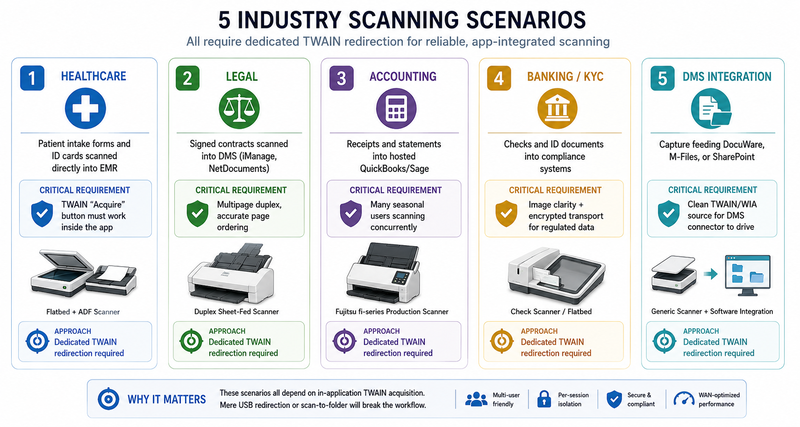
The same technical problem shows up differently across sectors:
- Healthcare: staff scan patient intake forms, ID cards, and referral letters directly into an EMR running on a terminal server. The EMR's own "Acquire" button must work, so driver-integrated TWAIN redirection is effectively mandatory, and image fidelity on charts and handwriting can't be sacrificed for speed.
- Legal: signed contracts and exhibits are scanned into a document management system. Multipage duplex handling and accurate page ordering matter; a tool that drops or reorders pages on a 40-page agreement is a liability.
- Accounting firms: high-volume receipt and statement capture, often into hosted QuickBooks or Sage on a shared server, with many seasonal users connecting at once — exactly the concurrency case where USB redirection's single-handle model falls apart.
- Banking and KYC: checks and identity documents scanned into compliance systems demand both image clarity and encrypted transport, because the captured images are regulated data in motion.
- DMS integration: when capture feeds DocuWare, M-Files, or SharePoint, the scanner has to present itself as a clean TWAIN/WIA source inside the session so the DMS connector can drive it — which is the whole point of a virtual-source redirector.
How TSScan Compares to the Alternatives
Dedicated scanner-redirection tools share the same core idea — a virtual TWAIN source on the server backed by a client agent — and differ in transport, breadth, and licensing.
| Option | How it works | Notable points |
|---|
| TSScan | Virtual TWAIN source on the server over the Microsoft Virtual Channel (inside the RDP connection) | No extra ports/VPN; encrypted, compressed transport; per-terminal-server licensing (not per device or client); standalone GUI plus scan-to-PDF; ScanSnap support via local ScanSnap Manager |
| RemoteScan | Virtual TWAIN source with a client agent | Similar redirection model; long-established in the market |
| FabulaTech Scanner for Remote Desktop | Virtual TWAIN/WIA redirection | Part of a broader device-redirection product line |
| Native USB redirection | OS-level USB passthrough (RemoteFX / Citrix Generic USB) | No license cost, but requires server-side drivers, locks the device to one session, and is unreliable over WAN |
The practical dividing line is per-session reliability at scale and whether you can avoid touching the server with drivers. Native USB redirection is free and fine for a single LAN user; the dedicated tools earn their keep when you have many concurrent users, remote/WAN sessions, or a server you don't want to load with manufacturer drivers. TSScan's per-server licensing model in particular tends to favor environments with many scanning clients, since client installs aren't separately licensed.
Remote Desktop Scanning FAQ
No. Remote Desktop redirects drives, printers, smart cards, ports, audio, and the clipboard, but there is no scanner-class redirection in any version of Remote Desktop Services. Printers get the Easy Print proxy; scanners have no equivalent. To scan from inside a remote session you need USB device redirection, a network scan-to-folder workflow, or dedicated scanner-redirection software.
Because the remote session has no way to see a device attached to your local PC unless something explicitly redirects it. The scanner driver lives on your workstation, not on the server, and Remote Desktop doesn't bridge that gap for imaging devices. The fix is to either redirect the USB device (with the driver also installed on the server) or run a redirection tool that publishes a virtual scanner inside the session. If you're using a ScanSnap, also confirm ScanSnap Manager is installed and running locally.
Yes, but with caveats. RemoteFX USB redirection (enabled via Group Policy) can pass a USB scanner into the session, but you must install the scanner's driver on the server, the device becomes unavailable to the local machine while redirected, and it only works well over a fast LAN. Composite multifunction devices often fail to enumerate fully. For multiple users or WAN connections, a virtual-source redirector is far more reliable.
Citrix has the same gap as RDP — no native scanner redirection. You can enable Citrix Generic USB Redirection for a USB scanner (with the driver on the server), use a networked MFP's scan-to-folder feature, or run scanner-redirection software that supports the Citrix virtual channel. TSScan, for instance, works across RDP, Citrix, VDI, and PCoIP sessions using the same virtual-source approach, so the setup is identical regardless of the broker.
No — that's the main advantage over USB redirection. With a virtual-source tool like TSScan, the manufacturer driver stays on the local client, and the server only runs the redirection component that exposes a generic virtual TWAIN/WIA scanner. You install one server package and a client agent, with no per-device drivers on the server. This keeps the server image clean and avoids driver-licensing problems on terminal servers.
It doesn't have to. A well-designed redirector compresses images for transport without discarding detail, so the file that lands on the server matches what the scanner captured. The bigger lever is your own scan settings: 300 DPI color produces very large files, while 200 DPI grayscale is a fraction of the size with no readability loss for typical text documents. Reserve high DPI and full color for photos, IDs, and medical imaging where it genuinely matters.
With USB redirection this is where things break — the device is bound to a single session, and a shared driver hits "device in use" errors under concurrency. Dedicated scanner-redirection software handles it because each session gets its own isolated virtual scanner mapped to that user's own local device. This per-session isolation is exactly why high-user environments like accounting firms and clinics rely on redirection tools rather than raw USB passthrough.
It can be both. A redirector that runs inside the Microsoft Virtual Channel travels within the existing encrypted RDP connection, so no extra ports need to be opened and the scanned data is encrypted in transit. Because it rides the RDP session, it works over the internet or a VPN just as it does on a LAN — the only practical difference is transfer time on slower links, which compression largely absorbs. This matters in regulated settings like banking KYC and healthcare, where captured documents are sensitive data in motion.
Summary
Remote Desktop has no native scanner redirection, so getting a scanner to work in an RDS, Citrix, VDI, or Azure Virtual Desktop session always means choosing a method: USB device redirection for a single LAN user, network scan-to-folder for shared MFPs, or dedicated scanner-redirection software when a line-of-business application needs an integrated TWAIN/WIA source. For multi-user, WAN, and driver-free server scenarios, a virtual-source redirector is the approach that holds up at scale. If that's your situation, you can see how TSScan handles TWAIN redirection over the RDP virtual channel on the TSScan product page.


