By TerminalWorks | Remote Desktop Printing Solutions Since 2014
To configure printing in Citrix Virtual Apps and Desktops, enable client printer auto-creation, set Universal print driver usage to use universal printing, and add the Universal Print Server for network printers. The Citrix Universal Print Driver covers standard office documents well. Label printers, receipt printers and non-Windows endpoints usually need a third-party redirection layer such as TSPrint.
That is the short version. The rest of this post explains what actually happens inside a Citrix session when a user hits Ctrl+P, which policies matter and which are noise, the exact configuration we recommend for a mixed environment, the specific scenarios where the Citrix Universal Print Driver stops being sufficient, and an honest comparison of Citrix native printing against TSPrint, ThinPrint, UniPrint, ScrewDrivers, ezeep and FabulaTech. Everything here comes from over a decade of supporting remote desktop and Citrix printing across 30,000+ companies.
How Citrix Printing Actually Works
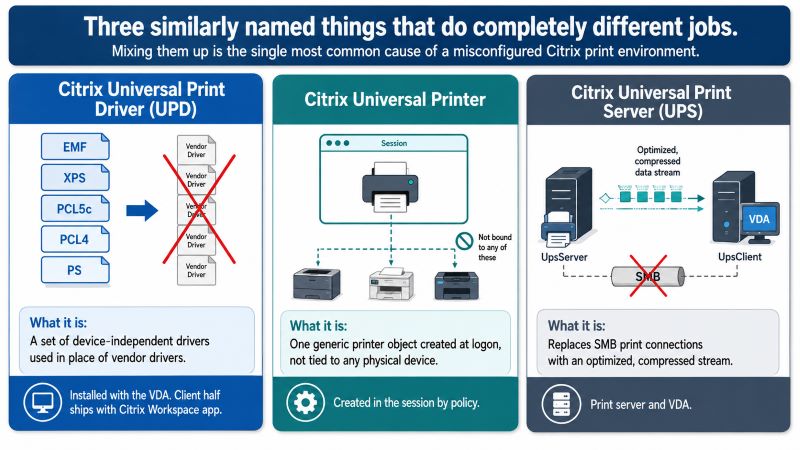
Most Citrix printing problems trace back to one of three components being misunderstood. Citrix uses three similarly named things that do completely different jobs, and mixing them up is the single most common cause of a misconfigured print environment.
| Component | What it is | Where it lives |
|---|
| Citrix Universal Print Driver (UPD) | A set of device-independent drivers (EMF, XPS, PCL5c, PCL4, PS) used in place of vendor drivers | Installed with the VDA; client half ships with Citrix Workspace app |
| Citrix Universal Printer | A single generic printer object created at logon that is not bound to any physical device | Created in the session by policy |
| Citrix Universal Print Server (UPS) | UpsServer component on your print server plus UpsClient on the VDA, replacing SMB print connections with an optimized, compressed stream | Print server and VDA |
Client printing pathway vs network printing pathway
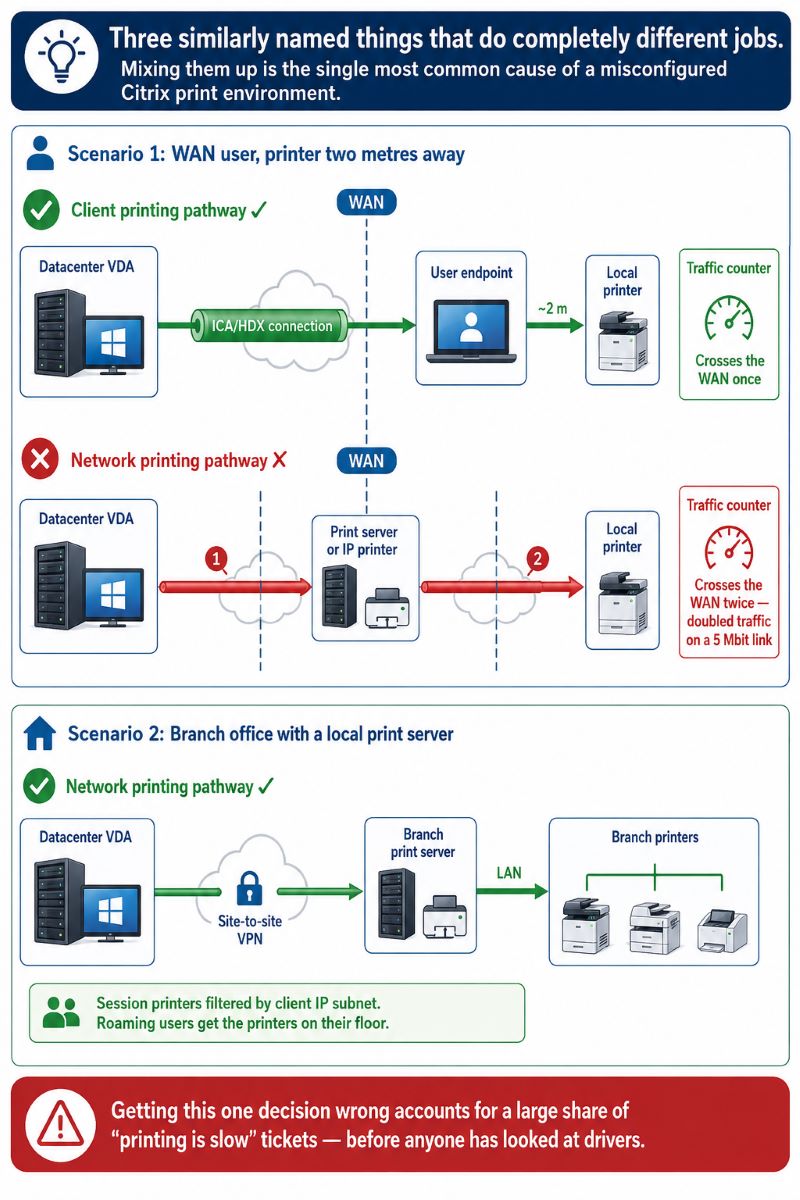
Every print job in Citrix takes one of two routes. In the client printing pathway, the job is generated on the VDA and sent back down the ICA/HDX connection to the endpoint, which prints it using its own locally installed driver. In the network printing pathway, the VDA sends the job straight to a print server or an IP printer over the LAN, never touching the endpoint.
The distinction matters for a practical reason: a WAN user on a 5 Mbit link who prints to a printer sitting two metres from their desk should be on the client pathway, because the network pathway would send the job from the datacentre back over the same WAN link and then to the printer, doubling the traffic. A branch office with a local print server and a site-to-site VPN is usually better on the network pathway with session printers. In our experience supporting Citrix environments, getting this one decision wrong accounts for a large share of "printing is slow" tickets, before anyone has even looked at drivers.
What the Universal Print Driver does to your document
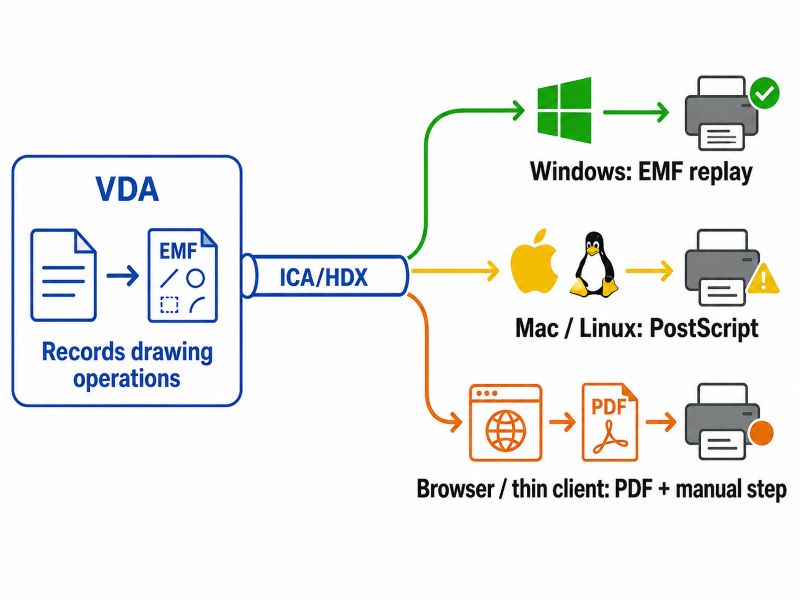
When the Citrix UPD is in use, the application on the VDA prints into a device-independent format instead of into a vendor driver. The default is EMF (Enhanced Metafile), a GDI record format. The VDA does not rasterize the page; it records the drawing operations and ships them to the endpoint, where the Citrix Workspace app replays them through the local spooler and the real printer driver. This is why EMF output usually looks correct and stays compact for text and vector content: a 20-page text report can travel as a few hundred kilobytes.
The same design is also the source of the UPD's main constraint. EMF replay requires a Windows endpoint with a Windows print subsystem. On macOS and Linux endpoints, Citrix falls back to PostScript. On Chrome and HTML5 clients, printing goes through the Citrix PDF Universal Printer, which converts the job to PDF, transfers it, and opens it in a local PDF viewer for the user to print manually. That extra dialog is a functional workflow for occasional printing and a genuine problem for a clinician printing 60 wristbands per shift.
The XPS driver exists for a narrower case. Applications built on WPF or .NET print natively into XPS, and forcing that output through the EMF driver means a conversion step that can distort transparency and gradients. If you have PostScript-heavy or XPS-native applications, changing the Universal driver preference policy to place XPS ahead of EMF is the documented fix and takes effect per user.
The Citrix Print Manager Service
Printer auto-creation on the VDA is performed by the Citrix Print Manager Service (cpsvc.exe), not by the Windows spooler alone. It enumerates the client's printers at logon, applies your printing policies, creates the printer objects, and removes them at logoff. When users report that printers "sometimes" appear, the pattern we see repeatedly is a logon race: the application launches before cpsvc has finished enumeration. The Wait for printers to be created policy exists specifically for this and is worth enabling for published applications that print immediately on start, at the cost of a few seconds of logon time.
How to Configure Printing in Citrix Virtual Apps and Desktops
The following baseline works for the majority of mixed environments running Citrix Virtual Apps and Desktops 2507 LTSR, 2402 LTSR or the 2603 current release. Configure these in Web Studio under Policies, and scope them per delivery group rather than site-wide if you have both office workers and specialty printing.
| Policy setting | Recommended value | Why |
|---|
| Client printer redirection | Allowed | Master switch for the client printing pathway |
| Auto-create client printers | Auto-create all client printers, or default printer only | Default-printer-only cuts logon time noticeably on endpoints with 8 to 10 mapped printers |
| Universal print driver usage | Use universal printing only | Prevents vendor drivers from ever being pulled onto the VDA |
| Universal driver preference | EMF, XPS, PCL5c, PCL4, PS | Reorder to XPS first only for XPS-native applications |
| Automatic installation of in-box printer drivers | Disabled | Stops Windows from silently installing in-box drivers and reintroducing driver sprawl |
| Auto-create PDF universal printer | Enabled | Required for Chrome, HTML5 and thin-client endpoints |
| Universal printing optimization defaults | Standard quality, image and font caching on | Caching avoids resending identical letterhead graphics on every job |
| Universal printing image compression limit | Best quality for finance/legal, standard elsewhere | Sets the ceiling that the optimization defaults operate under |
| Universal printing EMF processing mode | Spool directly to printer | Faster and lower CPU; switch to Reprocess EMFs only if pages render incorrectly |
| Printer redirection bandwidth limit | Set a percentage, not an absolute value | Keeps a large print job from starving the interactive session on a constrained WAN |
| Client printer names | Standard printer names | Legacy naming produces session-dependent names that break applications |
Adding network printers with session printers and the Universal Print Server
For printers that live on a print server, use the Session printers policy and filter it. Filtering by client IP subnet is the approach that survives roaming users best, because a user who logs in from the third floor gets third-floor printers without any per-user configuration. Combine it with Default printer so the nearest device is preselected.
Without the Universal Print Server, a session printer needs its native driver present on the VDA, and if that driver is missing the printer silently fails to appear in the session. This is the single most frequent cause of the "session printer policy is applied but nothing shows up" ticket. Installing UpsServer on the print server and enabling the Universal Print Server policy removes that dependency, and the transfer between print server and VDA becomes a compressed, optimized stream instead of raw SMB spool traffic.
One nuance worth knowing before you deploy: Citrix does not support a native v4 printer driver on both the VDA and the client, or on both the VDA and the Universal Print Server. All-v3 across VDA, UPS and Windows endpoints remains supported. Since most vendor drivers shipped in the last five years are v4, this quietly rules out several combinations that look reasonable on a whiteboard.
Verifying the configuration
- Run
Get-Printer | Format-Table Name, DriverName inside a session and confirm the driver column shows a Citrix universal driver, not a vendor driver. - Check that
cpsvc is running and has no errors in the Application event log around logon time. - Print a one-page text document and a 30-page document with images, and compare wall-clock time. A 10x difference points at image compression settings, not at the network.
- In Citrix Director, check the session's printer list against what the endpoint actually has mapped.
Where the Citrix Universal Print Driver Falls Short
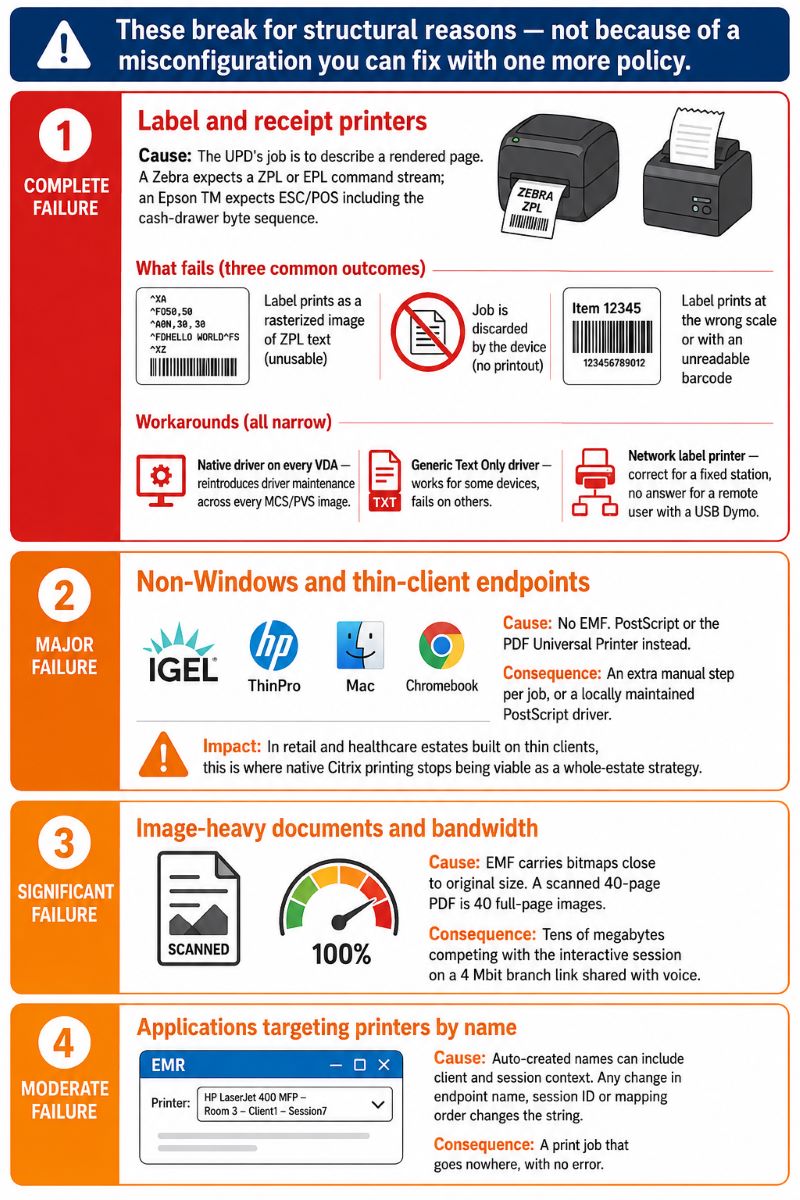
Citrix native printing is competent for the case it was designed for: knowledge workers printing office documents to general-purpose office printers from Windows endpoints. Outside that envelope, specific things break, and they break for structural reasons rather than because of a misconfiguration you can fix with one more policy.
Label and receipt printers
Zebra, Dymo, BIXOLON, Star and Epson devices are not page printers. A Zebra expects a ZPL or EPL command stream; an Epson TM-series receipt printer expects ESC/POS, including the byte sequence that fires the cash drawer. The Citrix UPD's job is to describe a rendered page, so when a warehouse application sends ZPL to a UPD-mapped Zebra, one of three things happens: the label prints as a rasterized image of the ZPL text, the printer discards the job, or the label prints but at the wrong scale with the barcode unreadable to scanners.
The workarounds inside Citrix are real but narrow. You can install the native Zebra driver on every VDA and use driver mapping, which reintroduces exactly the driver maintenance you deployed the UPD to avoid, and multiplies across every image in an MCS or PVS catalog. You can use a "Generic / Text Only" driver for raw passthrough, which works for some devices and fails on others depending on how the application opens the printer handle. Or you can put the label printer on the network and print to it directly, which is the correct answer for a fixed label station and no answer at all for a remote user with a USB Dymo.
Non-Windows and thin-client endpoints
IGEL, HP ThinPro, Mac, Chromebook and HTML5 users do not get EMF. They get PostScript or the PDF Universal Printer, which means either an extra manual step per job or a dependency on a locally installed PostScript driver that someone has to maintain. In retail and healthcare estates built on thin clients, this is usually the point at which native Citrix printing stops being viable as a whole-estate strategy.
Image-heavy documents and bandwidth
EMF is efficient for text and vectors and much less efficient for bitmaps. A scanned 40-page PDF printed from a Citrix session is essentially 40 full-page images, and the EMF spool can easily reach tens of megabytes before compression. On a 4 Mbit branch link shared with voice traffic, that job competes directly with the interactive session. Image caching and heavyweight compression help, and the Universal printing image compression limit policy is the lever that actually caps job size, but there is a floor set by the format itself.
Printer naming and applications that target printers by name
EMR systems, ERP modules and warehouse applications frequently print silently to a hard-coded printer name. Auto-created printer names in Citrix can include client and session context, and any change in endpoint name, session ID or mapping order changes the string the application is looking for. The result is a print job that goes nowhere with no error. Switching to standard printer names helps; a stable, session-independent virtual printer name solves it properly.
Windows print stack changes
Two Microsoft changes reshaped this area. PrintNightmare hardening (CVE-2021-34527 and the follow-up updates) enforced RestrictDriverInstallationToAdministrators under HKLM\Software\Policies\Microsoft\Windows NT\Printers\PointAndPrint, which broke Point and Print driver installation on many VDAs and made driver-light architectures considerably more attractive. Windows Protected Print Mode, introduced with Windows 11 24H2, goes further: it removes v3 driver support entirely and restricts printing to Mopria-certified IPP devices. Any environment that depends on vendor v3 drivers on the session host has a migration to plan, and specialty devices such as ZPL label printers are not addressed by Mopria at all.
When Citrix Native Printing Is Enough
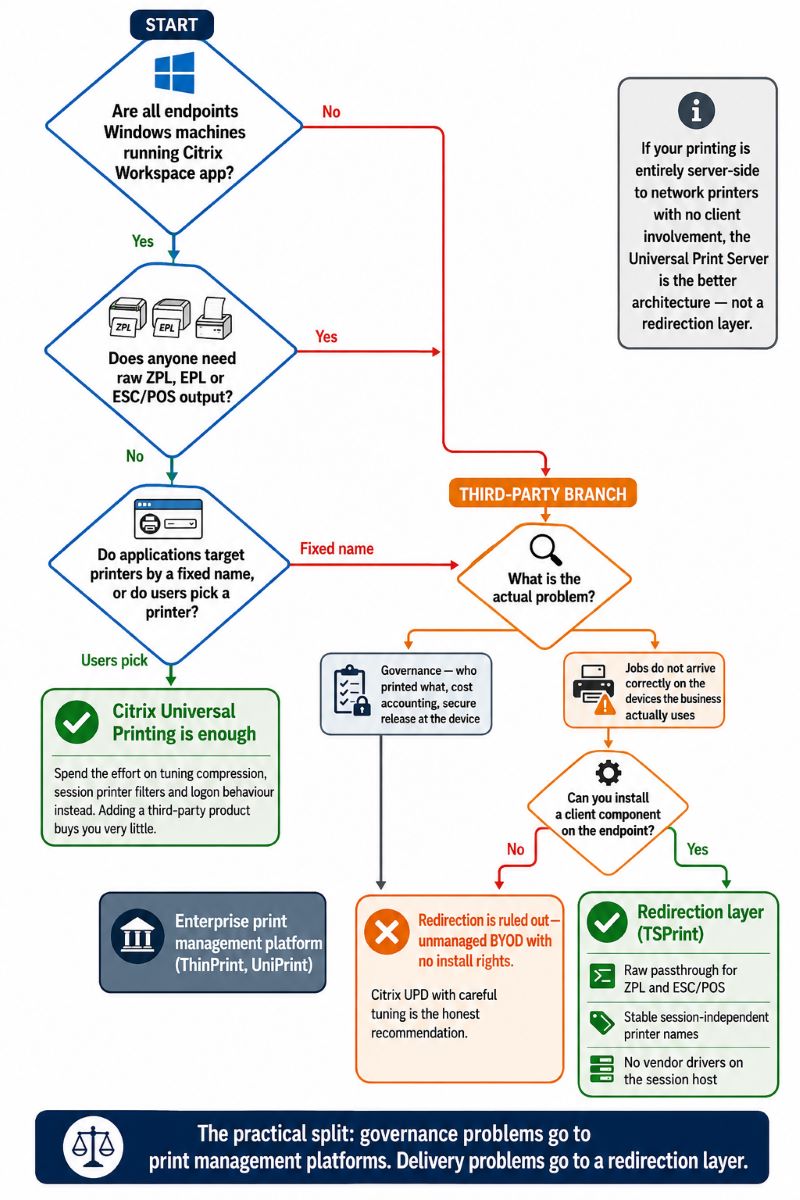
We would rather tell you not to buy something than have you buy it for the wrong reason. Citrix Universal Printing on its own is the right choice when all of the following are true:
- Endpoints are Windows machines running Citrix Workspace app.
- Printing is office documents to general-purpose laser or multifunction printers.
- Nobody needs raw ZPL, EPL or ESC/POS output.
- Applications let users pick a printer rather than targeting one by name.
- Device-specific finishing (stapling, trays, secure PIN release) is either unnecessary or covered by the UPD's Local Settings dialog against a native client-side driver.
- You already have Citrix licensing that includes the Universal Print Server, and a print server to run it on.
In that profile, adding a third-party product buys you very little. Spend the effort on tuning compression, session printer filters and logon behaviour instead.
When a Third-Party Printing Solution Makes Sense
The case for a third-party layer is strongest when the printing requirement itself sits outside what a page-description universal driver can express, or when your endpoints are not uniformly Windows.
How TSPrint works in a Citrix environment
TSPrint installs a server component on the VDA or session host and a client component on the endpoint, and communicates over a virtual channel inside the existing ICA/HDX or RDP connection. No firewall changes, no additional ports, no print server. The server component presents a small set of stable virtual printers: TSPrint Default (routes to whatever the endpoint's current default printer is), TSPrint Printer (lets the user choose at print time), TSPrint Network (prints to another logged-in user's local printer) and TSPrint PDF (preview and save workflows). Jobs are compressed and rendered on the client with the real printer driver, and TSPrint is Citrix Ready certified with the same installer used for RDP and Citrix deployments.
Three properties matter most for the failure modes described above. First, raw data mode passes ZPL and ESC/POS through unchanged, so a Zebra receives ZPL and a cash drawer kick code reaches the drawer. Second, the virtual printer names are stable and session-independent, so an EMR or ERP pointed at "TSPrint Default" keeps working regardless of endpoint, session ID or mapping order. Third, no vendor printer drivers are needed on the session host at all, which removes the spooler-crash and driver-sprawl failure modes and sidesteps the Point and Print restrictions introduced by PrintNightmare hardening.
Where TSPrint is not the right fit
- You need centralized print management: quotas, per-department cost accounting, follow-me release at the device. TSPrint does not do print management; ThinPrint or UniPrint do.
- Your printing is entirely server-side to network printers with no client involvement. The Universal Print Server is the better architecture there.
- Policy forbids any third-party component on session hosts. In that case Citrix UPD with careful tuning is the honest recommendation.
- Your endpoints cannot run a client component at all, for example unmanaged BYOD devices with no install rights.
Citrix Universal Printing vs Third-Party Solutions Compared
| Solution | Approach | Raw ZPL / ESC-POS | Best fit |
|---|
| Citrix UPD + Universal Print Server | EMF/XPS/PS/PDF universal drivers, included with CVAD | Limited, via native driver or text-only workarounds | Windows endpoints, office documents, existing Citrix licensing |
| TSPrint | Virtual printers on the host, compressed job over the existing virtual channel, client-side rendering, raw passthrough mode | Yes | Mixed RDP and Citrix estates, label and receipt printing, stable printer names for EMR/ERP |
| ThinPrint (Cortado) | Proprietary .print stream compression plus a full print management platform | Yes, native ZPL support | Large enterprises needing central print governance and reporting |
| ezeep (same company as ThinPrint) | Cloud print service with endpoint agent or ezeep Hub, no on-premises print server | Yes, native ZPL and CPCL pass-through, including via API for ERP and WMS workflows | Cloud-first organizations, including Zebra label fleets validated under Zebra's Enterprise Testing Program |
| Tricerat ScrewDrivers | Universal driver with the TMF protocol for non-standard media, plus policy-driven printer assignment | Yes, Zebra-validated across industrial, desktop and mobile models | Environments where printer assignment logic and label formatting are the main problems |
| UniPrint Infinity | PDF-based universal printing with a Smart Label Printing module and vPad hardware release | Label job routing and filtering to specialty printers; raw pass-through not documented publicly | Healthcare and public sector with secure release and prescription or wristband workflows |
| FabulaTech Printer for Remote Desktop | Client printer redirection over the remote session using the endpoint's own driver | Not documented publicly; depends on the client-side driver and how the application opens the queue | Small deployments needing straightforward redirection |
Raw output support is no longer the dividing line it once was; several of these products handle ZPL and ESC/POS properly, and the honest differentiators are architecture and operating model. If your problem is governance (who printed what, what it cost, secure release at the device), the enterprise print management platforms are built for that and TSPrint is not. If you are cloud-first and comfortable with print jobs routed through a cloud service, ezeep fits that shape. If your constraint is that jobs must stay inside the existing ICA/HDX or RDP connection with no cloud dependency, no additional ports and no print server, that is the case TSPrint is built for, across mixed Citrix and RDS estates. TSPrint licensing starts at $79 per user with a 25-day trial, and the license count is based on users with the TSPrint client installed rather than every user on the server.
Frequently Asked Questions
The Citrix Universal Print Driver is a set of device-independent drivers (EMF, XPS, PCL5c, PCL4, PS) that replace vendor drivers for printers mapped into a session. The Citrix Universal Printer is a single generic printer object created at logon that is not tied to any physical device; the job is sent to the endpoint, where the user selects the actual printer. The Universal Printer is useful when you want to skip printer enumeration entirely and shorten logon time, but it only works with Windows endpoints running Citrix Workspace app for Windows.
Check four things in order. Confirm Client printer redirection is Allowed and Auto-create client printers is not restricted to the default printer only. Confirm the Citrix Print Manager Service (cpsvc.exe) is running on the VDA and logged no errors at logon. If you use session printers with native drivers, verify the driver exists on the VDA, because a missing driver causes the printer to fail silently. Finally, check whether the application launched before enumeration finished; enabling Wait for printers to be created resolves that race.
Not reliably, because the UPD describes rendered pages while these devices expect a raw command stream such as ZPL or EPL. Typical symptoms are labels printing as an image of the command text, jobs being discarded, or barcodes printing at the wrong scale and failing scanner verification. Options are installing the native label driver on every VDA, using a text-only driver for passthrough where the application supports it, putting the label printer on the network for fixed stations, or using a redirection product with a raw passthrough mode.
Only if you have network printers on a print server. The Universal Print Driver handles printers mapped from the endpoint. The Universal Print Server handles printers that the VDA connects to directly, and its value is that the VDA no longer needs the vendor driver for each network printer, plus the job travels from print server to VDA in a compressed, optimized format instead of raw SMB spool traffic. If all your printing is client-side, the Universal Print Server adds infrastructure without benefit.
EMF encodes vector and text content compactly but carries bitmaps close to their original size, so a scanned or image-heavy document produces a much larger spool file than a text report of the same page count. Set Universal printing image compression limit to cap job size, enable image and font caching in Universal printing optimization defaults so repeated letterhead graphics are not resent, and apply a percentage-based printer redirection bandwidth limit so print traffic cannot starve the interactive session. If jobs are still slow after that, the format itself is the constraint and a compressed PDF-based redirection layer is the next step.
EMF replay requires a Windows print subsystem, so non-Windows endpoints use different paths. Mac and Linux clients typically use the PostScript variant of the Universal Print Driver, which may require a PostScript driver installed locally. Chrome and HTML5 clients use the Citrix PDF Universal Printer, which converts the job to PDF, transfers it to the endpoint and opens it in a PDF viewer for the user to print. That extra step is acceptable for occasional printing and disruptive for high-volume workflows such as clinical labels or POS receipts.
Yes, wherever it is enabled. Protected Print Mode removes support for v3 printer drivers and restricts printing to Mopria-certified IPP devices, so any design that relies on installing vendor v3 drivers on session hosts or endpoints needs a plan. Citrix already has v3 and v4 restrictions of its own: a native v4 driver on both the VDA and the client, or on both the VDA and the Universal Print Server, is not a supported combination. Architectures that keep vendor drivers off the session host entirely are the least exposed to this class of change.
Either. Many deployments run both: Citrix Universal Printing for standard office documents, and TSPrint virtual printers for label printers, receipt printers, non-Windows endpoints and applications that need a stable printer name. Because TSPrint uses its own virtual channel and its own virtual printers, it does not conflict with Citrix printing policies. If you are consolidating, you can also set Client printer redirection to Prohibited and use TSPrint exclusively, which removes printer auto-creation from the logon path.
Summary
Configuring printing in Citrix Virtual Apps and Desktops comes down to three decisions: which print pathway each user population should take, whether to use universal drivers exclusively, and whether to add the Universal Print Server for network printers. The Citrix Universal Print Driver handles Windows endpoints and office documents well, and tuning compression, caching and session printer filters solves most performance complaints. It runs out of road with label and receipt printers that need raw command output, with non-Windows and thin-client endpoints, and with applications that print silently to a fixed printer name. For those cases a driverless redirection layer such as TSPrint is usually the shorter path than maintaining vendor drivers across every VDA image.
Check out the TSPrint (25-day free trial)


