If you're using an on-premises Active Directory DNS within your Azure virtual network and need to resolve Azure private endpoints (such as Private Endpoints or Private Links), there's a more streamlined approach than manually creating forward lookup zones for each endpoint. By configuring Azure DNS Private Resolver, you can forward DNS queries from your on-premises environment to Azure, enabling seamless name resolution for private Azure resources.
In this post, I'll walk you through:
- Setting up Azure DNS Private Resolver
- Understanding the prerequisites
- Creating an Inbound Endpoint
- Linking Private DNS Zones
- Configuring a Conditional Forwarder in your on-premises Active Directory DNS
This method simplifies DNS management and improves scalability when working with hybrid network architectures.
Implementing a Private DNS resolver
Setting up a Private DNS Resolver is a straightforward process. You need to allocate dedicated subnets for both inbound and outbound endpoints.
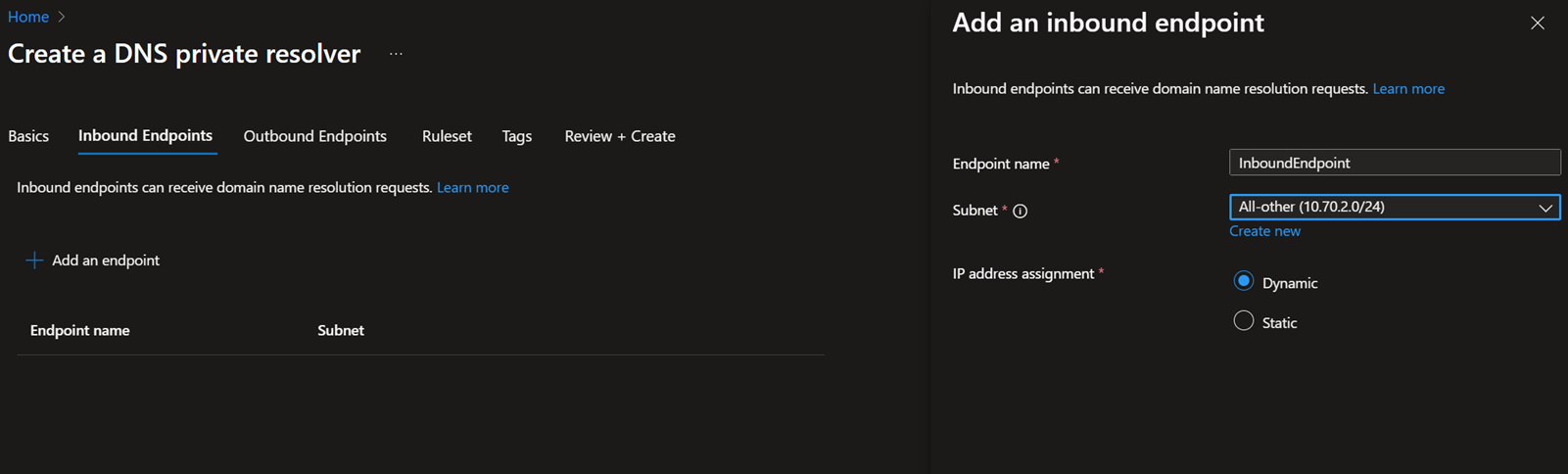
Inbound endpoints are used for name resolution requests coming from on-premises environments or other DNS services. These requests are forwarded to the Private DNS Resolver.
When you create an inbound endpoint, it receives an IP address from the dedicated subnet. You can then configure your on-premises DNS server to forward queries to this IP address.
The subnet must be at least /28 in size, and it cannot be used for any other purpose.
Outbound endpoints are used to forward DNS queries from Azure to external DNS servers, such as on-premises DNS or public DNS services.
This also requires a dedicated subnet with a minimum size of /28, which must be reserved exclusively for outbound DNS resolution.
- To implement Private DNS Resolver, first log in to the Azure portal, type Private DNS Resolver in the search, and click Create.
- Fill the Resource group name, Instance name, and pick your Virtual network where the Inbound and outbound Endpoint subnets are to be created.
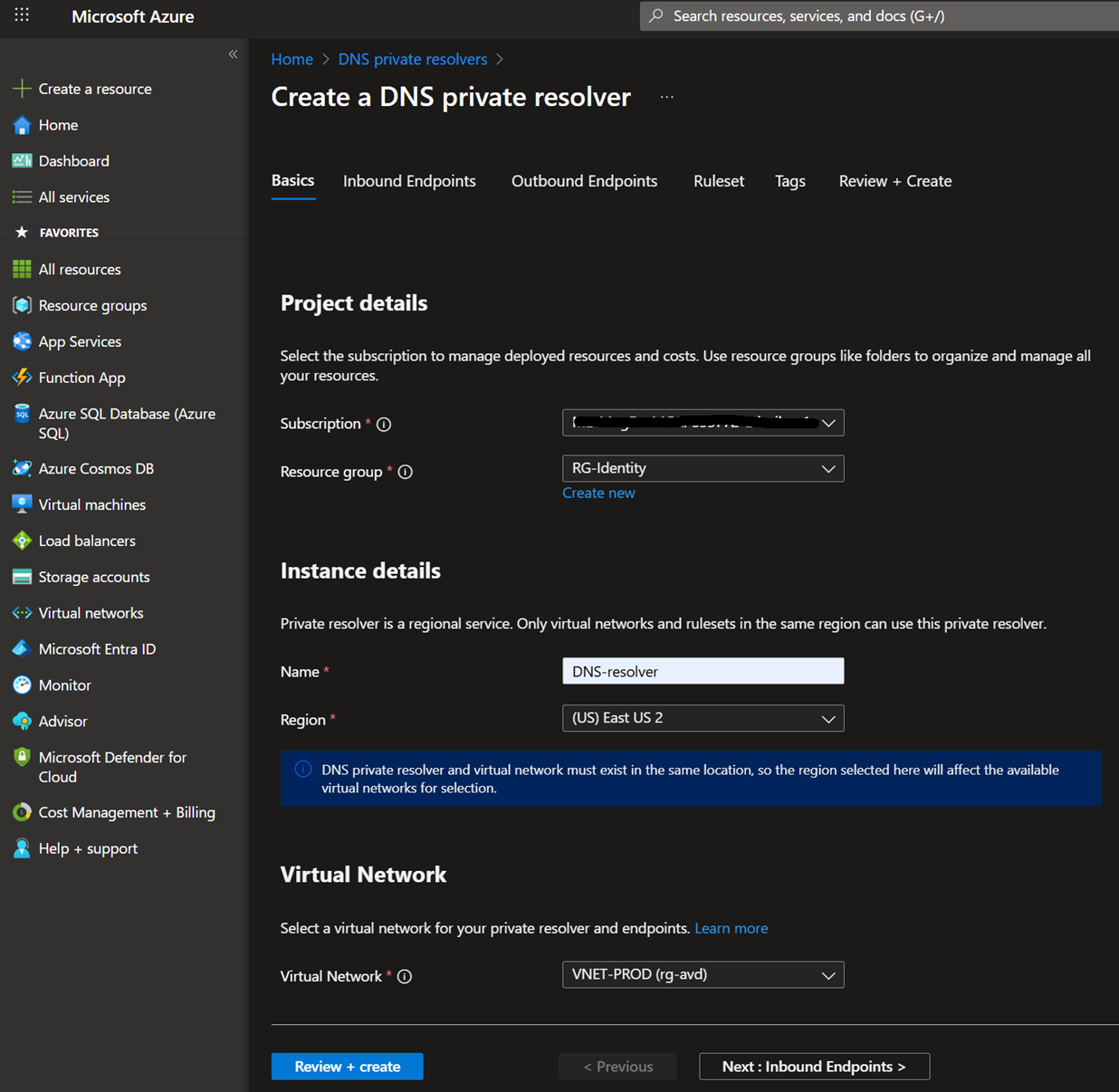
- Add an inbound endpoint/outbound endpoint, and then select the subnet.
- You need to configure the Ruleset if you are configuring an Outbound endpoint. In my scenario, I'm only configuring an Inbound endpoint, so I'm skipping it.
- Review and create
Link the Private DNS zone to the DNS resolver's Virtual network.
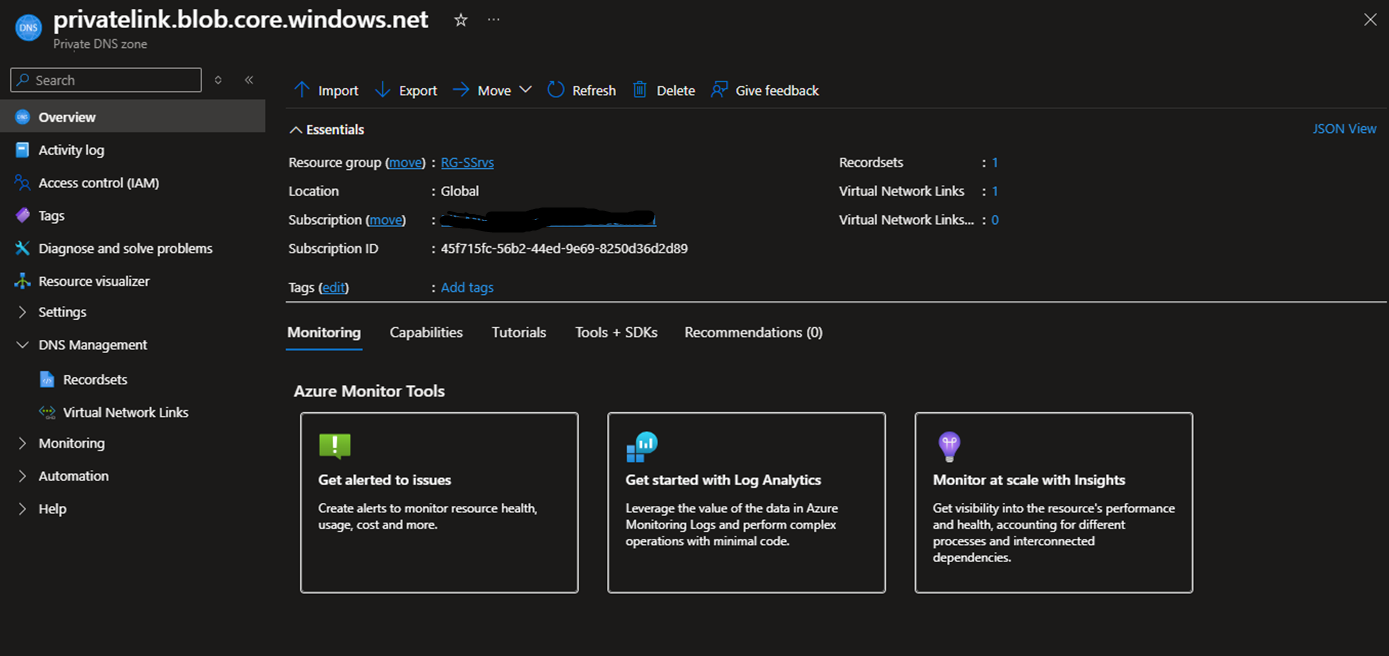
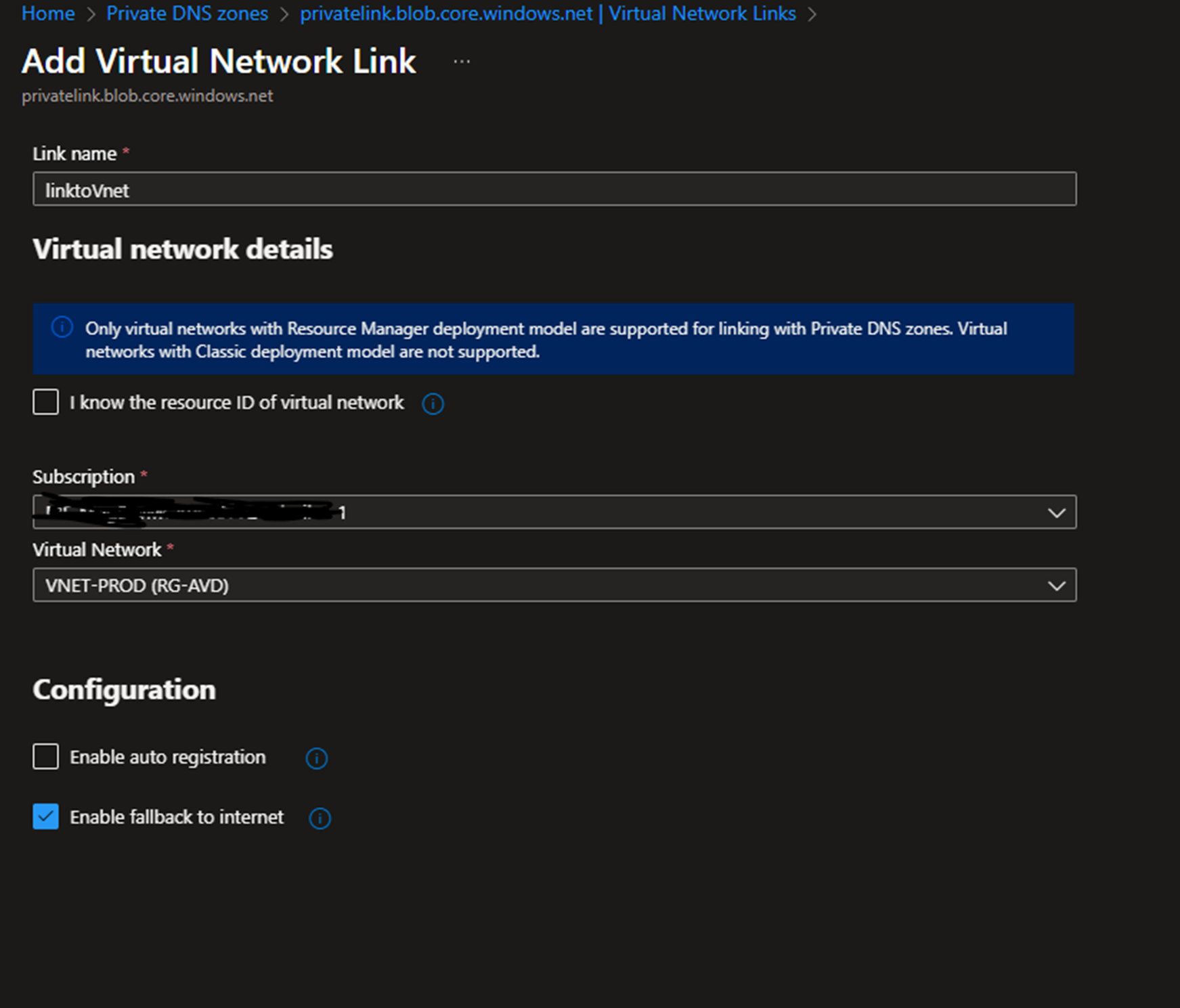
After creating the DNS resolver, you must ensure that all Private DNS Zones containing DNS records for your private endpoints are linked to the virtual network where the DNS resolver is deployed. Otherwise, the DNS resolver will not be able to locate the DNS records.
Select the Private DNS Zone that you want to link, and click Virtual Network Links.
Click Add link and select the Vnet that the DNS resolver is deployed to
Create the conditional forwarder
Next, you need to forward the On-premises DNS queries to the DNS resolvers' inbound endpoint IP.
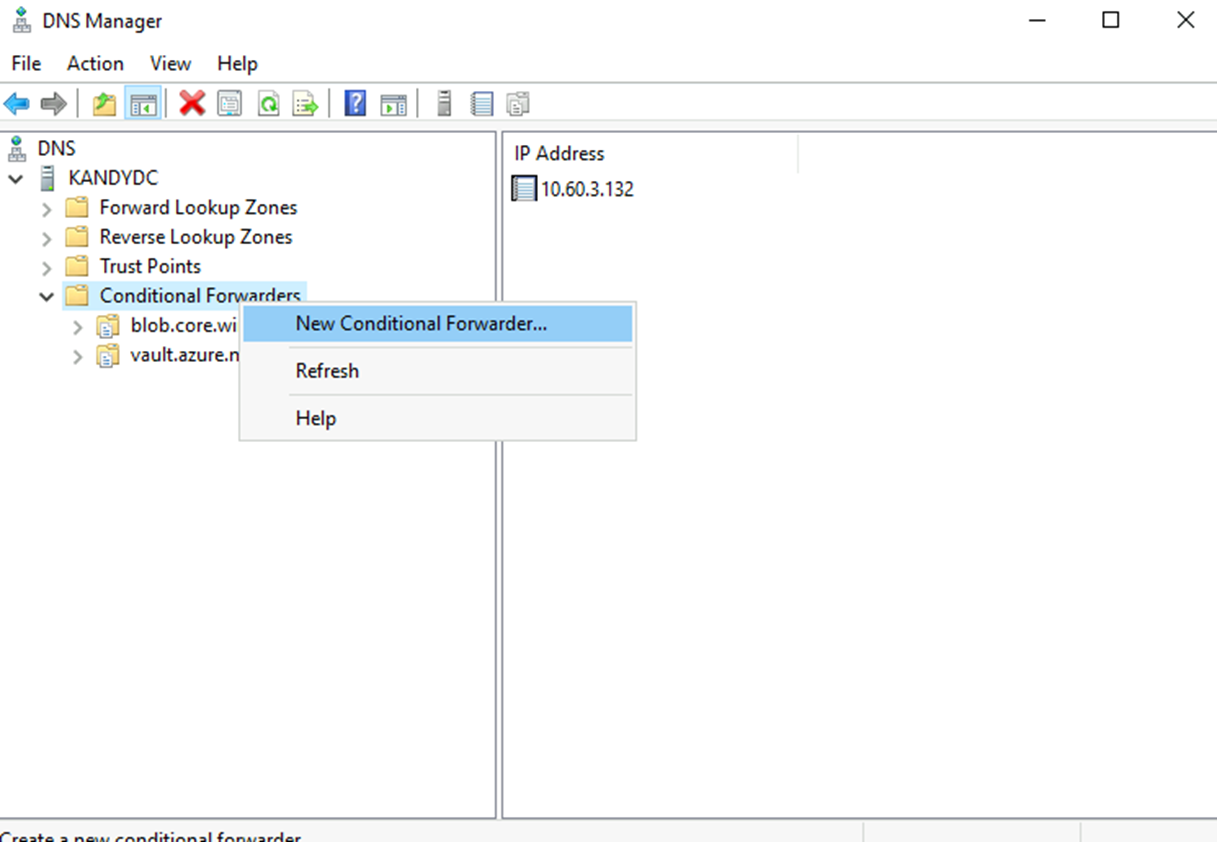
Log in to a Domain controller – DNS management – Conditional forwarders – New Conditional Forwarder
Add your private endpoint Domain name and Inbound endpoint IP address as follows.
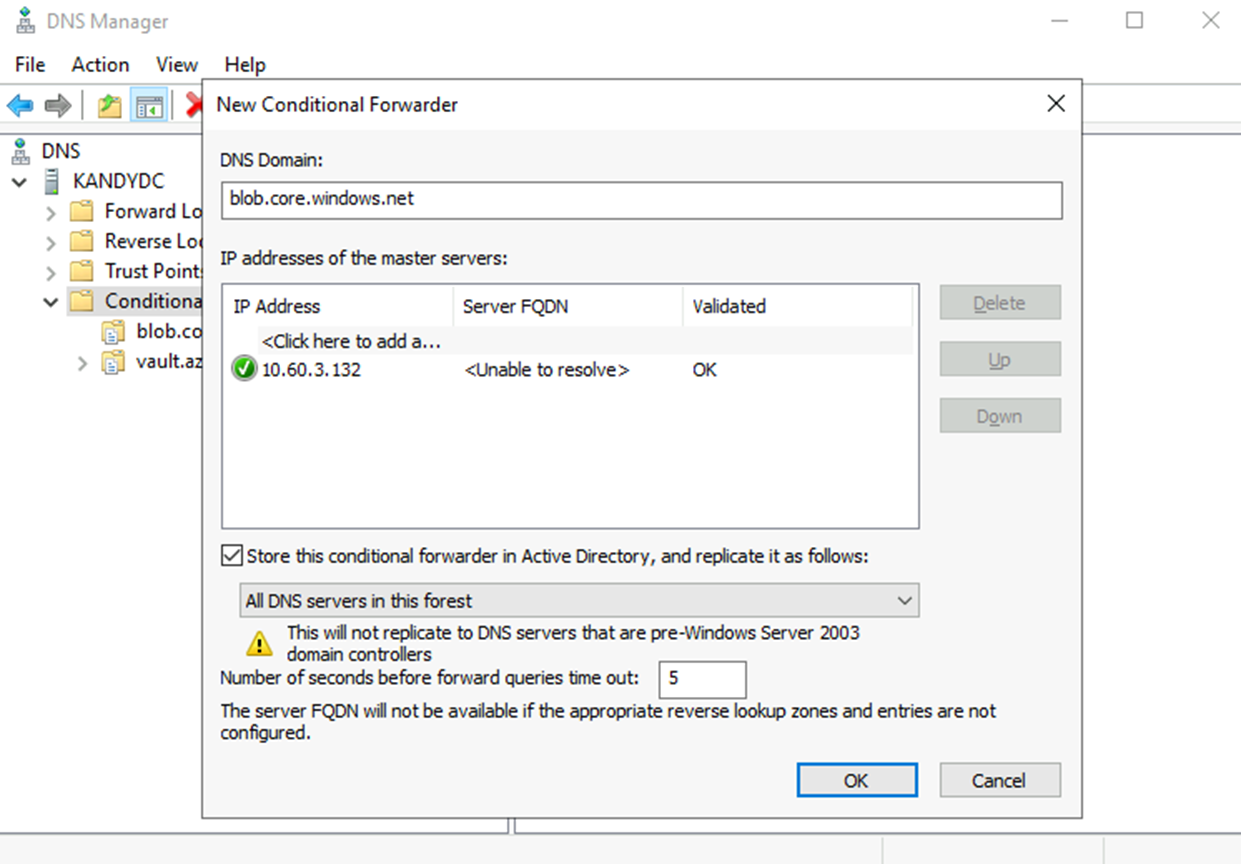
Now, everything that looks for blob.core.windows.net will be forwarded to the Private DNS resolver. The resolver will then check the Private DNS zone for the record, and if found, it will resolve to it; if not found, it will fall back to the internet.
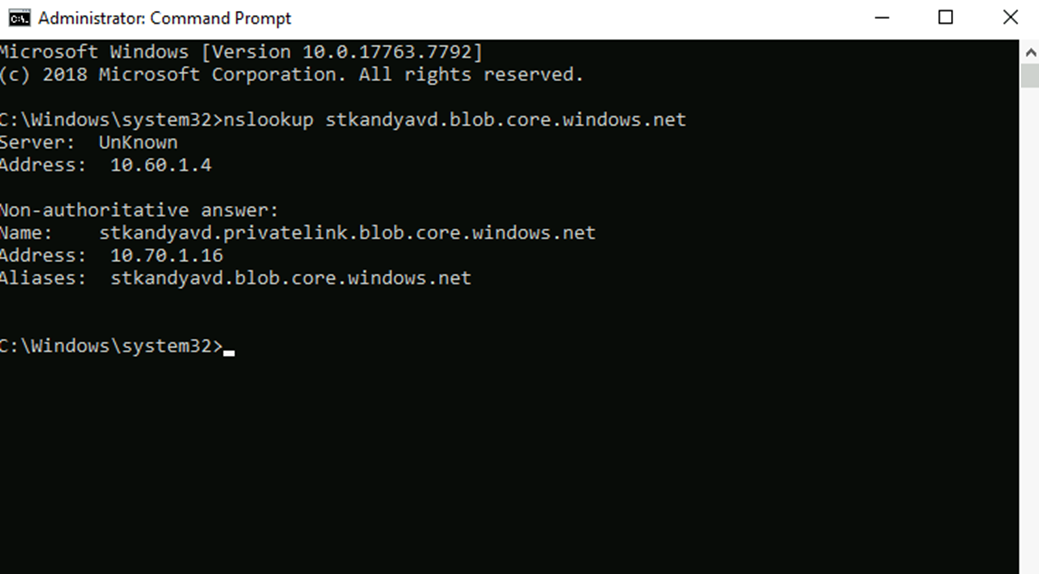
Hope this post is useful.
Thanks


