Last updated: April 2026 By TerminalWorks — Remote Desktop Printing Solutions Since 2014
Yes, you can print to a local printer from a Remote Desktop session. Windows includes built-in printer redirection that maps your local printers into the remote session automatically. For small environments with standard office printers, this works without additional software. For larger or mixed environments - especially those with multiple users, varied printer models, or specialized devices - a dedicated solution like TSPrint provides significantly more reliable results.
In this guide, we explain how Remote Desktop printer redirection works, walk through the setup, cover the most common problems we see across thousands of customer environments, and show how TSPrint solves them.
How Remote Desktop Printer Redirection Works
Microsoft Remote Desktop Protocol (RDP) includes a feature called printer redirection that exposes local printers inside a remote session.
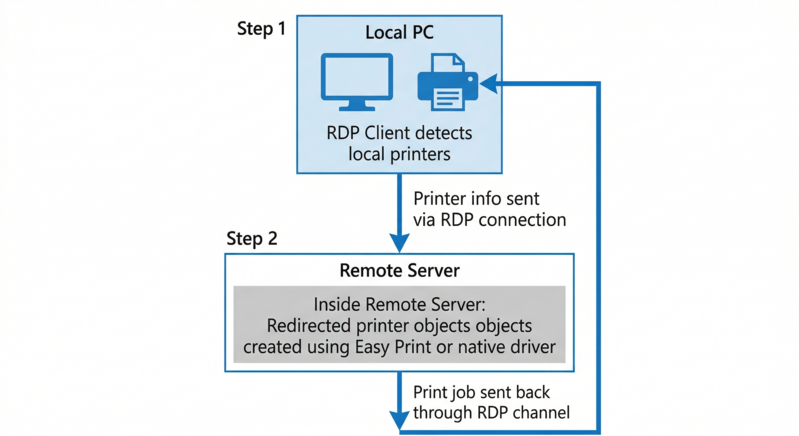
When you connect to a Remote Desktop server:
- The RDP client on your local machine detects all installed printers.
- It sends printer information to the remote server through the RDP connection.
- The server creates temporary printer objects in the remote session, using either the matching native driver or the Remote Desktop Easy Print driver.
- These printers appear in the session's printer list with a label like PrinterName (redirected X).
From the user's perspective, they open a document, click Print, and choose the redirected printer. The print job is rendered on the server and sent back to the local machine through the RDP channel for output.
What Is Remote Desktop Easy Print?
Remote Desktop Easy Print is Microsoft's built-in approach to simplifying RDP printing. Introduced in Windows Server 2008 R2, it uses an XPS-based rendering pipeline instead of requiring a matching native printer driver on the server.
Here is what that means in practice:
- The server does not need the exact driver for each client printer. Instead, it uses a single generic driver (the Remote Desktop Easy Print driver) to render print jobs into XPS format.
- The XPS data is sent to the local machine, where the local printer driver handles the final rendering.
- This reduces the number of drivers installed on the server, which in turn reduces spooler instability.
For basic office printing — standard documents on common laser or inkjet printers — Easy Print works reasonably well. But it has real limitations that become apparent in larger environments, which we cover below.
How to Enable Printer Redirection
Step 1: Enable Printers in the Remote Desktop Client
On your local Windows machine:
- Press Win + R, type mstsc, and press Enter.
- Click Show Options.
- Open the Local Resources tab.
- Under Local devices and resources, check Printers.
- Click Connect.
On macOS or Linux RDP clients (such as Microsoft Remote Desktop for Mac or Remmina), look for a setting called "Redirect printers" or "Printer forwarding" in the connection preferences.
Step 2: Verify the Printer in the Remote Session
After connecting, open Settings → Printers & Scanners (or Control Panel → Devices and Printers on older systems). Your local printer should appear with a "(redirected)" label.
If it does not appear, the issue is almost always on the server side.
Step 3: Check Group Policy Settings on the Server
In managed environments — Remote Desktop Services (RDS), terminal servers, or Citrix — Group Policy often controls whether printer redirection is allowed.
On the server, open Group Policy Editor and navigate to:
Computer Configuration → Administrative Templates → Windows Components → Remote Desktop Services → Remote Desktop Session Host → Printer Redirection
Verify the following:
Policy Setting | Required Value |
Do not allow client printer redirection | Disabled or Not Configured |
Use Remote Desktop Easy Print printer driver first | Enabled |
Redirect only the default client printer | Disabled (unless intentional) |
Do not set default client printer to be default printer in a session | Disabled |
If any of these are misconfigured, redirected printers either will not appear or will not behave as expected. In our experience, the most overlooked setting is "Redirect only the default client printer", which is sometimes enabled by administrators trying to reduce printer clutter in multi-user environments — but it causes confusion when users expect to see all their printers.
Why Remote Desktop Printing Still Breaks: Real-World Problems
Native printer redirection has been part of Windows for over 15 years, but it remains one of the most common Remote Desktop support issues. Based on our experience supporting thousands of RDS environments since 2014, here are the problems we see most often — and why they happen.
1. Printer Driver Conflicts and Spooler Crashes
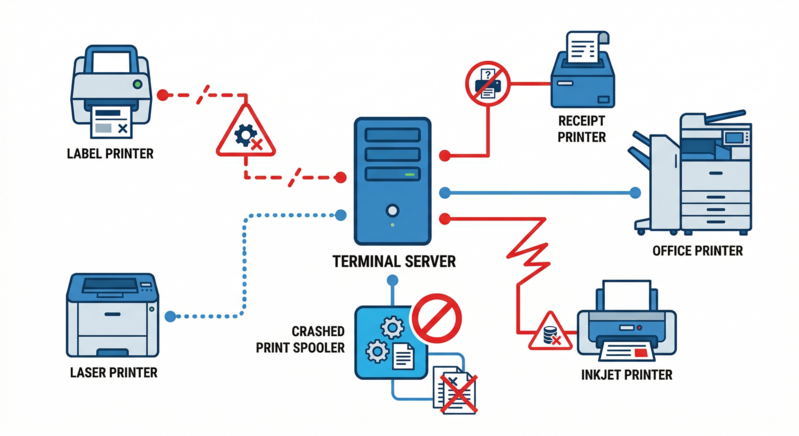
This is the single biggest problem in multi-user environments.
When Easy Print cannot handle a specific print job (which happens more often than Microsoft's documentation suggests), the server falls back to native driver matching. If a matching driver is installed on the server, it uses that. If not, the print job fails silently or the spooler crashes.
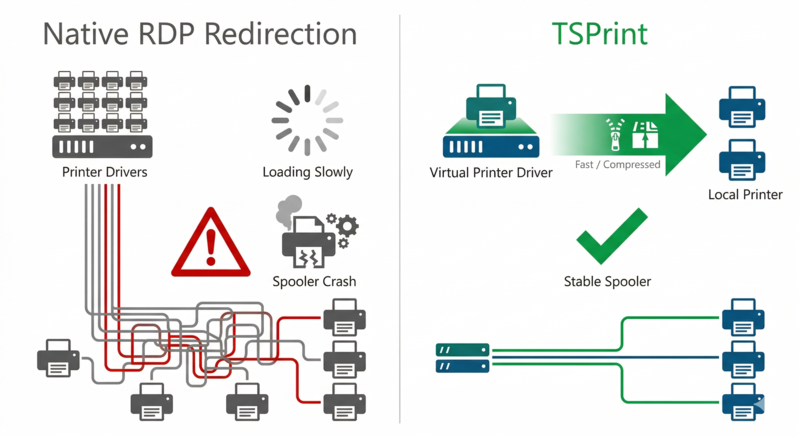
The real danger is driver accumulation. In environments where 20, 50, or 100+ users connect with different local printers, the server ends up with dozens of third-party printer drivers — many of which were never designed to run in a multi-session terminal server environment. A single poorly written driver can crash the Print Spooler service, which affects every user on the server, not just the one who triggered the crash.
We have seen environments where the Print Spooler was crashing 3 to 5 times per day before switching to a driverless solution.
2. Easy Print XPS Rendering Limitations
Easy Print renders print jobs through an XPS pipeline, and XPS does not support all the capabilities that native printer drivers offer. Common issues include:
- Specialized paper trays and duplex settings are sometimes ignored because the XPS pipeline does not pass them through.
- Color profiles and advanced print settings are often stripped or reduced.
- PostScript printers can lose functionality because XPS and PostScript are fundamentally different rendering models.
- Label printers (Zebra, Dymo, BIXOLON) and receipt printers (Epson TM series, Star Micronics) frequently produce blank output, incorrectly sized output, or fail to print entirely through Easy Print.
In our support history, label and receipt printers account for roughly 30% of all printing tickets we receive, even though they represent a much smaller share of total printers. These devices rely on precise driver communication that Easy Print's generic approach simply cannot replicate.
3. Windows Updates Breaking Print Redirection
Microsoft regularly updates the print subsystem, and these updates sometimes break existing redirection setups. Notable examples include:
- The PrintNightmare patches (CVE-2021-34527) introduced restrictions on driver installation that affected many redirected printer configurations.
- Cumulative updates in late 2023 and 2024 changed how the spooler handles third-party drivers in session isolation, causing previously working printers to stop appearing.
- The transition to the Windows Protected Print Mode (introduced in Windows 11 24H2) changes how drivers are handled and has new implications for RDP printing.
Every time Microsoft patches the print stack, IT teams face the risk of something breaking in their redirection setup. This creates an ongoing maintenance burden that many organizations underestimate.
4. Printer Clutter in Multi-User Environments
In a terminal server with 50 concurrent users, each redirecting 2 to 3 printers, the server may have 100 to 150 redirected printer objects at any given time. This causes:
- Longer login times as printers are enumerated and mapped.
- Confusion for users who see a long list of printers with cryptic names.
- Increased spooler memory usage and instability.
Some administrators try to solve this by restricting redirection to the default printer only, but that creates different problems when users need access to specialized devices like label printers alongside their regular printer.
5. Network and Bandwidth Constraints
Native RDP printer redirection sends print data through the RDP channel, but without meaningful compression. A large print job — a 50-page document with images, for example — can consume significant bandwidth and compete with the RDP session's display traffic.
In environments with limited bandwidth (remote offices, satellite connections, users on VPNs), this can cause:
- Very slow printing (minutes for a single document).
- Degraded RDP session responsiveness during printing.
- Print jobs that time out or fail entirely.
When Native Redirection Is Enough
We are a printing software company, but we also believe in recommending the right tool for the situation. Native RDP printer redirection may be sufficient if:
- You have fewer than 10 concurrent users.
- Everyone uses the same model of standard office printer.
- You do not use label printers, receipt printers, or other specialized devices.
- You are comfortable with occasional print-related troubleshooting after Windows updates.
If any of those conditions are not met, TSPrint is likely worth evaluating.
How TSPrint Solves These Problems
TSPrint by TerminalWorks takes a fundamentally different approach to remote printing. Instead of relying on Microsoft's driver matching and XPS rendering pipeline, TSPrint uses its own virtual printer architecture that eliminates most of the problems described above.
How TSPrint Works
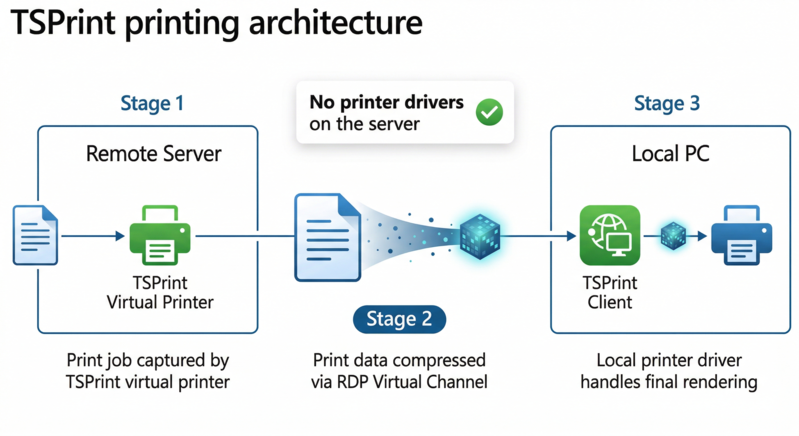
- TSPrint Server is installed on the remote server (RDS, terminal server, VDI, or cloud VM). It creates virtual printers — typically TSPrint Default, TSPrint Printer, and TSPrint PDF.
- When a user prints from a remote application, they select one of the TSPrint virtual printers.
- TSPrint converts the print job to a compressed intermediate format and sends it through the RDP virtual channel to the local machine.
- TSPrint Client, installed on the user's local computer, receives the job and outputs it on the local printer using the printer's own native driver — which is already installed locally.
The critical difference is that no third-party printer drivers are ever installed on the server. The server only has the TSPrint virtual printer driver, which is a single, stable driver designed specifically for this purpose. All printer-specific rendering happens on the client side, where the correct driver already exists.
Key Advantages of TSPrint Over Native Redirection
No drivers on the server. TSPrint eliminates driver accumulation entirely. One virtual printer driver handles all print jobs for all users. This removes the most common cause of spooler crashes in multi-user environments.
Compression reduces bandwidth usage. TSPrint compresses print data before sending it through the virtual channel. The compression is particularly effective for documents with repetitive elements (tables, forms, standardized documents), often reducing transfer size by 80 to 95% compared to uncompressed RDP printing.
Works with specialized printers. Because the final rendering happens on the local machine using the printer's native driver, label printers, receipt printers, and other specialized devices work as expected. The server does not need to understand the printer's capabilities — it just needs to get the data to the client.
Dynamic printer redirection. TSPrint 3.0+ automatically maps local printers into the remote session, so users see their own printer names rather than generic virtual printer labels. If a user changes their default printer locally, the change is reflected in the remote session on next login.
Simpler deployment. TSPrint supports silent installation, MSI packages, and Active Directory deployment. The client auto-updates from the server, so once deployed, clients stay in sync without further admin intervention.
Works across protocols and platforms. TSPrint supports RDP, Citrix ICA/HDX, and PCoIP connections. Clients are available for Windows, macOS, Linux, and Android.
Setting Up TSPrint
Step 1: Install TSPrint Server
Download and run the TSPrint Server installer on your remote machine. This can be:
- A Windows Remote Desktop Session Host (RDSH).
- A terminal server.
- An Azure Virtual Desktop or Windows 365 VM.
- Any Windows Server running Remote Desktop Services.
The installation creates the virtual printers and requires no additional configuration. A 25-day free trial is available with no registration.
Step 2: Install TSPrint Client
Install the TSPrint Client on every local machine that will connect to the remote server. The client receives print jobs from the server and outputs them locally.
For large deployments, use the MSI package for Active Directory Group Policy deployment. After initial installation, clients auto-update from the server.
Step 3: Print
Connect to the remote session as usual. Open any application, click Print, and choose one of the TSPrint printers:
- TSPrint Default — sends the job directly to your default local printer.
- TSPrint Printer — opens a local print dialog so you can choose a specific printer and adjust settings.
- TSPrint PDF — saves the document as a PDF on your local machine.
With Dynamic Redirection enabled (default in TSPrint 3.0+), your local printers also appear by name in the remote session's printer list.
FAQ
Can I print to a local printer from a Remote Desktop session?
Yes. Windows Remote Desktop includes built-in printer redirection that maps local printers into the remote session. For basic setups with standard printers, this works without additional software. For more complex environments — multiple users, mixed printers, specialized devices — a dedicated solution like TSPrint provides more consistent results. Enable redirection in the Remote Desktop client under Local Resources → Printers, and verify that Group Policy on the server is not blocking it.
Why is my printer not showing up in the Remote Desktop session?
The most common causes are: (1) Printer redirection is not enabled in the RDP client — check Local Resources → Printers. (2) Group Policy on the server is blocking redirection — check the policies under Remote Desktop Session Host → Printer Redirection. (3) The server cannot find a matching driver or Easy Print cannot handle the printer — this is especially common with label printers, receipt printers, and older devices. (4) The Print Spooler service on the server has crashed — restart it and check the Event Log for driver-related errors.
Why is Remote Desktop printing so slow?
Slow printing over RDP typically comes from three sources: (1) Large print jobs being sent without compression through the RDP channel, competing with display traffic. (2) Server-side rendering taking too long, especially if the server is under heavy load with many concurrent sessions. (3) Driver issues causing the spooler to process jobs inefficiently. TSPrint addresses all three by compressing print data (often reducing size by 80% or more), avoiding server-side rendering dependencies, and eliminating third-party driver overhead.
Can I print to a USB printer connected to my local computer from RDP?
Yes, both native redirection and TSPrint support USB-connected local printers. With native redirection, the USB printer must be recognized by the server (either through Easy Print or a matching driver). With TSPrint, the USB printer just needs to be installed and working locally — TSPrint does not care about the printer model because rendering happens on the client.
Does Easy Print completely remove the need for drivers on the server?
Not entirely. Easy Print handles many common printers, but it falls back to native driver matching when it cannot process a job through the XPS pipeline. In environments with diverse printer models, driver accumulation still occurs. Additionally, Easy Print's XPS rendering does not support all printer features, particularly for specialized devices. TSPrint fully eliminates the need for any third-party printer drivers on the server.
Does TSPrint require printer drivers on the server?
No. TSPrint installs a single virtual printer driver on the server. No other printer drivers are needed. All printer-specific rendering happens on the local machine using the driver that is already installed there. This is one of the primary reasons businesses switch from native redirection to TSPrint.
Does TSPrint work with Citrix?
Yes. TSPrint supports Citrix ICA/HDX connections in addition to standard RDP and PCoIP. The same server and client packages work for both RDP and Citrix environments — no separate installation is required.
How does TSPrint compare to other remote printing solutions like ThinPrint, UniPrint, or ScrewDrivers?
TSPrint is designed for simplicity and affordability. It does not require a print server, does not need a management console for basic operation, and has a straightforward per-user licensing model starting at $79. Larger enterprise solutions like ThinPrint or UniPrint offer more advanced print management features (usage tracking, cost analysis, granular policy controls) but come with significantly higher cost and complexity. For organizations that need reliable remote printing without enterprise-level print management overhead, TSPrint is often the most practical choice.
Is remote printing secure with TSPrint?
TSPrint sends print data through the RDP virtual channel, which is encrypted using the same TLS/SSL encryption that protects the rest of the RDP session. Print data never travels over a separate, unencrypted network path. In multi-user environments, each user's print jobs are isolated within their own session — users cannot see or intercept each other's print jobs.
Summary
Printing to a local printer from a Remote Desktop session is a basic capability built into Windows, and for simple environments it may be all you need.
But remote desktop printing at scale — multiple users, mixed printer models, specialized devices, limited bandwidth — is one of the most persistent pain points in RDS administration. Driver conflicts crash spoolers, Easy Print's XPS pipeline cannot handle every printer, and Windows updates regularly break existing setups.
TSPrint eliminates these problems by removing printer drivers from the server entirely and handling print jobs through a compressed virtual channel. It is simple to deploy, works across RDP, Citrix, and PCoIP environments, and starts at $79 per user with free support and updates.
Download TSPrint Free Trial (25 days, no registration) | Purchase TSPrint


