Microsoft Universal Print is a cloud-based print service that routes jobs through Azure and Microsoft 365, while traditional RDP printing redirects locally connected printers into a remote session via RDP virtual channels using the Easy Print driver. Universal Print suits cloud-first organizations with E3/E5 licensing and compatible printers; traditional RDP printing remains necessary for on-premise RDS, legacy and specialty hardware, and bandwidth-constrained or offline-tolerant environments.
This post breaks down how each technology actually works under the hood, where each one fails, and how to decide which approach fits your environment. We also cover where third-party tools like TSPrint fit in — particularly for the awkward middle ground where neither Microsoft solution does the job cleanly.
How Microsoft Universal Print Actually Works
Universal Print is fundamentally a cloud print queue. Print jobs travel from the user's session to Azure, where Microsoft hosts the queue, and then to either a Universal Print-ready printer (which polls Azure directly) or to a Universal Print Connector running on a Windows machine that bridges the cloud queue to a traditional printer.
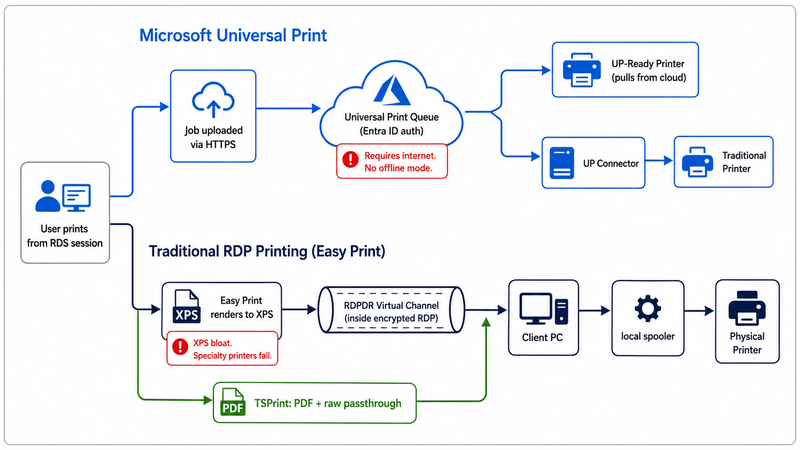
There are no print drivers installed on user devices or RDS session hosts. Universal Print uses a generic driver that produces a device-agnostic format — typically PDF or XPS — which the target printer or connector renders.
Authentication runs through Entra ID (formerly Azure AD), and printer access is governed by Entra group membership rather than by NTFS or share permissions on a print server. There's no SMB, no spooler service to manage on a dedicated print server, and no print server to patch.
Licensing is the catch that most organizations discover late. Each user printing through Universal Print needs an eligible Microsoft 365 license (Business Premium, E3, E5, A3, A5, F3, or standalone Universal Print), and each license includes a fixed monthly allocation of print jobs. Additional volume is purchased separately. In our experience supporting organizations that migrated from traditional print servers to Universal Print, this licensing surprise is the second most common reason rollouts stall — right after printer compatibility.
How Traditional RDP Printing Actually Works
When you connect to a remote session with the "Printers" option enabled, Windows redirects your locally installed printers into the remote session through a dedicated RDP virtual channel called RDPDR. The remote server sees these as session-scoped printer objects that exist only for the duration of your session.
Since Windows Server 2008, the default mechanism for redirecting printers has been Terminal Services Easy Print. Easy Print works around the historical nightmare of installing matching print drivers on the server by using a single universal driver. Here's the chain of events when you print:
- The application on the RDS host renders the print job
- The job is converted to XPS format by the Easy Print driver
- The XPS spool file travels across the RDP virtual channel to the client
- The client's local spooler receives the XPS, hands it to the actual printer driver, and prints
This XPS-based pipeline is why so many RDP printing problems trace back to the same root cause: everything has to translate cleanly to XPS and back. PostScript-specific features, vendor-specific tray selections, custom paper sizes on label printers, and binary commands sent to receipt printers all break or degrade at this XPS bottleneck.
The other approach is driver-based redirection: installing the exact matching print driver on the RDS host so the printer can be redirected natively. This works better for vendor-specific features but reintroduces the original problem Easy Print was designed to solve — driver conflicts, spooler crashes, and the security exposure that became famous as PrintNightmare (CVE-2021-34527) in 2021.
Windows Server 2025 and the recent Windows Protected Print Mode further restrict which drivers can be installed and how the spooler interacts with them, putting pressure on traditional driver-based redirection, particularly in regulated industries.
The Real Differences
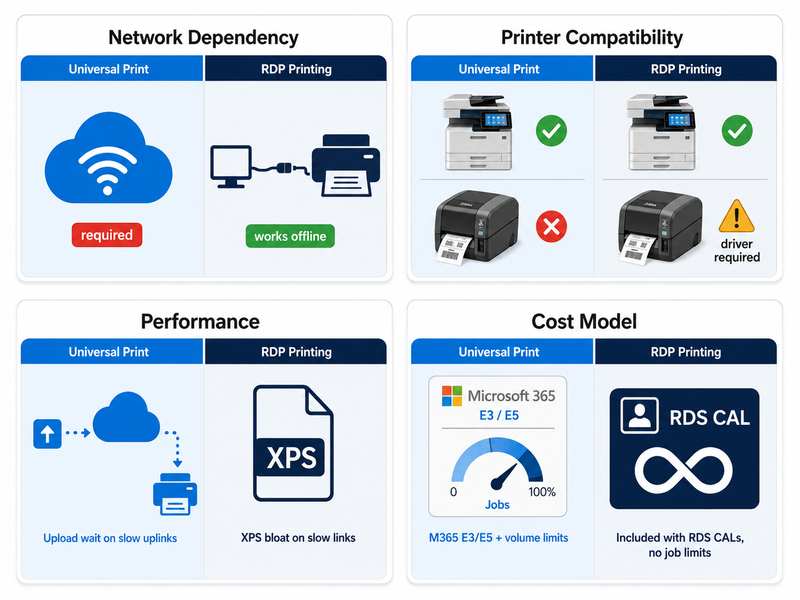
The architectural gap between Universal Print and traditional RDP printing creates differences that matter in practice, not just on a feature comparison sheet.
Network and Connectivity
Universal Print requires constant outbound HTTPS connectivity to Microsoft cloud endpoints. There is no offline mode. If your internet link drops, printing stops — even if the user and the printer are sitting on the same physical network, three meters apart.
Traditional RDP printing happens entirely within the RDP session over the virtual channel. As long as the RDP session itself is alive, printing works. This matters enormously in retail, healthcare clinics, and manufacturing floors where local printing must survive a WAN outage.
Compatibility with Printer Hardware
Universal Print works cleanly with Universal Print-ready printers (a growing but still limited list from HP, Canon, Lexmark, Xerox, Brother, and a few others) and with anything you can attach to a Universal Print Connector. Specialty hardware is the weak spot. Zebra ZPL label printers, Dymo LabelWriters, Epson TM-series receipt printers, and check printers with MICR encoding generally do not behave well through Universal Print's PDF/XPS pipeline because they expect raw command streams (ZPL, EPL, ESC/POS) rather than rendered pages.
Traditional Easy Print has the same XPS problem with these devices. Driver-based redirection can work if you can install and stabilize the vendor driver on the RDS host. Still, vendors rarely test their drivers in Terminal Server environments, and PrintNightmare-era hardening makes this riskier than it used to be.
Performance and Print Job Size
A pattern we see repeatedly is a 50-page Excel report or a multi-page PDF with embedded images that takes two to four minutes to print via Easy Print on a bandwidth-constrained connection. The XPS conversion bloats the job, and the XPS spool file is what travels across the virtual channel — not a compressed print stream.
Universal Print typically performs better for large documents because the job goes to Azure once and the printer pulls it down on its own schedule. But the user still waits for the upload to complete from the RDS host, which, on a slow uplink, can be just as painful.
Licensing and Cost Model
Traditional RDP printing has no incremental license cost — if you have RDS CALs, you have printing.
Universal Print is bundled with specific Microsoft 365 SKUs and includes per-user job allocations. For a 500-user organization with E3 licenses already in place, this is effectively free until you hit volume limits. For organizations on lighter Microsoft 365 plans, or those printing high volumes (legal, healthcare, accounting practices during tax season), additional Universal Print capacity adds up quickly.
Side-by-Side Comparison
| Factor | Universal Print | Traditional RDP Printing (Easy Print) |
|---|
| Infrastructure | Azure cloud queue | RDS session + RDP virtual channel |
| Driver model | Generic Universal Print driver | Easy Print XPS universal driver |
| Print server required | No (Connector optional) | Optional (or local printer redirection) |
| Authentication | Entra ID | Active Directory / local |
| Internet dependency | Required | Not required |
| Specialty printer support | Poor (labels, receipts, MICR) | Poor via Easy Print; possible via driver-based redirection |
| Licensing | M365 E3/E5/Business Premium, etc. | Included with RDS CALs |
| Volume limits | Per-user monthly allocation | No artificial limit |
| Setup complexity | Moderate (Connector + Entra config) | Low (built in) |
| Best for | M365-centric, modern printer fleet | On-prem RDS, mixed hardware |
When Universal Print Is the Right Choice
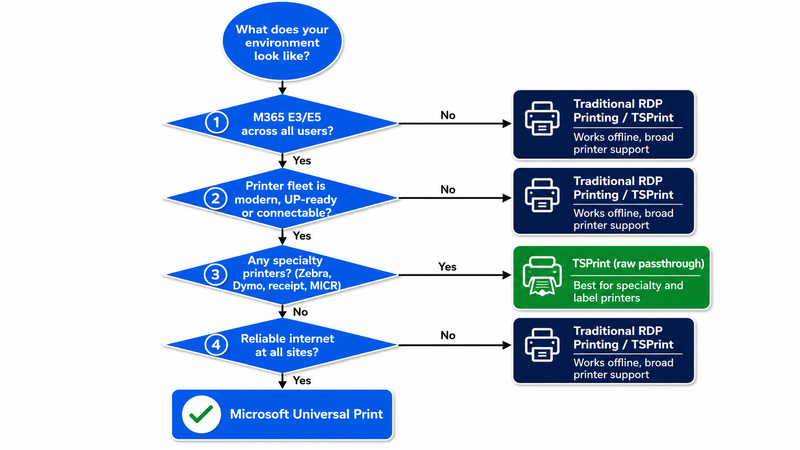
Universal Print is a strong fit when several of the following are true:
- You're already deeply invested in Microsoft 365 with E3/E5 or Business Premium licensing across the user base
- Your printer fleet is being refreshed, and you can specify Universal Print-ready models, or you're willing to run Universal Print Connectors on a small number of bridging machines
- You're moving toward Windows 365 Cloud PCs, Azure Virtual Desktop, or Intune-managed devices, and want to eliminate on-premise print servers as part of that consolidation
- Your print volume per user is moderate (well under the monthly job allocation included with licensing)
- Users print general office documents — Word, Excel, PDFs, Outlook — not specialty output
We've seen Universal Print succeed cleanly in professional services firms, marketing agencies, and modern office environments that have already migrated email, file storage, and identity to Microsoft 365.
When Traditional RDP Printing (or a Third-Party Tool) Makes More Sense
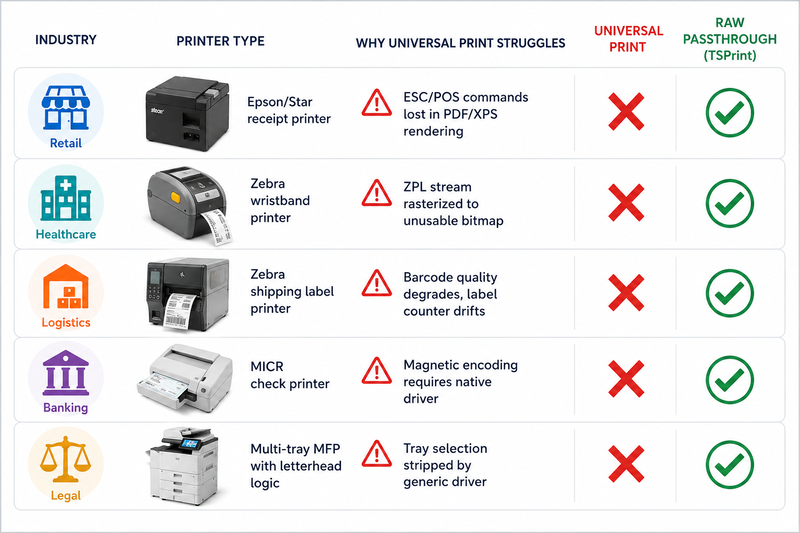
The honest answer: most environments with any of the following characteristics will struggle with Universal Print and need either traditional RDP printing or a third-party solution:
- Retail and hospitality: Epson, Star, or Bixolon receipt printers that need raw ESC/POS streams; kitchen printers; barcode scanners tied to label printing
- Healthcare: Zebra wristband printers, prescription label printers, lab specimen labels; EMR systems like Epic, Cerner, or NextGen that send print jobs with specific tray and form requirements
- Logistics and warehousing: Zebra ZPL printers for shipping labels, often dozens per site, with very specific print job timing requirements
- Finance and legal: Check printers with MICR encoding, multi-tray printers with letterhead/blank/envelope tray logic, secure follow-me printing requirements
- Branch offices on unreliable internet: Local printing must survive WAN outages
- Environments with strict data residency: Print jobs cannot legally travel through Microsoft cloud regions in some jurisdictions and sectors
One of the most common support tickets we receive at TerminalWorks is from organizations that tried Universal Print, discovered their Zebra GK420d wouldn't print labels correctly, and now need a working RDP printing solution before their warehouse shift starts at 6 AM.
Where TSPrint Fits Between These Two Worlds
TSPrint is a third-party RDP printing solution we've been developing since 2010 and is currently used by over 30,000 companies. It deliberately addresses the problem space between basic Easy Print and full cloud Universal Print.
The technical approach is different from both. Instead of rendering server-side to XPS, TSPrint installs a virtual printer on the RDS or Citrix host that captures the print job, converts it to a compact PDF (or, in TSPrint's raw-data mode, sends the original command stream unchanged), and ships it across the existing RDP virtual channel to a client-side component. The client component then prints to the locally installed printer using the real driver.
Three consequences of this design matter:
- No XPS bottleneck. Print jobs are typically a fraction of the size of equivalent Easy Print jobs, which is why a 50-page report that takes three minutes over Easy Print finishes in under 20 seconds with TSPrint on the same connection.
- Raw printing works. ZPL goes to Zebra printers as ZPL. ESC/POS goes to Epson receipt printers as ESC/POS. The server never tries to render what these printers want as a graphical page.
- No cloud dependency. Everything happens within the existing RDP session, so it works in air-gapped, restricted, or offline-tolerant environments.
.png)
TSPrint is not always the right answer. If you're a 100% Microsoft 365 shop with modern printers and want to eliminate every on-prem component, Universal Print is a cleaner fit, and we'll tell customers that. If your environment is small enough that Easy Print works fine, you don't need a third-party tool. Where TSPrint earns its place is the messy middle — mixed printer fleets, specialty hardware, performance-sensitive workflows, and environments that can't or won't depend on cloud connectivity for core operations.
Compared to other third-party players in this space — ThinPrint, UniPrint Infinity, ScrewDrivers, ezeep Blue, FabulaTech Printer for Remote Desktop — TSPrint is most often chosen for its lighter footprint, predictable per-server licensing, and strong support for specialty printers without separate add-on modules.
Common Problems We See Across Both Approaches
Based on over 15 years of working with remote desktop printing across thousands of environments, the recurring issues fall into a few categories:
Spooler instability after Windows Updates. Both PrintNightmare patches and the rollout of Windows Protected Print Mode have left organizations with spoolers that crash, refuse to load drivers, or silently drop jobs. This affects traditional driver-based redirection most severely.
Default printer confusion. When users have multiple redirected printers, Windows' default printer logic in remote sessions is famously inconsistent — particularly when users roam between devices. Universal Print partially solves this by tying defaults to identity rather than session, but only for Universal Print queues.
Tray and finishing option loss. Easy Print's XPS conversion strips many vendor-specific settings for tray, staple, hole-punch, and duplex. Users in finance, legal, and government environments report this as a top complaint.
Slow first Print after session start. Easy Print enumerates and creates virtual printer objects at session login, which can add several seconds and occasionally fails silently for one or two printers when users have many local devices attached.
FAQ
For many organizations, yes — but only if all printers are either Universal Print-ready or connected through a Universal Print Connector. The Connector itself runs on a Windows machine and acts as a bridge, so you may end up with a "mini print server" anyway. Organizations with specialty printers, very large fleets, or strict offline requirements typically still need an on-premise print server alongside Universal Print or instead of it.
Yes, Universal Print is supported in Windows Server RDS, Azure Virtual Desktop, Windows 365, and Citrix DaaS environments. However, the user accounts must have eligible Microsoft 365 licensing with Universal Print rights, and the session host must be joined to Entra ID or Hybrid Entra-joined. In our experience, hybrid joining traditional on-premise RDS hosts to Entra ID is the step where most deployments hit unexpected complexity.
Easy Print converts every job to XPS format on the server, then ships the XPS spool file over the RDP virtual channel to the client. XPS files are significantly larger than the original rendered job — sometimes 5-10x for documents with images — and the conversion itself is CPU-intensive. On a bandwidth-limited connection, a multi-page graphical document can take several minutes to load, whereas it would print in seconds locally.
Generally, no, not well. These printers expect raw command streams (ZPL, EPL, ESC/POS) rather than rendered PDF or XPS pages. Universal Print and its generic driver render print jobs as graphical pages, which means barcodes may print as low-quality images, label sizes may be misinterpreted, and receipt printer cut commands may be lost. For these workloads, raw-passthrough solutions such as TSPrint, ThinPrint Output Gateway, or driver-based redirection using vendor drivers are often necessary.
It depends on existing licensing. If your users are already on Microsoft 365 E3, E5, or Business Premium, Universal Print is included, with a monthly job allocation per user. For organizations on F1, F3, or no Microsoft 365 at all, standalone Universal Print licensing plus the migration effort often exceeds the cost of maintaining a small print server. Print volume matters, too — high-volume environments can blow through included allocations and start incurring overage charges.
PrintNightmare (CVE-2021-34527) was a 2021 vulnerability in the Windows Print Spooler that allowed remote code execution through driver installation. Microsoft's response — restricting driver installation to administrators by default and eventually introducing Windows Protected Print Mode — broke many environments that relied on users installing their own redirected printer drivers. Today, this is one of the strongest arguments for either Universal Print (no drivers) or solutions like TSPrint that use a single signed virtual printer driver instead of vendor drivers on the RDS host.
Yes, and many organizations do during transition. A user can have their corporate Universal Print queue set as the default for everyday office printing, while still using a locally redirected Zebra label printer for warehouse tasks. The two systems don't conflict — they appear as separate printer objects in the session.
No. TSPrint is fully on-premise and operates entirely within the RDP, RemoteApp, or Citrix HDX session over the existing virtual channel. There's no Azure dependency, no cloud queue, and no requirement for Entra ID. This is one of the reasons TSPrint is common in healthcare, government, and industrial environments where cloud-routed print jobs are restricted or impractical.
Both have a defensible security posture but different attack surfaces. Universal Print eliminates the local spooler attack surface that caused PrintNightmare and centralizes auditing in Entra. Traditional RDP printing keeps print data inside the RDP session — which never leaves your network — but historically exposed the spooler service. For regulated environments, the answer often depends on whether your data classification rules permit print job content to traverse Microsoft cloud regions.
A combined approach typically wins: Universal Print for the bulk of Microsoft 365 users printing office documents to modern MFPs, plus a dedicated RDP printing solution (TSPrint, ThinPrint, or properly configured driver-based redirection) for the subset of users working with label printers, receipt printers, or vendor-specific output. Trying to force every workload through a single mechanism is the most common cause of stalled deployments we encounter.
Summary
Microsoft Universal Print and traditional RDP printing solve overlapping but genuinely different problems. Universal Print is the right choice for cloud-first, Microsoft 365-licensed organizations with modern printers and predictable office printing workloads. Traditional RDP printing — whether Easy Print, driver-based redirection, or a purpose-built tool like TSPrint — remains necessary for specialty printers, performance-sensitive workflows, offline-tolerant environments, and the majority of real-world remote desktop deployments that include any non-trivial hardware.
If your environment falls into the second category and you've hit the limits of Easy Print you can view TSPrint features and licensing options to see whether it fits your deployment.


