In a multi-user RDS or Terminal Server environment, printing works by redirecting print jobs from the user's remote session back to a printer connected to their local client device. This happens over the RDP virtual channel (RDPDR), using either a matching native driver installed on the server, Microsoft's Easy Print (which converts jobs to XPS), or a third-party universal printer driver. Each approach has different trade-offs in compatibility, performance, and stability.
This post breaks down the architecture behind RDS printing — the virtual channels, the shared spooler, the driver model — and explains why printing often breaks in terminal server environments. We cover the three main approaches (native redirection, Easy Print, and universal drivers like TSPrint), the impact of recent Windows changes such as PrintNightmare hardening and Protected Print Mode, and concrete best practices for environments ranging from small RDS hosts to multi-server session host farms.
How RDS Printing Architecture Actually Works
Before deciding on a printing strategy, it helps to understand what's happening underneath. RDS printing isn't a single mechanism — it's a stack of components that interact, and most printing problems trace back to a misunderstanding of one of these layers.
The RDPDR Virtual Channel
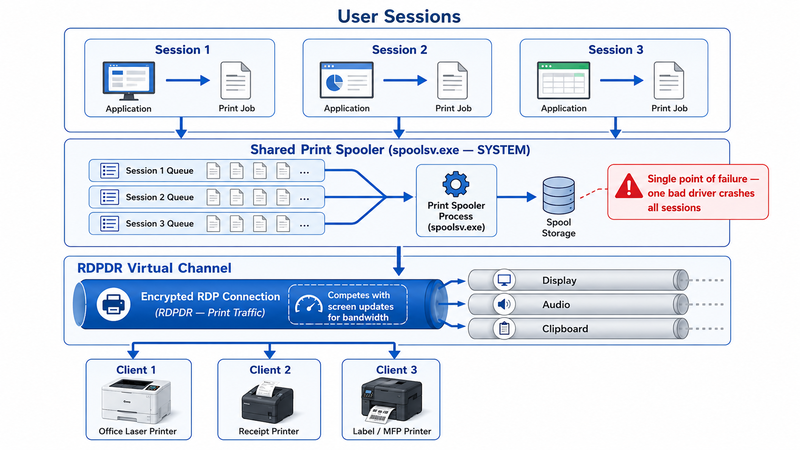
When a user connects with RDP and printer redirection is enabled (the default), the client negotiates a virtual channel called RDPDR (Remote Desktop Protocol Device Redirection). This is the same channel used for drive, port, and smart card redirection. Print jobs created inside the session are spooled, serialized, and pushed over RDPDR to the client, which then hands them to the local Windows spooler for delivery to the physical printer.
Because RDPDR runs over the standard RDP connection, print traffic competes for bandwidth with screen updates, audio, and clipboard operations. On a 5 Mbps connection, a 50-page document with embedded images rendered as EMF can take 60–90 seconds to transfer; the same document rendered to XPS via Easy Print is often 2–3x larger, pushing the same job past two minutes.
The Print Spooler in Multi-Session Hosts
The Windows print spooler (spoolsv.exe) runs as a single SYSTEM-level service shared across all sessions on the host. This is the single biggest architectural cause of pain in RDS printing: if one user's print driver crashes or hangs, it can bring printing down for every user on the server until the service is restarted. One of the most common support tickets we receive is exactly this — a single user adds a personal printer with an old or unsigned driver, and the spooler starts cycling for everyone on the host.
Driver isolation, introduced in Windows 8 / Server 2012, partially mitigates this by hosting print drivers in a separate process (PrintIsolationHost.exe). It works well for v4 drivers but is inconsistently implemented for v3 drivers, which are still common in specialty printer fleets.
v3 vs v4 Drivers, and Protected Print Mode
Microsoft has two driver models. v3 drivers are the legacy model — they run kernel-adjacent code, are vendor-specific, and cause most of the spooler instability we see in the field. v4 drivers, introduced with Windows 8, are class-based, signed, and isolated by design.
In Windows 11 24H2 and Windows Server 2025, Microsoft introduced Windows Protected Print Mode, which disables v3 drivers entirely and requires Mopria-compatible v4 drivers. For RDS administrators, this is significant: legacy line-of-business, label, and receipt printers that rely on vendor v3 drivers either won't work at all or require a universal driver workaround. We've already seen organizations delay their Server 2025 rollout specifically because of this.
The Three Approaches to RDS Printing
Every RDS printing solution falls into one of three buckets. Knowing which you're dealing with is the first step in diagnosing problems.
1. Native Printer Driver Redirection
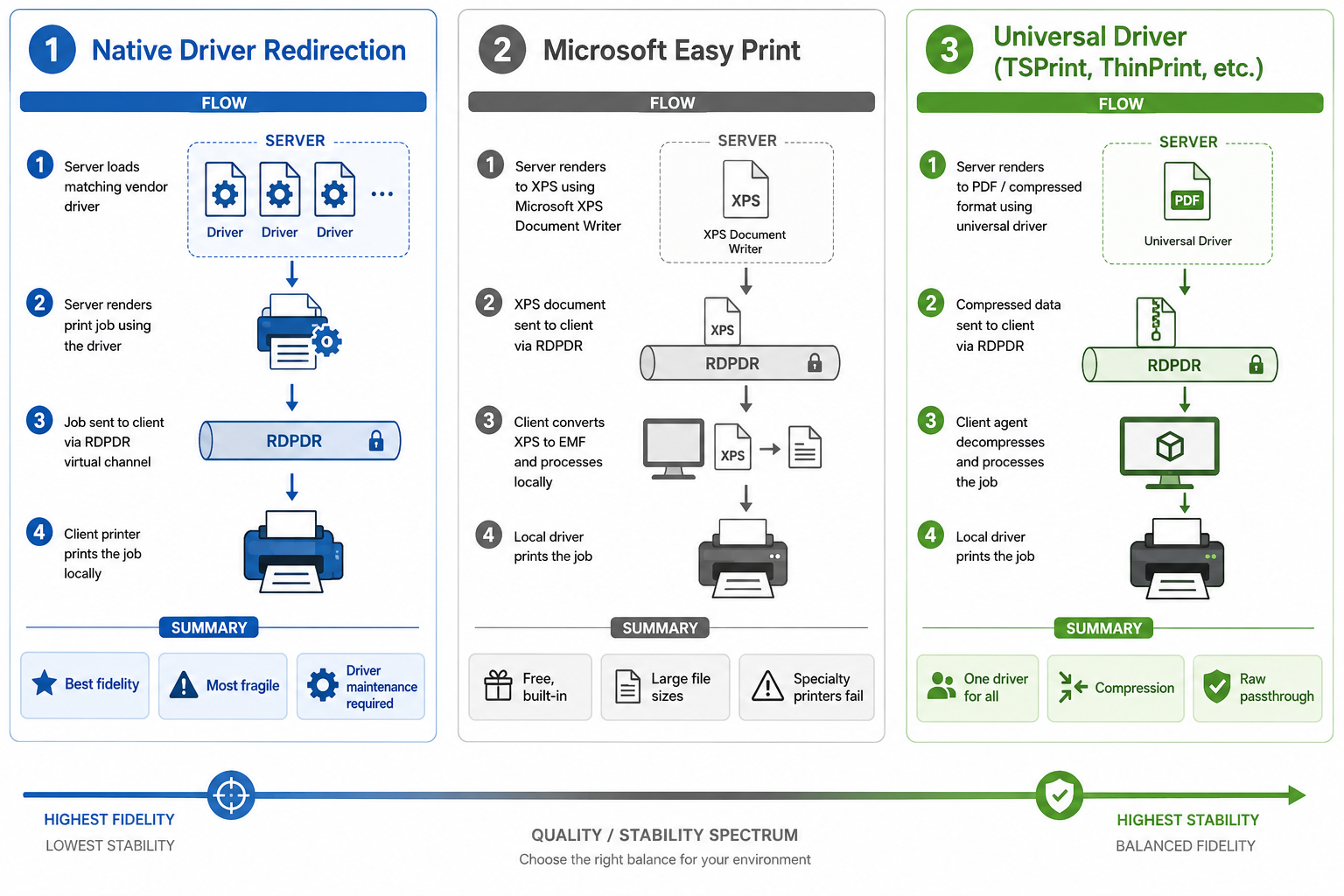
The session host attempts to load the same printer driver as the client. If the driver is present on the server (or matched via Point and Print), the printer appears in the session with full vendor features intact.
This is the "best fidelity" option in theory — you get the exact driver UI, exact print options, and exact rendering. In practice, it's the most fragile of the three. You must maintain matching drivers across the farm, and PrintNightmare (CVE-2021-34527) made Point and Print restrictions much more aggressive: non-admin users can no longer install drivers without elevation by default. A pattern we see repeatedly is admins manually pre-installing 40+ drivers on session hosts just to support a moderately diverse user base — and still missing one whenever a new contractor connects.
2. Microsoft Easy Print
Easy Print, introduced in Server 2008, sidesteps the driver problem by using a generic driver on the server that converts every print job to XPS (XML Paper Specification). The XPS document is transferred over RDPDR to the client, which then renders it using the client-side driver.
This sounds clean, but XPS rendering causes real problems:
- PostScript printers and label printers that expect ZPL, EPL, or raw PostScript receive XPS that gets re-rasterized — Zebra label printers in particular often produce blank labels or misaligned output.
- XPS file sizes are typically larger than EMF, increasing bandwidth usage per job.
- Driver-specific UIs (preferences dialogs with custom paper sizes, watermarking, stapling, hole-punching) are reduced to a generic Microsoft preferences dialog. Users lose access to the advanced features they had on their fat-client setup.
- Some applications — older versions of QuickBooks, certain Sage 50 builds, a few ERP systems — have known issues reliably printing to Easy Print queues.
3. Universal Print Drivers (TSPrint, ThinPrint, ScrewDrivers, and others)
Universal print driver solutions install a single driver on the server that handles all print redirection. Print jobs are typically converted to a portable format (PDF, compressed EMF, or a vendor-specific format) and sent to a client-side agent, which delivers them to the local printer using the real driver.
TSPrint is in this category. So are ThinPrint (Cortado), Tricerat ScrewDrivers, UniPrint Infinity, ezeep, and FabulaTech's Printer for Remote Desktop. They differ in protocol, compression strategy, format handling, raw passthrough support, and licensing, but they all aim to eliminate the per-printer driver maintenance problem on the host.
Why RDS Printing Breaks So Often
In our experience supporting more than 30,000 companies on RDS printing since 2014, the same handful of root causes drive the majority of incidents.
Driver Conflicts and Spooler Crashes
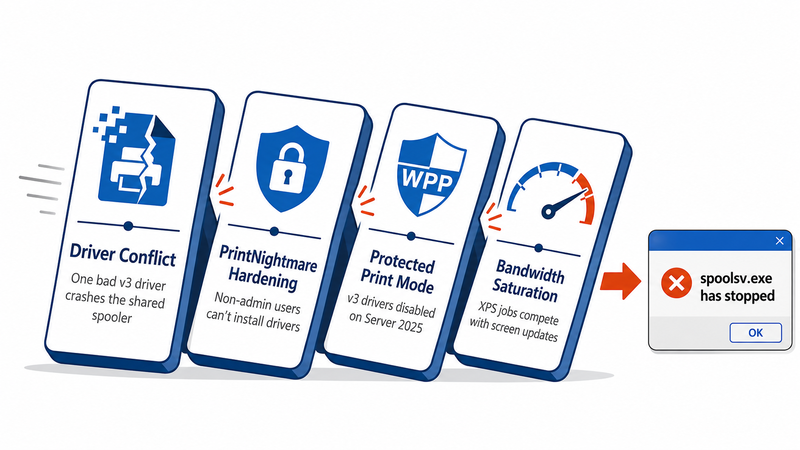
Because the spooler is a shared SYSTEM service, a single corrupt or incompatible driver can crash printing for the entire host. The fix is usually to restart the spooler, then remove the offending driver and replace it with a class driver or a universal driver equivalent — but the downtime is already measured in lost productivity.
PrintNightmare and Subsequent Hardening
PrintNightmare changed everything. Microsoft's response — the August 2021 and later updates — restricted Point and Print so that installing or updating a printer driver requires administrator credentials. In RDS environments where users routinely redirected their home printers, this broke driver auto-installation overnight. Admins now have to either pre-stage drivers, use group policy to permit specific publishers, or move away from native redirection entirely.
Windows Protected Print Mode
In Server 2025 and Windows 11 24H2, Protected Print Mode removes support for v3 drivers. Many specialty printers — Zebra ZD-series label printers, Dymo LabelWriters, Epson TM-series receipt printers, and older Canon and Brother MFPs — have only v3 drivers available from the vendor. In a healthcare or retail RDS deployment, this can effectively brick printing until a workaround is in place.
Bandwidth and Latency
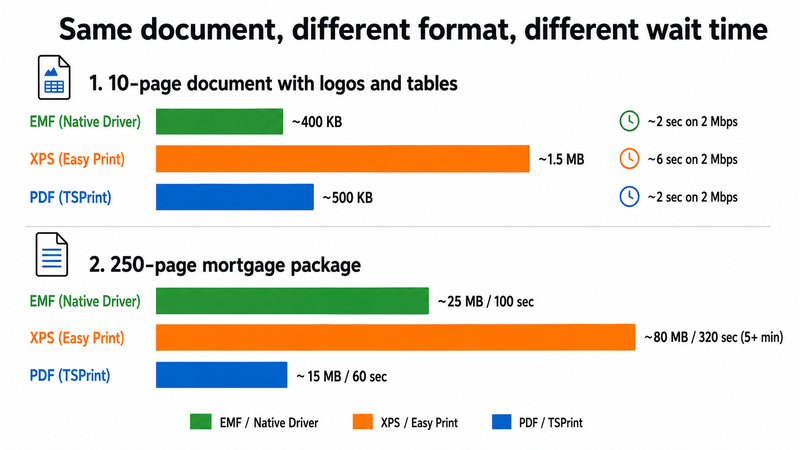
Print jobs are bursty and can saturate small uplinks. Easy Print's XPS-based payloads are larger than EMF for most content; a typical 10-page report with logos and tables can produce a 1–2 MB XPS file, compared to a 300–600 KB EMF file. Over a 2 Mbps branch office connection with 80 ms latency, that's the difference between a 2-second print and a 10-second one — and that 10-second Print is competing with the user's screen refresh.
Best Practices for Multi-User RDS Printing
Based on over a decade of working with remote desktop printing deployments, the following practices consistently reduce support tickets.
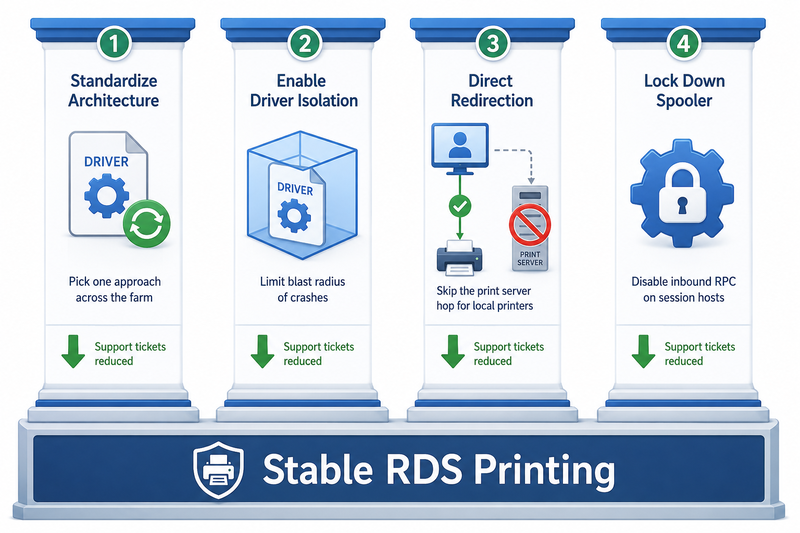
Standardize on a Single Print Architecture
Mixing native redirection, Easy Print, and a universal driver in the same farm creates chaos: users on the same host get different printing experiences, and troubleshooting becomes guesswork. Pick one. For most environments with more than 25 concurrent users, the universal driver approach pays off with fewer spooler restarts alone.
Enable Driver Isolation
If you must use v3 drivers, enable driver isolation per driver via printui.exe /e /n "PrinterName" or in Print Management → Driver Isolation. This won't fix bad drivers, but it limits the blast radius when one of them crashes — only that driver's host process dies, not the global spooler.
Use Print Servers Sparingly in RDS
Dedicated print servers (a separate Windows Server with shared printers) work fine for fat-client environments but introduce extra hops in RDS. Each print job travels: session host → print server → client (or physical printer). If your users print to local printers, redirect directly via RDP rather than routing through a print server. Reserve print servers for genuinely shared queues — for example, the floor-wide MFP everyone uses.
Lock Down Spooler Permissions
The Print Spooler service should not be exposed to the network on session hosts. Disable inbound spooler RPC via group policy ("Allow Print Spooler to accept client connections" → Disabled). This both improves security and reduces unintended driver installs.
Group Policy Settings Worth Knowing
| Setting | Path | Recommendation |
|---|
| Use Remote Desktop Easy Print printer driver first | Computer Config → Admin Templates → Windows Components → Remote Desktop Services → RDS Host → Printer Redirection | Disable if using a third-party universal driver |
| Do not allow client printer redirection | Same path | Disabled (allow redirection) unless security policy forbids |
| Redirect only the default client printer | Same path | Enable in high-density environments to reduce printer enumeration time |
| Point and Print Restrictions | Printers | Restrict to approved servers; require admin elevation |
| Configure RPC over named pipes (PrintNightmare mitigation) | Printers | Enforce |
Easy Print vs. TSPrint vs. Native Redirection: When to Use What
We'll be honest here: Easy Print works for many environments, and TSPrint is overkill if you have 10 users all printing to the same HP LaserJet model over a fast LAN. The right choice depends on user count, printer mix, network conditions, and whether your fleet includes any specialty hardware.
| Scenario | Best Approach | Why |
|---|
| Small RDS host, < 15 users, homogeneous printer fleet, LAN connection | Easy Print or native | Driver maintenance is manageable; XPS bandwidth isn't a bottleneck |
| Mixed printer fleet, users connecting from home or branch offices | TSPrint or similar universal driver | Eliminates driver-matching problems; better compression for slow links |
| Healthcare environment with Zebra/Dymo label printers and EMR systems | Universal driver with raw passthrough | Easy Print mangles ZPL; native requires specialty drivers on the server |
| Retail with Epson/Star receipt printers | Universal driver with raw passthrough | Receipt printers expect raw ESC/POS, not XPS rasterized output |
| Finance with secure document printing and follow-me/pull printing | Specialty solution (PaperCut, etc.) layered on top | Compliance and audit features matter more than rendering choice |
| Server 2025 with Protected Print Mode enabled | Universal driver | v3 specialty printer drivers won't load; universal driver provides a path |
| Thin clients, Linux clients, or BYOD endpoints | Universal driver with cross-platform agent | Native redirection requires Windows client drivers |
TSPrint specifically uses its own protocol over the RDP virtual channel, compresses print data, and offers a "TSPrint PDF" virtual printer for preview-before-print workflows. It does not require Windows-specific drivers on the client, which is why it's commonly deployed alongside thin clients and non-Windows endpoints. Where it's not the right fit: tiny single-user setups where the built-in tools are already working, and environments where IT policy forbids any third-party drivers on session hosts. In those cases, Easy Print with driver isolation is the honest recommendation.
Special Cases We See Repeatedly
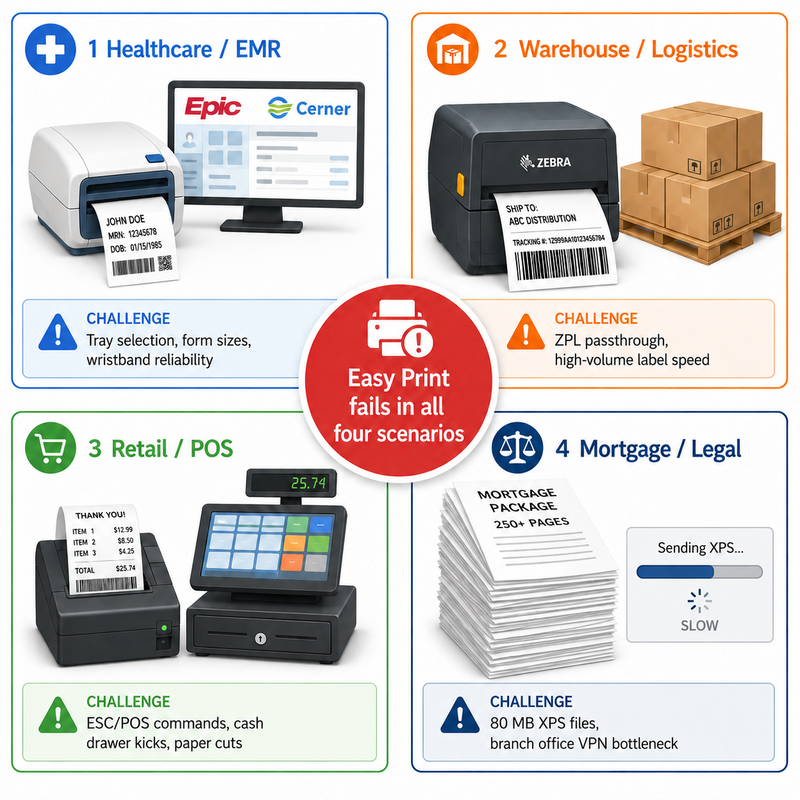
Zebra and Dymo Label Printers
The most common support ticket we receive in healthcare and logistics environments is "the label printer prints blanks." The cause is almost always Easy Print converting ZPL or EPL to XPS, which the label printer cannot interpret. The fix is either raw passthrough (TSPrint and ThinPrint both support this) or installing the Zebra/Dymo Windows driver on the server and redirecting natively, which then exposes you to the spooler stability problems described above. For high-volume label printing, passthrough is almost always the right answer.
Epson and Star Receipt Printers in Retail
Receipt printers expect ESC/POS commands. Easy Print produces XPS, which receipt printers render as a rasterized "page", wasting paper, slowing output, and often clipping the receipt. A universal driver with passthrough is effectively mandatory in any retail RDS deployment of more than a handful of registers.
EMR Printing in Healthcare
Epic, Cerner, Meditech, and similar EMR systems often have strict requirements about printer naming, tray selection, and form size (for prescriptions, wristbands, and chart labels). Easy Print's generic preferences dialog frequently doesn't expose tray selection. A universal driver that preserves PrintTicket data, or a native driver with isolation enabled, is usually the answer. We typically recommend testing every form type — Rx pad, wristband, chart label, encounter form — before going live.
High-Volume Print Workloads (Mortgage, Legal)
Documents with hundreds of pages and multiple embedded images produce large XPS files when using Easy Print. We've seen mortgage closing packages of 250 pages generate XPS files over 80 MB; the same job through TSPrint with PDF rendering ends up around 15 MB. On a branch office VPN, that difference can be the gap between a 15-minute print and a 90-minute print.
FAQ
Three causes usually combine. First, Easy Print converts jobs to XPS, which is typically 2–3x larger than EMF for the same content. Second, print traffic shares the RDP connection with screen, audio, and other channels — on bandwidth-constrained links, this saturates quickly. Third, jobs go through two spoolers (session host and client), each adding latency. A universal driver with compression typically cuts print time 50–70% on slow connections.
Generally, no, not reliably. Easy Print converts everything to XPS, but Zebra printers expect raw ZPL or EPL commands. The XPS is rasterized and printed as an image, which usually results in blank or misaligned labels because the printer can't interpret label boundaries. For Zebra in RDS, you need raw passthrough — either via TSPrint, ThinPrint, or a native Zebra driver installed on the server with the printer redirected as a named device.
PrintNightmare (CVE-2021-34527) was a critical remote code execution vulnerability in the Windows Print Spooler. Microsoft's mitigation required administrator credentials for all driver installations via Point and Print. In RDS environments, this broke automatic driver provisioning when users connected with redirected printers — drivers that previously self-installed now require elevation. Many organizations responded by switching to Easy Print or a universal driver, both of which avoid installing per-printer drivers on the host.
Only if you're not printing from them — for example, on a remote application host where users only use applications that don't print. If users print, the spooler must run. What you should disable is inbound spooler RPC (the "Allow Print Spooler to accept client connections" GPO), which closes the network attack surface without breaking session-side printing.
Easy Print is Microsoft's built-in solution. It uses a generic driver that converts jobs to XPS, sends them through RDPDR, and relies on the client-side driver for final rendering. TSPrint is a third-party universal print driver from TerminalWorks that installs one driver on the server, uses its own compressed protocol, supports raw passthrough for specialty printers, and offers PDF preview and cross-platform clients. Easy Print is free and adequate for general office printing; TSPrint is built for environments with specialty printers, bandwidth constraints, or non-Windows clients.
Protected Print Mode, available in Windows 11 24H2 and Server 2025, turns off v3 driver support and requires Mopria-compatible v4 drivers. Most specialty printers — label, receipt, older MFP, industrial — ship only v3 drivers from the vendor, so enabling Protected Print Mode breaks them. For RDS, the practical impact is that organizations relying on native driver redirection for specialty printers must either delay adoption of Protected Print Mode or migrate to a universal driver that doesn't require v3 vendor drivers on the host.
Yes, in two ways. You can install a shared network printer on the session host, and all users can print to it through their sessions. Or you can deploy a per-session printer that maps differently per user. The shared approach is simpler but consumes a single queue; the per-session approach (typical with universal drivers) gives each user their own redirected queue. For high-volume environments, a dedicated print server is often added for shared printers, while local printers stay redirected through RDP.
The TSPrint client must be installed on the user's local machine, which typically requires administrative rights for the initial installation. Once installed, the client runs in the user's context and does not require admin rights to operate day-to-day.
It depends on where the job is in the pipeline. If the job has already been rendered on the server and pushed to the redirected printer, it remains in the local queue and will print when the client reconnects — or, if the local spooler has already received it, it prints regardless of the RDP session state. If the job is still rendering inside the session, it's typically lost when the session disconnects. Universal drivers that buffer to disk on the client side are more resilient here than Easy Print.
Easy Print is the obvious free option and is built into Windows. For many small environments with simple printing needs, Easy Print is genuinely fine. Beyond that, free options thin out — there are some open-source universal print solutions, but support is limited, and they rarely handle raw passthrough well. Most paid alternatives (ThinPrint, Tricerat ScrewDrivers, UniPrint, ezeep) have similar pricing models to TSPrint and differ mainly in protocol details, management features, and how they license per server vs. per user.
Summary
Multi-user RDS and Terminal Server printing works through the RDPDR virtual channel, with three architectural choices: native driver redirection, Microsoft Easy Print, or a universal print driver. Each has clear trade-offs — native offers the best fidelity but the worst stability; Easy Print is free but struggles with specialty printers and bandwidth; and universal drivers like TSPrint trade some cost for stability and broad device support. Choosing correctly depends on user count, printer mix, network conditions, and whether your fleet includes label, receipt, or specialty hardware.
If you're hitting the limits of Easy Print or struggling with v3 driver issues under Protected Print Mode, you can try TSPrint with a free trial!


