Last updated: September 2026
By TerminalWorks — Remote Desktop Printing Solutions Since 2010
Printing in Windows 365 Cloud PC environments differs from AVD and traditional RDS in three concrete ways: printer redirection is now disabled by default on newly provisioned Cloud PCs, there is no host pool RDP property to turn it back on (only Intune or Group Policy), and a Cloud PC on the Microsoft-hosted network has no network route to your on-premises print server. Redirection and Universal Print are the two realistic paths.
This post explains the architectural differences that actually change how print jobs travel, why the same document prints faster from an on-premises RD Session Host than from a Cloud PC, what Universal Print does and does not cover, and where Cloud PC printing breaks for label printers, receipt printers and browser-based access. It ends with an honest comparison of when the built-in options are sufficient and when a third party solution such as TSPrint is worth the licence cost, plus a configuration checklist and an FAQ.
Why Windows 365 Cloud PC Printing Is Not Just RDS in Azure
Windows 365 uses the same Remote Desktop Protocol and the same redirection stack as RDS. That similarity is what misleads people. The protocol is identical; the surrounding infrastructure is not, and printing is the workload most sensitive to that surrounding infrastructure because it is the one workload that has to reach a physical object at the far end.
The Cloud PC Has No Route to Your Print Server
A Cloud PC provisioned on the Microsoft-hosted network sits in an Azure virtual network that Microsoft owns and that has no connectivity to your office LAN. It cannot resolve \\printsrv01\HP-Reception, it cannot reach 192.168.1.50, and it cannot see printers advertised over mDNS or WSD because those are broadcast and multicast protocols that never leave your office subnet.
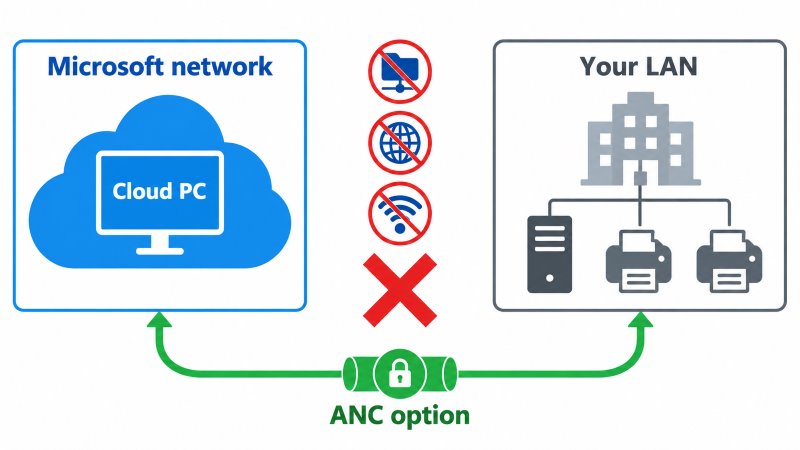
This is the single largest difference from traditional RDS, where the session host and the print server are usually on the same LAN and often on the same subnet. It is also different from most AVD deployments, where session hosts live in a customer-owned virtual network that is typically peered to on-premises through a site-to-site VPN or ExpressRoute.
You can replicate the AVD model in Windows 365 Enterprise by using an Azure Network Connection (ANC) instead of the Microsoft-hosted network, which puts Cloud PCs in your own vNet. Print jobs can then reach an on-premises print server. In practice this is slower and more fragile than people expect: a shared queue over SMB and RPC has to complete driver negotiation, spooler RPC calls and job transfer across the tunnel, and post-PrintNightmare Point and Print hardening (the RestrictDriverInstallationToAdministrators behaviour introduced with the 2021 PrintNightmare fixes and enforced by default since the August 2021 update for CVE-2021-34481) means the Cloud PC cannot silently pull the driver from the server. Microsoft Entra joined Cloud PCs can obtain Kerberos tickets for the print server only with line of sight to a domain controller and synchronised user accounts, and passwordless sign-in additionally requires Cloud Kerberos trust.
There Is No Host Pool RDP Property to Edit
In AVD you control redirection with custom RDP properties on the host pool, for example redirectprinters:i:1. Windows 365 has no equivalent surface because Microsoft owns the control plane. Every redirection decision for a Cloud PC is made through Intune (Settings Catalog, Administrative Templates) or through Group Policy for Microsoft Entra hybrid joined Cloud PCs. Administrators moving from AVD frequently spend their first hour looking for a setting that does not exist in the Windows 365 blade.
Printer Redirection Is Disabled by Default
This is the change that generates the most support tickets we see from Windows 365 customers. Microsoft now ships enhanced security defaults for Windows 365: clipboard, drive, low-level USB and printer redirections are disabled by default on all newly provisioned and reprovisioned Cloud PCs, part of the Secure Future Initiative rollout that began in the second half of 2025. The same defaults apply to newly created AVD host pools.
The practical effect is that a user connects to a brand new Cloud PC, opens Word, and sees only Microsoft Print to PDF and OneNote. Nothing is broken. Nothing is misconfigured. The default simply changed, and an Intune policy is required to change it back. The relevant setting is Computer Configuration > Administrative Templates > Windows Components > Remote Desktop Services > Remote Desktop Session Host > Printer Redirection > Do not allow client printer redirection, which must be set to Disabled. The double negative catches people out: "Disabled" means redirection is allowed.
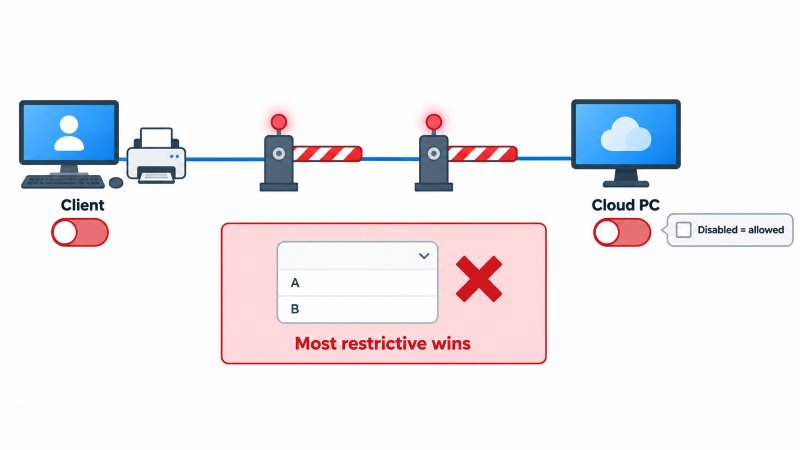
Note also that redirection settings are evaluated across the client and the Cloud PC, and the most restrictive setting wins. Enabling printers in the Windows App on an iPad will not help if the Cloud PC policy blocks redirection, and vice versa.
How Printing Actually Works on a Cloud PC: Easy Print and the RDPDR Channel
When redirection is allowed, printers are exposed inside the session over the RDPDR virtual channel, the same device redirection channel used for drives and smart cards. The Cloud PC creates a queue for each redirected printer, named after the local printer with a "(redirected N)" suffix, bound to a virtual port such as TS001. You can enumerate them with Get-Printer | Where-Object { $_.PortName -like "TS*" }, which is the fastest way to confirm from inside a session whether redirection reached the Cloud PC at all.
Windows 365 by default uses the Remote Desktop Easy Print driver for these queues. This is deliberate and, for a Microsoft-managed image, sensible: no manufacturer driver has to be installed on the Cloud PC, so there is no driver packaging work and no third party driver code running in the spooler. The driver has to exist on the local device instead.
Why Easy Print Uses XPS and Why That Matters
Easy Print is an XPS-based driver that does not render to a printer language at all. The application draws the document, the driver captures it as an XPS spool file, and that XPS is transported over the virtual channel to the local client, which re-renders it and hands it to the real driver. Two consequences follow directly from this design.
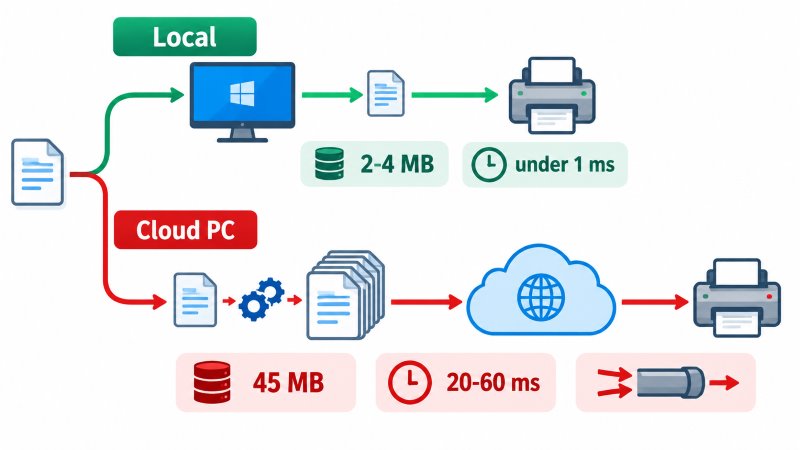
First, spool size. XPS is a ZIP container of XML markup plus embedded resources. For text-only documents it is compact. For anything with scanned images, background shading or complex vector graphics it expands significantly. In our experience a 40-page scanned PDF that would spool at roughly 2 to 4 MB as PDF frequently lands between 25 and 60 MB as XPS. Every one of those megabytes crosses the internet twice in effect: once as the job, and continuously as the graphics channel competes for the same connection.
Second, feature loss. Because Easy Print proxies the printer's property sheet rather than exposing the vendor driver, anything the vendor implemented outside the standard DEVMODE structure tends to disappear or misbehave. Stapling and booklet finishing on multifunction devices, tray selection by name, label darkness and cut behaviour, and PostScript-specific options are the usual casualties. A recurring pattern with PostScript devices is that the job is rasterized on the way through, so a document that would have printed as clean vector PostScript arrives as a large bitmap: slower, heavier, and visibly softer on fine text.
Why Is Printing From a Cloud PC Slower Than From a Local PC?
Three factors compound. Understanding which one dominates in a given environment is the difference between fixing the problem and buying hardware that does not help.
- Spool size. As above, XPS inflates image-heavy documents by roughly an order of magnitude compared with PDF.
- Round-trip time. A LAN-attached RD Session Host talks to a print server at well under 1 ms. A Cloud PC talks to the user's endpoint over the public internet, typically 20 to 60 ms in Europe and considerably more if the Cloud PC region was chosen for licensing rather than proximity. Virtual channel transfers are chatty, so latency multiplies.
- Channel contention. The print job shares one RDP connection with the graphics stream. On a constrained uplink, a large print job visibly degrades interactivity while it transfers, which users report as "the Cloud PC freezes when I print".
A concrete example from a support case pattern we see repeatedly: a 50-page insurance policy pack with embedded scans, printed from a Cloud PC to a home office printer over a 10 Mbps upstream connection. The XPS spool file is around 45 MB. Transfer alone takes close to a minute under ideal conditions, and the user has usually pressed Print three more times before the first copy emerges, producing four jobs in the queue.
The mitigation that costs nothing: print to PDF inside the session first, then print the PDF. It works because it replaces XPS transport with a much smaller file. It is also a workaround, not a solution, and it does not survive contact with users who print fifty invoices a day.
Universal Print: What It Solves and What It Does Not
Universal Print is Microsoft's cloud print service and the intended answer for Cloud PCs. Printers are registered in Microsoft Entra ID, either natively if the model supports it or through the Universal Print connector running on a Windows machine on the same network as the printer. The Cloud PC then prints over IPP to a cloud endpoint with no print server, no VPN and no driver from the manufacturer. For a Cloud PC on the Microsoft-hosted network printing to an office multifunction device, this is the cleanest architecture available.
Two limitations decide most projects.
Job quotas are pooled and licence-dependent. Universal Print measures usage in jobs, not pages, and each eligible licence contributes to a tenant-wide pool. A Microsoft 365 E3, E5, A3, A5 or Business Premium licence contributes 100 jobs per month. A Microsoft 365 F3 licence, a Windows Enterprise E3 or E5 licence, or a standalone Universal Print licence contributes 5. The pool resets monthly and unused jobs do not carry over.
| Licence type | Jobs contributed to tenant pool per month |
|---|
| Microsoft 365 E3, E5, A3, A5, Business Premium | 100 |
| Microsoft 365 F3 | 5 |
| Windows Enterprise E3, E5 | 5 |
| Universal Print standalone | 5 |
This matters specifically for Windows 365 because Windows 365 Enterprise requires Windows Enterprise E3 or higher plus Intune and Entra ID P1. An organisation licensed that way, without full Microsoft 365 E3, contributes 5 jobs per user per month to the pool. For 100 Cloud PCs that is 500 jobs monthly across the whole tenant. A single busy accounts department will exhaust it in a week, and additional volume has to be purchased.
There is no raw passthrough. Universal Print renders documents and delivers them to the device. It is not a channel for sending printer command languages directly, which rules out the label and receipt scenarios discussed below. Its native secure release (QR code) and pull printing (Universal Print anywhere) cover basic scenarios, but it offers no rules-based routing such as forced duplex by document type, and badge-based release across a large fleet still calls for a dedicated print management platform.
Windows 365 vs AVD vs Traditional RDS: Printing Compared
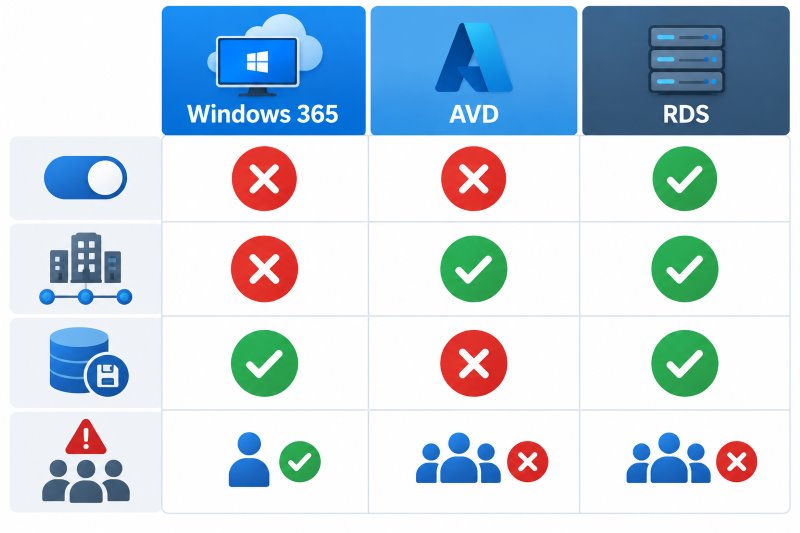
| Aspect | Windows 365 Cloud PC | Azure Virtual Desktop | Traditional RDS |
|---|
| Session model | Single session, one user per Cloud PC | Single or multi-session host pools | Multi-session RD Session Host |
| Who controls the OS image | Microsoft gallery image or your custom image, managed via Intune | You, fully | You, fully |
| How redirection is enabled | Intune Settings Catalog or GPO only | Host pool RDP properties plus session host policy | GPO or RD Session Host Configuration |
| Default redirection state (new deployments) | Printer redirection disabled | Disabled on newly created host pools | Enabled |
| Line of sight to on-premises print server | None on Microsoft-hosted network; possible with ANC | Usually yes, via peered vNet | Yes, same LAN |
| Printer and driver persistence | Persistent, survives reboot (except Windows 365 Flex, formerly Frontline, in shared mode) | Non-persistent on pooled hosts unless captured in image | Persistent on the host |
| Vendor driver installation on host | Possible but must be packaged for Intune | Bake into image or deploy per host | Install once on the host or print server |
| Spooler crash blast radius | One user | All users on that session host | All users on that session host |
| Typical network path for a redirected job | Azure region to endpoint over internet | Azure region to endpoint, often with vNet options | LAN, often same switch |
One underrated advantage of Windows 365 belongs in this comparison: because a Cloud PC is persistent and single-user, printer configuration survives. Tray mappings, paper sizes and driver preferences set once stay set. On pooled AVD hosts the same configuration has to be scripted, baked into the image or reapplied by policy at every logon, and a spooler fault caused by one user's driver takes down printing for everyone on the host. Cloud PCs isolate that failure to a single user.
Where Cloud PC Printing Breaks in the Real World
Label Printers and Receipt Printers
This is the most common escalation we receive across all virtual desktop platforms, and Windows 365 does not improve it. Zebra label printers driven by ZPL, Dymo devices, and Epson or Star receipt printers driven by ESC/POS expect the application to send command language directly to the device. A 4 by 6 inch shipping label expressed as ZPL is typically 3 to 8 KB of text. The same label rendered graphically by Easy Print is a bitmap of one to two megabytes that prints slower, prints softer, and often prints at the wrong size because the driver negotiated a paper size the label stock does not match.
Cut commands and cash drawer kick codes fail in the same way. An ESC/POS auto-cutter instruction is a control sequence inside the data stream. If the transport rasterizes the stream, the sequence is drawn rather than executed, and the receipt never cuts. Warehouse and retail deployments are where this becomes a blocking issue rather than an annoyance.
Browser Access and Non-Windows Clients
Printer redirection requires an installed Windows App or Remote Desktop client. The browser client has no driver-based printer redirection, because a web application is not permitted to touch local device resources directly. Instead it offers a virtual printer that hands the job to the browser as a PDF or print dialog, which the user then prints locally. That is an extra step per document, and it makes the browser client unsuitable for any high-volume printing workflow.
Support varies on other endpoints too. The iOS/iPadOS, Android and ChromeOS clients do not support printer redirection, and thin client platforms depend entirely on the vendor's RDP implementation. If your Cloud PC access strategy is deliberately browser-first for BYOD, plan printing around Universal Print rather than redirection.
Regulated and Transaction-Heavy Environments
Three patterns recur. In healthcare, EMR systems print prescriptions and labels to specific trays on specific devices, and the tray selection is exactly the vendor driver feature that Easy Print flattens. In finance, secure or pull printing depends on release at the device; Universal Print now offers QR-code release and pull printing, but badge-based release at the device typically still requires a dedicated print management platform. In retail and logistics, receipt and label printing is the entire point of the workstation, and a two-second job that becomes twelve seconds is a queue at the counter.
Windows Protected Print Mode and the Driver Deprecation Timeline
Two Microsoft directions affect any Windows 365 printing design being built now. Windows Protected Print Mode, introduced with Windows 11 24H2, restricts printing to the modern IPP class driver stack and blocks third party version 3 and version 4 drivers when enabled. Separately, Microsoft has been phasing out delivery of third party print drivers through Windows Update, which means manufacturer drivers increasingly have to be obtained and packaged by you.
For Cloud PCs the consequence is favourable in one respect and awkward in another. Favourably, a design that keeps vendor drivers off the Cloud PC entirely, whether through Easy Print, Universal Print or a third party solution that keeps manufacturer drivers off the host, is aligned with where Windows is going. Awkwardly, the vendor driver still has to exist somewhere, and under the redirection model that place is the user's local device, which for BYOD endpoints you may not manage.
When Native Windows 365 Printing Is Enough, and When It Is Not
Based on over a decade of working with remote desktop printing, many Windows 365 deployments do not need a third-party printing product. Being direct about that is more useful than pretending otherwise.
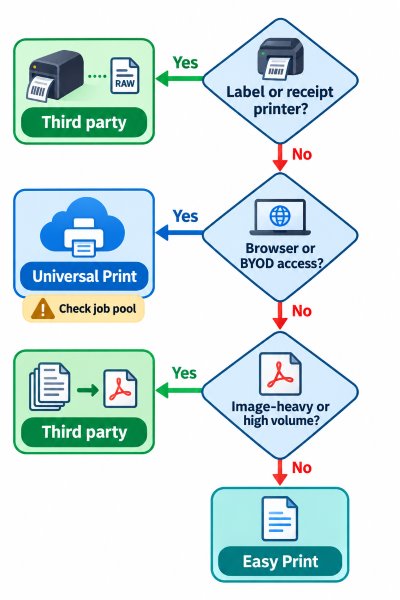
| Scenario | Recommended approach |
|---|
| Office workers printing occasional documents to an office multifunction device | Universal Print, if job volume fits the licence pool |
| Home workers printing a few text documents to a personal printer | Easy Print redirection, no extra software |
| Browser-only or unmanaged BYOD access | Universal Print or the download-as-PDF workflow |
| Image-heavy or high-volume document printing over constrained bandwidth | Third party solution with PDF-based transport |
| Zebra, Dymo, Epson, Star or any command-language device | Third party solution with raw passthrough |
| Vendor finishing features required (stapling, tray by name, secure release) | Third party solution or a printer connected directly with its own driver |
| Print volume exceeds the Universal Print pool and additional jobs are costly | Compare per-user third party licensing against additional job packs |
Where TSPrint Fits
TSPrint installs a server component on the Cloud PC and a client on the local device, then moves print jobs over its own RDP virtual channel, by default as compressed PDF rather than Easy Print's XPS. Because the local driver does the final rendering, printing preferences and tray mappings carry over and most vendor features remain available, and because the Cloud PC normally needs no manufacturer drivers, the image stays clean and unaffected by driver deprecation. For label and receipt hardware, TSPrint supports raw (streamed) printing, so command languages such as ZPL reach the printer unmodified; device-specific functions such as cutter control may require the printer's own driver, which TSPrint also supports.
For Windows 365 specifically, the server installer supports silent installation, so it can be wrapped as a Win32 app and deployed through Intune, or included in a custom image. TSPrint also ships a native ARM64 client, which matters if part of your workforce connects from Copilot+ PCs or Windows on ARM devices.
Where TSPrint is not the right answer: if your users connect through the browser client, or from endpoints where you cannot install software, there is no client to receive the job, and Universal Print is the better fit. If you print five text documents a month, the licence is not worth it. And if your requirement is device-side badge release across a large printer fleet, a dedicated print management platform will serve you better than any redirection product.
How the Alternatives Compare
Third-party printing products take different architectural approaches. The comparison below focuses on capabilities relevant to Windows 365, RDS and virtual desktop environments rather than attempting a feature-by-feature ranking.
| Solution | Approach | Relevant capabilities / positioning |
|---|
| TSPrint | PDF over a dedicated virtual channel, with a universal virtual driver on the host and raw printing support | Remote printer redirection for RDS, AVD and Cloud PCs; local-driver rendering; label and receipt workflows including raw printer command passthrough |
| ThinPrint | Universal-driver architecture with adaptive print-data compression and connection-based bandwidth management | Centralized printer assignment, bandwidth optimization, driver reduction, high availability, failover and load balancing for distributed and virtual environments |
| UniPrint Infinity | PDF-based Universal Printer Driver and Virtual Print Queue architecture | Centralized VDI printing and secure pull printing, with release through vPad appliances, supported MFP connectors or mobile devices |
| Tricerat ScrewDrivers | Universal virtual print driver with centralized printer management | Printer assignment by user, group or location, centralized policy/configuration and support for advanced printer features in RDS/VDI environments |
| ezeep by ThinPrint | Cloud print-management platform with cloud rendering, no Windows print server required; local printers can connect through an ezeep Hub or software connector | Windows 365 and AVD cloud printing, centralized identity-based printer assignment, cross-platform printing, pull printing and Zebra workflows including native ZPL passthrough |
| FabulaTech Printer for Remote Desktop | Server/workstation architecture that creates virtual printers in the remote session and maps them to printers available at the endpoint | Local-printer redirection across RDP, Citrix, Horizon, Amazon DCV and other remote protocols, with session isolation, GPO controls and support for ZPL/SBPL label printing |
Product capabilities are based on publicly available vendor documentation as of October 2026. Feature availability may vary by deployment model and licensing.
Configuring Printing on a Windows 365 Cloud PC
- Confirm the current state from inside the session with
Get-Printer | Where-Object { $_.PortName -like "TS*" }. No results means redirection is not reaching the Cloud PC. - In Intune, create a Settings Catalog profile for Windows 10 and later, search for Printer Redirection, and set
Do not allow client printer redirection to Disabled so redirection is permitted. Assign it to a device group containing the Cloud PCs. - Decide whether to redirect everything.
Redirect only the default client printer is worth enabling in environments where users have five or six local queues, because each redirected queue is created at logon and adds to connection time. - Check the client side. In the Windows App, the printer toggle under the connection's device settings must also be on. The most restrictive of the client and Cloud PC settings applies.
- If you need redirection allowed from managed devices only, look at Windows 365 context-based redirections (currently in preview), which tie redirection to a Conditional Access authentication context through a Remote Connection Experience policy. Assign that policy to device groups, not user groups.
- Handle the "Microsoft Print to PDF (redirected)" queue deliberately. It is redirected along with everything else and often becomes the session default, which users interpret as printing being broken. Setting the correct default per user, or limiting redirection to the default printer, avoids the ticket.
- For Universal Print, verify the tenant job pool against expected volume before rollout rather than after, using the Usage and Reports page in the Universal Print portal.
Frequently Asked Questions
The most likely reason on any Cloud PC provisioned or reprovisioned since the second half of 2025 is that printer redirection is disabled by default. Microsoft changed the security defaults so that clipboard, drive, USB and printer redirection are all off for new Cloud PCs. Enable it with an Intune Settings Catalog policy that sets Do not allow client printer redirection to Disabled, and confirm the printer toggle is also on in the Windows App on the endpoint. If both are correct and the printer still does not appear, check that the driver is installed and working on the local device, because redirection depends on it.
Not directly, if the Cloud PC uses the Microsoft-hosted network. It sits in an Azure virtual network with no route to your LAN and cannot see printers advertised by mDNS or WSD. Three options exist: register the printer with Universal Print so it is reachable over the internet, redirect the printer from a local device that is on that network, or provision Cloud PCs on an Azure Network Connection so they live in your own vNet with connectivity back to the office. The third option works but adds VPN dependency and the print job crosses the tunnel twice in a print server scenario.
Not in the driver-based sense. A browser cannot give a web application direct access to local devices, so the web client has no driver-based printer redirection. What you get instead is a virtual printer that hands the print job to your browser as a PDF or print dialog, which you then print locally. That is workable for the occasional document and poor for anything repetitive. If browser access is your primary access method, design printing around Universal Print rather than redirection. Note also that the iOS/iPadOS, Android and ChromeOS clients do not support printer redirection.
Because Easy Print never sends ZPL. It captures the job as XPS, transports it, and the client re-renders it graphically, so the label arrives as a bitmap rather than as label commands. The printer then applies its own paper size assumptions to an image that was never sized for it. The same mechanism breaks ESC/POS cut commands and cash drawer codes on receipt printers. Solving it requires a transport that passes the command language through unmodified, which is what raw or passthrough printing modes in third party solutions provide.
Better in some ways, worse in others. Cloud PCs are persistent and single-user, so printer configuration survives reboots without scripting and a spooler crash affects one person rather than a whole host pool. AVD gives you more control: host pool RDP properties, your own image, your own vNet, and the freedom to install any driver or print component you like. Windows 365 trades that control for simplicity, which is a good trade until you hit a requirement the managed platform does not expose.
Universal Print counts jobs, not pages, and pools them at tenant level. Microsoft 365 E3, E5, A3, A5 and Business Premium licences contribute 100 jobs per month each. Microsoft 365 F3, Windows Enterprise E3 and E5, and standalone Universal Print licences contribute 5 each. Unused jobs do not carry over. This is significant for Windows 365 Enterprise, whose base requirement is Windows Enterprise E3, so a tenant without full Microsoft 365 E3 has a much smaller pool than expected. Check the Usage and Reports page in the Universal Print portal before committing to a design.
Yes, in shared mode. Windows 365 Flex Cloud PCs in shared mode are non-persistent, so anything a user configures locally, including installed printers, tray defaults and driver preferences, does not survive to the next session. That removes the main printing advantage of a dedicated Cloud PC and puts you back in the same position as pooled AVD hosts: configuration has to come from policy, image or a solution that maps printers dynamically at logon. Flex Cloud PCs in dedicated mode behave like standard Cloud PCs.
It restricts the Cloud PC to the modern IPP class driver stack and blocks third party version 3 and version 4 drivers when enabled. If your Cloud PCs already run driver-free, using Easy Print, Universal Print or a solution that keeps manufacturer drivers off the host, the change is low risk. If you install vendor drivers inside the Cloud PC image for direct IP printing, test before enabling it, and check what the manufacturer supports on the IPP stack. Combined with Microsoft phasing out third party driver delivery through Windows Update, the long-term direction clearly favours driver-free host designs.
Yes. The TSPrint server installer supports silent installation, so it can be wrapped as a Win32 app and deployed through Intune to the Cloud PC device group, or included in a custom image. The TSPrint client goes on the local device, including native ARM64 support for Copilot+ PCs and Windows on ARM endpoints. TSPrint uses its own RDP virtual channel rather than Windows printer redirection, so the Do not allow client printer redirection policy does not need to be changed for it; many deployments deliberately keep native printer redirection off to avoid duplicate printers. A 25-day free trial is available if you want to measure spool sizes and print times against Easy Print in your own environment before deciding.
Summary
Windows 365 Cloud PC printing runs on the same RDP redirection machinery as AVD and RDS, but the surrounding architecture changes the outcome: redirection is off by default, it is configured only through Intune or Group Policy, and the Cloud PC has no path to your on-premises print infrastructure unless you build one. Universal Print is the cleanest fit for standard office documents, provided the pooled job allowance covers your volume, while Easy Print redirection handles light document printing at the cost of XPS spool bloat and lost vendor features. Command-language devices such as Zebra, Dymo, Epson and Star, along with high-volume or image-heavy printing over constrained bandwidth, are where the built-in options stop being sufficient.
If your Cloud PC deployment falls into that second category, TSPrint sends jobs over its own virtual channel, by default as compressed PDF, normally keeps manufacturer drivers off the Cloud PC, and supports raw printing for label and receipt hardware. You can download TSPrint for a 25-day free trial or view TSPrint pricing and purchase options.


