Last updated: November 2026
By Terminalworks — Remote Desktop Scanning Solutions Since 2014
Partly. Since September 2026, Azure Virtual Desktop scanner redirection supports TWAIN scanners in public preview, as do Windows 365 Cloud PCs. It uses high-level redirection, so the scanner driver stays on the local PC. Microsoft documents it for Windows devices running Windows App 2.0.1070.0 or later, and only for TWAIN; classic RDS is excluded.
We have built TWAIN redirection for Remote Desktop since 2014, so we read Microsoft's preview the way an engineer reads a competitor's design: carefully, with a test matrix ready. Below: what Microsoft shipped, how it works, where it stops, which scanners will struggle, and how to choose between the preview, USB redirection, network scanning, mobile apps and tools such as TSScan.
What Did Microsoft Release for Azure Virtual Desktop Scanner Redirection?
In September 2026, Microsoft added "Use TWAIN scanners in remote sessions (Public Preview)" to the Azure Virtual Desktop release notes, and the Windows 365 September recap on the Windows IT Pro Blog (1 October 2026) announced the same for Cloud PCs. The configuration article describes the method as high-level peripheral reflection with TWAIN support.
Until then, the only Microsoft-documented way to get a local scanner into an AVD session was opaque low-level USB redirection, which Microsoft's own redirection reference calls effectively a fallback scenario. The new feature is the closest thing to an Easy Print for scanners that Microsoft has documented for RDP: it works at the imaging API level instead of the USB bus level.
| Item |
What Microsoft documents |
| Release stage |
Public preview, announced September 2026 |
| Services |
Azure Virtual Desktop host pools, Windows 365 Cloud PCs, Microsoft Dev Box |
| Supported client |
Windows App for Windows, build 2.0.1070.0 or later |
| Scanner standard |
TWAIN (WIA and ISIS are not mentioned) |
| Session host component |
TWAIN Redirector MSI (TwainRedirectorMsi-1.0.2603.17170.msi) |
| Remote Desktop Services and remote PCs |
Not supported; USB scanners only through opaque low-level redirection |
How Does Microsoft's TWAIN Redirection Work in an AVD Session?
Native RDP never had scanner redirection for a structural reason. Printing has a device-independent spool format, which is why Easy Print can render jobs on the client. Scanning has no such layer: a TWAIN application loads the Data Source Manager and negotiates resolution, pixel type, duplex and page size directly with the vendor driver, which must run on the same machine as the application. In a remote session the application runs on the session host and the driver lives on the PC with the scanner, so the chain breaks.
Microsoft's documentation describes an MSI on the session host, the driver on the local device, and a scanner that appears in the session under its real name or as a generic "Redirected TWAIN Scanner". Read together, the redirector acts as a data source inside the session and forwards the TWAIN conversation over RDP to Windows App, which hands it to the real driver. The scan runs locally and the image travels back to the application.
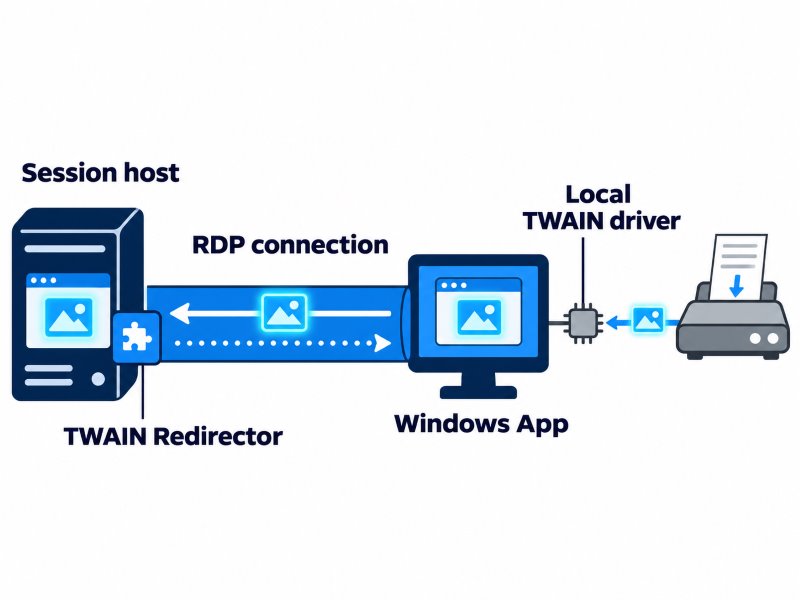
Dedicated products such as TSScan and Citrix TWAIN redirection have used this pattern for years; the difference is that Microsoft now ships it, configured through registry values and an MSI rather than a host pool RDP property.
What You Configure on Each Session Host or Cloud PC
Windows does not block scanner redirection, but it is disabled at the host level. Two changes enable it:
- Set
fTWAINRedirectionEnabled to 1 (REG_DWORD) under HKLM\SOFTWARE\Policies\Microsoft\Windows NT\Terminal Services, for example with reg add "HKLM\SOFTWARE\Policies\Microsoft\Windows NT\Terminal Services" /v fTWAINRedirectionEnabled /t REG_DWORD /d 1 /f.
- Install
TwainRedirectorMsi-1.0.2603.17170.msi, a 72 KiB per-machine package that deploys as an Intune line-of-business app.
On pooled host pools, bake both into the golden image: a host without the MSI simply shows no redirected scanner, a classic source of "it worked yesterday" tickets.
What You Configure on Each Local Windows Device
The client needs the scanner's TWAIN driver, Windows App 2.0.1070.0 or later, and policy values under HKLM\SOFTWARE\Policies\Microsoft\Windows NT\Terminal Services\Client:
| Setting |
Value |
Effect |
fTWAINRedirectionEnableMode |
1 |
Redirection on; the scanner appears under its real name |
fTWAINRedirectionEnableMode |
2 |
Redirection on; the scanner appears as a generic "Redirected TWAIN Scanner" |
TWAINSelectDeviceByName key, value 8000 (REG_SZ) |
Scanner name |
Sets a default scanner; users can no longer pick another redirected scanner |
The mode matters more than it looks. Many DMS and EMR scan modules save the selected TWAIN source by name in the user profile. With mode 2, a profile that roams between a reception desk with a Brother MFC and a back office with a Fujitsu fi-7160 keeps a valid source. With mode 1, users with two scanners can tell them apart, but the saved name breaks when they change desks.
Users pick the scanner from the Devices icon in the Windows App status bar. Because these are HKLM policy values, setting them needs local admin rights: easy on Intune-managed PCs, much harder on contractors' laptops and home PCs.
Why Is High-Level TWAIN Redirection Better Than USB Redirection for Scanners?
Opaque low-level redirection forwards raw USB communication between a driver in the session and the physical device. Microsoft's redirection reference lists the consequences: the driver must be installed in the session, the device can't be used locally while redirected, only one remote session can use it at a time, and behavior is optimized for low-latency connections and varies by driver.
In our experience supporting thousands of RDS environments, latency is the failure mode admins underestimate. Scanner drivers issue many synchronous USB requests per page: status polls, buffer reads, sensor checks. If a driver makes 1,000 round trips per page, a 40 ms home-broadband round trip adds 40 seconds before image data moves, and a timeout anywhere surfaces as "scanner not responding" mid-batch.
Data volume is the second problem. A letter-size page at 300 DPI in 24-bit color is 2550 × 3300 pixels, about 25 MB uncompressed, so a 50-page batch is roughly 1.26 GB. If a device sends uncompressed data over USB, a 20 Mbps home upload needs about 8.4 minutes for it. Compressed to around 500 KB per page, the same batch is 25 MB, or about 10 seconds.
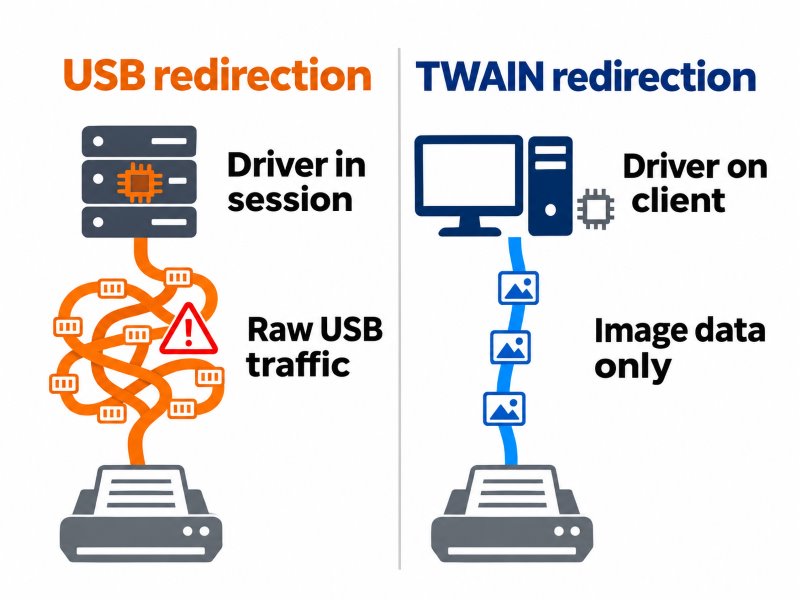
High-level redirection keeps the driver on the PC with the scanner, so only TWAIN commands and finished images cross the network. The documentation we reviewed does not say whether Microsoft compresses image data or offers a compression setting. Citrix documents a TWAIN compression level policy, and TSScan compresses on the client by default, turning a roughly 25 MB color page into about 300 to 800 KB at JPEG quality 70. Measure Microsoft's behavior in your pilot.
Where Does Azure Virtual Desktop Scanner Redirection Stop?
The preview solves the TWAIN problem for one combination: a Windows PC running Windows App, a scanner with a working TWAIN driver, and an AVD, Windows 365 or Dev Box host. Outside it, you are back to USB redirection or a third-party tool.
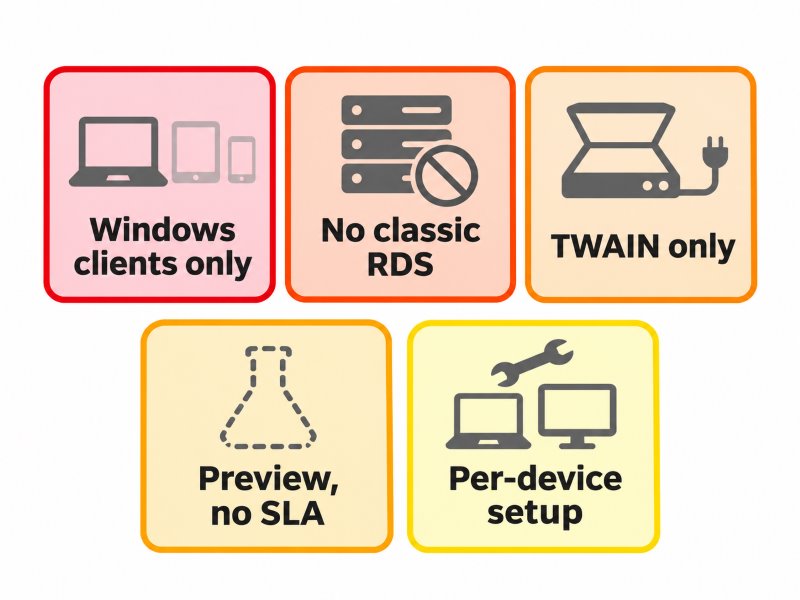
Each limit comes from Microsoft's documentation or from what it leaves out.
Only Windows Clients Are Supported
Microsoft's Windows App feature comparison marks scanner redirection as supported on Windows only; macOS, iOS and iPadOS, Android and ChromeOS, the browser client and Meta Quest show no support. A pattern we see repeatedly in healthcare and accounting is a mixed fleet: Windows at the front desk, Macs for partners, Linux thin clients in exam rooms. There the preview covers some seats, not the workflow. Windows 365 Link devices are out too: Microsoft's connection-method comparison lists printer and scanner redirection as unsupported on Link.
Classic Remote Desktop Services Is Not Included
For Remote Desktop Services and remote PC connections, the same comparison page states that high-level TWAIN redirection isn't supported and that USB scanners can only use opaque low-level redirection. On-premises RDS farms on Windows Server 2019, 2022 or 2025 still have no native scanner redirection beyond USB passthrough.
TWAIN Only, With No Documented WIA or ISIS Path
The configuration article mentions only TWAIN. WIA applications such as Windows Fax and Scan, and ISIS-based production capture (common with Kodak Alaris and Fujitsu fi-series scanners in high-volume back offices), have no documented path. Fujitsu ScanSnap is a separate case: PFU states the ScanSnap series supports neither TWAIN nor ISIS and requires ScanSnap Home as the driver, so there is no local TWAIN source to forward.
Preview Status Means No SLA
Previews fall under Microsoft's preview terms: as-is, excluded from SLAs and not necessarily covered by support. The documentation we reviewed does not explain how the redirector MSI will be updated, so track it like any other line-of-business package. For a hospital scanning referrals into an EMR or a bank capturing KYC documents, an unsupported component in the intake path is a change-management decision, not just a technical one.
What the Documentation Does Not Address Yet
- Compression and bandwidth: no setting or behavior is documented.
- Exclusivity: whether a redirected scanner stays usable locally or in a second session is not stated.
- RemoteApp: selection is documented through the status bar Devices icon; a RemoteApp-only workflow is not described.
- 32-bit vs 64-bit applications: many line-of-business apps still use the 32-bit
TWAIN_32.DLL, newer ones the 64-bit TWAINDSM.DLL. Citrix limits its TWAIN redirection to 32-bit applications; Microsoft says nothing either way.
- All-in-one devices: the redirection reference lists "All-in-one printer/scanner" under opaque low-level redirection while scanners use high-level reflection, so test Brother MFC and Epson WorkForce models explicitly.
- Conditional Access: the context-based redirections preview covers clipboard, drive, printer and USB, not scanners.
Which Scanners and Workflows Will Struggle With the Preview?
Based on over a decade of working with TWAIN scanner redirection in remote sessions, this is how we expect common device classes to behave. Treat it as a pilot checklist, not a compatibility guarantee.
| Device or workflow |
Expected result with the preview |
Why |
| Fujitsu fi-series, Canon imageFORMULA, Epson WorkForce DS sheet-fed scanners |
Good candidates |
Mature TWAIN drivers on the client |
| Fujitsu ScanSnap (iX1600, iX1400 and others) |
Not redirectable through TWAIN |
No TWAIN or ISIS driver exists |
| Brother MFC and Epson WorkForce all-in-ones |
Test each model |
Composite USB devices, listed under opaque low-level redirection |
| Kodak Alaris production scanners in ISIS capture apps |
Not covered |
No documented ISIS path |
| Teller check scanners |
Usually not covered |
Often driven by vendor SDKs rather than TWAIN |
| Handheld barcode scanners |
Unaffected |
Most act as USB keyboards, so input reaches the session as keystrokes |
| Signature pads |
Unaffected by TWAIN redirection |
Need USB redirection or the vendor's own virtual channel |
Whether your scan module uses TWAIN, WIA or a vendor capture engine decides which row you are in, so check your EMR, DocuWare or M-Files client, or the capture tool feeding SharePoint, before scheduling pilot users.
When to Use What: Preview, USB Redirection, Network Scanning, Mobile Apps or TSScan
The decision usually comes down to three questions: does a TWAIN application inside the session need to drive the scanner, are all scanning endpoints Windows PCs on AVD or Windows 365, and can the intake workflow depend on a preview component?
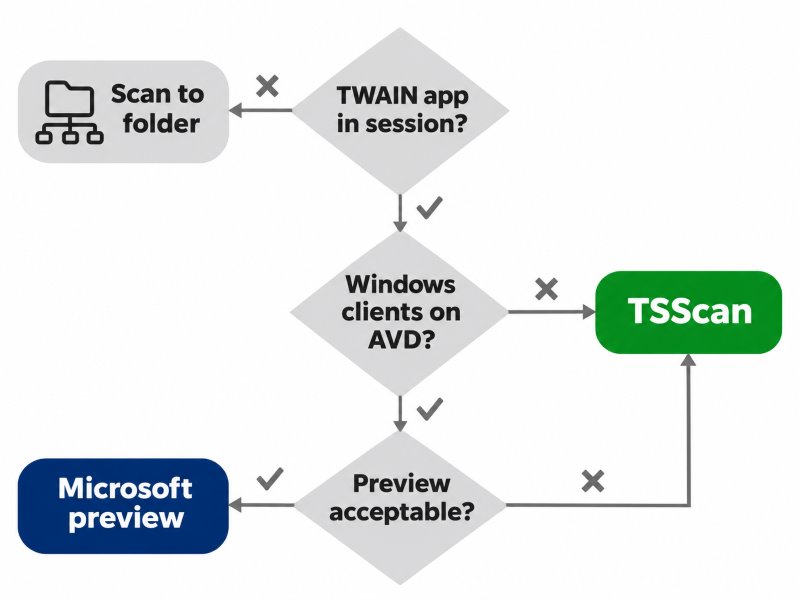
Each endpoint is explained below, including when TSScan is unnecessary.
Microsoft's TWAIN Preview Is Enough When
All scanning users are on managed Windows PCs, every scanner has a TWAIN driver, hosts are AVD or Windows 365, and you can pilot before relying on it. Microsoft documents no separate licence, and it removes scanner drivers from your hosts. If that describes your estate, test it before buying anything, including TSScan.
USB Redirection Is Enough When
You have one or two scanners on low-latency links (a branch in the same region, under roughly 20 ms), the vendor driver installs cleanly on session hosts, and each device belongs to one user. It is also the remaining option for non-TWAIN devices such as signature pads and many check scanners.
Network Scanning to a Folder or Email Is Enough When
Documents only need to land in a shared folder, SharePoint library or inbox, with indexing later. Scan-to-folder on an MFP bypasses RDP entirely. Microsoft's "Scan with Universal Print" (roadmap item 519572) is still in development: the May 2026 roadmap update moved preview to December 2026 and general availability to June 2027, and it delivers scans through an email notification, not into a TWAIN application in the session.
Mobile Scanner Apps Are Enough When
Capture is occasional and low volume, such as remote staff photographing a signed form into OneDrive. Phone apps do not replace 50-page batches, duplex feeds or barcode-based separation.
TSScan Is the Better Option When
Your fleet or your hosts are mixed. TSScan runs on classic RDS, Citrix and VMware as well as AVD session hosts, and on RDS it covers Mac endpoints through its macOS client and Mac or Linux endpoints through Alcedo RDP, our free remote desktop client with TSScan built in. It is generally available with vendor support, handles ScanSnap devices without server-side drivers, and its dynamic redirection exposes the manufacturer driver's own capabilities. The honest limits: TSScan is built around TWAIN, so check WIA-only or ISIS-only applications first, and it is licensed per server installation, so personal host pools and Windows 365, where every user has a VM, need a licence per VM.
| |
Microsoft TWAIN preview |
USB redirection |
TSScan |
FabulaTech Scanner for Remote Desktop |
RemoteScan |
| Status |
Public preview |
Generally available; Microsoft calls it a fallback |
Generally available |
Generally available |
Generally available |
| Hosts |
AVD, Windows 365, Dev Box |
AVD, Windows 365, RDS |
RDS, AVD, Citrix, VMware |
RDP (incl. AVD), Citrix, VMware Blast, Amazon DCV, PCoIP |
Azure, RDSH, Citrix, VMware |
| Client platforms |
Windows only |
Windows only (Windows App) |
Windows, macOS; Linux via Alcedo RDP |
Windows, macOS, Linux |
Windows, including embedded thin clients |
| Standards in the session |
TWAIN |
Whatever vendor driver you install |
TWAIN |
TWAIN, WIA (Windows to Windows only), ISIS |
TWAIN, ISIS applications |
| Fujitsu ScanSnap |
No TWAIN driver to forward |
Requires ScanSnap Home in the session |
Supported |
Not stated on product page |
Listed models, such as iX1500 |
How Should You Pilot the TWAIN Preview Without Risking Production Scanning?
- Use a separate validation host pool or a few Cloud PCs, and deploy the MSI and registry values through Intune or your image pipeline, not by hand.
- Choose mode 1 or 2 for
fTWAINRedirectionEnableMode based on how your scan module saves the source name.
- Test every scanner model with every scanning application at 200 DPI bitonal, 300 DPI grayscale and 300 DPI color duplex, each as a 50-sheet ADF batch.
- Test from users' real networks, such as a home connection with 30 to 60 ms round-trip time, and time each batch against a local scan.
- Check duplex, blank page removal, patch code or barcode separation, multifeed detection and imprinter in the scanner's own TWAIN interface.
- Disconnect mid-batch, reconnect, open a second session and launch the scanning application as a RemoteApp.
- Keep your current scanning path until general availability.
One of the most common support tickets we receive after any redirection change is not "it doesn't scan" but "it scans, and the duplex option is greyed out". Capability negotiation fails quietly, so check it deliberately.
Frequently Asked Questions
No. It is a public preview, added to the Azure Virtual Desktop release notes in September 2026 and announced for Windows 365 on 1 October 2026. Previews are provided as-is and excluded from SLAs, and the documentation we reviewed gives no general availability date.
Not with Microsoft's redirection. The Windows App feature comparison shows scanner redirection on Windows only. Non-Windows endpoints need network scanning, a mobile app or a third-party redirection tool with a client for that platform.
No. For Remote Desktop Services and remote PC connections, Microsoft states that high-level TWAIN redirection isn't supported and USB scanners can only use opaque low-level redirection. On-premises RDS farms still need USB redirection, network scanning or dedicated scanner redirection software.
Not for the TWAIN preview: the driver runs on the local device, and the host only needs the TWAIN Redirector MSI and the fTWAINRedirectionEnabled value. USB redirection is the opposite, because every supported scanner model's driver must be installed in the session.
The configuration documentation mentions only TWAIN, so WIA applications such as Windows Fax and Scan have no documented path. If a WIA-only application is critical, confirm WIA support with any tool you evaluate, because many redirection products, TSScan included, are built around TWAIN.
Not through TWAIN. PFU states that the ScanSnap series supports neither TWAIN nor ISIS drivers and uses ScanSnap Home as its driver. Options are ScanSnap's own scan-to-folder or cloud features, USB redirection with ScanSnap Home inside the session, or a redirection tool with ScanSnap support such as TSScan or RemoteScan.
Not through context-based redirections as documented today, which cover clipboard, drive, printer and USB but not scanners. For now, control comes from targeting the MSI and registry values at specific Intune device groups.
Only if your workflow is scan-to-cloud. Roadmap item 519572 describes scanning at an MFP and receiving an email when the scan is ready, with preview planned for December 2026 and general availability for June 2027. It does not let an EMR, DMS or accounting application in the session drive a scanner through TWAIN.
Summary
Azure Virtual Desktop scanner redirection now exists in a Microsoft-built form: a public preview of high-level TWAIN redirection for AVD, Windows 365 and Dev Box. It suits Windows-only fleets with TWAIN scanners that can accept preview status, and is worth piloting before you buy anything. It stops at Windows clients, TWAIN applications and Microsoft's cloud hosts, leaving Macs, thin clients, ScanSnap devices, WIA and ISIS workflows and on-premises RDS where they were. For those environments, a generally available dedicated tool such as TSScan remains the practical route.


