Last updated: October 2026
By TerminalWorks
Connecting to a Windows desktop from a Mac or a Linux PC has always been the easy part. The hard part starts a minute later, when you need to print an invoice on the printer next to you, scan a signed contract into a remote application, or join a video call from inside the session. On Mac and Linux, those devices usually stay behind.
Alcedo RDP changes that. It is a remote desktop client for Mac and Linux with TSPrint, TSScan and TSWebCam built in, so your printer, your scanner and your webcam come with you into the remote session.
What Is Alcedo RDP?
Alcedo RDP connects your Mac or Linux computer to Windows PCs and servers over Remote Desktop, as well as to Azure Virtual Desktop, Windows 365 Cloud PCs and on-premises Remote Desktop Services. It is free on both platforms: get it from the Mac App Store, or download the .deb, .rpm or AppImage package for Linux from the Alcedo website.
What sets it apart is what comes built in. Alcedo brings TSPrint, TSScan and TSWebCam together in one remote desktop client for Mac and Linux, with no separate clients to install. It also brings two firsts: TSWebCam is now available on Mac and Linux, and TSScan is now available on Linux.
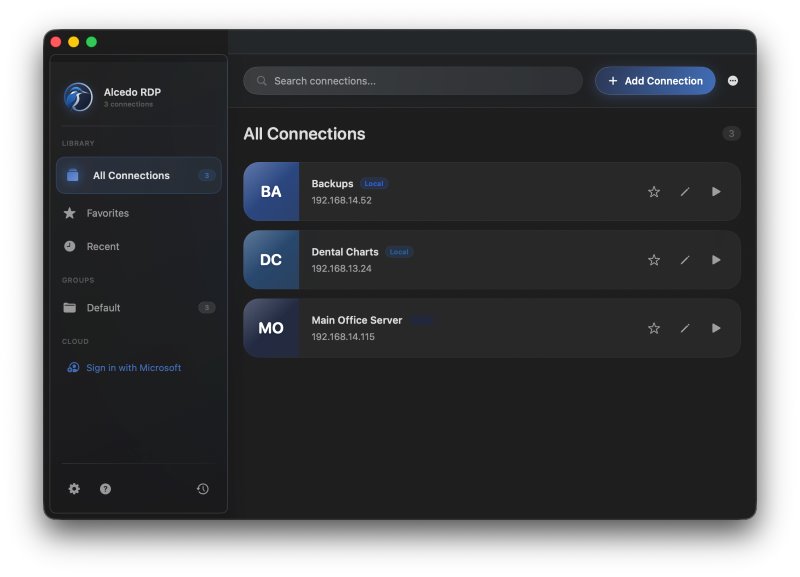
One Library for Every Remote Desktop
Every remote computer you use is saved as a connection and shown as a card in the main window. You can organize connections into groups, star your favorites and find the ones you used recently at a glance. Each connection remembers its own settings, from resolution to which local devices to share.
- Bring your existing connections. Import standard .rdp files, such as those saved by Microsoft Remote Desktop, in a few clicks.
- Move between Mac and Linux. Export your connections and import them into Alcedo on the other platform.
- Passwords stay safe. Saved passwords live in the macOS Keychain on the Mac and in your desktop keyring (GNOME Keyring or KDE Wallet) on Linux, never in plain text.
- One window per session. Keep several sessions open side by side. Connecting again to a session that is already open simply brings its window to the front.
Desktops, RemoteApps and Cloud PCs
Alcedo works with the remote environments businesses actually use. Sign in with your work or school account, and your Azure Virtual Desktop workspaces and Windows 365 Cloud PCs appear next to your own connections, ready to launch. For on-premises Remote Desktop Services, subscribe to your RD Web Access feed and the published desktops and apps show up as a workspace.
RemoteApp programs open as individual windows on your Mac or Linux desktop, so a remote application looks and behaves like a local one. Apps from the same workspace share one session, so opening another app does not disturb the ones you already have open. Remote Desktop Gateway is supported too, so you can reach computers on your corporate network from outside the office.
A Session That Feels Local
Once you are connected, Alcedo stays out of the way. The remote desktop resizes to match the session window, so the picture stays sharp whether you work in a small window or full screen. A floating toolbar gives you full screen, Ctrl+Alt+Delete, the Windows key and disconnect when you need them, and hides when you do not.
Copy and paste text and images between your computer and the session, listen to the session's sound, use your microphone, and share local folders that appear as drives in the remote File Explorer. Every device is opt-in: apart from the clipboard, nothing is shared until you turn it on for a connection.
If your Wi-Fi or VPN drops for a moment, Alcedo reconnects by itself. If the server ends the session on purpose, for example because you signed in from another computer, Alcedo tells you why instead of reconnecting, so two devices never keep pushing each other out of the same session.
Print, Scan and Use Your Webcam: TSPrint, TSScan and TSWebCam Built In
This is where Alcedo goes beyond a standard remote desktop client. TSPrint, TSScan and TSWebCam are part of the app, on Mac and on Linux. Turn on the ones you need in a connection's settings, install the matching server component on the remote computer, and your local devices work inside the session.
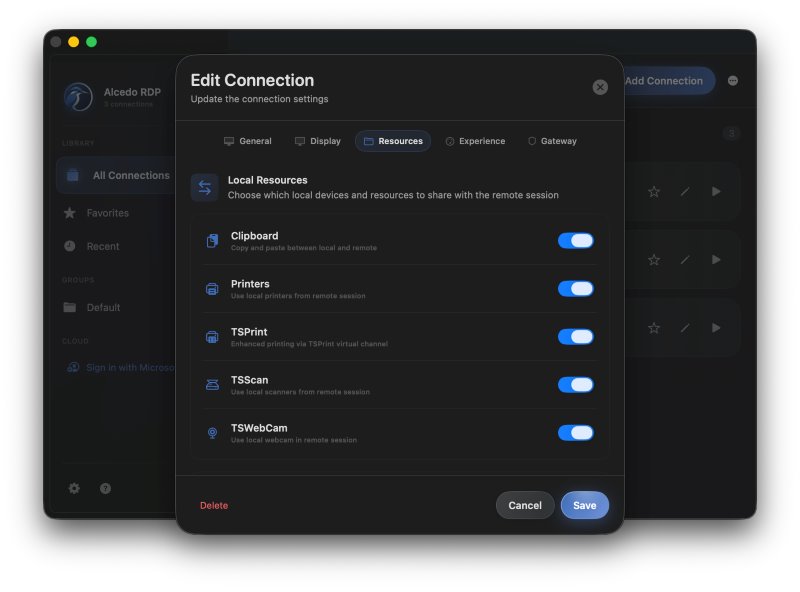
TSPrint: Print to the Printer Next to You
Print from any application in the remote session, and Alcedo opens a print dialog on your own computer with a preview. Choose the printer, copies, paper size, two-sided printing, color mode and tray, then print. There are no printer drivers to install on the server. The Save As, Open and Email options in the TSPrint dialog in the session hand the document to your computer for saving, opening or attaching to an email.
TSScan: Scan Straight Into Your Remote Apps
Put a paper document on the scanner on your desk, start the scan from your remote application, and the pages arrive right there. Choose flatbed or document feeder, duplex, color mode and resolution, and preview before you scan. Any scanner that works on your Mac or Linux computer can be used, whether it is connected over USB or the network.
TSWebCam: Your Own Camera in the Session
Use the camera built into your laptop or a USB webcam inside the remote session. It shows up as a webcam in the remote desktop, ready for video calls, meetings and any application that captures video.
TSPrint, TSScan and TSWebCam each require their server component on the remote computer, and each comes with a 25-day free trial. Start with TSPrint, TSScan or TSWebCam. For licensing options, visit the TerminalWorks website.
Important: Alcedo works only with the current versions of TSPrint, TSScan and TSWebCam. Older versions of the server components are not compatible with Alcedo. The remote computer needs:
If you already use TSPrint, TSScan or TSWebCam, update the server component to the latest version before you connect with Alcedo.
Built for Mac, Built for Linux
On the Mac
- Available free on the Mac App Store, for Macs with Apple silicon running macOS 12.4 or later.
- Sessions can use macOS full screen, so you can swipe between the remote desktop and your other apps.
- Smooth two-finger scrolling and pinch-to-zoom on the trackpad.
- An optional Alcedo icon in the menu bar lists your open sessions and favorite connections, and Alcedo can start when you log in.
- Runs in Apple's App Sandbox: it can only access the folders you choose to share, and macOS asks before the camera or microphone is used.
On Linux
- Free to download, with packages for Ubuntu, Debian, Linux Mint, Pop!_OS and Zorin OS (.deb), Fedora (.rpm), and an AppImage for other distributions.
- Runs on 64-bit PCs (x86_64) and ARM64, on Wayland or X11, with GNOME, KDE Plasma, Cinnamon and other desktops.
- Works with the printers set up on your computer, scanners supported by SANE, and USB or built-in webcams.
- Double-clicking an .rdp file opens it in Alcedo.
Getting Started
- Download Alcedo RDP. Get it from the Mac App Store, or choose your Linux package and follow the Linux installation steps.
- Add your connections. Create a connection, import your .rdp files, or sign in with your work account to see your Azure Virtual Desktop and Windows 365 resources.
- Bring your devices. Turn on TSPrint, TSScan or TSWebCam for a connection and install the current version of the server component on the remote computer (TSPrint 3.2.4.34, TSScan 3.5.5.6 or TSWebCam 1.0.9.10 or later).
Want to see it first? Watch the 55-second Alcedo film. Step-by-step guides are available in the Mac help and the Linux help.
Frequently Asked Questions
Mac and Linux, and it is free on both. On the Mac it requires macOS 12.4 or later and a Mac with Apple silicon (M1 or later). On Linux it runs on 64-bit PCs (x86_64) and ARM64, with packages for Ubuntu, Debian, Linux Mint, Pop!_OS, Zorin OS and Fedora, and an AppImage for most other distributions.
Yes. The client side of TSPrint, TSScan and TSWebCam is built into Alcedo, but each also needs its server component installed on the remote computer. Each comes with a 25-day free trial, and licensing information is available on the TerminalWorks website.
No. Alcedo works only with the current versions of the server components: TSPrint 3.2.4.34, TSScan 3.5.5.6 and TSWebCam 1.0.9.10, or later. Older versions are not compatible. If your server runs an older version, download the latest one from the TerminalWorks website and update it before you connect with Alcedo.
Yes. Sign in with your work or school account and Alcedo lists your Azure Virtual Desktop workspaces and Windows 365 Cloud PCs. You can also subscribe to on-premises RD Web Access feeds from your own Remote Desktop Services deployment.
Yes. Alcedo imports standard .rdp files, including RemoteApp and gateway settings. You can also export your Alcedo connections and import them on another Mac or Linux computer.
Summary
Alcedo RDP gives Mac and Linux users one remote desktop client for Windows PCs, RemoteApps, Azure Virtual Desktop, Windows 365 and Remote Desktop Services, with TSPrint, TSScan and TSWebCam built in, so the devices on your desk work in your remote session too.
Download Alcedo RDP free from the Mac App Store or install it free on Linux, then start your 25-day free trial of TSPrint, TSScan or TSWebCam.
Note: Alcedo requires the current server versions: TSPrint 3.2.4.34, TSScan 3.5.5.6 and TSWebCam 1.0.9.10 or later. Older versions are not compatible.


