If you run printing on a Remote Desktop Services host, a Citrix farm or Azure Virtual Desktop, Microsoft has moved the ground under you twice this year. Under its end-of-servicing plan for third-party printer drivers, on 15 January 2026 Microsoft stopped publishing new third-party printer drivers to Windows Update for Windows 11 and Windows Server 2025 and later, apart from exceptions that pass its review. On 1 July 2026, the driver ranking changed so that Windows prefers Microsoft's IPP inbox class driver over manufacturer drivers when a printer that supports it is newly installed.
Behind both changes sits Windows Protected Print, a mode that blocks third-party print drivers outright. Most coverage so far explains what these features are. This post answers the question that coverage skips: what happens to a session host with dozens of redirected printers, and what should you do about it this quarter?
Key takeaways
- Three different things. Windows Ready Print is the platform, meaning IPP printing through Microsoft's inbox class driver. Windows Protected Print is a mode that enforces it by blocking third-party drivers. Universal Print is Microsoft's cloud print service.
- Version scope matters. Windows Protected Print is available starting with Windows 11 version 24H2 and Windows Server 2025. On Windows Server 2019 or 2022 the mode does not exist yet.
- A future default is planned. Microsoft states that the mode "will be enabled by default at a future date", without naming one.
- Turning it on is destructive. Incompatible printers are uninstalled and third-party drivers are removed from the driver store. Disabling the mode later does not bring them back on its own.
- The Microsoft documentation reviewed for this post does not address redirected printers under the mode, so admins have to reason from the documented driver restrictions and test.
Ready Print, Protected Print and Universal Print are three different things
Windows Ready Print is how Windows now prefers to print. Windows Protected Print is a switch that makes it the only way a machine can print. One is the platform, the other is the enforcement.
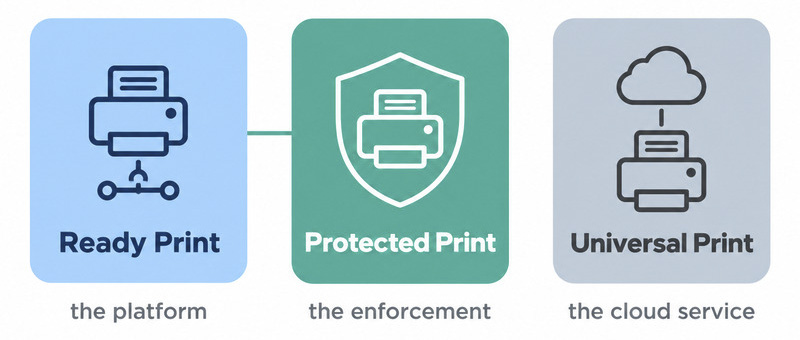
Windows Ready Print means printing through the Internet Printing Protocol with Microsoft's inbox IPP class driver, with eSCL for scanning, against Mopria certified devices. It is now the preferred path, but manufacturer drivers can still be installed and used.
Windows Protected Print uses the same stack with strict enforcement. When enabled, it disables the loading of third-party print drivers, prevents Point and Print from ever installing one, stops port monitors implemented as DLLs from loading while permitting only Microsoft signed binaries for IPP, and restricts legacy print configuration APIs to IPP-only values. Driverless printing supports a limited set of standards-based page description languages such as PWG Raster and PDF, and rendering happens on the client side. Manufacturer-specific features are expected to move to Print Support Apps.
Admins enable the mode through Settings, through Group Policy at Computer Configuration > Administrative Templates > Printers > Configure Windows protected print, or through Intune with the OMA-URI ./Device/Vendor/MSFT/Policy/Config/Printers/ConfigureWindowsProtectedPrint, type String, value <enabled/>.
Universal Print is Microsoft's cloud print service. Microsoft counts it among the driverless paths under Ready Print, but it answers a different question. A printer has to be registered with the service first, either directly or through the Universal Print connector running on a Windows machine. What it does not do is pick up a user's local printers when they sign in over RDP, which is the job redirection exists for.
| Windows Ready Print | Windows Protected Print | Universal Print |
|---|
| What it is | Print platform built on IPP and the inbox class driver | Mode that restricts a machine to Ready Print | Microsoft cloud print service |
| Driver policy | Prefers the inbox IPP driver, manufacturer drivers still allowed | Third-party drivers do not load or install | Not a local driver policy |
| Opt-in or default | Preferred for new installs of printers that support it since 1 July 2026, overridable | Opt-in today, default at an unannounced future date | Separate service with its own licensing |
| Where it runs | Local Windows print stack | Local Windows print stack | Microsoft cloud, printers registered to the service |
| What it means for RDS | New installs of IPP-capable printers on the host default to the inbox driver | Manufacturer drivers on the host are removed | Prints to printers registered with the service; does not redirect a user's local printers at RDP sign-in |
The timeline, and whether it reaches your session hosts yet
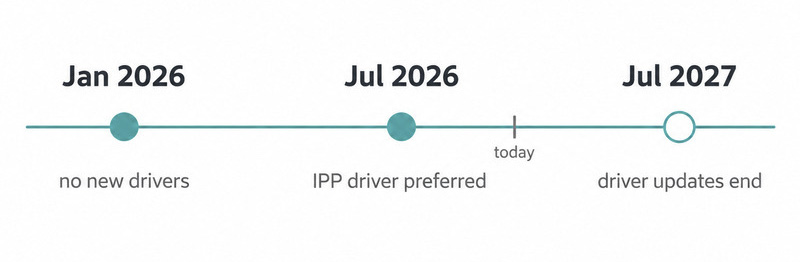
Two of the three milestones in Microsoft's published plan have already passed. The last one arrives on 1 July 2027.
| Date | What happens |
|---|
| 15 January 2026 | For Windows 11 and later and Windows Server 2025 and later, new third-party printer driver submissions are blocked by default and go through a Microsoft review process. Exceptions include devices that cannot support Mopria, fax devices, ARM64 builds, and drivers that target Windows 10 22H2 or Windows Server 2022 and earlier. Existing drivers on Windows Update can still be updated, case by case |
| 1 July 2026 | Printer driver ranking changes to prefer the Windows IPP inbox class driver for newly installed printers that support it |
| 1 July 2027 | Third-party printer driver updates through Windows Update end, except for security fixes |
Two qualifications keep this in proportion.
First, the July 2026 ranking change is narrower than it sounds. Microsoft states that it "only affects newly installed printers and does not change the behavior of existing printer configurations". You can override the ranking in Settings, or with the Group Policy setting Configure Windows Ready Print driver ranking.
Second, version scope. The driver servicing changes apply to Windows 11 and later and Windows Server 2025 and later. Windows Protected Print itself requires Windows 11 version 24H2 or later according to Microsoft's policy documentation; Windows Server 2025 is built on the same release and printer manufacturers' compatibility notices list it alongside. If your session hosts run Windows Server 2019 or 2022, the mode is not available to you today. But hosts you build on Server 2025, Windows 11 based Azure Virtual Desktop session hosts and Windows 365 Cloud PCs on version 24H2 or later are all in scope.
What Microsoft has not published is a date for making the mode the default. It has, however, confirmed the direction. Its own FAQ answers the question "Will Windows protected print mode ever be enabled by default?" with "Windows protected print mode will be enabled by default at a future date." Treat the destination as settled and the timing as open.
Why this lands harder on remote desktop printing than on a laptop
On a laptop, Protected Print mostly swaps one driver for another. On session hosts that rely on manufacturer print drivers, it removes those drivers and breaks every printing path that depends on them. Not every host is in that position: RDS also supports Easy Print, which is tried first by default unless policy changes that. The Microsoft documentation we reviewed does not address redirected printers under the mode, so what follows is our reasoning from the documented driver restrictions rather than a Microsoft statement.
1. Redirection recreates the client's printer inside the session. When a user connects, the session host builds a copy of each client printer. To render jobs for it, the host has historically needed either a matching manufacturer driver installed locally, or Microsoft's Remote Desktop Easy Print driver. On Azure Virtual Desktop and Windows 365, Easy Print is not a fallback but the default: Microsoft's own documentation says printer redirection there "doesn't require drivers to be installed on session hosts" because "the Remote Desktop Easy Print driver is used automatically".
2. Environments that rely on manufacturer drivers accumulate driver sprawl. A terminal server serving home offices and branches with vendor drivers tends to collect dozens of third-party v3 drivers. Each one is vendor code loaded into a context shared by every user on the machine. That is the attack surface Microsoft is closing, and the history behind it is covered in our post on Windows print stack vulnerabilities and RDP printing.
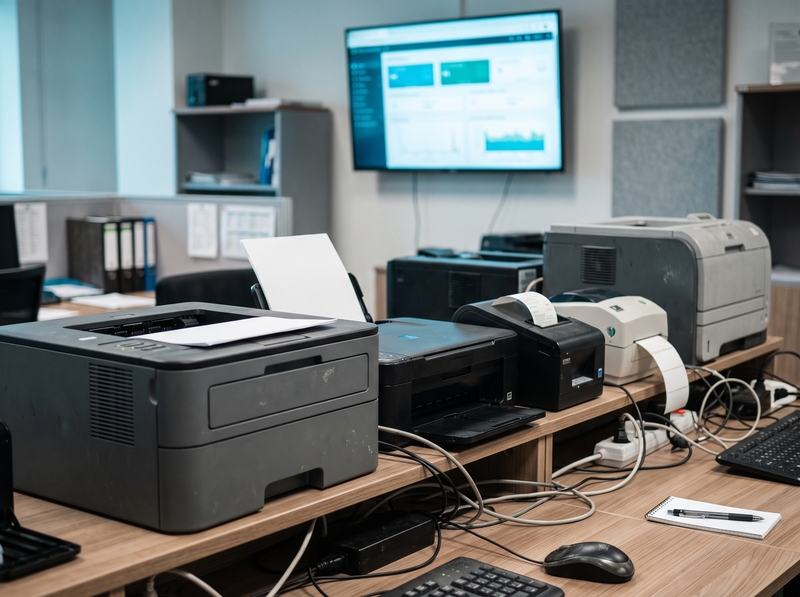
3. Under Protected Print, the manufacturer driver pattern ends. Third-party drivers stop loading and Point and Print will not install them. On any host where the mode is enabled, "just install the vendor driver on the server" is no longer available.
4. The inbox driver needs an IPP path to the device, and ordinary RDP redirection does not provide one. Windows supports driverless IPP both over the network and over USB, so the connection type is not the obstacle. Reach is. The IPP class driver has to talk to a Mopria certified device that the machine running the driver can actually address. A printer sitting on a user's desk at home is visible to the session host only through the RDP printer redirection channel, which is not an IPP transport, and plenty of installed-base printers do not speak IPP at all.
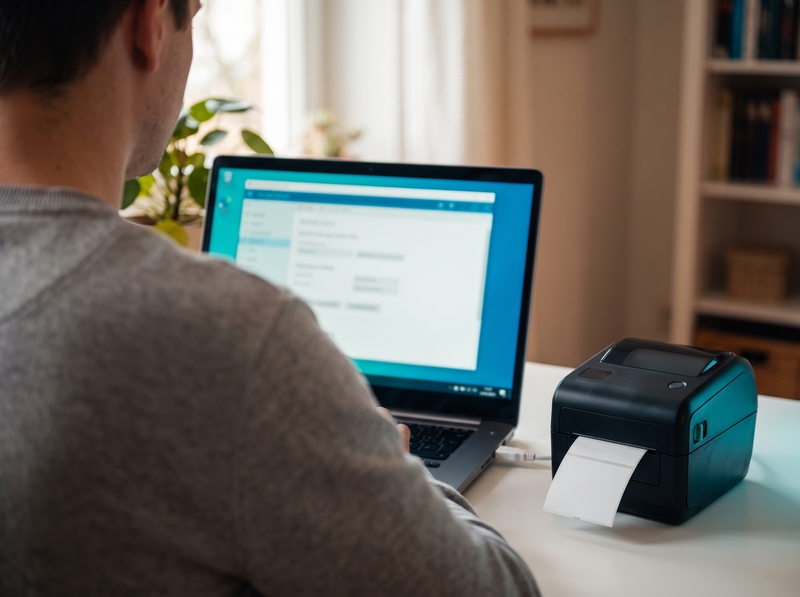
5. Easy Print is a moving target, so test it rather than assume. Easy Print is a Microsoft driver rather than a third-party one, but how it behaves with Protected Print enabled is not confirmed. Its feature coverage is also easy to misjudge in both directions. It proxies the client printer's own settings dialog into the session, so which options actually work depends on the client, the driver and the application. Its long-standing gap has been raw pass-through for label and receipt printers, and Microsoft is now closing part of that: in August 2026 it released RAW printing support for Azure Virtual Desktop in public preview, so that redirection can send RAW jobs instead of XPS. That is AVD-specific, in preview, and unconfirmed with Protected Print, but it belongs in any honest comparison. We compare Easy Print in detail in Microsoft Easy Print vs third-party RDP printing solutions.
6. The question changes shape. For an RDS admin, the question stops being "which driver do I install on the session host" and becomes "does my printing layer need a third-party driver on the session host at all". Taking the third-party driver off the host removes the main thing Protected Print acts on, but not the only thing: the mode also restricts port monitors, print providers and legacy configuration APIs, so the whole print path has to be built for it, not just the driver. The point is that the question moves from "which driver" to "is the entire path clean". Microsoft's own description of redirection on Azure Virtual Desktop, quoted above, points in the same direction.
The same reasoning applies to Citrix Virtual Apps and Desktops and to Azure Virtual Desktop session hosts, although each platform adds its own printing components. Our Citrix printing guide covers how that side differs.
What breaks, what keeps working
On hosts with Protected Print enabled, incompatible printers and the drivers behind them are removed. On hosts where the mode is off, which is still the default, existing configurations and manually installed drivers keep working.
Stops working on hosts with Protected Print enabled
- Manufacturer print drivers installed on the session host. Microsoft is explicit that "non-compatible printers are uninstalled and will be not able to be reinstalled while Windows protected print mode is enabled", and that third-party drivers are removed from the print driver store.
- Point and Print installation of third-party drivers.
- Port monitors implemented as DLLs.
- Printing to devices that are not Mopria certified.
- Label and receipt printers that depend on raw pass-through such as ZPL, EPL or ESC/POS through a server-side driver, since driverless printing supports only a limited set of standards-based page description languages. Microsoft's RAW printing preview for Azure Virtual Desktop changes the picture for AVD, but its compatibility with the mode is not confirmed in the documentation we reviewed. Our guide to POS and label printing over RDP explains why these are the hardest case.
- Remote desktop printing products that install their own third-party print driver on the host. That includes TSPrint 3.x, which we cover honestly in the next section.
Keeps working
- Existing printer configurations after the July 2026 ranking change.
- Manual installation of manufacturer drivers on machines where Protected Print is off.
- Overriding the Ready Print driver ranking through Settings or Group Policy.
- Mopria certified network printers reached directly over IPP.
- Windows Server 2019 and 2022 session hosts, where the mode is not available.
Worth knowing before you flip the switch
Disabling Protected Print later does not restore what it removed. Microsoft states that you will have to manually reinstall any non-compatible printers. Treat enabling it as a change that needs a rollback plan, not a checkbox.
Assess the user's own computer separately. Protected Print enabled there removes manufacturer drivers on the client side, and that can affect remote printing even when nothing changes on the session host, because most redirection designs, TSPrint included, rely on the real printer driver living on the client.
Test before you rely on it
Remote Desktop Easy Print on a host with Protected Print enabled. It is a Microsoft driver, but its behavior under the mode is not confirmed.
Your options, compared
No option is right for every environment. The choice depends on how many printers you redirect, what kind they are, and how soon you want Protected Print on your session hosts.
| Option | How it works | What it costs you | When it is the right call |
|---|
| Do nothing | Hosts keep current drivers, new installs default to the inbox driver | Gradual drift as hosts are rebuilt, no path to Protected Print | Short term, on stable hosts you are not hardening yet |
| Keep Protected Print off | Continue with manufacturer drivers, ranking set by policy | Driver attack surface stays, Windows Update driver updates end 1 July 2027 except security fixes | Specialty printers with no alternative yet |
| Microsoft Easy Print | Generic Microsoft driver renders redirected printers | Feature coverage varies by client, driver and app; raw printing only as an AVD preview; unconfirmed under the mode | Simple office printing with modest formatting needs |
| Universal Print | Microsoft cloud service with printers registered to it | Licensing, and printers must be registered with the service | Organizations standardizing on cloud printing to printers they register and manage |
| Cloud print services | Vendor cloud handles rendering and delivery | Subscription, print data path through the vendor's cloud, feature coverage varies | Distributed teams printing to managed printers |
| Driverless remote desktop printing | Redirects client printers with no third-party driver on the session host | A product to license, deploy and test against your printer mix | Session hosts where you want the mode on and still need to print to users' local devices |
Cloud print services differ considerably from each other. Check each vendor's current documentation for raw printing and local printer support rather than relying on third-party summaries, including this one.
Where TSPrint fits, and what is coming in TSPrint 4
TSPrint redirects printing from a remote session to the user's local printer, so the driver for the actual printer only ever needs to be on the user's own computer, not on the session host. That has always removed the driver sprawl described above.
It does not, in the current version, remove TSPrint itself from the equation. TSPrint 3.x installs its own print drivers on the session host. They are v3 drivers, and TSPrint also registers its own port monitor, which Windows loads as a DLL. Those are two of the exact things Windows Protected Print is built to stop. So on a host where the mode is enabled, Windows removes TSPrint's printers and drivers along with everyone else's, and TSPrint 3.x cannot print. We would rather say that here than have you discover it during a rollout.
That gap is what TSPrint 4 is being built to close. TSPrint 4 is currently in testing and will let you choose the print engine when you install the server component:
- Legacy: the classic TSPrint printer drivers with dynamic printer redirection.
- IPP: a driverless engine that prints through the TSPrint Server service using the driver already built into Windows, and works whether or not Protected Print is enabled.
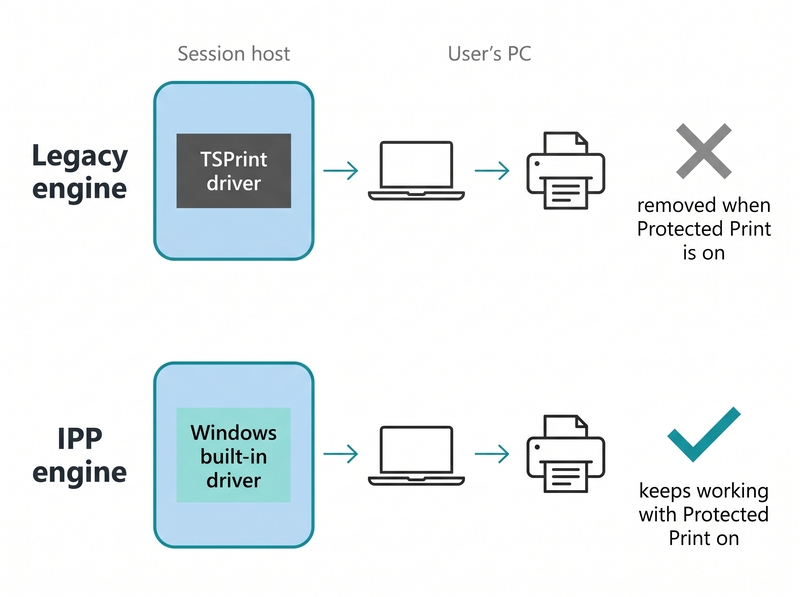
With the IPP engine, no additional third-party print driver is installed on the session host. Windows sees the redirected printers as ordinary printers using its own built-in driver, which is why it accepts them with the mode on. Redirection is not a one-to-one copy of the client printer in this model. A new printer is created in the session that aims to match the capabilities of the printer on the client as closely as the standards-based path allows, which will not always be identical to what a manufacturer driver exposes.
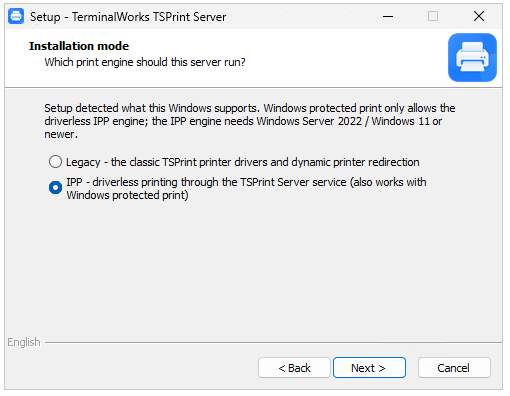
TSPrint 4 setup checks what the host supports and offers the matching print engine.
Setup makes that choice for you where there is only one sensible answer. On a host with Protected Print already enabled, it offers the IPP engine. Where both engines can run, it defaults to Legacy, and an upgrade from 3.x stays on the engine already installed.
Some honest notes while testing continues. Raw pass-through for label and receipt printers, and printing from DOS applications, both work in the Legacy engine today, and the equivalents for the IPP engine are still being finished, so we will confirm the details at release rather than promise them now. The IPP engine requires TSPrint Client 4.0 or newer, and Mac and Linux client support for it is still in development, so Legacy remains the engine for those clients for the moment. Testing so far has been on classic RDS, with Citrix and Azure Virtual Desktop testing in progress.
We are building this on more than a decade of remote desktop printing work with over 30,000 companies. TSPrint 4 brings more than an engine choice, and we will have more to say about the rest of it closer to release.
What to do this quarter
The most useful thing you can do now is find out which of your session hosts depend on third-party drivers, and test one host with the mode on.
- Inventory the drivers on your session hosts.
Get-PrinterDriver in PowerShell lists them per host. - Check which hosts are even in scope. Protected Print needs Windows 11 version 24H2 or Windows Server 2025. Your Server 2019 and 2022 hosts are not affected yet, but your next golden image probably is.
- Identify raw, label and receipt printers first. They are the hardest case and the most likely to block a rollout.
- Test on one non-production host that mirrors production, using real users' redirected printers, and plan the rollback before you enable anything.
- Set the Configure Windows Ready Print driver ranking policy deliberately on hosts and golden images, so the behavior is a decision rather than a default.
- Decide whether your printing layer needs a session-host driver at all. That answer determines your long-term path.
Frequently asked questions
Microsoft's documentation does not address redirected printers under the mode. Based on the documented restrictions, redirection that depends on manufacturer drivers on the session host stops working, because those drivers are removed. Easy Print is a Microsoft driver, but its behavior under the mode is not confirmed, so test it first.
Not today. It is opt-in and is enabled through Settings, Group Policy or Intune. Microsoft has confirmed that the mode "will be enabled by default at a future date" but has not published that date. A default is not the same as a requirement, and Microsoft has not said the mode will become mandatory.
Windows Ready Print is the platform: printing over IPP with Microsoft's inbox class driver to Mopria certified devices, while still allowing manufacturer drivers. Windows Protected Print is a mode on the same stack that blocks third-party drivers entirely. Ready Print is preferred, Protected Print makes it the only option.
No. Microsoft states that the July 2026 ranking change "only affects newly installed printers and does not change the behavior of existing printer configurations". You can also override the ranking in Settings or with the Configure Windows Ready Print driver ranking policy.
Yes, as long as Protected Print is not enabled on that server. Microsoft confirms that vendor-supplied drivers can still be installed from separate installation packages. With the mode enabled, third-party drivers do not load and Point and Print will not install them.
Incompatible printers are uninstalled and cannot be reinstalled while the mode is on, and third-party drivers are removed from the print driver store. Microsoft states that if you disable the mode later, you have to manually reinstall any non-compatible printers. Plan the rollback before you enable it.
On hosts without the mode, they work as before. With it enabled, driverless printing supports only a limited set of standards-based page description languages, so printers that rely on raw ZPL, EPL or ESC/POS pass-through via a server-side driver are the most likely to fail. Microsoft's RAW printing support for Azure Virtual Desktop is in public preview as of August 2026, but it is AVD-only and unconfirmed with the mode. Test these printers before enabling the mode anywhere.
According to Microsoft's plan, third-party printer driver updates through Windows Update end on that date, except for security fixes. Existing drivers can still be installed, either from Windows Update or from a manufacturer's installation package. The date does not itself make Protected Print mandatory.
Next steps
If your session hosts still depend on manufacturer drivers, this is a good quarter to find out what a driver-free approach would look like before Protected Print reaches your environment. You can download TSPrint and try it free for 25 days with your own printers.
One thing to be clear about: the current download is TSPrint 3.x with the Legacy engine. That is the right build for session hosts where Protected Print is not enabled, and it is the way to test how redirection behaves in your environment today. The IPP engine described above arrives with TSPrint 4, which is still in testing. Follow this blog and we will post when it is available. When you are ready, licensing options are on the purchase page.
Sources
Microsoft documentation this post relies on. Microsoft Learn pages show a revision date rather than a publication date, so all sources were reviewed on 17 September 2026 and are listed without individual dates unless the item itself is dated.
- End of Servicing Plan for Third-Party Printer Drivers on Windows, Microsoft Learn
- Legacy printer driver submission process, Microsoft Learn
- Windows Ready Print and Windows Protected Print Mode, Microsoft Learn
- Windows Protected Print Mode, Microsoft Learn
- Windows Protected Print Mode for Enterprises, Microsoft Learn
- Windows Protected Print Mode FAQ, Microsoft Learn
- More information on Windows protected print mode for enterprises and developers, Microsoft Learn
- Policy CSP - Printers, Microsoft Learn
- Introducing Windows Ready Print and Modernized Driver Selection, Microsoft Tech Community, 2026
- Configure printer redirection over the Remote Desktop Protocol, Microsoft Learn
- Printer redirection does not work in Remote Desktop Services, Microsoft Learn
- What's new in Azure Virtual Desktop, August 2026, Microsoft Learn
- What is the Universal Print connector, Microsoft Learn
- Printing From Windows 11, Mopria Alliance, 13 November 2021
- Notice Regarding the Windows Protected Print Mode Feature, FUJIFILM Business Innovation, 30 September 2024, updated 13 January 2026


